
CIVE 201 Lecture Vector Analysis Lecture, Spring 2015
American University of Beirut · Engineering Drawings & Tools · 40 pages · Dr. Ibrahim Alameddine



Showing the first 10 of 40 pages. Download the PDF to see all of it.
More CIVE 201 files
- Lecture Creating Data In GIS · Spring 2015LabView
- Lecture GIS 2 · Spring 2015LabView
- Lecture GIS 3 · Spring 2015LabView
- Lecture GIS 4 · Spring 2015LabView
- Lecture GIS 5 · Spring 2015LabView
- Lecture Revit Fifth Lecture · Spring 2015LabView
- Lecture Revit First Lecture · Spring 2015LabView
- Lecture Revit Fourth Lecture · Spring 2015LabView
Show the text of this lab
ArcGIS
4/22/2014
CIVE 220 A
1
Vector Analysis
in ArcGIS
Vector GIS Analysis
• There are multiple ways of conducting
geoprocessing in ArcGIS:
– Tools �
�
�
� Dialog Box
ArcGIS
4/22/2014
CIVE 220 A
2
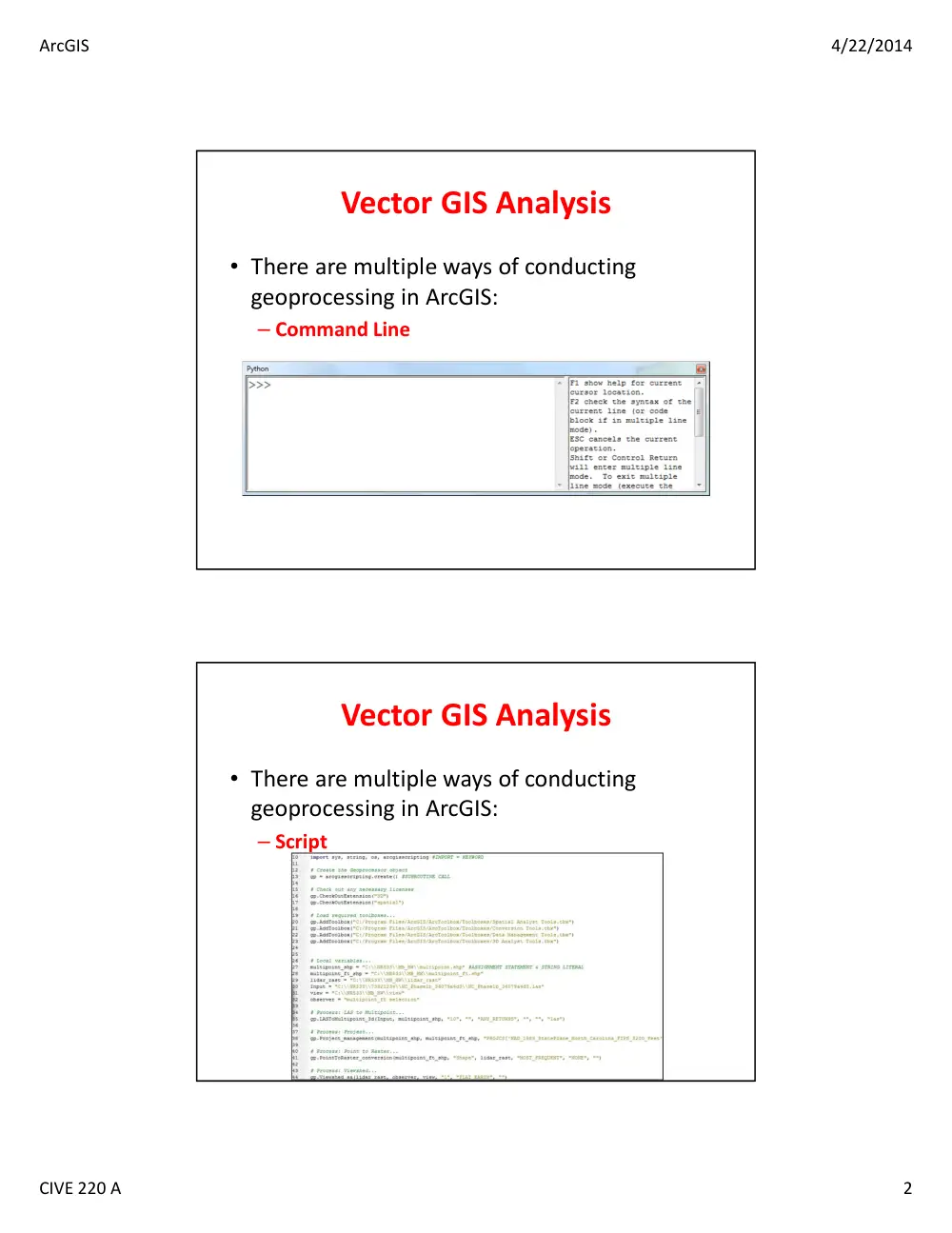
Vector GIS Analysis
• There are multiple ways of conducting
geoprocessing in ArcGIS:
– Command Line
Vector GIS Analysis
• There are multiple ways of conducting
geoprocessing in ArcGIS:
– Script
ArcGIS
4/22/2014
CIVE 220 A
3
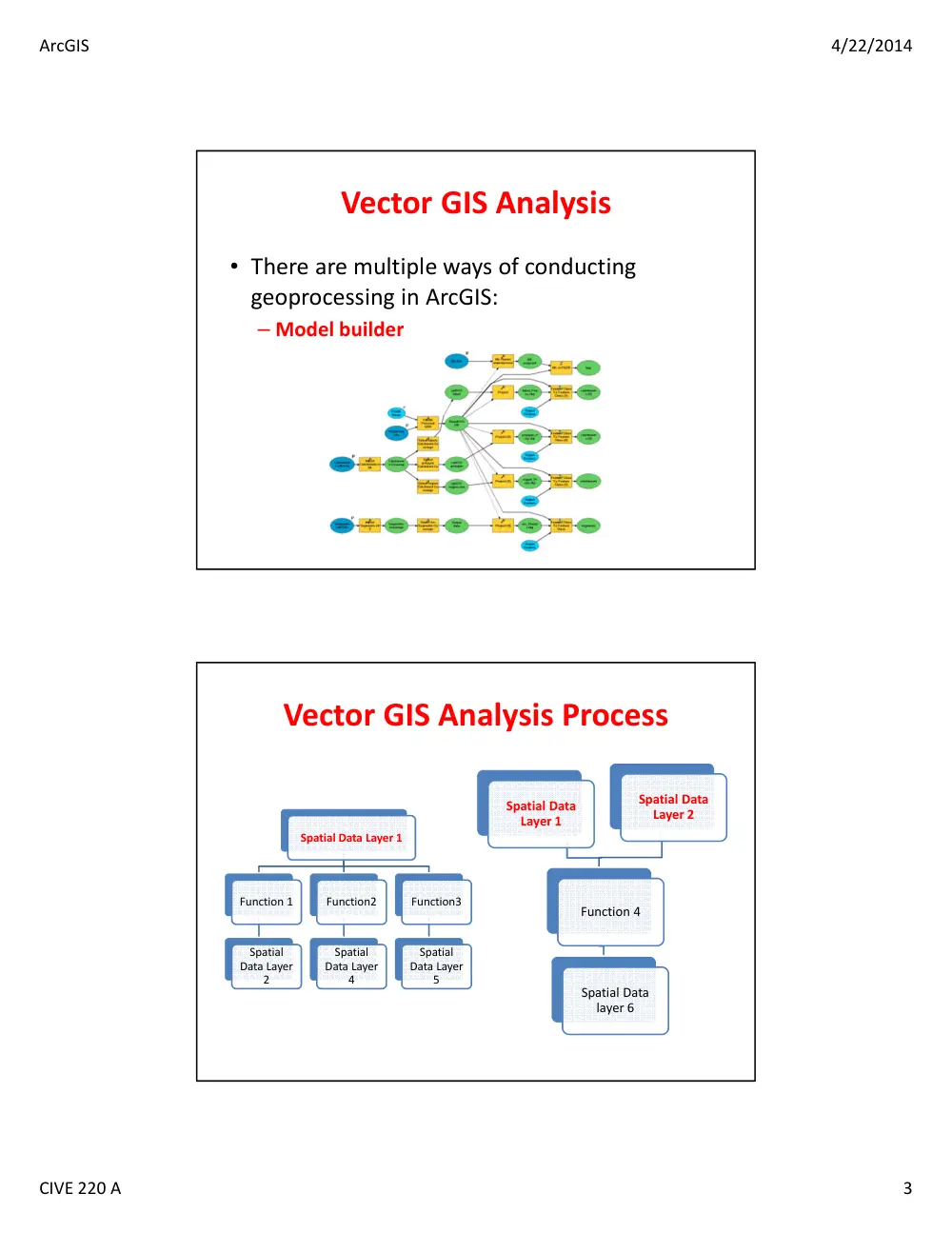
Vector GIS Analysis
• There are multiple ways of conducting
geoprocessing in ArcGIS:
– Model builder
Vector GIS Analysis Process
Spatial Data
Layer 1
Spatial Data
Layer 2
Function 4
Spatial Data
layer 6
Spatial Data Layer 1
Function 1
Spatial
Data Layer
2
Function2
Spatial
Data Layer
4
Function3
Spatial
Data Layer
5
ArcGIS
4/22/2014
CIVE 220 A
4
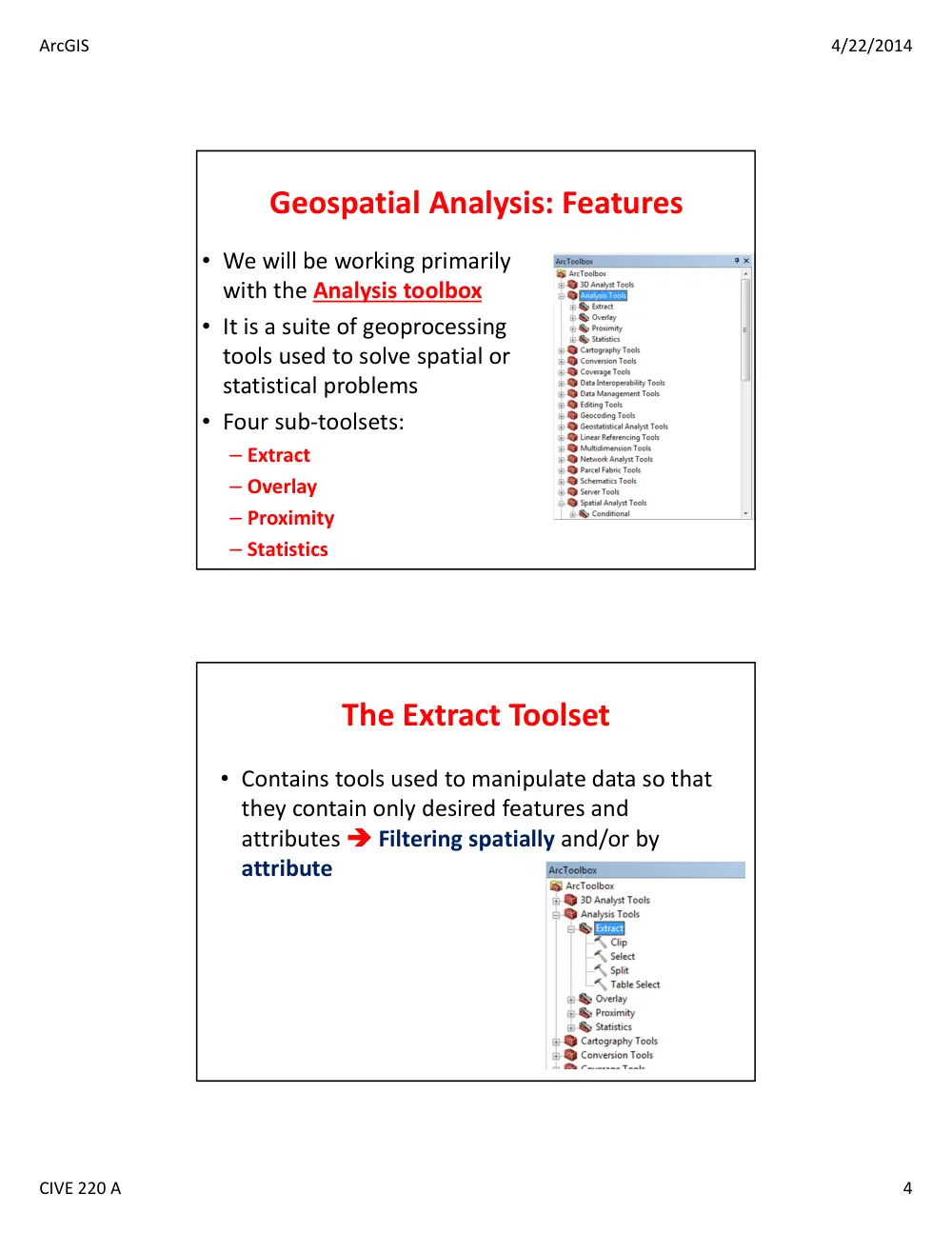
Geospatial Analysis: Features
• We will be working primarily
with the Analysis toolbox
• It is a suite of geoprocessing
tools used to solve spatial or
statistical problems
• Four sub-toolsets:
– Extract
– Overlay
– Proximity
– Statistics
The Extract Toolset
• Contains tools used to manipulate data so that
they contain only desired features and
attributes �
�
�
� Filtering spatially and/or by
attribute
ArcGIS
4/22/2014
CIVE 220 A
5
Clip
• Clip used for extracting features or parts of features from a
feature class
• This tool uses a polygon boundary to cut features and their
attributes from a feature class
• The output feature class will have the attributes of the
input features
• The input features may be of any geometry type, but clip
features must have polygon geometry
Clip
• If your cookie cutter includes many polygons
what will happen?
– It will take the first polygon according to ID
ArcGIS
4/22/2014
CIVE 220 A
6
Clip: An Example
• I have the road network of Lebanon and I just
want to select the roads in the Beirut
Mohafaza
– What is my Input Feature?
– What is my Clip Feature?
– What is my Output Feature?
– What Attributes will my Output have?
• It is “Cookie cutting” of one layer using
another layer
How close the vertices
have to be to included in
the clip
ArcGIS
4/22/2014
CIVE 220 A
7
Split
• Breaks the input features and stores them in
multiple output datasets
• This tool breaks the features into multiple features
• The boundary of each unique value in the Split Field
is used to split the Input Features
• The Split Features must be polygon(s)
• The feature attribute table for output � same as
the Input Features attribute table
ArcGIS
4/22/2014
CIVE 220 A
8
Split
• The split field data type must be of type character
• The output feature classes will be named for the
split field values � They must start with a valid
character
• The number of output feature classes equals the
total number of unique values in the split field
Split: An Example
• I have the road network of Lebanon and I
want to split the roads by Mohafaza
– What is my Input Feature?
– What is my Split Feature?
– What type of files will I generate?
– How many files will I generate?
– Can I name each layer directly?
– What attributes will my outputs have?
ArcGIS
4/22/2014
CIVE 220 A
9
ArcGIS
4/22/2014
CIVE 220 A
10
Select
• Extracts selected features from an input feature
class or layer and stores them in the output
feature class based on a search criteria
SQL based!
Similar to Queries in Access
•
Mathematical operators
such as +, -, *, / can also
be used in queries
•
Example:
– Searching for large
undeveloped
properties
– I would then use this
expression that would
find large properties
and then restrict those
to only properties that
are undeveloped.
•
[acres]>= 10 AND
[property]
=“Undeveloped”
ArcGIS
4/22/2014
CIVE 220 A
11
Select: An Example
• I have the road network of Lebanon and I
want to select only the roads that can be
classified as “International-Dual” �
�
�
� Select by
attribute!
– What is my Input Feature?
– How many files will I generate?
– What Attributes will my outputs have?
ArcGIS
4/22/2014
CIVE 220 A
12
Select By Attribute
• You can use the “Select by Attribute” from the
Select menu in ArcGIS
– It does the selection
– Does not create a new file directly from your
selection
ArcGIS
4/22/2014
CIVE 220 A
13
Overlay Toolset
• Contains tools for topological
integration of features based on
symmetry
• Has many tools:
– Erase
– Identify
– Intersect
– Spatial Join
– Symmetrical Difference
– Union
– Update
Erase
• Erase: creates a feature class from those features or
portions of features outside the erase feature class
• Input feature polygons that are coincident with erase
feature polygons will be removed
• The erase features must be polygons
ArcGIS
4/22/2014
CIVE 220 A
14
Erase: An Example
• Let us assume that I want to keep all the roads
except for the roads in Beirut
– What is my Input Feature?
– What is my Erase Feature?
– How many files will I generate?
– What Attributes will my output have?
ArcGIS
4/22/2014
CIVE 220 A
15
Intersect
• Intersect: builds a new feature class from the
intersecting features common in both feature classes
• The input features can be point, multipoint, line, or
polygon
• If the inputs have different geometry types � the
output feature class geometry type will default to the
same as the input features with the lowest dimension
geometry!
ArcGIS
4/22/2014
CIVE 220 A
16
ArcGIS
4/22/2014
CIVE 220 A
17
Intersect: An Example
• Somehow similar to Identify?
• But allows me to intersect multiple layers (>2) at
once and the layers NEED NOT be of the same
geometry!
Union
• Union: builds a new feature class by combining the
features and attributes of each feature class
• All input feature classes and feature layers must
have polygon geometry
• Can have more than 2 features at the same time
ArcGIS
4/22/2014
CIVE 220 A
18
Union
Polygons
only
A list of
Polygons
Union: An Example
• Let us assume I have a project that stretches
over Beirut and Mount Lebanon
• I want to combine the two shapefiles into one
file
• Attribute Information from which layer?
ArcGIS
4/22/2014
CIVE 220 A
19
Image source: ESRI Arc Info electronic help
ArcGIS
4/22/2014
CIVE 220 A
20
Union vs. Intersection
• Union is the union of two overlapping set of
features and intersection is the intersection
Layer 1
+
Layer 2
Intersect:
“1 AND 2”
“1 OR 2”
Union:
Layer 2
Layer 1
+
Union vs. Intersection: Example
• Here’s an example. Say we have one layer that shows
us where the forest cover (1) is and another that
shows us the location of government owned land (2)
2
1
ArcGIS
4/22/2014
CIVE 220 A
21
Union vs. Intersection: Example
• Union gives us land that is EITHER forested OR that is
a government owned
Union vs. Intersection: Example
• Intersect gives us land that is BOTH, and preserves all
polygon boundaries within that common extent
ArcGIS
4/22/2014
CIVE 220 A
22
Identity
• Identity: Intersects two feature classes
• The output contains ALL the input features as well
as those overlapping features of the identity
feature class
– The order of the layers makes a difference!
• The input features can be a point, multipoint, line,
or polygon
• The identity feature must be polygon
Identity
• Identity performs an intersection but doesn’t retain ALL
features
– Keeps all “input” layer features
– Keeps/creates only overlapping “identity” features and
their attributes
Kept, as with union
Common
(intersecting) areas
Not kept, as
with intersect
ArcGIS
4/22/2014
CIVE 220 A
23
Identify: An Example
• Somehow in between a Union and an
Intersection
ArcGIS
4/22/2014
CIVE 220 A
24
Clip
Identify
Symmetrical Difference
• The opposite of intersection: Removes the
areas in common and keeps the features that
do not overlap
• Uses the boolean operation of XOR
• Like Union, layers have to be of the same type
ArcGIS
4/22/2014
CIVE 220 A
25
Proximity Toolset
• Helps answer one of the most basic questions asked
of a GIS
– “What's near what?“
• For example:
– How close is this well to the landfill?
– Do any roads pass within 1,000 meters of a stream?
– What is the distance between two locations?
– What is the nearest or farthest building from the epicenter
of an earthquake?
– What is the distance between each feature in a layer and
the features in another layer?
– What is the shortest street network route from some
location to another?
Proximity Toolset
• Has many tools:
– Buffer
– Multiple Ring Buffer
– Point Distance
– Near
– Generate Near table
– Create Thiessen Polygons
ArcGIS
4/22/2014
CIVE 220 A
26
Buffer
• Creates buffer polygons around input features
to a specified distance
• Input can be point, line, or polygon
• Output is always a polygon
• Distance:
– The distance can be specified by the user
– The distance can be specified in the attribute table
� variable buffer distance
Buffer
ArcGIS
4/22/2014
CIVE 220 A
27
Buffers
• Buffers are great for
determining areas of
influence
• It will create:
– Circular regions around your
points
– Corridors around your lines
– Wider regions around your
polygons
Buffering a Point
R=
� − �1 � + � − �1 �
ArcGIS
4/22/2014
CIVE 220 A
28
Buffering a Line
Offsets created around the input line feature
Buffer derived from the offsets
Buffering a Line
ArcGIS
4/22/2014
CIVE 220 A
29
Street Study
- Polygon buffer created 2 Km around selected streets
Line Buffer Example
Buffering a Polygon
ArcGIS
4/22/2014
CIVE 220 A
30
Point Buffer Example
• Polluting company buffers
– Added schools
– Added population
GIS TUTORIAL 1 - Basic Workbook
74
Polygon buffer 20’ around lights in a parking lot
Campus Safety
ArcGIS
4/22/2014
CIVE 220 A
31
Line buffer example
• Businesses within .25 miles of a selected
street
76
GIS TUTORIAL 1 - Basic Workbook
Access to public transportation
- Polygon buffer created around Bus Routes
- Shows areas within 15 minute walking distance from routes
Line Buffer Example
ArcGIS
4/22/2014
CIVE 220 A
32
Example of Polygon Buffer
Polluting Companies within a 500m buffer of a
River
Fixed line
Variable distance (field)
What kind of a buffer?
FULL: buffers will be generated on both sides. This is the
default.
LEFT: For line input features, buffers will be generated on
the left of the line. This option is not valid for polygon
input features
RIGHT: For line input features, buffers will be generated on
the right of the line. This option is not valid for polygon
input features
OUTSIDE_ONLY: For polygon, buffers will be generated
only outside the input polygon (the area inside the input
polygon will be erased from the output buffer)
ArcGIS
4/22/2014
CIVE 220 A
33
Example: Variable Width Buffering
Noise affected area as a function of traffic flow
Fixed line
Variable distance (field)
What kind of a buffer?
FULL: buffers will be generated on both sides. This is the
default.
LEFT: For line input features, buffers will be generated on
the left of the line. This option is not valid for polygon
input features
RIGHT: For line input features, buffers will be generated on
the right of the line. This option is not valid for polygon
input features
OUTSIDE_ONLY: For polygon, buffers will be generated
only outside the input polygon (the area inside the input
polygon will be erased from the output buffer)
How can I get the inside of
a polygon?
ArcGIS
4/22/2014
CIVE 220 A
34
NONE: An individual buffer for each
feature is maintained, regardless of
overlap. This is the default
ALL: All buffers are dissolved together
into a single feature, removing any
overlap
LIST: Any buffers sharing attribute
values in the listed fields (carried over
from the input features) are dissolved
Not dissolved
Dissolved
ArcGIS
4/22/2014
CIVE 220 A
35
Multiple Buffers
• Creates multiple ring buffers at specified
distances around the input features
• These buffers can optionally be merged and
dissolved
Add your distances
here
Specify the unit here
Specify the name of
the field that will
hold the distance of
the buffer
ArcGIS
4/22/2014
CIVE 220 A
36
Example
• Areas affected
if I have a blast
at the Dora
Petroleum Hub
– 1 tank
– 2 tanks
– 3 tanks
Example
• Buffering around a
river in case of a
flood
– Different flood
intensities �
different flood
maps
ArcGIS
4/22/2014
CIVE 220 A
37
Near
• For each feature in the Input Layer, the Near tool
finds the nearest feature in same or other layer(s)
• Adds attributes such as distance to attributes of
the input table � You DO NOT create a new file
• Works with points, lines, and polygons
• There can be one or more entries of near features
• You can specify a search radius
Location if checked will save the X and Y of the nearest feature
Angle if checked will save the angle to the nearest feature
ArcGIS
4/22/2014
CIVE 220 A
38
Near
Point Distance
• Works ONLY with point layers
• For each point in the input layer, this tool finds
the distance to EVERY OTHER point in the same or
in another point layer
• Results are recorded in a new table
• To limit the number of calculations, using a Search
Radius is recommended for large datasets
because the output table can get really BIG!
ArcGIS
4/22/2014
CIVE 220 A
39
Point Distance
ArcGIS
4/22/2014
CIVE 220 A
40
Create Thiessen Polygons
• Creates Thiessen polygons from point input
features
• Each Thiessen polygon contains only a single point
input feature
• Any location within a Thiessen polygon is closer to
its associated point than to any other point input
feature
• Used a lot to assign monitoring stations (e.g.
weather stations)