
EDUC 220 Final, Fall 2005
American University of Beirut · Instructional Media and Techniques · 2 pages
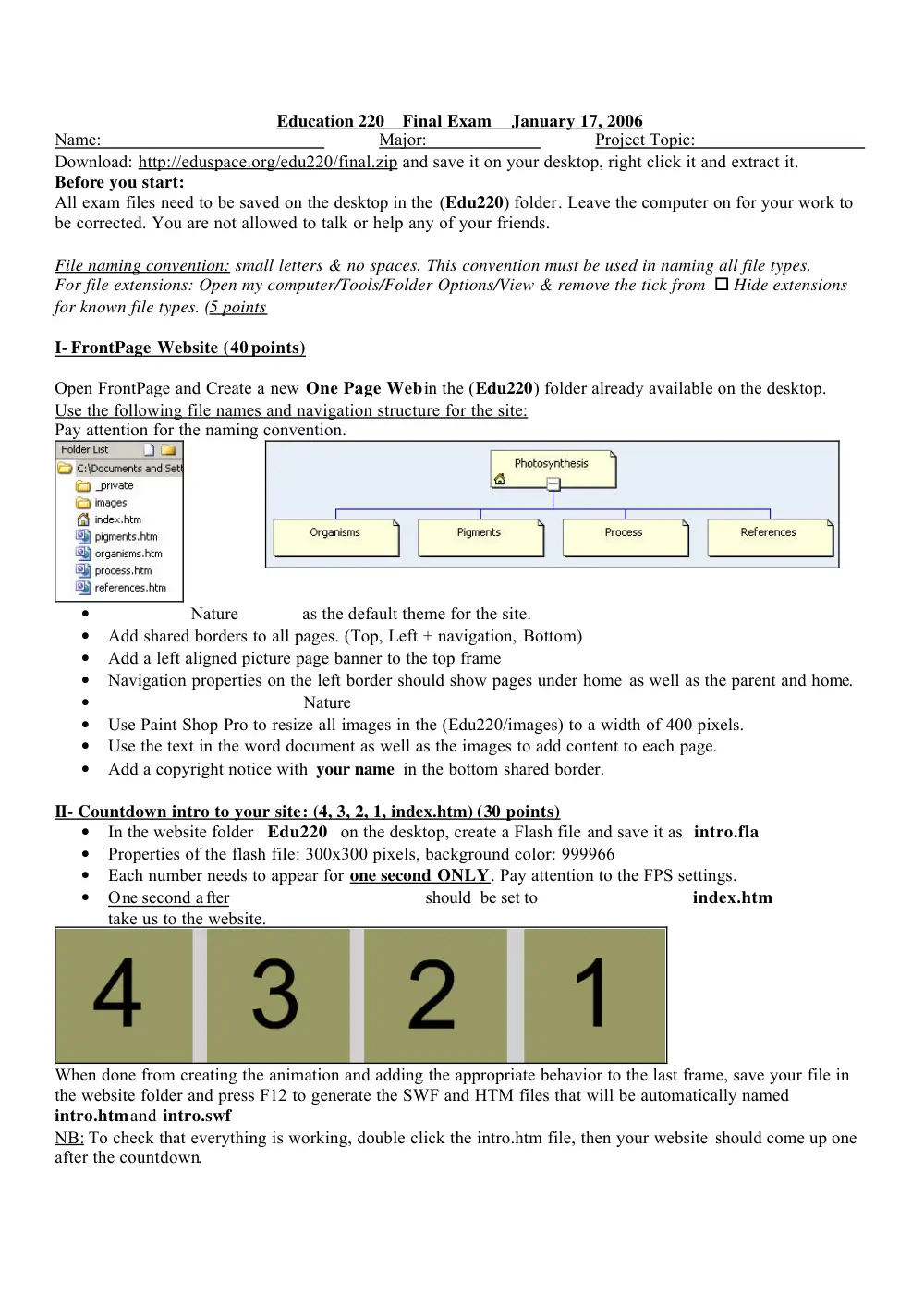
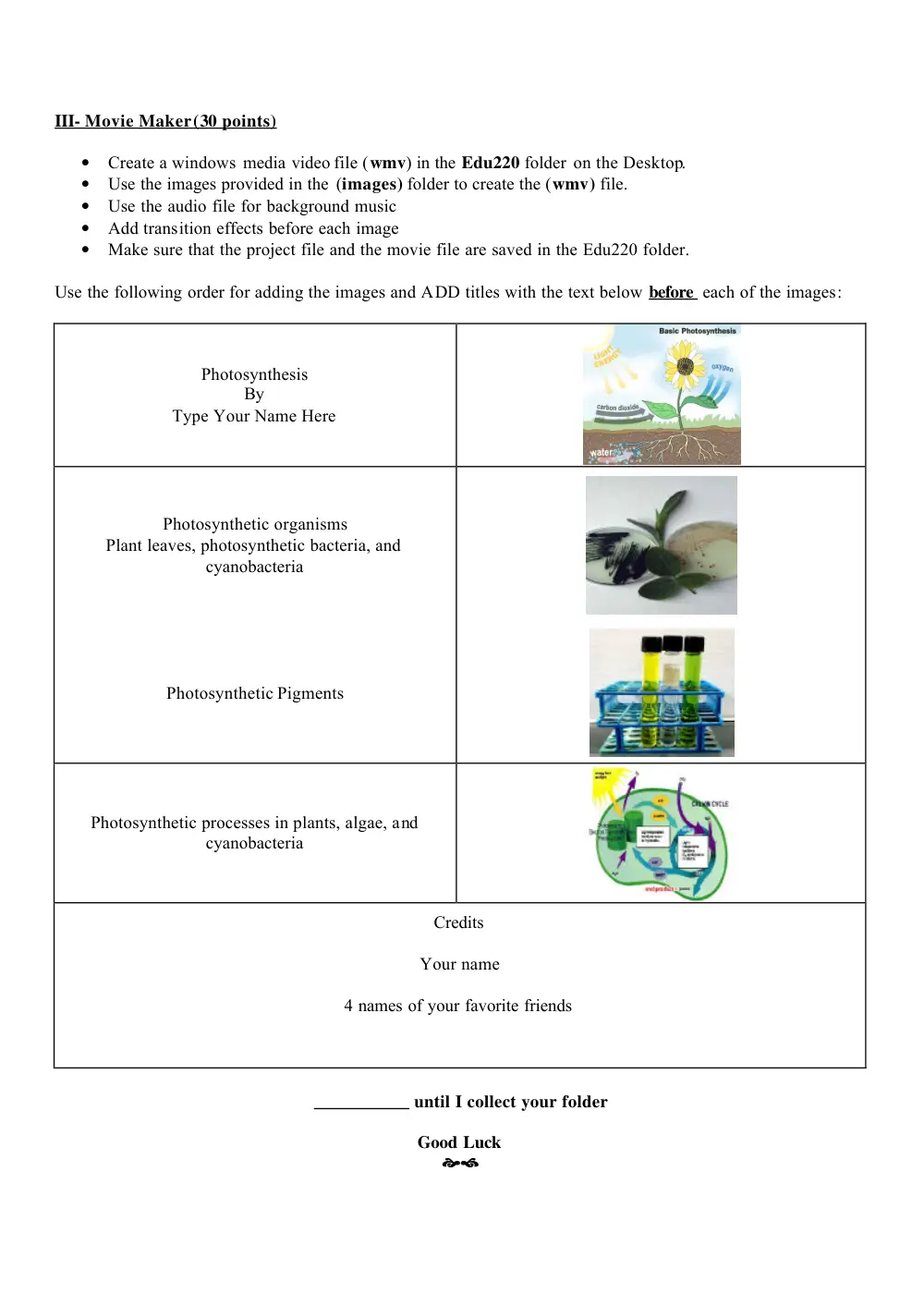
Show the text of this final exam
Education 220 Final Exam January 17, 2006
Name:
Major:
Project Topic:
Download: http://eduspace.org/edu220/final.zip and save it on your desktop, right click it and extract it.
Before you start:
All exam files need to be saved on the desktop in the (Edu220) folder. Leave the computer on for your work to
be corrected. You are not allowed to talk or help any of your friends.
File naming convention: small letters & no spaces. This convention must be used in naming all file types.
For file extensions: Open my computer/Tools/Folder Options/View & remove the tick from � Hide extensions
for known file types. (5 points
I- FrontPage Website (40 points)
Open FrontPage and Create a new One Page Web in the (Edu220) folder already available on the desktop.
Use the following file names and navigation structure for the site:
Pay attention for the naming convention.
•
Nature
as the default theme for the site.
• Add shared borders to all pages. (Top, Left + navigation, Bottom)
• Add a left aligned picture page banner to the top frame
• Navigation properties on the left border should show pages under home as well as the parent and home.
•
Nature
• Use Paint Shop Pro to resize all images in the (Edu220/images) to a width of 400 pixels.
• Use the text in the word document as well as the images to add content to each page.
• Add a copyright notice with your name in the bottom shared border.
II- Countdown intro to your site: (4, 3, 2, 1, index.htm) (30 points)
• In the website folder Edu220 on the desktop, create a Flash file and save it as intro.fla
• Properties of the flash file: 300x300 pixels, background color: 999966
• Each number needs to appear for one second ONLY. Pay attention to the FPS settings.
• One second after
should be set to
index.htm
take us to the website.
When done from creating the animation and adding the appropriate behavior to the last frame, save your file in
the website folder and press F12 to generate the SWF and HTM files that will be automatically named
intro.htm and intro.swf
NB: To check that everything is working, double click the intro.htm file, then your website should come up one
after the countdown.
III- Movie Maker (30 points)
• Create a windows media video file (wmv) in the Edu220 folder on the Desktop.
• Use the images provided in the (images) folder to create the (wmv) file.
• Use the audio file for background music
• Add transition effects before each image
• Make sure that the project file and the movie file are saved in the Edu220 folder.
Use the following order for adding the images and ADD titles with the text below before each of the images:
Photosynthesis
By
Type Your Name Here
Photosynthetic organisms
Plant leaves, photosynthetic bacteria, and
cyanobacteria
Photosynthetic Pigments
Photosynthetic processes in plants, algae, and
cyanobacteria
Credits
Your name
4 names of your favorite friends
until I collect your folder
Good Luck
�
��
�