
EECE 430 Other, Spring 2008
American University of Beirut · Software Engineering · 11 pages
Showing the first 10 of 11 pages. Download the PDF to see all of it.
More EECE 430 files
Show the text of this file
American University of Beirut
Highly Dynamic Destination-Sequenced Distance-Vector
Routing (DSDV) for Mobile Computers
Prototype Document
EECE 430
Pr. Hassan Ali Artail
Monday, August 11, 2008
Beirut, 2008
Table of Contents
Table of Figures....................................................................................................- 2 -
User Application...................................................................................................- 3 -
Send a textual message or file:.............................................................................................- 3 -
Download one or more files:................................................................................................- 6 -
Get a list of computers:.........................................................................................................- 8 -
User Manual.......................................................................................................- 10 -
System Purpose and objectives..........................................................................................- 10 -
System Capabilities and functions.....................................................................................- 10 -
System Features, Characteristics, and Advantages...............................................................- 11 -
Table of Figures
Figure 1: Snapshot of main window of interface #1...................................................................- 5 -
Figure 2: Snapshot with drop-down menu expanded for interface #1........................................- 6 -
Figure 3: Browse window for file uploading..............................................................................- 7 -
Figure 4: Download main window..............................................................................................- 8 -
Figure 5: Snapshot of the user command menu..........................................................................- 9 -
2
User Application
This part of the Prototype Document covers the user interface (UI) of our routing program. We
will present different snapshot of the multiple interfaces that user uses to interact with the
program. There are three major interfaces for our program:
1. Send a textual message or file:
where the user selects a destination to send a message to.
2. Download one or more files:
where the user selects another user to search and download
one or more files from him.
3. Get a list of computers:
where the user has a choice between multiple requests of
information about his neighbors.
The different interfaces are illustrated below with explanation about the choice of the elements in
the screen prototypes.
1. Send a textual message or file:
As explained shortly before, this interface allows one user to send a textual message to a
destination of his choice by either selecting his IP from a list or writing it manually. He can
also attach a file to his message. The user may also request a delivery report about the status
of his sent message and choose whether or not he wishes to save the sent message to drafts.
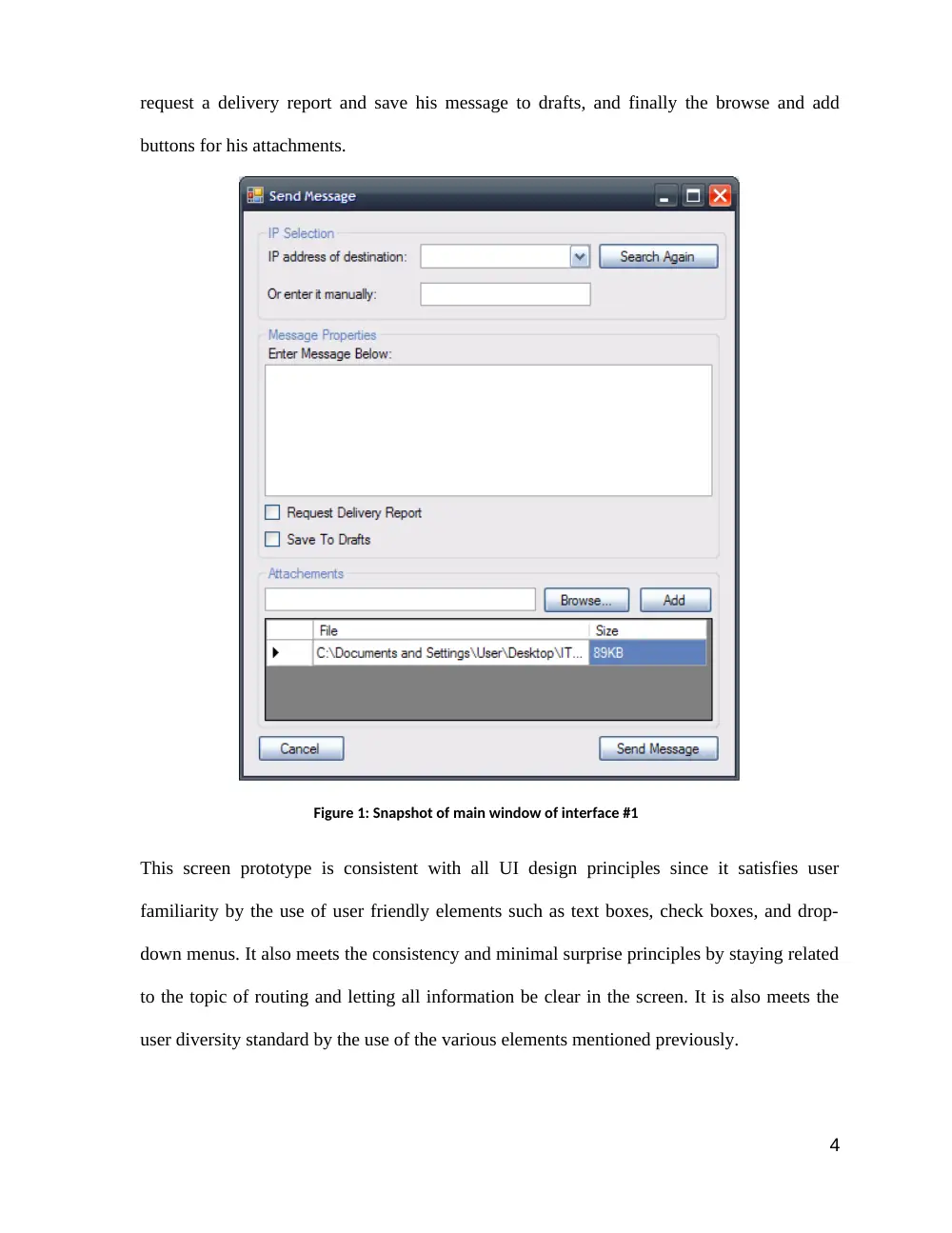
Figure1 shows the main screen prototype of this interface. As we can see, the user can either
select the IP from a drop-down menu or write it manually. He can also refresh the list of IPs
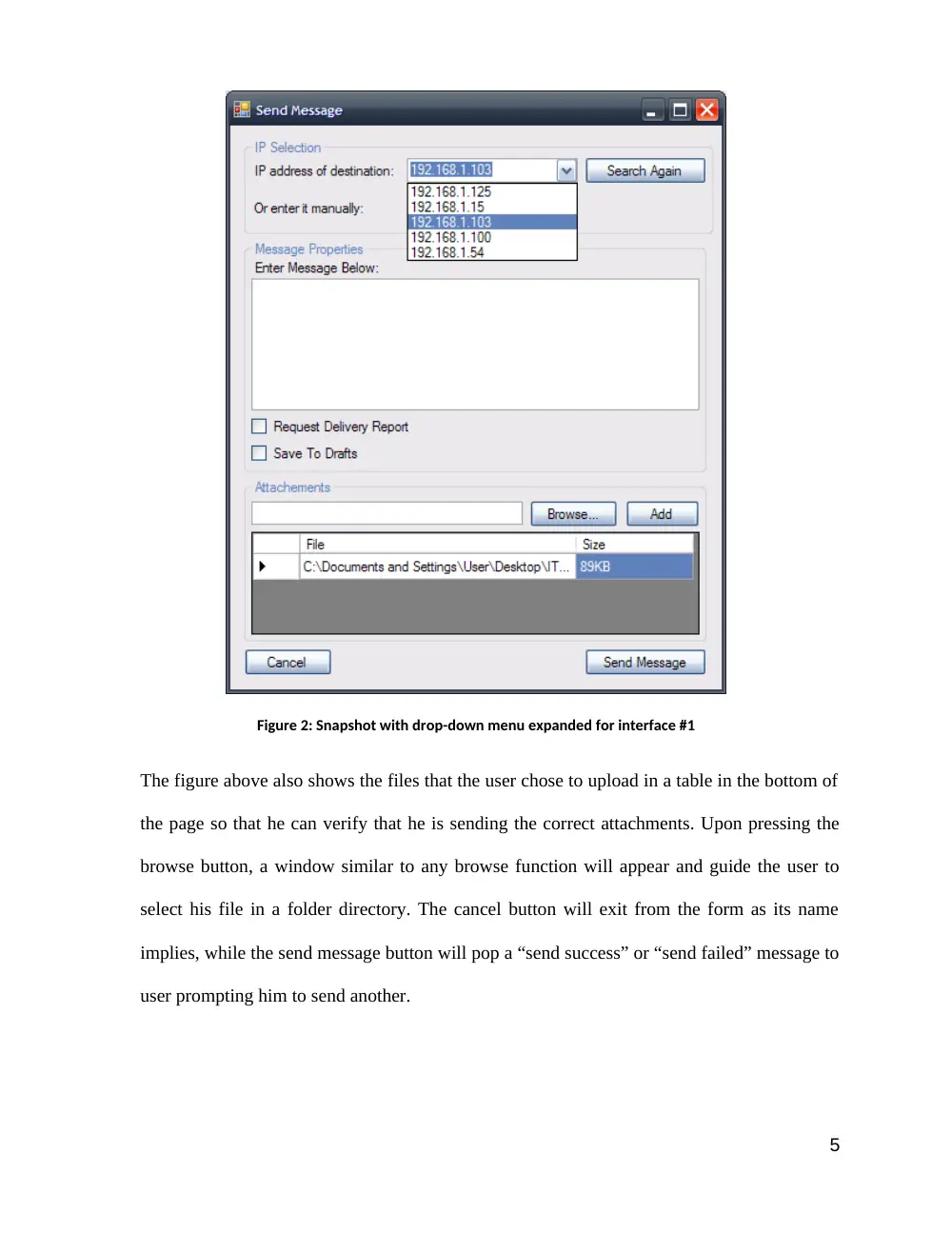
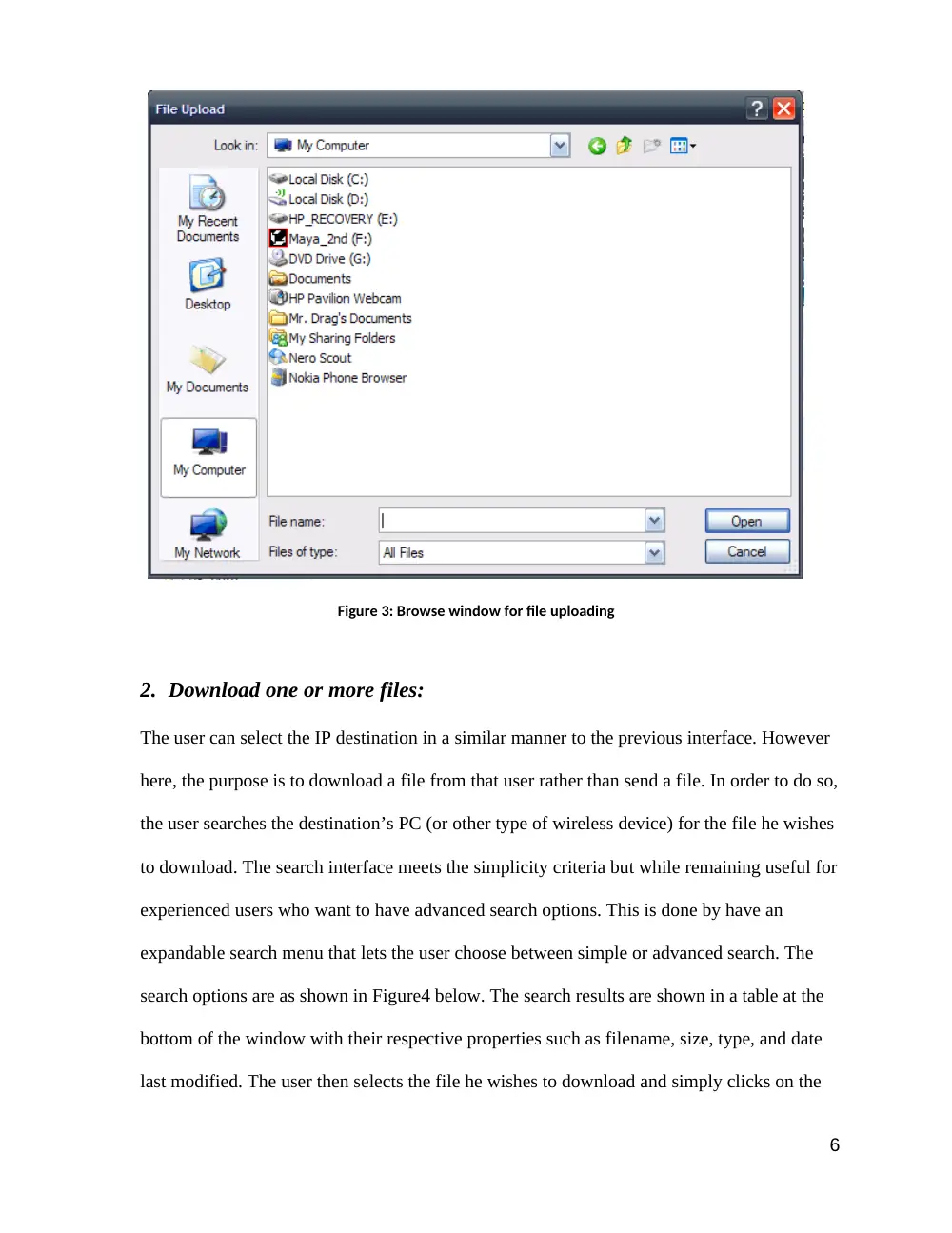
in case he doesn’t find the required IP. Figure2 shows the drop-down menu expanded and
Figure3 shows the function of the browse button. The choice of interface element is simple
and user friendly. The user can directly notice the arrow that expands the IPs menu, the text
box in which he should write his message, the check boxes that give him the choice to
3
request a delivery report and save his message to drafts, and finally the browse and add
buttons for his attachments.
Figure 1: Snapshot of main window of interface #1
This screen prototype is consistent with all UI design principles since it satisfies user
familiarity by the use of user friendly elements such as text boxes, check boxes, and drop-
down menus. It also meets the consistency and minimal surprise principles by staying related
to the topic of routing and letting all information be clear in the screen. It is also meets the
user diversity standard by the use of the various elements mentioned previously.
4
Figure 2: Snapshot with drop-down menu expanded for interface #1
The figure above also shows the files that the user chose to upload in a table in the bottom of
the page so that he can verify that he is sending the correct attachments. Upon pressing the
browse button, a window similar to any browse function will appear and guide the user to
select his file in a folder directory. The cancel button will exit from the form as its name
implies, while the send message button will pop a “send success” or “send failed” message to
user prompting him to send another.
5
Figure 3: Browse window for file uploading
2. Download one or more files:
The user can select the IP destination in a similar manner to the previous interface. However
here, the purpose is to download a file from that user rather than send a file. In order to do so,
the user searches the destination’s PC (or other type of wireless device) for the file he wishes
to download. The search interface meets the simplicity criteria but while remaining useful for
experienced users who want to have advanced search options. This is done by have an
expandable search menu that lets the user choose between simple or advanced search. The
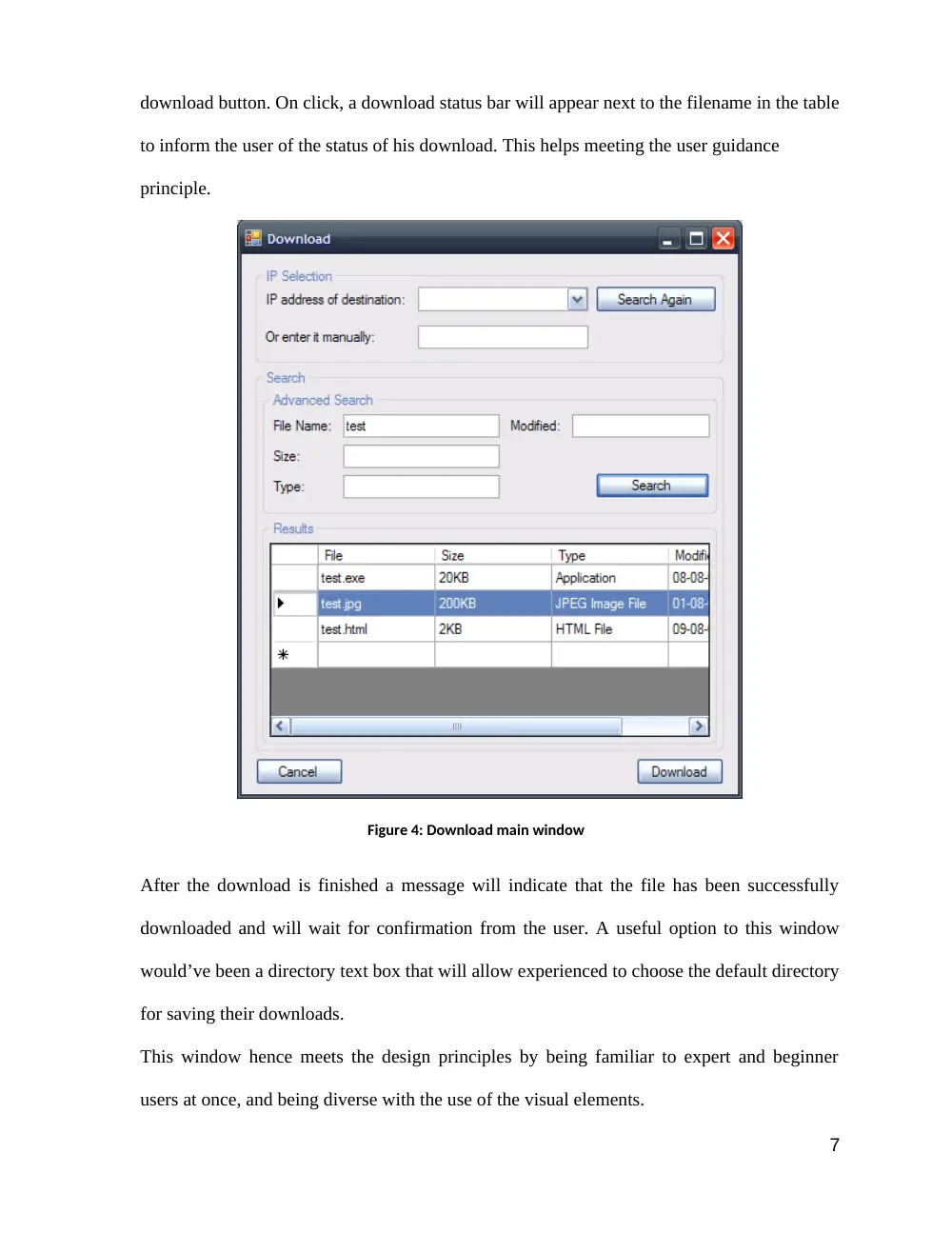
search options are as shown in Figure4 below. The search results are shown in a table at the
bottom of the window with their respective properties such as filename, size, type, and date
last modified. The user then selects the file he wishes to download and simply clicks on the
6
download button. On click, a download status bar will appear next to the filename in the table
to inform the user of the status of his download. This helps meeting the user guidance
principle.
Figure 4: Download main window
After the download is finished a message will indicate that the file has been successfully
downloaded and will wait for confirmation from the user. A useful option to this window
would’ve been a directory text box that will allow experienced to choose the default directory
for saving their downloads.
This window hence meets the design principles by being familiar to expert and beginner
users at once, and being diverse with the use of the visual elements.
7
3. Get a list of computers:
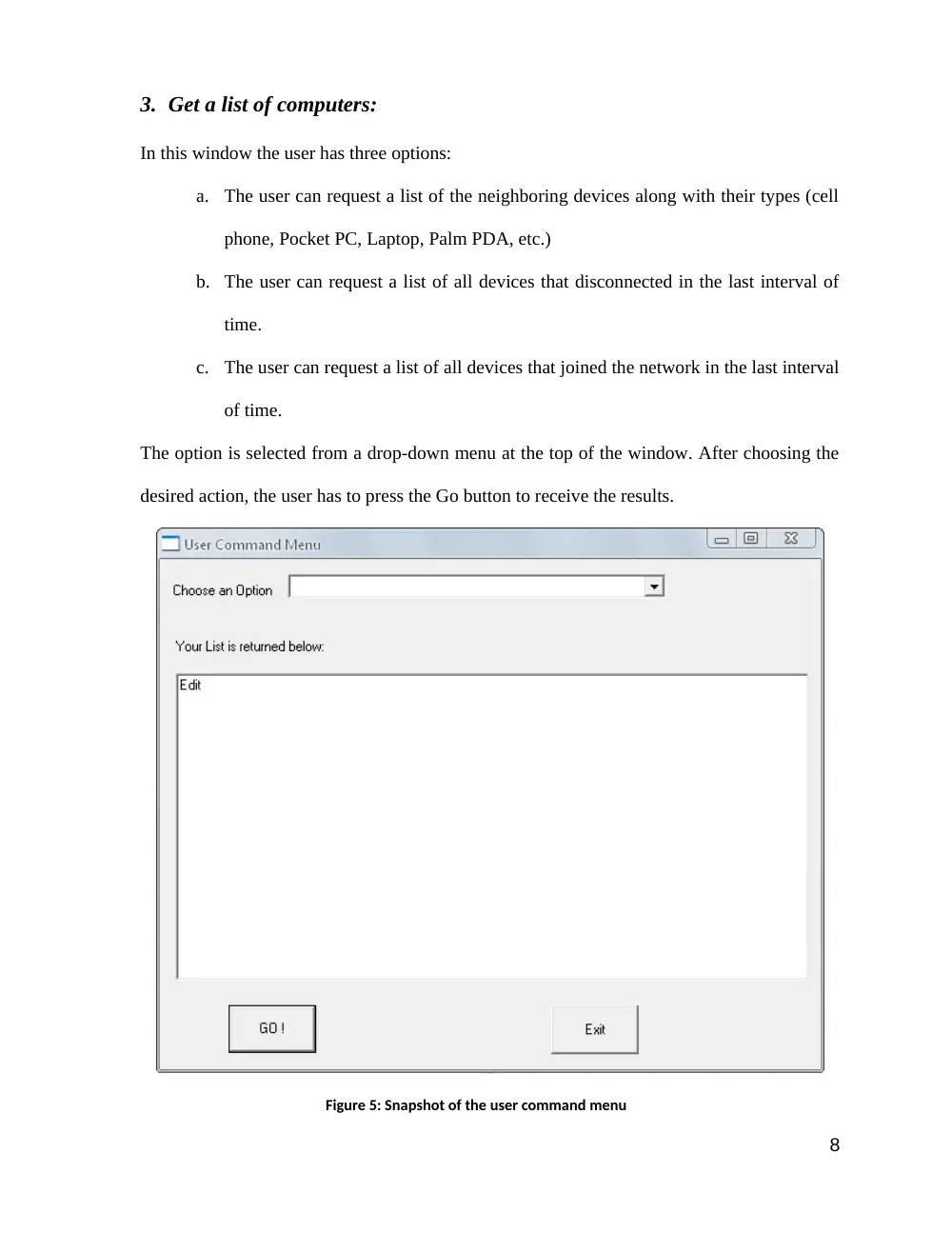
In this window the user has three options:
a.
The user can request a list of the neighboring devices along with their types (cell
phone, Pocket PC, Laptop, Palm PDA, etc.)
b. The user can request a list of all devices that disconnected in the last interval of
time.
c.
The user can request a list of all devices that joined the network in the last interval
of time.
The option is selected from a drop-down menu at the top of the window. After choosing the
desired action, the user has to press the Go button to receive the results.
Figure 5: Snapshot of the user command menu
8
The results of this search are obtained via the routing program / UI interface from the
database of the DSDV protocol, and are shown in a table with their properties. Each of the
three commands results in a different table, but with the same format and same position in
the screen; only the content and data fields are modified. This window is very straight
forward to any type of users. The text boxes guide the user; ex: “Choose an Option”. This
message is concise, polite and clear. The user therefore knows what he should do.
Note: The last screen prototype looks different than the previous screens because of a
hardware problem that we encountered and we had to resort to older software.
9
User Manual
This manual will help you, user, understand how to use the Destination Sequenced Distance-
Vector (DSDV) protocol routing program.
System Purpose and objectives
This routing program will enable you to host and receive a wireless network using the DSDV
protocol. By installing this software you will be able to communicate (send and receive data)
via ad-hoc networking.
System Capabilities and functions
This software gives you the ability to connect to a wireless network, send and receive data
from devices of different types such as: Pocket PC, Cell Phone, Laptop, etc…
There are three main windows for the program:
1. Send message or file window
2. Download file(s) window
3. User command window
In the first window, you are able to select a device by choosing its IP from a drop down-
menu or writing it manually and then write a message and/or upload a file to send to that
device. The user-friendly interface will guide you through the steps.
In the second window, you can download a file from a device. You can choose that device in
a similar manner to the sending interface. Here you have to search for the file you want to
download. You can either use simple search or advanced search based on your level of
expertise. After obtaining the results of your search you can start your download and you will
10
be able to track that download by looking at the status bar where you can also choose to stop,
pause or cancel that download. A notification will be shown at the end of the download.
The third window deals with the devices connected to your ad-hoc network. You have three
alternatives there. You can either view the complete list of neighbors connected to the same
network as you, view a list of all devices that disappeared in the last interval time, or view a
list of all devices that connected to your network in the last interval of time. You select your
action from a drop-down menu at the top of the window. Afterwards you confirm your
selection and the list will appear in a table underneath the command line. In this table you
will be able to view all devices that you requested and their respective properties. These
properties will vary depending on the type of action you have requested.
System Features, Characteristics, and Advantages
This routing system enables you to send messages and files to devices that are not directly
connected to you via other devices that act as links. This ad-hoc network is implemented with
the DSDV protocol.
The software will let you communicate with distant devices, and your device will act as a
link for others. Your system will be periodically sending data to other systems in the network
to ensure that information travels in the shortest time from one device to another.
Finally, using this software you will be able to communicate without the need of a central
host, using only your router and wireless receiver.
11