
CSI 201 Useful File, Spring 2012
American University of Science and Technology · Introduction to Computing · 40 pages · Mr. Michel Owayjan




Showing the first 10 of 40 pages. Download the PDF to see all of it.
More CSI 201 files
Show the text of this file
AMERICAN UNIVERSITY OF SCIENCE & TECHNOLOGY
DEPARTMENT OF COMPUTER SCIENCE
CSI 201: Introduction to Computing
HTML Guide
This HTML Guide is intended to help the Introduction to Computing – CSI 201 students
master the standard HTML language.
It is based on:
[1] Dietel H., Dietel P. and Nieto T. Internet & World Wide Web How to Program. Second
Edition. Upper Saddle River, N.J.: Prentice Hall, 2002.
[2] Ståle Refsnes. (1999, December). HTML Tutorial. Refsnes Data. Norway. [Online].
Available: http://www.w3schools.com/html/
Further Web resources are available at:
http://www.w3.org/TR/xhtml1
http://www.xhtml.org
http://www.w3schools.com/xhtml/default.asp
http://validator.w3.org
http://hotwired.lycos.com/webmonkey/00/50/index2a.html
http://wdvl.com/Authoring/Languages/XML/XHTML
http://www.w3.org/TR/1999/xhtml-modularization-19990406/DTD/doc
http://courses.e-survey.net.au/xhtml/index.html
http://www.vbxml.com/xhtml/articles/xhtml_tables
http://www.webreference.com/xml/reference/xhtml.html
Copyright © 2008 American University of Science & Technology - Department of Computer Science. All rights reserved.
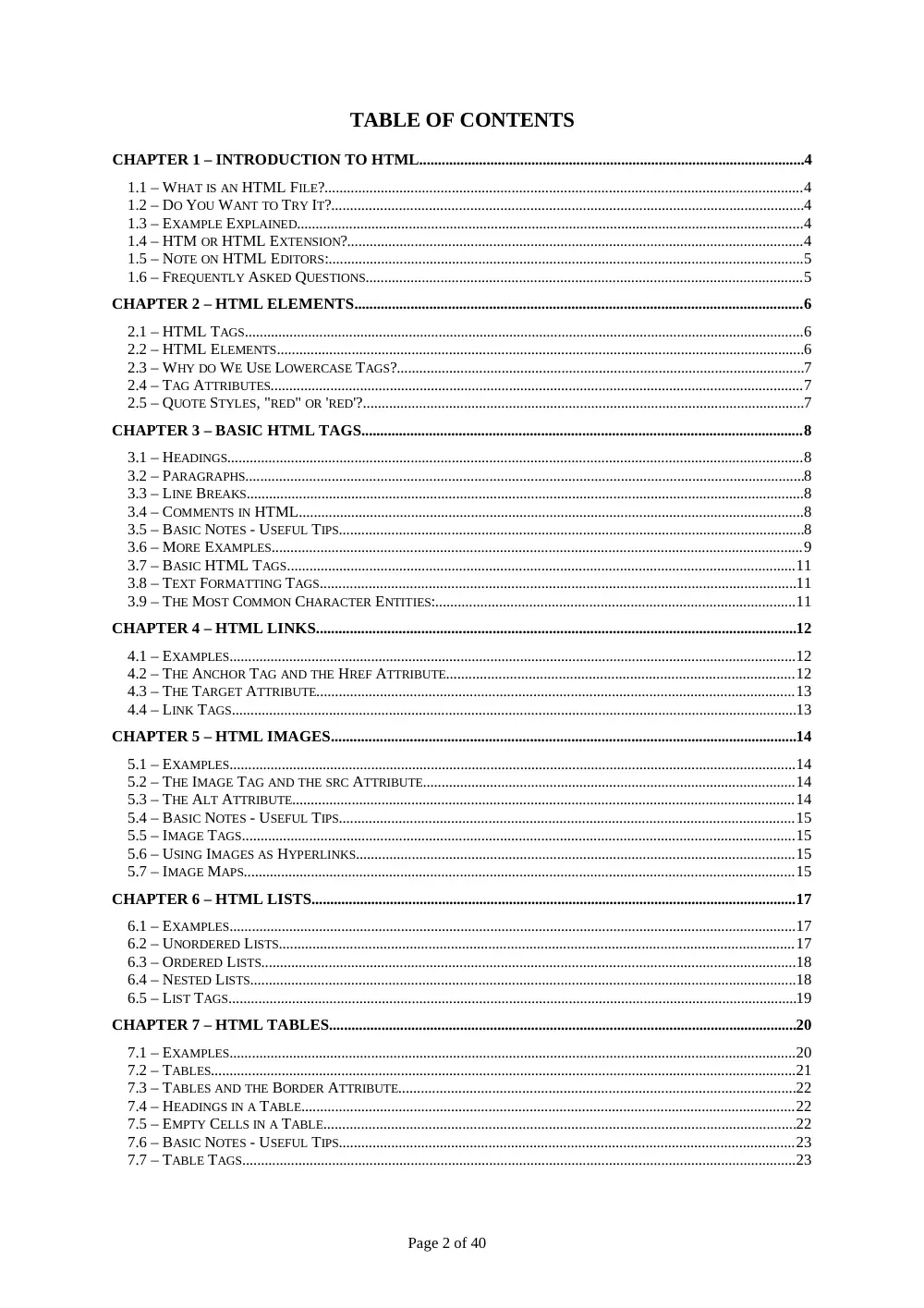
TABLE OF CONTENTS
CHAPTER 1 – INTRODUCTION TO HTML.......................................................................................................4
1.1 – WHAT IS AN HTML FILE?................................................................................................................................4
1.2 – DO YOU WANT TO TRY IT?..............................................................................................................................4
1.3 – EXAMPLE EXPLAINED........................................................................................................................................4
1.4 – HTM OR HTML EXTENSION?..........................................................................................................................4
1.5 – NOTE ON HTML EDITORS:...............................................................................................................................5
1.6 – FREQUENTLY ASKED QUESTIONS.....................................................................................................................5
CHAPTER 2 – HTML ELEMENTS........................................................................................................................6
2.1 – HTML TAGS......................................................................................................................................................6
2.2 – HTML ELEMENTS.............................................................................................................................................6
2.3 – WHY DO WE USE LOWERCASE TAGS?.............................................................................................................7
2.4 – TAG ATTRIBUTES...............................................................................................................................................7
2.5 – QUOTE STYLES, "RED" OR 'RED'?......................................................................................................................7
CHAPTER 3 – BASIC HTML TAGS......................................................................................................................8
3.1 – HEADINGS..........................................................................................................................................................8
3.2 – PARAGRAPHS.....................................................................................................................................................8
3.3 – LINE BREAKS.....................................................................................................................................................8
3.4 – COMMENTS IN HTML.......................................................................................................................................8
3.5 – BASIC NOTES - USEFUL TIPS............................................................................................................................8
3.6 – MORE EXAMPLES..............................................................................................................................................9
3.7 – BASIC HTML TAGS........................................................................................................................................11
3.8 – TEXT FORMATTING TAGS...............................................................................................................................11
3.9 – THE MOST COMMON CHARACTER ENTITIES:................................................................................................11
CHAPTER 4 – HTML LINKS................................................................................................................................12
4.1 – EXAMPLES........................................................................................................................................................12
4.2 – THE ANCHOR TAG AND THE HREF ATTRIBUTE.............................................................................................12
4.3 – THE TARGET ATTRIBUTE................................................................................................................................13
4.4 – LINK TAGS.......................................................................................................................................................13
CHAPTER 5 – HTML IMAGES............................................................................................................................14
5.1 – EXAMPLES........................................................................................................................................................14
5.2 – THE IMAGE TAG AND THE SRC ATTRIBUTE....................................................................................................14
5.3 – THE ALT ATTRIBUTE.......................................................................................................................................14
5.4 – BASIC NOTES - USEFUL TIPS..........................................................................................................................15
5.5 – IMAGE TAGS....................................................................................................................................................15
5.6 – USING IMAGES AS HYPERLINKS......................................................................................................................15
5.7 – IMAGE MAPS....................................................................................................................................................15
CHAPTER 6 – HTML LISTS..................................................................................................................................17
6.1 – EXAMPLES........................................................................................................................................................17
6.2 – UNORDERED LISTS..........................................................................................................................................17
6.3 – ORDERED LISTS...............................................................................................................................................18
6.4 – NESTED LISTS..................................................................................................................................................18
6.5 – LIST TAGS........................................................................................................................................................19
CHAPTER 7 – HTML TABLES.............................................................................................................................20
7.1 – EXAMPLES........................................................................................................................................................20
7.2 – TABLES.............................................................................................................................................................21
7.3 – TABLES AND THE BORDER ATTRIBUTE..........................................................................................................22
7.4 – HEADINGS IN A TABLE....................................................................................................................................22
7.5 – EMPTY CELLS IN A TABLE..............................................................................................................................22
7.6 – BASIC NOTES - USEFUL TIPS..........................................................................................................................23
7.7 – TABLE TAGS....................................................................................................................................................23
Page 2 of 40
CSI 201: Introduction to Computing
Mr. Michel Owayjan
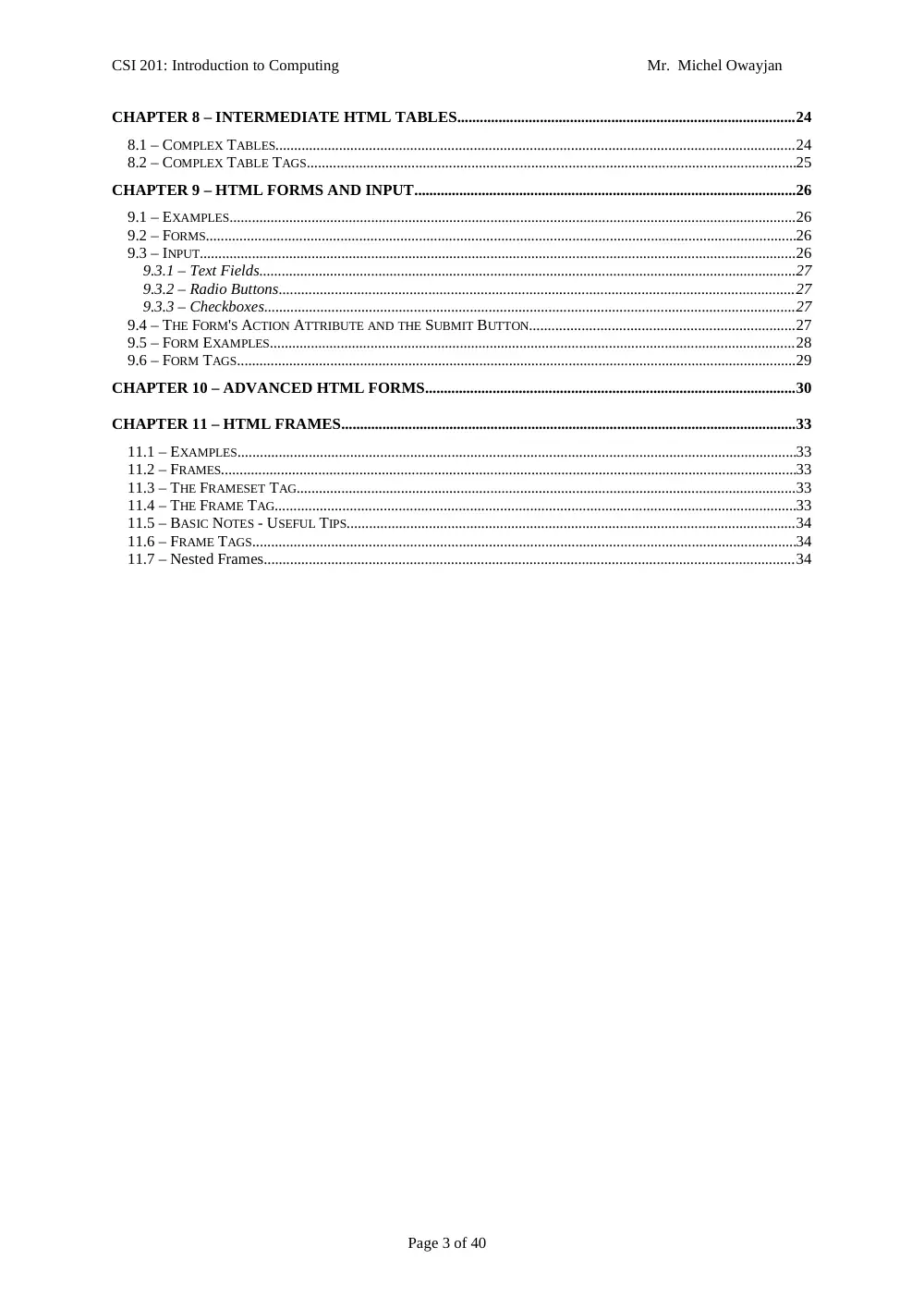
CHAPTER 8 – INTERMEDIATE HTML TABLES..........................................................................................24
8.1 – COMPLEX TABLES...........................................................................................................................................24
8.2 – COMPLEX TABLE TAGS...................................................................................................................................25
CHAPTER 9 – HTML FORMS AND INPUT......................................................................................................26
9.1 – EXAMPLES........................................................................................................................................................26
9.2 – FORMS..............................................................................................................................................................26
9.3 – INPUT................................................................................................................................................................26
9.3.1 – Text Fields................................................................................................................................................27
9.3.2 – Radio Buttons..........................................................................................................................................27
9.3.3 – Checkboxes..............................................................................................................................................27
9.4 – THE FORM'S ACTION ATTRIBUTE AND THE SUBMIT BUTTON.......................................................................27
9.5 – FORM EXAMPLES.............................................................................................................................................28
9.6 – FORM TAGS......................................................................................................................................................29
CHAPTER 10 – ADVANCED HTML FORMS...................................................................................................30
CHAPTER 11 – HTML FRAMES..........................................................................................................................33
11.1 – EXAMPLES.....................................................................................................................................................33
11.2 – FRAMES..........................................................................................................................................................33
11.3 – THE FRAMESET TAG......................................................................................................................................33
11.4 – THE FRAME TAG...........................................................................................................................................33
11.5 – BASIC NOTES - USEFUL TIPS........................................................................................................................34
11.6 – FRAME TAGS.................................................................................................................................................34
11.7 – Nested Frames..............................................................................................................................................34
Page 3 of 40
CSI 201: Introduction to Computing
Mr. Michel Owayjan
Chapter 1 – Introduction to HTML
1.1 – What is an HTML File?
HTML stands for Hyper Text Markup Language
An HTML file is a text file containing small markup tags
The markup tags tell the Web browser how to display the page
An HTML file must have an htm or html file extension
An HTML file can be created using a simple text editor
1.2 – Do You Want to Try It?
If you are running Windows, start Notepad.
Type in the following text:
<html>
<head>
<title>Title of page</title>
</head>
<body>
<p>This is my first homepage. <b>This text is bold</b></p>
</body>
</html>
Save the file as "mypage.htm".
Start your Internet browser. Select "Open" (or "Open Page") in the File menu of your browser. A dialog box will
appear. Select "Browse" (or "Choose File") and locate the HTML file you just created - "mypage.htm" - select it and
click "Open". Now you should see an address in the dialog box, for example "C:\MyDocuments\mypage.htm". Click
OK, and the browser will display the page.
1.3 – Example Explained
The first tag in your HTML document is <html>. This tag tells your browser that this is the start of an HTML
document. The last tag in your document is </html>. This tag tells your browser that this is the end of the HTML
document.
The text between the <head> tag and the </head> tag is header information. Header information is not displayed
in the browser window.
The text between the <title> and the </title> tags is the title of your document. The title is displayed in your
browser's caption.
The text between the <body> and the </body> tags is the text that will be displayed in your browser.
The text between the <b> and </b> tags will be displayed in a bold font.
1.4 – HTM or HTML Extension?
When you save an HTML file, you can use either the .htm or the .html extension. We have used .htm in our
examples. It might be a bad habit inherited from the past when some of the commonly used software only
allowed three letter extensions.
With newer software we think it will be perfectly safe to use .html.
Page 4 of 40
CSI 201: Introduction to Computing
Mr. Michel Owayjan
Page 5 of 40
CSI 201: Introduction to Computing
Mr. Michel Owayjan
1.5 – Note on HTML Editors:
You can easily edit HTML files using a WYSIWYG (what you see is what you get) editor like FrontPage, Claris Home
Page, or Adobe PageMill instead of writing your markup tags in a plain text file.
But if you want to be a skillful Web developer, we strongly recommend that you use a plain text editor to learn
your primer HTML.
1.6 – Frequently Asked Questions
Q: After I have edited an HTML file, I cannot view the result in my browser. Why?
A: Make sure that you have saved the file with a proper name and extension like "c:\mypage.htm". Also make sure
that you use the same name when you open the file in your browser.
Q: I have tried to edit an HTML file but the changes don't show in the browser. Why?
A: The browser caches your pages so it doesn't have to read the same page twice. When you have changed a
page, the browser doesn't know that. Use the browser's refresh/reload button to force the browser to read the
edited page.
Q: What browser should I use?
A: You can do all the training with all of the common browsers, like Internet Explorer, Mozilla, Netscape, or Opera.
Page 6 of 40
CSI 201: Introduction to Computing
Mr. Michel Owayjan
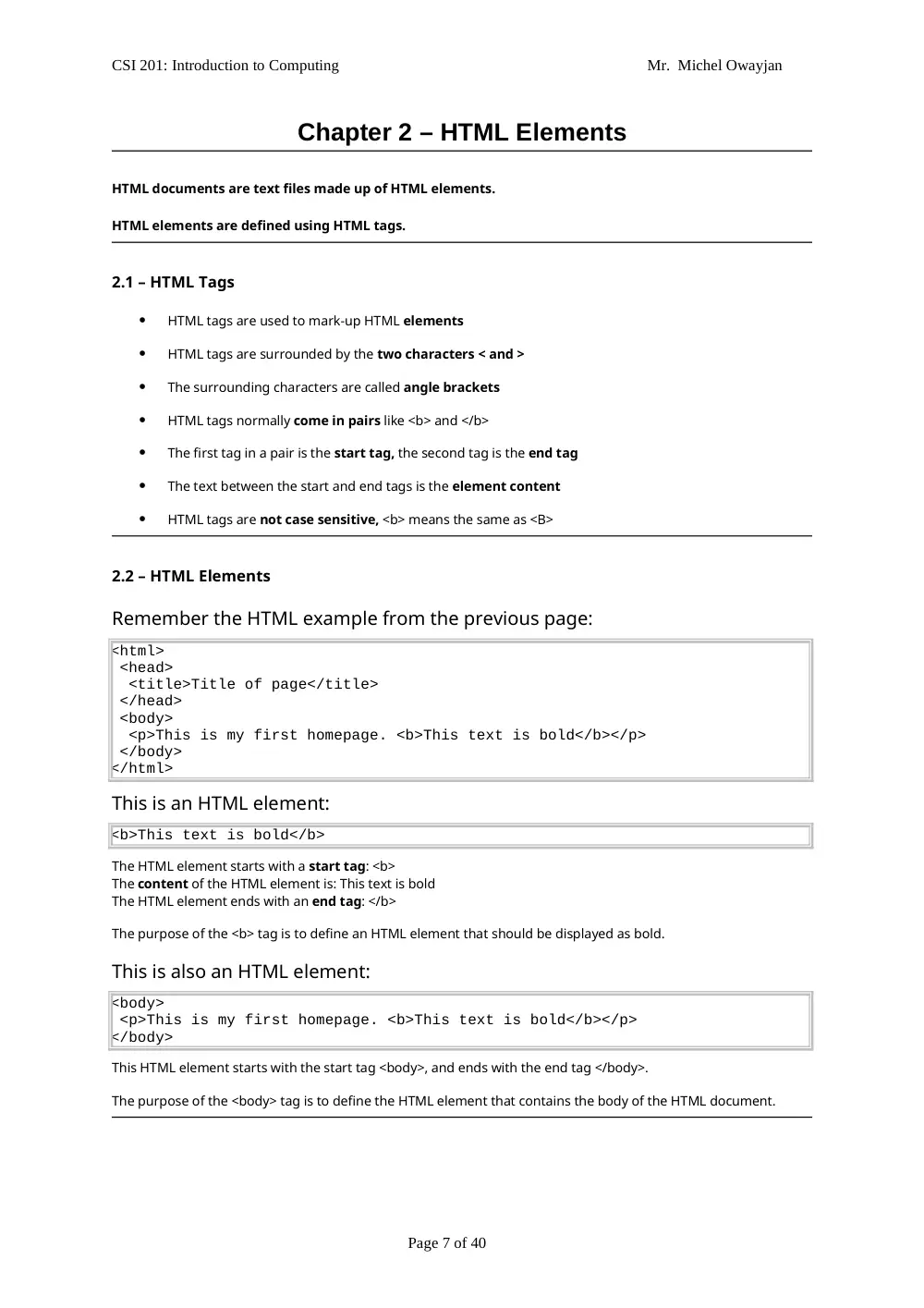
Chapter 2 – HTML Elements
HTML documents are text files made up of HTML elements.
HTML elements are defined using HTML tags.
2.1 – HTML Tags
HTML tags are used to mark-up HTML elements
HTML tags are surrounded by the two characters < and >
The surrounding characters are called angle brackets
HTML tags normally come in pairs like <b> and </b>
The first tag in a pair is the start tag, the second tag is the end tag
The text between the start and end tags is the element content
HTML tags are not case sensitive, <b> means the same as <B>
2.2 – HTML Elements
Remember the HTML example from the previous page:
<html>
<head>
<title>Title of page</title>
</head>
<body>
<p>This is my first homepage. <b>This text is bold</b></p>
</body>
</html>
This is an HTML element:
<b>This text is bold</b>
The HTML element starts with a start tag: <b>
The content of the HTML element is: This text is bold
The HTML element ends with an end tag: </b>
The purpose of the <b> tag is to define an HTML element that should be displayed as bold.
This is also an HTML element:
<body>
<p>This is my first homepage. <b>This text is bold</b></p>
</body>
This HTML element starts with the start tag <body>, and ends with the end tag </body>.
The purpose of the <body> tag is to define the HTML element that contains the body of the HTML document.
Page 7 of 40
CSI 201: Introduction to Computing
Mr. Michel Owayjan
2.3 – Why do We Use Lowercase Tags?
We have just said that HTML tags are not case sensitive: <B> means the same as <b>. When you surf the Web, you
will notice that most tutorials use uppercase HTML tags in their examples. We always use lowercase tags. Why?
If you want to prepare yourself for the next generations of HTML, you should start using lowercase tags. The
World Wide Web Consortium (W3C) recommends lowercase tags in their HTML 4 recommendation, and XHTML
(the next generation HTML) demands lowercase tags.
2.4 – Tag Attributes
Tags can have attributes. Attributes can provide additional information about the HTML elements on your page.
This tag defines the body element of your HTML page: <body>. With an added bgcolor attribute, you can tell the
browser that the background color of your page should be red, like this: <body bgcolor="red">.
This tag defines an HTML table: <table>. With an added border attribute, you can tell the browser that the table
should have no borders: <table border="0">
Attributes always come in name/value pairs like this: name="value".
Attributes are always added to the start tag of an HTML element.
2.5 – Quote Styles, "red" or 'red'?
Attribute values should always be enclosed in quotes. Double style quotes are the most common, but single style
quotes are also allowed.
In some rare situations, like when the attribute value itself contains quotes, it is necessary to use single quotes:
name='John "ShotGun" Nelson'
Page 8 of 40
CSI 201: Introduction to Computing
Mr. Michel Owayjan
Chapter 3 – Basic HTML Tags
The most important tags in HTML are tags that define headings, paragraphs and line breaks.
The best way to learn HTML is to work with examples. We have created a very nice HTML editor for you.
With this editor, you can edit the HTML source code if you like, and click on a test button to view the result.
3.1 – Headings
Headings are defined with the <h1> to <h6> tags. <h1> defines the largest
heading. <h6> defines the smallest heading.
<h1>This is a heading</h1>
<h2>This is a heading</h2>
<h3>This is a heading</h3>
<h4>This is a heading</h4>
<h5>This is a heading</h5>
<h6>This is a heading</h6>
HTML automatically adds an extra blank line before and after a heading.
3.2 – Paragraphs
Paragraphs are defined with the <p> tag.
<p>This is a paragraph</p>
<p>This is another paragraph</p>
HTML automatically adds an extra blank line before and after a paragraph.
3.3 – Line Breaks
The <br> tag is used when you want to end a line, but don't want to start a new
paragraph. The <br> tag forces a line break wherever you place it.
<p>This <br> is a para<br>graph with line breaks</p>
The <br> tag is an empty tag. It has no closing tag.
3.4 – Comments in HTML
The comment tag is used to insert a comment in the HTML source code. A
comment will be ignored by the browser. You can use comments to explain
your code, which can help you when you edit the source code at a later date.
<!-- This is a comment -->
Note that you need an exclamation point after the opening bracket, but not before the closing bracket.
3.5 – Basic Notes - Useful Tips
Page 9 of 40
CSI 201: Introduction to Computing
Mr. Michel Owayjan
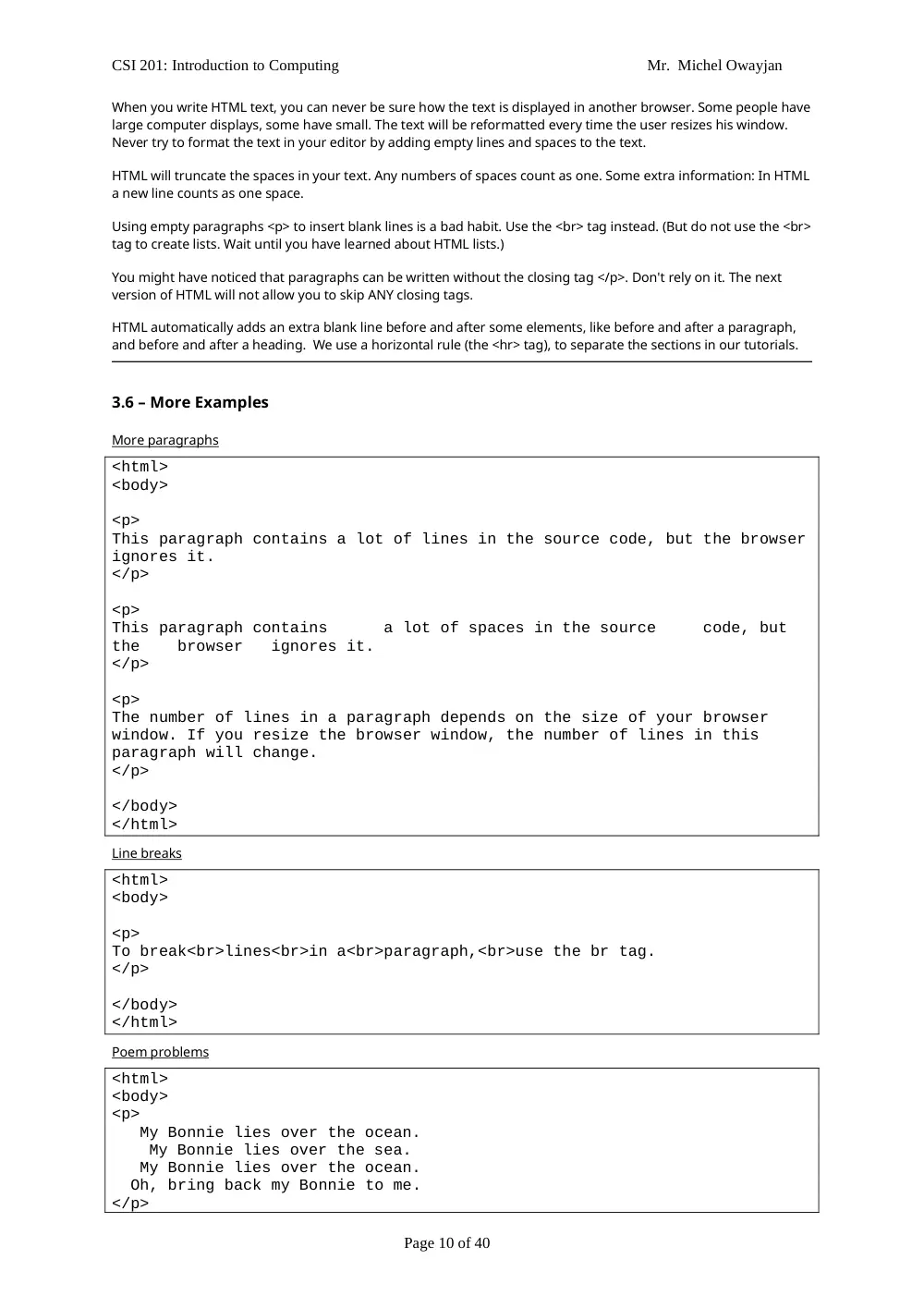
When you write HTML text, you can never be sure how the text is displayed in another browser. Some people have
large computer displays, some have small. The text will be reformatted every time the user resizes his window.
Never try to format the text in your editor by adding empty lines and spaces to the text.
HTML will truncate the spaces in your text. Any numbers of spaces count as one. Some extra information: In HTML
a new line counts as one space.
Using empty paragraphs <p> to insert blank lines is a bad habit. Use the <br> tag instead. (But do not use the <br>
tag to create lists. Wait until you have learned about HTML lists.)
You might have noticed that paragraphs can be written without the closing tag </p>. Don't rely on it. The next
version of HTML will not allow you to skip ANY closing tags.
HTML automatically adds an extra blank line before and after some elements, like before and after a paragraph,
and before and after a heading. We use a horizontal rule (the <hr> tag), to separate the sections in our tutorials.
3.6 – More Examples
More paragraphs
<html>
<body>
<p>
This paragraph contains a lot of lines in the source code, but the browser
ignores it.
</p>
<p>
This paragraph contains a lot of spaces in the source code, but
the browser ignores it.
</p>
<p>
The number of lines in a paragraph depends on the size of your browser
window. If you resize the browser window, the number of lines in this
paragraph will change.
</p>
</body>
</html>
Line breaks
<html>
<body>
<p>
To break<br>lines<br>in a<br>paragraph,<br>use the br tag.
</p>
</body>
</html>
Poem problems
<html>
<body>
<p>
My Bonnie lies over the ocean.
My Bonnie lies over the sea.
My Bonnie lies over the ocean.
Oh, bring back my Bonnie to me.
</p>
Page 10 of 40
CSI 201: Introduction to Computing
Mr. Michel Owayjan
<p>Note that your browser simply ignores your formatting!</p>
</body>
</html>
Page 11 of 40
CSI 201: Introduction to Computing
Mr. Michel Owayjan
Headings
<html>
<body>
<h1>This is heading 1</h1>
<h2>This is heading 2</h2>
<h3>This is heading 3</h3>
<h4>This is heading 4</h4>
<h5>This is heading 5</h5>
<h6>This is heading 6</h6>
<p>Use heading tags only for headings. Don't use them just to make
something bold. Use other tags for that.</p>
</body>
</html>
Center aligned heading
<html>
<body>
<h1 align="center">This is heading 1</h1>
<p>The heading above is aligned to the center of this page. The heading
above is aligned to the center of this page. The heading above is aligned
to the center of this page.</p>
</body>
</html>
Horizontal rule
<html>
<body>
<p>The hr tag defines a horizontal rule:</p>
<hr>
<p>This is a paragraph</p>
<hr>
<p>This is a paragraph</p>
<hr>
<p>This is a paragraph</p>
</body>
</html>
Hidden comments
<html>
<body>
<!--This comment will not be displayed-->
<p>This is a regular paragraph</p>
</body>
</html>
Background color
<html>
<body bgcolor="yellow">
<h2>Look: Colored Background!</h2>
</body>
</html>
Page 12 of 40
CSI 201: Introduction to Computing
Mr. Michel Owayjan
3.7 – Basic HTML Tags
Tag
Description
<html>
Defines an HTML document
<body>
Defines the document's body
<h1> to <h6>
Defines header 1 to header 6
<p>
Defines a paragraph
<br>
Inserts a single line break
<hr>
Defines a horizontal rule
<!-->
Defines a comment
3.8 – Text Formatting Tags
Tag
Description
<b>
Defines bold text
<big>
Defines big text
<em>
Defines emphasized text
<i>
Defines italic text
<small>
Defines small text
<strong>
Defines strong text
<sub>
Defines subscripted text
<sup>
Defines superscripted text
<ins>
Defines inserted text
<del>
Defines deleted text
<s>
Deprecated. Use <del> instead
<strike>
Deprecated. Use <del> instead
<u>
Deprecated. Use styles instead
3.9 – The Most Common Character Entities:
Result
Description
Entity Name
Entity Number
non-breaking space
 
<
less than
<
<
>
greater than
>
>
&
ampersand
&
&
"
quotation mark
"
"
'
apostrophe
' (does not work in IE)
'
Page 13 of 40
CSI 201: Introduction to Computing
Mr. Michel Owayjan
Chapter 4 – HTML Links
HTML uses a hyperlink to link to another document on the Web.
4.1 – Examples
Create hyperlinks
<html>
<body>
<p>
<a href="lastpage.htm">
This text</a> is a link to a page on
this Web site.
</p>
<p>
<a href="http://www.microsoft.com/">
This text</a> is a link to a page on
the World Wide Web.
</p>
</body>
</html>
An image as a link
<html>
<body>
<p>
You can also use an image as a link:
<a href="lastpage.htm">
<img border="0" src="buttonnext.gif" width="65" height="38">
</a>
</p>
</body>
</html>
4.2 – The Anchor Tag and the Href Attribute
HTML uses the <a> (anchor) tag to create a link to another document.
An anchor can point to any resource on the Web: an HTML page, an image, a sound file, a movie, etc.
The syntax of creating an anchor:
<a href="url">Text to be displayed</a>
The <a> tag is used to create an anchor to link from, the href attribute is used to address the document to link to,
and the words between the open and close of the anchor tag will be displayed as a hyperlink.
This anchor defines a link to W3Schools:
<a href="http://www.w3schools.com/">Visit W3Schools!</a>
The line above will look like this in a browser:
Page 14 of 40
CSI 201: Introduction to Computing
Mr. Michel Owayjan
Page 15 of 40
CSI 201: Introduction to Computing
Mr. Michel Owayjan
4.3 – The Target Attribute
With the target attribute, you can define where the linked document will be opened.
The line below will open the document in a new browser window:
<a href="http://www.w3schools.com/"
target="_blank">Visit W3Schools!</a>
4.4 – Link Tags
Tag
Description
<a>
Defines an anchor
Page 16 of 40
CSI 201: Introduction to Computing
Mr. Michel Owayjan
Chapter 5 – HTML Images
With HTML you can display images in a document.
5.1 – Examples
Insert images
<html>
<body>
<p>
An image:
<img src="constr4.gif"
width="144" height="50">
</p>
<p>
A moving image:
<img src="hackanm.gif"
width="48" height="48">
</p>
<p>
Note that the syntax of inserting a moving image is no different from that
of a non-moving image.
</p>
</body>
</html>
5.2 – The Image Tag and the src Attribute
In HTML, images are defined with the <img> tag.
The <img> tag is empty, which means that it contains attributes only and it has no closing tag.
To display an image on a page, you need to use the src attribute. Src stands for "source". The value of the src
attribute is the URL of the image you want to display on your page.
The syntax of defining an image:
<img src="url">
The URL points to the location where the image is stored. An image named "boat.gif" located in the directory
"images" on "www.w3schools.com" has the URL: http://www.w3schools.com/images/boat.gif.
The browser puts the image where the image tag occurs in the document. If you put an image tag between two
paragraphs, the browser shows the first paragraph, then the image, and then the second paragraph.
5.3 – The Alt Attribute
The alt attribute is used to define an "alternate text" for an image. The value of
the alt attribute is an author-defined text:
<img src="boat.gif" alt="Big Boat">
The "alt" attribute tells the reader what he or she is missing on a page if the browser can't load images. The
browser will then display the alternate text instead of the image. It is a good practice to include the "alt" attribute
Page 17 of 40
CSI 201: Introduction to Computing
Mr. Michel Owayjan
for each image on a page, to improve the display and usefulness of your document for people who have text-only
browsers.
Page 18 of 40
CSI 201: Introduction to Computing
Mr. Michel Owayjan
5.4 – Basic Notes - Useful Tips
If an HTML file contains ten images - eleven files are required to display the page right. Loading images take time,
so my best advice is: Use images carefully.
5.5 – Image Tags
Tag
Description
<img>
Defines an image
<map>
Defines an image map
<area>
Defines a clickable area inside an image map
5.6 – Using Images as Hyperlinks
You can nest the <img> tag with its elements inside an anchor <a> tag, thus creating an image hyperlink.
An example of defining an image hyperlink:
<a href = "index.html”>
<img src = "images/home.bmp" width = "50" height = "25" alt = "Home
Picture" />
</a>
5.7 – Image Maps
Another technique for image linking is called image maps, which designates certain areas of an image (called
hotspots) as links to other resources in the Internet.
An example of defining an image map:
<html>
<head>
<title>Image Map</title>
</head>
<body>
<p>
<!-- the <map> tag defines an image map -->
<map id = "picture">
<!-- shape = "rect" indicates a rectangular -->
<!-- area, with coordinates for the upper-left -->
<!-- and lower-right corners -->
<area href = "form.html" shape = "rect"
coords = "2,123,54,143"
alt = "Go to the feedback form" />
<area href = "contact.html" shape = "rect"
coords = "126,122,198,143"
alt = "Go to the contact page" />
<area href = "main.html" shape = "rect"
coords = "3,7,61,25" alt = "Go to the homepage" />
<area href = "links.html" shape = "rect"
coords = "168,5,197,25"
alt = "Go to the links page" />
<!-- value "poly" creates a hotspot in the shape -->
<!-- of a polygon, defined by coords -->
Page 19 of 40
CSI 201: Introduction to Computing
Mr. Michel Owayjan
<area shape = "poly" alt = "E-mail the Deitels"
coords = "162,25,154,39,158,54,169,51,183,39,161,26"
href = "mailto:deitel@deitel.com" />
<!-- shape = "circle" indicates a circular -->
<!-- area wit