
ICT 225 Project Linux Project, Fall 2017
American University of Science and Technology · Linux Fundamentals · 31 pages





Showing the first 10 of 31 pages. Download the PDF to see all of it.
More ICT 225 files
Show the text of this project
ICT 225: Linux Fundamentals
Part A:
Exercise 1:
Which of the following operations are permitted?
$more file1
$more file2
$ls –l >file1
$more /etc/passwd
$more /etc/shadow
$rm file2
$rm file3
$cp file1 file4
$rm /etc/passwd
$rm /etc/shadow
Answer:
$more /etc/passwd
$ ls-l>file1
$cp file1 file4
$more file1
$more file2
$rm file 3
Exercise 2
1. Modify the following line in /etc/fstab to allow for user and group quotas: /dev/hda1 /home
ext2 defaults 1 2
#/dev/hda1 /home ext2 defaults,usrquota,grpquota 1 2
2. Examine the following example output from edquota -u tempuser: Quotas for user
tempuser: /dev/hda2: blocks in use: 6502, limits (soft = 8000, hard = 10000) inodes in use:
814, limits (soft = 2000, hard = 2500) Write the command to duplicate this quota for every
user in the tools group.
#edquota -p tempuser -g tools
Exercise 3
Write down the commands used to perform the following.
1. Add a user called frank.
Sudo su
useradd frank
2. Add a user called radar specifying the korn shell.
Sudo su
useradd -m –s /bin/ksh radar
3. Add a user called Klinger using /home2/klinger as the home directory.
Useradd klinger -d /home2/ klinger
4. Add a user called mulcahy specifying a UID of 400 and a group of staff.
Useradd staff mulcahy –u 400 –G staff
5. Modify the user frank to use the korn shell
Usermod frank –s /bin/korn
6. Modify radar to give him a new UID of 401
Usermod –u 401 radar
Exercise 4
1. Use useradd to add a new user called hawkeye (full name pierce) wit h a user ID of 318.
Don’t forget to use the –m option to create the user’s home directory.
Set a password for this account and force this password to expire the next time the user logs
in. Test your new account first by using su and then logging out and back in again as the new
user hawkeye.
sudo useradd hawkeye –c Pierce –u 318 –m
passwd hawkeye
P@ssw0rd
passwd –e hawkeye
su hawkeye
2. Correct the full name for the user hawkeye to be B F Pierce and give him /bin/bash as his
login shell
Usermod –c “B F Pierce” hawkeye –s /bin/bash
3. As root, use chage –l to show the status of hawkeye’s password protection.
Change the password aging to:
Maximum number of days:7
Minimum number of days: 2
Warning number: 7
Log in as hawkeye and try to change the password. If you cannot, su to root and fix the problem.
Exit from root shell and Change the password for hawkeye.
Su
Chage –l hawkeye
Chage- m 2 –m 7-W 7 hawkeye
Su –l hawkeye
123456
4. Create a new group called swamp . Modify hawkeye to be a member of group swamp; do not
modify hawkeyes default group.
In one command, add a new user trapper with full an,e J F X MxIntyre, user ID 319, and
membership in the supplementary group swam[ (leave the user’s default group as its default
value). Set a password for trapper and log out. Verify that you can log in as trapper correctly
and, as trapper, enter the following commands:
$batch
Date
^D
This will ensure that there is a mail message for trapper. Do not read this mail message yet; we
want it to ramin in the mailbox.
Groupadd swamp
Usermod hawkeye –G swamp
Useradd trapper –c J F X McIntyre –u 319 –G swamp
Passwd trapper
123456
Su trapper
Batch
Date
^D
6. List all the groups that root is a member of( don’t forget the default group)
groups root –here
Part B
1 Your login shell and change it to BASH and determine your current path and set it for your
home directory. (and if it is already BASH)
$Echo $0
Pwd
2 Use the who command and redirect the result to a file called myfile1 and display the content of
my file1
Who > myfile1
Cat myfile1
3 Verify that you are in your home directory, make the directory named mydir under your home
directory, enter into mydir and verify that you are into the mydir directory.
Pwd
Mkdi mydir
Cd mydir
pwd
4 Make a file named testfile under mydir, verify that the file tesfile exists and list the contents of
the file testfile to the screen.
Touch testfile
Ls
Cat testfile
5 Make a copy of the file testfile with the name secondfile, verify that the files testfile and
secondfile both exist, list the contents of both tesfile and secondfile to the monitor screen.
Cp testfile secondfile
Ls
Cat testfile secondfile
6 Delete the file testfile, verify that testfile has been deleted, clear the window.
Rm testfile
Ls
clear
7 Enter into mydir rename secondfile to thefile, copy thefile to your home directory, remove
thefile from the current directory, verify that thefile has been removed.
Mv secondfile thefile
Ls
Cp thefile /home/sampass
Cd ~
Ls
Cd mydir
Rm thefile
Ls
Cd ~
Ls
8 Enter into mydir, copy thefile from your home directory to the current directory, verify that
thefile has been copied from your home directory to the current directory.
Cd mydir
Cp /home/sampass/thefile /home/sampass/mydir
ls
9 Change directories to your home directory, verify that you are in your home directory, verify
that a copy of thefile is in your home directory.
Cd ~
Ls
10 Remove thefile from your home directory, remove thefile from the directory mydir, remove
the directory mydir from your home directory with the following command, and verify that
thefile and mydir are gone from your home directory.
Rm thefile
Rm /home/sampass/mydir/thefile
Cd mydir
Cd ~
Ls
Rmdir mydir
Ls
1 till 7
8 till 10
Pa
rt C
1. You should set the VISUAL or EDITOR environment variables before running crontab so that
you do not end up with a text editor that you don’t know how to use. Recommend text
editors are pico, jed, emacs, and vi. (Note that not all distribution will have all of these
installed
default.)
export VISUAL=pico
export EDITOR=pico
2. Edit your crontable using crontab command.
Crontab –e
3. Create a cron job to send yourself an email greeting you on your birthday. Create another
cron job to send yourself an email 10 minutes from now. Make sure that you receive that
message.
Crontab –e
mailto=samermousally@gmail.com
10 */* * * * script.sh | mail –s “happy birthday” samermousally@gmail.com
4. Use at to send yourself an email message 5 minutes from now. Make sure that you receive it.
Try out some other time formats as well
Crontab –e
mailto=samermousally@gmail.com
at now + 5 minutes script.sh | mail –s “this is an email” samermousally@gmail.com
5. View the at queue and remove some entries
atq
atrm
PART D:
Using tar,gzip, and compress:
This exercise deals with the use of tar, gzip, and compress to archive and compress several files
in order to create a backup.
1 What is the simplest way to place the contents of the /bin/ directory in a single tar archive
named bin.tar?
tar –cvf bin.tar /bin
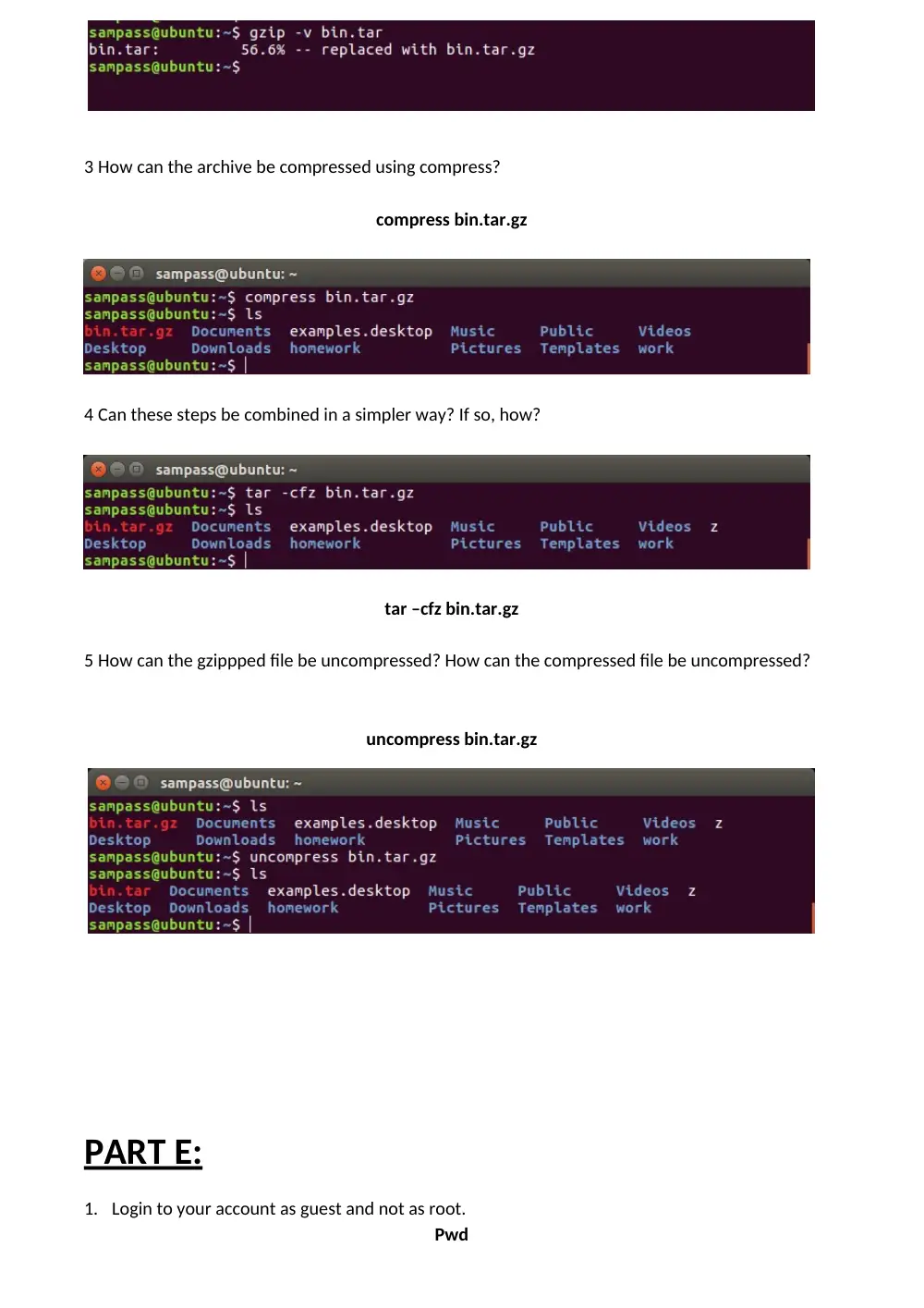
2 Using gzip, how can the archive be compressed to save the most space?
gzip –v bin.tar
3 How can the archive be compressed using compress?
compress bin.tar.gz
4 Can these steps be combined in a simpler way? If so, how?
tar –cfz bin.tar.gz
5 How can the gzippped file be uncompressed? How can the compressed file be uncompressed?
uncompress bin.tar.gz
PART E:
1. Login to your account as guest and not as root.
Pwd
2. Open Terminal and find out the shell you are using.
Echo $0
3. Change your shell to sh.
Sh
4. Write a shell script (using vi editor or any other editor) to create a directory test in your area
and copy contents of /etc in the test directory.
# ! /bin/bash
mkdir test
cp –a /etc /tmp/guest-1h4k79/test
5. Move the contents of test directory in test1 directory.
mkdir test1
mv test test1
6. Copy the test1 directory to /tmp.
cp –r test1 /tmp
7. Write, the date of Creation/Modification, ownership, group and permissions of test1
directory.
Ls –l
8. Tar and gzip the contents of test1.
tar –czvf test1.tar.gz /tmp/gues-1h4k79/test/1
9. Move the test1.tgz into your area and untar it.
10. Write the names of all the files in test1 directory and its subdirectories which have as in their
name into a file asname.
rename ‘s/^/AS_/’ *
11. Delete the test1 directory using rm command and see if you find it in Trash
rm -r /tmp/guest-1h4k79/test1
12. Use find command and locate command to find the location of passwd command.
find –name passwd
13. Find out the number of commands in /bin.
Wc –w /bin/bash /etc/bash.bashrc /usr/share/man/man1/bash.1.gz
14. Create a command to create new users (Use useradd command. See the man page of
useradd for command options). Use chmod to give it appropriate permission so that only
guest user can run this command.
useradd zunion -p pass
chmod 775 /home/zunion
15. Compute the MD5 Checksum of kernel file.
Md5sum /boot/initrd.img-4.10.0-38-generic
16. Check the date and time of the system. Advance the date by one day and time bye 1 hour.
sudo su
date
date –s
17. Find out the disk usage of /etc directory.
Du /etc
18. Find the hostname and domain name of the system.
Hostname
Domainname
19. Find the CPU and Memory utilization of the system.
top
20. Find the PID of the Process which is consuming maximum CPU.
6571
21. Shutdown the system with warning to users.
shutdown –h 1:00
22. Find out the disk usage (du) of / directory and compare it with the usage of / partition (df).
du /
df /
23. Make a new swap of 512 MB.
sudo dd if=/dev/zero of=/swapfile bs=1024 count=512k
24. Shutdown your network interface. Try to ping your friends machine. Bring it up again and try
to.
Ifconfig ens33 down
Ping 192.168.0.1
Ifconfig ens33 up
25. Traceroute to www.google.com and try to find out how many routers are there between
your machine and google server.
traceroute www.google.com
26.
S
hutdown your machine and then poweroff (after starting it again) your machine. Do you see
a difference between the two?
Shutdown will power down the OS.
Power off will completely power off the system
Part F
1 Create a long running process by typing pin 127.0.0.1. Suspend it with CTRL Z. How would you
bring it to the foreground? And how would you terminate it
Ping 127.0.0.1
Ctrl z
Fg
Ctrl c
2 Create a long running process in the background by typing ping 127.0.0.1 >/dev/null&. Find out
its process id using ps and kill it using kill.
3 Sometimes ps aux truncates the process name. How can you get ps to display the full process
name and its arguments?
Ps -l
4 What does the command kill -9 pid do, where pid is the number of a process? Are there
options other than -9 that might be useful? What does kill -9 –1 so?
Kill -9 is used to kill a process without blocking it
There is also 15 more usefull options only when we require to kill a process that does not
respond.
kill -9 pid kills a process
kill -9 -1 pid kills all the GUI
Part G
1
What do the following commands do?
A
ls | grep –i doc lists all files and directories with name containing ‘doc’ without being case
sensitive.
B
command2>&1 | grep –i fail 2 sends error redirected to the standard output which is 1 and
filtering failed messages .
C
command2>&1 >/dev/null | grep –I fail 2 sends error redirected to the standard
output which is 1 then sent to /dev/null to ignore any output and filtering failed message
2
Write the composite commands to perform the following tasks:
A
Output a recursive listing using ls of your home directory, including invisible files, to the
file /tmp/HOMEFILES:
Ls –aR>/tmp/HOMEFILES
B
Find any files (using find) on the system that are world-writable. Error message should be
discarded (redirected to /dev/null):
find / -perm / o+w 2 > /dev/null
C
Find all the files in /etc chat contain either the string “10.17.1” or the string
“130.236.189” and output their names to /tmp/FILES. Any error messages should be discarded.
For this exercise you may want to use egrep and a regexp containing the infix operator “I”:
egrep “10\.17\.1|1\.30\.236\.189” /etc/* | awk FS = “:” {print $1}’ 1 > /tmp/FILES 2 >
/dev/null
D
Output a recursive listing (using ls) of your home directory, including invisible files, to
the file /tmp/HOMEFILES and to the screen. You may find the tee command useful here:
Ls –R | tee –a /tmp/HOMEFILES
3
Output the contents of the first file found in /etc chat contains the string “10.17.1” or
the string “130.236.189”. You can combine find, grep, head, xargsand cat to get the job done:
Cat ‘egrep-1 “10\.17|130\.236” * | head -1’
PART H
1 What does cd .. do?
It will take you to your home directory, or your parent directory.
2 What does cd../.. do?
It takes you back to your root directory (/)
3 If you do cd / followed by pwd, what will happen?
It will take me to my root directory (/), then it will print my current working directory, which is
(/)
4 What information about a file is shown by ls -laF?
It will display a long list of all files/folders, including the hidden files( starting with (.)) and will
classify an indicator to each of the entries.
5. In the following example, explain the fields of the output from:
ls –laF ddir dsp:
drwxr-xr-x 22 dave staff 4096 Jan 12 2001 dir/
crw-rw---- 1 root audio 14, 3 Jan 22 2001 dsp
The type, whether a file or a directory or a special file (d and c)
The permissions (r, w, or x) (rwx-r-x-r-x, and rw-rw----)
The number of links it has (22 and 1)
The owner of the file (dave and root )
The group it belongs to (staff and audio )
The size (4096 and 14)
The creation date (Jan 12 2001 and Jan 22 2001)
File/ directory name
6 If you have two files, a and b, and you issue the command mv a b, what happens? Is there
an option to mv that will issue a warning in this situation?
When you mv a b, it will delete file a and overwrite its content to file b
7
What is the command to duplicate the contents of /dir1 to /dir2, preserving modification
times, ownership and permissions of all files?
cp /dir1 /dir2
8 How do you make the file secret readable and writable by root, readable by the groupwheel
and inaccessible to everybody else?
chmod 640 (filename)
9
How can you remove a directory, including its contents, with a single command?
Rm –r (directory name)
10 What does chown –R user.user /path/to/directory/ do?
It changes the recursively the owner of a user to another specifying the path
11 How can you recognize symbolic links when using ls?
It will have an (l) letter in the first comment, meaning it’s a symbolic(soft) link.
test is the symbolic(soft) link linking to the original file testorignal.
12 How can you see what a symbolic link points to?
It will have a redirection arrow ( -> ) pointing to the file it’s linked to.
For example, b is linked to bbb
.
13 What happens if you attempt to create a symbolic link to a file that doesn’t exist?
It will create the link, but will mark it in red, and also display the file in red, since the file
doesn’t exist
Part I
1 Login as root, use groupadd command to add a group called “groupx” where x is your group
number. For example, groupadd group4 (create a group called group4)
After logging in as root, type groupadd group4 to create the group
2 User useradd command to add a user account for you in the group, name your account using
your surname plus the first letter of your first name, and use passwd command to set
“tabuser” as password. For example,
useradd –g group4 zeta (create a user called zeta in group4)
passwd zeta
(change the password of user zeta)
useradd -g group4 zeta
passwd zeta
3 Linux supports virtual terminals. Use “Alt+F2” to change to another terminal and see if you can
login use your username and password.
4 Use “Alt+F1” to switch back to your first virtual terminal, where your logged as root. Use “who”
or “users” to check all the users who are logged in.
5 To send a message to all users, use “wall” command.
sudo wall hello
6 Familiar yourself with other group and user related commands, e.g. “userdel”, “usermod”,
“userdel”, “groupdel”, “chgrp”, “groups”.
7 In Linux, you can use “which” and “whereis” to locate the full path of system commands. Find
out the path information of above group and user related commands.
8 Use “find” command to search for the location of “httpd.conf”, “named.conf”, “resolv.conf”, and
“smb.conf” files. For example, the following is to search a file called “index.html” in root
directory (/) and all its sub-directories, and print the results
find / -name index.html –print
9 To clean up the screen, type clear.
10 Daemons are processes which run all the time in the background. For example, “syslogd” is
system log daemon, “lpd” is line printer daemon, “httpd” is http web server daemon etc. Use
“top” program to dynamically display the system resource usage and all the running
daemons. In “top” program, type “h” for help and “q” to quit.
11 Use “ps” or “ps –aux” to check what processes are running. Please note that every process
has its own process ID number (PID), write down some examples in your log book
12 To terminate a process, use “kill” command. For example, “kill 901” will terminate a program
whose PID number is 901. Let the “top” program running under one terminal, and try to find
out its PID number and kill it from another virtual terminal
Kill 53344, to kill the Top command process. It shows at the bottom of the first terminal
“Killed”, because as the second terminal shows, I used kill -9.
13 In the case when “kill” command itself doesn’t work, try “kill -1 901” or “kill –HUP 901”
14 To log out, press “Ctrl+D