
CSC 414 Lecture, Fall 2003
Notre Dame University–Louaize · Applied Operating Systems · 29 pages · Ms. Nouhad Rizk



Showing the first 10 of 29 pages. Download the PDF to see all of it.
More CSC 414 files
Show the text of this lab
Nouhad J. Rizk
CSC 414
1/29
An Introduction to the Unix Shell
The shell is a command programming language that provides an interface
to the UNIX operating system. Its features include control-flow primitives,
parameter passing, variables and string substitution. Constructs such as
while, if then else, case and for are available. Two-way communication is
possible between the shell and commands. String-valued parameters,
typically file names or flags, may be passed to a command. A return code
is set by commands that may be used to determine control-flow, and the
standard output from a command may be used as shell input.
The shell can modify the environment in which commands run.
Input and output can be redirected to files, and processes that
communicate through `pipes' can be invoked. Commands are found
by searching directories in the file system in a sequence that can
be defined by the user. Commands can be read either from the
terminal or from a file, which allows command procedures to be
stored for later use.
1.0 Introduction
The shell is both a command language and a programming language that provides an
interface to the UNIX operating system. This memorandum describes, with examples, the
UNIX shell. The first section covers most of the everyday requirements of terminal users.
Some familiarity with UNIX is an advantage when reading this section; see, for example,
"UNIX for beginners". Section 2 describes those features of the shell primarily intended
for use within shell procedures. These include the control-flow primitives and string-
valued variables provided by the shell. A knowledge of a programming language would
be a help when reading this section. The last section describes the more advanced
features of the shell.
1.1 Simple commands
Simple commands consist of one or more words separated by blanks. The first word is
the name of the command to be executed; any remaining words are passed as arguments
to the command. For example,
who
is a command that prints the names of users logged in. The command
Nouhad J. Rizk
CSC 414
2/29
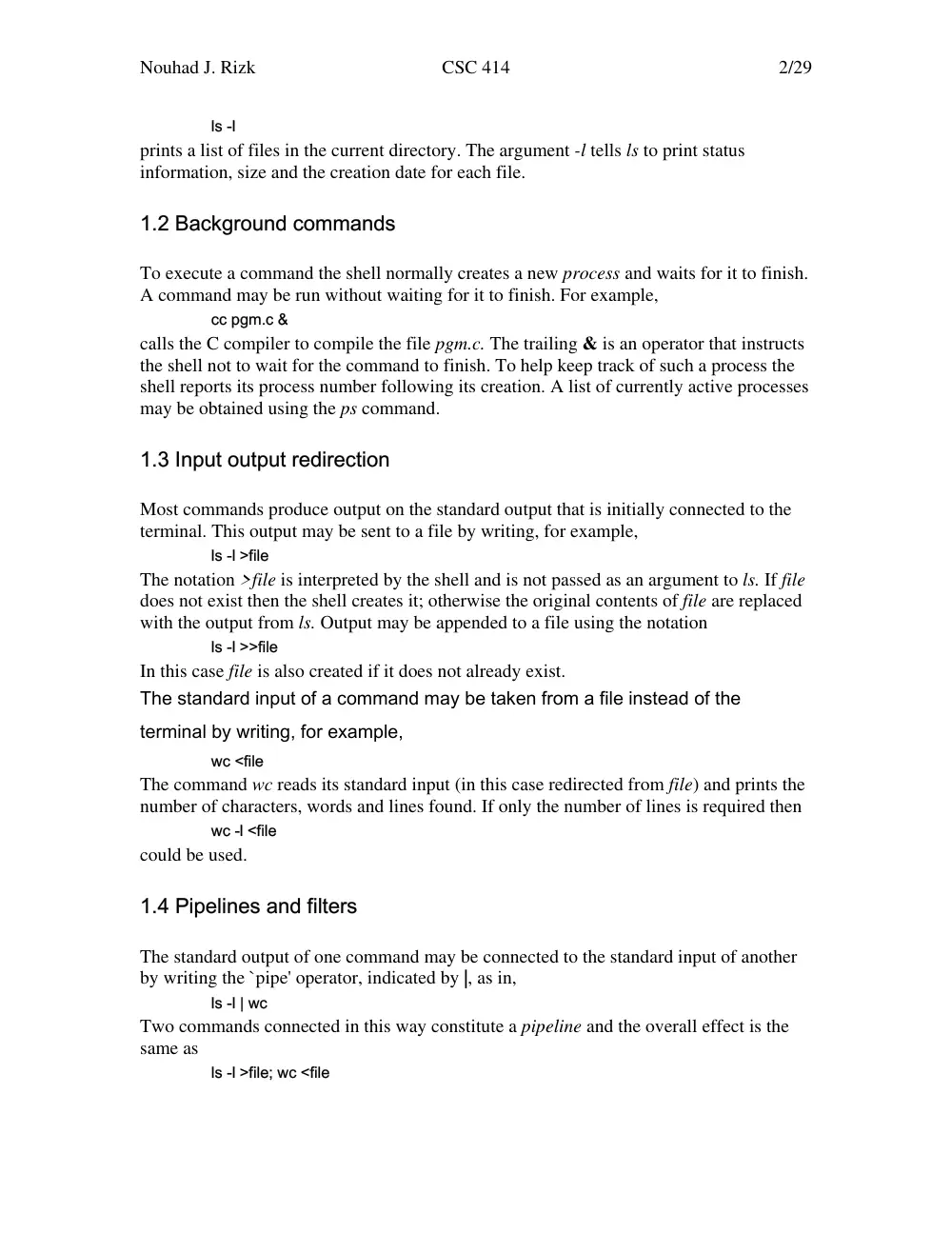
ls -l
prints a list of files in the current directory. The argument -l tells ls to print status
information, size and the creation date for each file.
1.2 Background commands
To execute a command the shell normally creates a new process and waits for it to finish.
A command may be run without waiting for it to finish. For example,
cc pgm.c &
calls the C compiler to compile the file pgm.c. The trailing & is an operator that instructs
the shell not to wait for the command to finish. To help keep track of such a process the
shell reports its process number following its creation. A list of currently active processes
may be obtained using the ps command.
1.3 Input output redirection
Most commands produce output on the standard output that is initially connected to the
terminal. This output may be sent to a file by writing, for example,
ls -l >file
The notation >file is interpreted by the shell and is not passed as an argument to ls. If file
does not exist then the shell creates it; otherwise the original contents of file are replaced
with the output from ls. Output may be appended to a file using the notation
ls -l >>file
In this case file is also created if it does not already exist.
The standard input of a command may be taken from a file instead of the
terminal by writing, for example,
wc <file
The command wc reads its standard input (in this case redirected from file) and prints the
number of characters, words and lines found. If only the number of lines is required then
wc -l <file
could be used.
1.4 Pipelines and filters
The standard output of one command may be connected to the standard input of another
by writing the `pipe' operator, indicated by |, as in,
ls -l | wc
Two commands connected in this way constitute a pipeline and the overall effect is the
same as
ls -l >file; wc <file
Nouhad J. Rizk
CSC 414
3/29
except that no file is used. Instead the two processes are connected by a pipe (see pipe
(2)) and are run in parallel.
Pipes are unidirectional and synchronization is achieved by halting wc when
there is nothing to read and halting ls when the pipe is full.
A filter is a command that reads its standard input, transforms it in some way,
and prints the result as output. One such filter, grep, selects from its input those
lines that contain some specified string. For example,
ls | grep old
prints those lines, if any, of the output from ls that contain the string old. Another useful
filter is sort. For example,
who | sort
will print an alphabetically sorted list of logged in users.
A pipeline may consist of more than two commands, for example,
ls | grep old | wc -l
prints the number of file names in the current directory containing the string old.
1.5 File name generation
Many commands accept arguments which are file names. For example,
ls -l main.c
prints information relating to the file main.c.
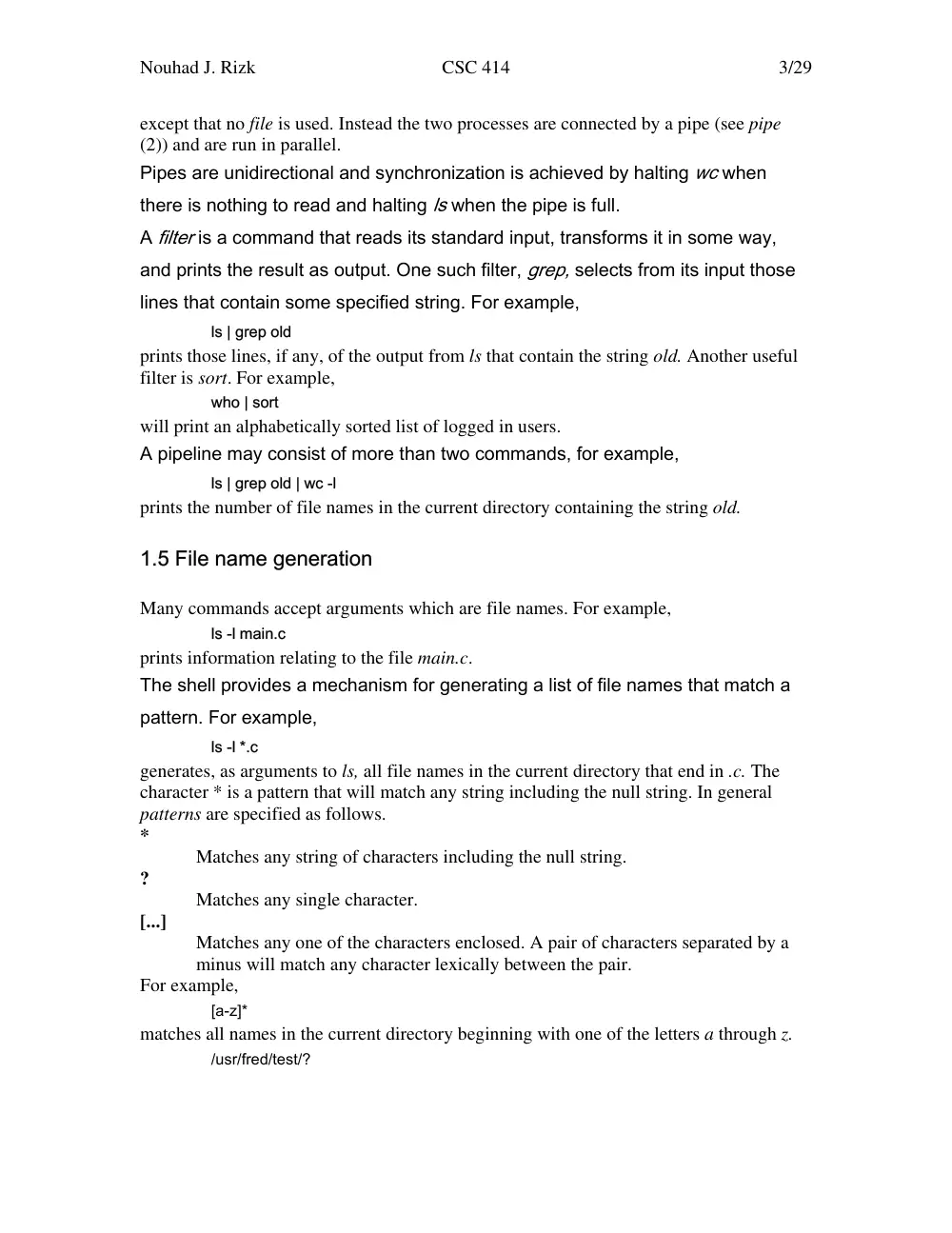
The shell provides a mechanism for generating a list of file names that match a
pattern. For example,
ls -l *.c
generates, as arguments to ls, all file names in the current directory that end in .c. The
character * is a pattern that will match any string including the null string. In general
patterns are specified as follows.
*
Matches any string of characters including the null string.
?
Matches any single character.
[...]
Matches any one of the characters enclosed. A pair of characters separated by a
minus will match any character lexically between the pair.
For example,
[a-z]*
matches all names in the current directory beginning with one of the letters a through z.
/usr/fred/test/?
Nouhad J. Rizk
CSC 414
4/29
matches all names in the directory /usr/fred/test that consist of a single character. If no
file name is found that matches the pattern then the pattern is passed, unchanged, as an
argument.
This mechanism is useful both to save typing and to select names according to
some pattern. It may also be used to find files. For example,
echo /usr/fred/*/core
finds and prints the names of all core files in sub-directories of /usr/fred. (echo is a
standard UNIX command that prints its arguments, separated by blanks.) This last feature
can be expensive, requiring a scan of all sub-directories of /usr/fred.
There is one exception to the general rules given for patterns. The character `.' at
the start of a file name must be explicitly matched.
echo *
will therefore echo all file names in the current directory not beginning with `.'.
echo .*
will echo all those file names that begin with `.'. This avoids inadvertent matching of the
names `.' and `..' which mean `the current directory' and `the parent directory'
respectively. (Notice that ls suppresses information for the files `.' and `..'.)
1.6 Quoting
Characters that have a special meaning to the shell, such as < > * ? | &, are called
metacharacters. A complete list of metacharacters is given in appendix B. Any character
preceded by a \ is quoted and loses its special meaning, if any. The \ is elided so that
echo \?
will echo a single ?, and
echo \\
will echo a single \. To allow long strings to be continued over more than one line the
sequence \newline is ignored.
\ is convenient for quoting single characters. When more than one character
needs quoting the above mechanism is clumsy and error prone. A string of
characters may be quoted by enclosing the string between single quotes. For
example,
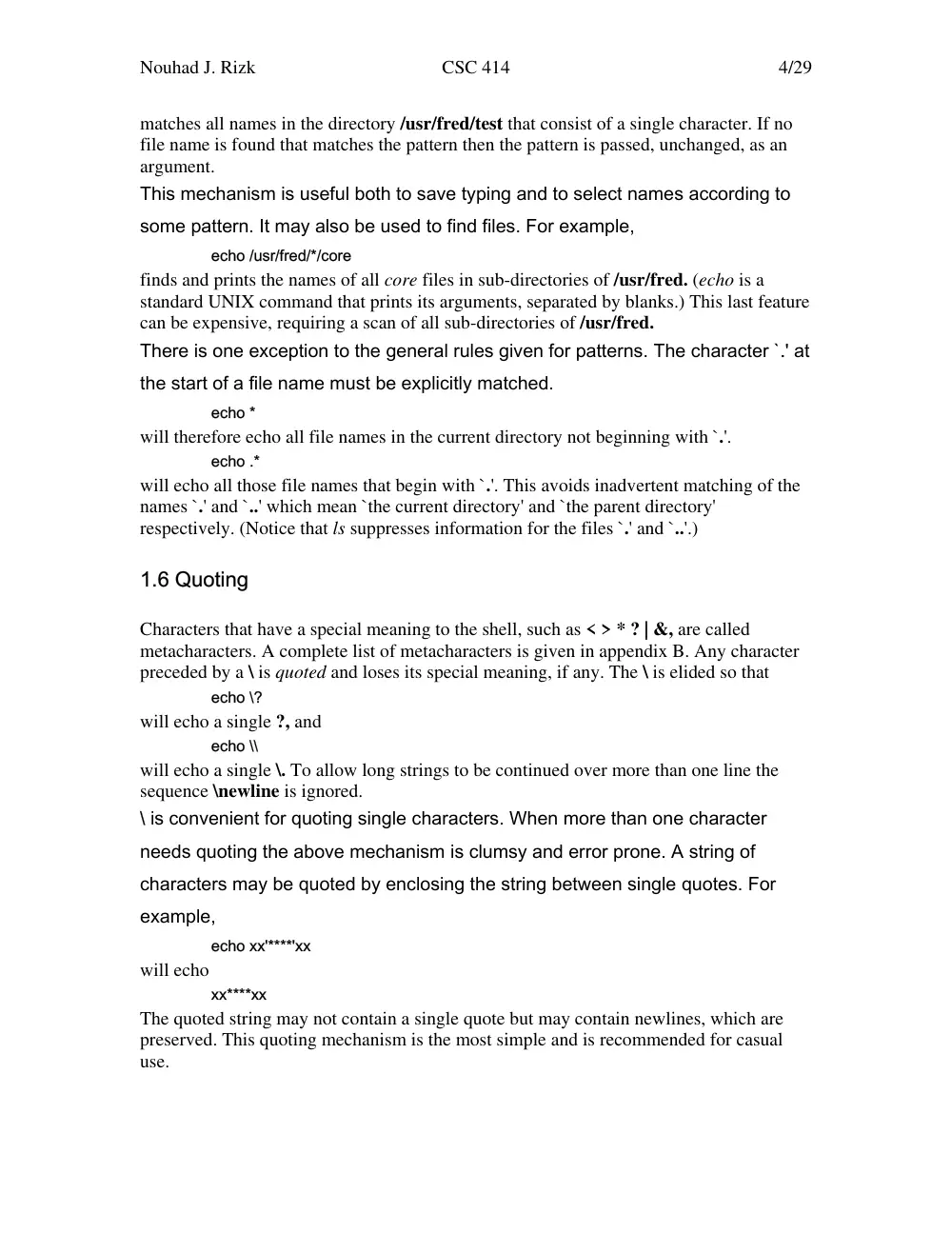
echo xx'****'xx
will echo
xx****xx
The quoted string may not contain a single quote but may contain newlines, which are
preserved. This quoting mechanism is the most simple and is recommended for casual
use.
Nouhad J. Rizk
CSC 414
5/29
A third quoting mechanism using double quotes is also available that prevents
interpretation of some but not all metacharacters. Discussion of the details is
deferred to section 3.4.
1.7 Prompting
When the shell is used from a terminal it will issue a prompt before reading a command.
By default this prompt is `$ '. It may be changed by saying, for example,
PS1=yesdear
that sets the prompt to be the string yesdear. If a newline is typed and further input is
needed then the shell will issue the prompt `> '. Sometimes this can be caused by
mistyping a quote mark. If it is unexpected then an interrupt (DEL) will return the shell to
read another command. This prompt may be changed by saying, for example,
PS2=more
1.8 The shell and login
Following login (1) the shell is called to read and execute commands typed at the
terminal. If the user's login directory contains the file .profile then it is assumed to
contain commands and is read by the shell before reading any commands from the
terminal.
1.9 Summary
ls
Print the names of files in the current directory.
ls >file
Put the output from ls into file.
ls | wc -l
Print the number of files in the current directory.
ls | grep old
Print those file names containing the string old.
ls | grep old | wc -l
Print the number of files whose name contains the string old.
cc pgm.c &
Run cc in the background.
2.0 Shell procedures
The shell may be used to read and execute commands contained in a file. For example,
sh file [ args ... ]
Nouhad J. Rizk
CSC 414
6/29
calls the shell to read commands from file. Such a file is called a command procedure or
shell procedure. Arguments may be supplied with the call and are referred to in file using
the positional parameters $1, $2, .... For example, if the file wg contains
who | grep $1
then
sh wg fred
is equivalent to
who | grep fred
UNIX files have three independent attributes, read, write and execute. The UNIX
command chmod (1) may be used to make a file executable. For example,
chmod +x wg
will ensure that the file wg has execute status. Following this, the command
wg fred
is equivalent to
sh wg fred
This allows shell procedures and programs to be used interchangeably. In either case a
new process is created to run the command.
As well as providing names for the positional parameters, the number of
positional parameters in the call is available as $#. The name of the file being
executed is available as $0.
A special shell parameter $* is used to substitute for all positional parameters
except $0. A typical use of this is to provide some default arguments, as in,
nroff -T450 -ms $*
which simply prepends some arguments to those already given.
2.1 Control flow - for
A frequent use of shell procedures is to loop through the arguments ($1, $2, ...) executing
commands once for each argument. An example of such a procedure is tel that searches
the file /usr/lib/telnos that contains lines of the form
...
fred mh0123
bert mh0789
...
The text of tel is
for i
do grep $i /usr/lib/telnos; done
The command
tel fred
Nouhad J. Rizk
CSC 414
7/29
prints those lines in /usr/lib/telnos that contain the string fred.
tel fred bert
prints those lines containing fred followed by those for bert.
The for loop notation is recognized by the shell and has the general form
for name in w1 w2 ...
do command-list
done
A command-list is a sequence of one or more simple commands separated or terminated
by a newline or semicolon. Furthermore, reserved words like do and done are only
recognized following a newline or semicolon. name is a shell variable that is set to the
words w1 w2 ... in turn each time the command-list following do is executed. If in w1 w2
... is omitted then the loop is executed once for each positional parameter; that is, in $* is
assumed.
Another example of the use of the for loop is the create command whose text is
for i do >$i; done
The command
create alpha beta
ensures that two empty files alpha and beta exist and are empty. The notation >file may
be used on its own to create or clear the contents of a file. Notice also that a semicolon
(or newline) is required before done.
2.2 Control flow - case
A multiple way branch is provided for by the case notation. For example,
case $# in
1) cat >>$1 ;;
2) cat >>$2 <$1 ;;
*) echo \'usage: append [ from ] to\' ;;
esac
is an append command. When called with one argument as
append file
$# is the string 1 and the standard input is copied onto the end of file using the cat
command.
append file1 file2
appends the contents of file1 onto file2. If the number of arguments supplied to append is
other than 1 or 2 then a message is printed indicating proper usage.
The general form of the case command is
case word in
pattern) command-list;;
...
Nouhad J. Rizk
CSC 414
8/29
esac
The shell attempts to match word with each pattern, in the order in which the patterns
appear. If a match is found the associated command-list is executed and execution of the
case is complete. Since * is the pattern that matches any string it can be used for the
default case.
A word of caution: no check is made to ensure that only one pattern matches the
case argument. The first match found defines the set of commands to be
executed. In the example below the commands following the second * will never
be executed.
case $# in
*) ... ;;
*) ... ;;
esac
Another example of the use of the case construction is to distinguish between different
forms of an argument. The following example is a fragment of a cc command.
for i
do case $i in
-[ocs]) ... ;;
-*) echo \'unknown flag $i\' ;;
*.c) /lib/c0 $i ... ;;
*) echo \'unexpected argument $i\' ;;
esac
done
To allow the same commands to be associated with more than one pattern the case
command provides for alternative patterns separated by a |. For example,
case $i in
-x|-y) ...
esac
is equivalent to
case $i in
-[xy]) ...
esac
The usual quoting conventions apply so that
case $i in
\?) ...
will match the character ?.
2.3 Here documents
Nouhad J. Rizk
CSC 414
9/29
The shell procedure tel in section 2.1 uses the file /usr/lib/telnos to supply the data for
grep. An alternative is to include this data within the shell procedure as a here document,
as in,
for i
do grep $i <<!
...
fred mh0123
bert mh0789
...
!
done
In this example the shell takes the lines between <<! and ! as the standard input for grep.
The string ! is arbitrary, the document being terminated by a line that consists of the
string following <<.
Parameters are substituted in the document before it is made available to grep
as illustrated by the following procedure called edg.
ed $3 <<%
g/$1/s//$2/g
w
%
The call
edg string1 string2 file
is then equivalent to the command
ed file <<%
g/string1/s//string2/g
w
%
and changes all occurrences of string1 in file to string2. Substitution can be prevented
using \ to quote the special character $ as in
ed $3 <<+
1,\$s/$1/$2/g
w
+
(This version of edg is equivalent to the first except that ed will print a ? if there are no
occurrences of the string $1.) Substitution within a here document may be prevented
entirely by quoting the terminating string, for example,
grep $i <<\#
...
#
Nouhad J. Rizk
CSC 414
10/29
The document is presented without modification to grep. If parameter substitution is not
required in a here document this latter form is more efficient.
2.4 Shell variables
The shell provides string-valued variables. Variable names begin with a letter and consist
of letters, digits and underscores. Variables may be given values by writing, for example,
user=fred box=m000 acct=mh0000
which assigns values to the variables user, box and acct. A variable may be set to the
null string by saying, for example,
null=
The value of a variable is substituted by preceding its name with $; for example,
echo $user
will echo fred.
Variables may be used interactively to provide abbreviations for frequently used
strings. For example,
b=/usr/fred/bin
mv pgm $b
will move the file pgm from the current directory to the directory /usr/fred/bin. A more
general notation is available for parameter (or variable) substitution, as in,
echo ${user}
which is equivalent to
echo $user
and is used when the parameter name is followed by a letter or digit. For example,
tmp=/tmp/ps
ps a >${tmp}a
will direct the output of ps to the file /tmp/psa, whereas,
ps a >$tmpa
would cause the value of the variable tmpa to be substituted.
Except for $? the following are set initially by the shell. $? is set after executing
each command.
$?
The exit status (return code) of the last command executed as a decimal string.
Most commands return a zero exit status if they complete successfully, otherwise
a non-zero exit status is returned. Testing the value of return codes is dealt with
later under if and while commands.
$#
The number of positional parameters (in decimal). Used, for example, in the
append command to check the number of parameters.
$$
Nouhad J. Rizk
CSC 414
11/29
The process number of this shell (in decimal). Since process numbers are unique
among all existing processes, this string is frequently used to generate unique
temporary file names. For example,
ps a >/tmp/ps$$
...
rm /tmp/ps$$
$!
The process number of the last process run in the background (in decimal).
$-
The current shell flags, such as -x and -v.
Some variables have a special meaning to the shell and should be avoided for general use.
$MAIL
When used interactively the shell looks at the file specified by this variable before
it issues a prompt. If the specified file has been modified since it was last looked
at the shell prints the message you have mail before prompting for the next
command. This variable is typically set in the file .profile, in the user's login
directory. For example,
MAIL=/usr/mail/fred
$HOME
The default argument for the cd command. The current directory is used to
resolve file name references that do not begin with a /, and is changed using the
cd command. For example,
cd /usr/fred/bin
makes the current directory /usr/fred/bin.
cat wn
will print on the terminal the file wn in this directory. The command cd with no
argument is equivalent to
cd $HOME
This variable is also typically set in the the user's login profile.
$PATH
A list of directories that contain commands (the search path). Each time a
command is executed by the shell a list of directories is searched for an
executable file. If $PATH is not set then the current directory, /bin, and /usr/bin
are searched by default. Otherwise $PATH consists of directory names separated
by :. For example,
PATH=:/usr/fred/bin:/bin:/usr/bin
specifies that the current directory (the null string before the first :), /usr/fred/bin,
/bin and /usr/bin are to be searched in that order. In this way individual users can
have their own `private' commands that are accessible independently of the
current directory. If the command name contains a / then this directory search is
not used; a single attempt is made to execute the command.
$PS1
The primary shell prompt string, by default, `$ '.
$PS2
Nouhad J. Rizk
CSC 414
12/29
The shell prompt when further input is needed, by default, `> '.
$IFS
The set of characters used by blank interpretation (see section 3.4).
2.5 The test command
The test command, although not part of the shell, is intended for use by shell programs.
For example,
test -f file
returns zero exit status if file exists and non-zero exit status otherwise. In general test
evaluates a predicate and returns the result as its exit status. Some of the more frequently
used test arguments are given here, see test (1) for a complete specification.
test s
true if the argument s is not the null string
test -f file
true if file exists
test -r file
true if file is readable
test -w file
true if file is writable
test -d file
true if file is a directory
2.6 Control flow - while
The actions of the for loop and the case branch are determined by data available to the
shell. A while or until loop and an if then else branch are also provided whose actions
are determined by the exit status returned by commands. A while loop has the general
form
while command-list1
do command-list2
done
The value tested by the while command is the exit status of the last simple command
following while. Each time round the loop command-list1 is executed; if a zero exit
status is returned then command-list2 is executed; otherwise, the loop terminates. For
example,
while test $1
do ...
shift
done
is equivalent to
for i
Nouhad J. Rizk
CSC 414
13/29
do ...
done
shift is a shell command that renames the positional parameters $2, $3, ... as $1, $2, ...
and loses $1.
Another kind of use for the while/until loop is to wait until some external event
occurs and then run some commands. In an until loop the termination condition is
reversed. For example,
until test -f file
do sleep 300; done
commands
will loop until file exists. Each time round the loop it waits for 5 minutes before trying
again. (Presumably another process will eventually create the file.)
2.7 Control flow - if
Also available is a general conditional branch of the form,
if command-list
then command-list
else command-list
fi
that tests the value returned by the last simple command following if.
The if command may be used in conjunction with the test command to test for the
existence of a file as in
if test -f file
then process file
else do something else
fi
An example of the use of if, case and for constructions is given in section 2.10.
A multiple test if command of the form
if ...
then ...
else if ...
then ...
else if ...
...
fi
fi
Nouhad J. Rizk
CSC 414
14/29
fi
may be written using an extension of the if notation as,
if ...
then ...
elif ...
then ...
elif ...
...
fi
The following example is the touch command which changes the `last modified' time for
a list of files. The command may be used in conjunction with make (1) to force
recompilation of a list of files.
flag=
for i
do case $i in
-c) flag=N ;;
*) if test -f $i
then ln $i junk$$; rm junk$$
elif test $flag
then echo file \'$i\' does not exist
else >$i
fi
esac
done
The -c flag is used in this command to force subsequent files to be created if they do not
already exist. Otherwise, if the file does not exist, an error message is printed. The shell
variable flag is set to some non-null string if the -c argument is encountered. The
commands
ln ...; rm ...
make a link to the file and then remove it thus causing the last modified date to be
updated.
The sequence
if command1
then command2
fi
may be written
command1 && command2
Conversely,
command1 || command2
Nouhad J. Rizk
CSC 414
15/29
executes command2 only if command1 fails. In each case the value returned is that of the
last simple command executed.
2.8 Command grouping
Commands may be grouped in two ways,
{ command-list ; }
and
( command-list )
In the first command-list is simply executed. The second form executes command-list as a
separate process. For example,
(cd x; rm junk )
executes rm junk in the directory x without changing the current directory of the invoking
shell.
The commands
cd x; rm junk
have the same effect but leave the invoking shell in the directory x.
2.9 Debugging shell procedures
The shell provides two tracing mechanisms to help when debugging shell procedures.
The first is invoked within the procedure as
set -v
(v for verbose) and causes lines of the procedure to be printed as they are read. It is useful
to help isolate syntax errors. It may be invoked without modifying the procedure by
saying
sh -v proc ...
where proc is the name of the shell procedure. This flag may be used in conjunction with
the -n flag which prevents execution of subsequent commands. (Note that saying set -n at
a terminal will render the terminal useless until an end- of-file is typed.)
The command
set -x
will produce an execution trace. Following parameter substitution each command is
printed as it is executed. (Try these at the terminal to see what effect they have.) Both
flags may be turned off by saying
set -
and the current setting of the shell flags is available as $-.
2.10 The man command
Nouhad J. Rizk
CSC 414
16/29
The following is the man command which is used to print sections of the UNIX manual.
It is called, for example, as
$ man sh
$ man -t ed
$ man 2 fork
In the first the manual section for sh is printed. Since no section is specified, section 1 is
used. The second example will typeset (-t option) the manual section for ed. The last
prints the fork manual page from section 2.
cd /usr/man
: 'colon is the comment command'
: 'default is nroff ($N), section 1 ($s)'
N=n s=1
for i
do case $i in
[1-9]*) s=$i ;;
-t) N=t ;;
-n) N=n ;;
-*) echo unknown flag \'$i\' ;;
*) if test -f man$s/$i.$s
then ${N}roff man0/${N}aa man$s/$i.$s
else : 'look through all manual sections'
found=no
for j in 1 2 3 4 5 6 7 8 9
do if test -f man$j/$i.$j
then man $j $i
found=yes
fi
done
case $found in
no) echo \'$i: manual page not
found\'
esac
fi
esac
done
Nouhad J. Rizk
CSC 414
17/29
Figure 1. A version of the man command
3.0 Keyword parameters
Shell variables may be given values by assignment or when a shell procedure is invoked.
An argument to a shell procedure of the form name=value that precedes the command
name causes value to be assigned to name before execution of the procedure begins. The
value of name in the invoking shell is not affected. For example,
user=fred command
will execute command with user set to fred. The -k flag causes arguments of the form
name=value to be interpreted in this way anywhere in the argument list. Such names are
sometimes called keyword parameters. If any arguments remain they are available as
positional parameters $1, $2, ....
The set command may also be used to set positional parameters from within a
procedure. For example,
set - *
will set $1 to the first file name in the current directory, $2 to the next, and so on. Note
that the first argument, -, ensures correct treatment when the first file name begins with a
-.
3.1 Parameter transmission
When a shell procedure is invoked both positional and keyword parameters may be
supplied with the call. Keyword parameters are also made available implicitly to a shell
procedure by specifying in advance that such parameters are to be exported. For example,
export user box
marks the variables user and box for export. When a shell procedure is invoked copies
are made of all exportable variables for use within the invoked procedure. Modification
of such variables within the procedure does not affect the values in the invoking shell. It
is generally true of a shell procedure that it may not modify the state of its caller without
explicit request on the part of the caller. (Shared file descriptors are an exception to this
rule.)
Names whose value is intended to remain constant may be declared readonly.
The form of this command is the same as that of the export command,
readonly name ...
Subsequent attempts to set readonly variables are illegal.
3.2 Parameter substitution
If a shell parameter is not set then the null string is substituted for it. For example, if the
variable d is not set
Nouhad J. Rizk
CSC 414
18/29
echo $d
or
echo ${d}
will echo nothing. A default string may be given as in
echo ${d-.}
which will echo the value of the variable d if it is set and `.' otherwise. The default string
is evaluated using the usual quoting conventions so that
echo ${d-'*'}
will echo * if the variable d is not set. Similarly
echo ${d-$1}
will echo the value of d if it is set and the value (if any) of $1 otherwise. A variable may
be assigned a default value using the notation
echo ${d=.}
which substitutes the same string as
echo ${d-.}
and if d were not previously set then it will be set to the string `.'. (The notation ${...=...}
is not available for positional parameters.)
If there is no sensible default then the notation
echo ${d?message}
will echo the value of the variable d if it has one, otherwise message is printed by the
shell and execution of the shell procedure is abandoned. If message is absent then a
standard message is printed. A shell procedure that requires some parameters to be set
might start as follows.
: ${user?} ${acct?} ${bin?}
...
Colon (:) is a command that is built in to the shell and does nothing once its arguments
have been evaluated. If any of the variables user, acct or bin are not set then the shell
will abandon execution of the procedure.
3.3 Command substitution
The standard output from a command can be substituted in a similar way to parameters.
The command pwd prints on its standard output the name of the current directory. For
example, if the current directory is /usr/fred/bin then the command
d=`pwd`
is equivalent to
d=/usr/fred/bin
The entire string between grave accents (`...`) is taken as the command to be executed and
is replaced with the output from the command. The command is written using the usual
quoting conventions except that a ` must be escaped using a \. For example,
ls `echo "$1"`
is equivalent to
Nouhad J. Rizk
CSC 414
19/29
ls $1
Command substitution occurs in all contexts where parameter substitution occurs
(including here documents) and the treatment of the resulting text is the same in both
cases. This mechanism allows string processing commands to be used within shell
procedures. An example of such a command is basename which removes a specified
suffix from a string. For example,
basename main.c .c
will print the string main. Its use is illustrated by the following fragment from a cc
command.
case $A in
...
*.c) B=`basename $A .c`
...
esac
that sets B to the part of $A with the suffix .c stripped.
Here are some composite examples.
· for i in `ls -t`; do ...
The variable i is set to the names of files in time order, most recent first.
· set `date`; echo $6 $2 $3, $4
will print, e.g., 1977 Nov 1, 23:59:59
3.4 Evaluation and quoting
The shell is a macro processor that provides parameter substitution, command
substitution and file name generation for the arguments to commands. This section
discusses the order in which these evaluations occur and the effects of the various quoting
mechanisms.
Commands are parsed initially according to the grammar given in appendix A.
Before a command is executed the following substitutions occur.
parameter substitution, e.g. $user
command substitution, e.g. `pwd`
Only one evaluation occurs so that if, for example, the value of the var