
CMPS 209 Lab Assignment 2, Fall 2013
American University of Beirut · Computers and Programming for the Sciences · 23 pages

Showing the first 10 of 23 pages. Download the PDF to see all of it.
More CMPS 209 files
Show the text of this lab
Jad Al Jamil
0/21
Hardware
Your name
Computers perform a sequence of four functions called the information processing cycle.
The four basic functions are inputting data, processing the data into information, displaying
the information using output devices, and storing both information and data for subsequent
use. Computer hardware, which includes the physical components of the computer, is
involved in each of these four steps.
Hardware comes in different forms. Some is hidden in the system unit; other hardware is
considered to be peripheral to the computer. Let's take a closer look at those components of
the computer system that you manage daily: the system unit, the equipment that facilitates
inputting data and commands, the equipment that emits audio and visual output, as well as
the equipment that stores your work.
Jad Al Jamil
Table Of Content
I-
I-System Unit.........................................................................................................................................3
A-Inside System Unit............................................................................................................................. 3
1)
Motherboard....................................................................................................................... 4
2)
CPU......................................................................................................................................4
3) MEMORY................................................................................................................................... 6
Outside of the System Unit...................................................................................................................7
1)
Connectors and Ports...........................................................................................................7
II- Input Devices...................................................................................................................................... 10
Keyboard............................................................................................................................................. 10
The Mouse..........................................................................................................................................11
Speech Recognition & Microphones...................................................................................................11
Scanners..............................................................................................................................................12
III- Output Devices....................................................................................................................................13
Monitors............................................................................................................................................. 13
Printers................................................................................................................................................14
Additional Output Devices.................................................................................................................. 15
IV- Storage Devices...................................................................................................................................16
Memory Versus Storage.....................................................................................................................16
Hard Disk............................................................................................................................................. 17
1)
Factors Affecting Hard Disk Performance..........................................................................19
Network Attached Storage (NAS)........................................................................................................19
Flash Drives and Storage.....................................................................................................................20
Optical Storage Devices.......................................................................................................................21
1)
Protecting the Data on Your Discs:....................................................................................21
1
Jad Al Jamil
Table of Figures
Figure 1: System Unit...........................................................................................................................3
Figure 2: inside system unit-general view.............................................................................................4
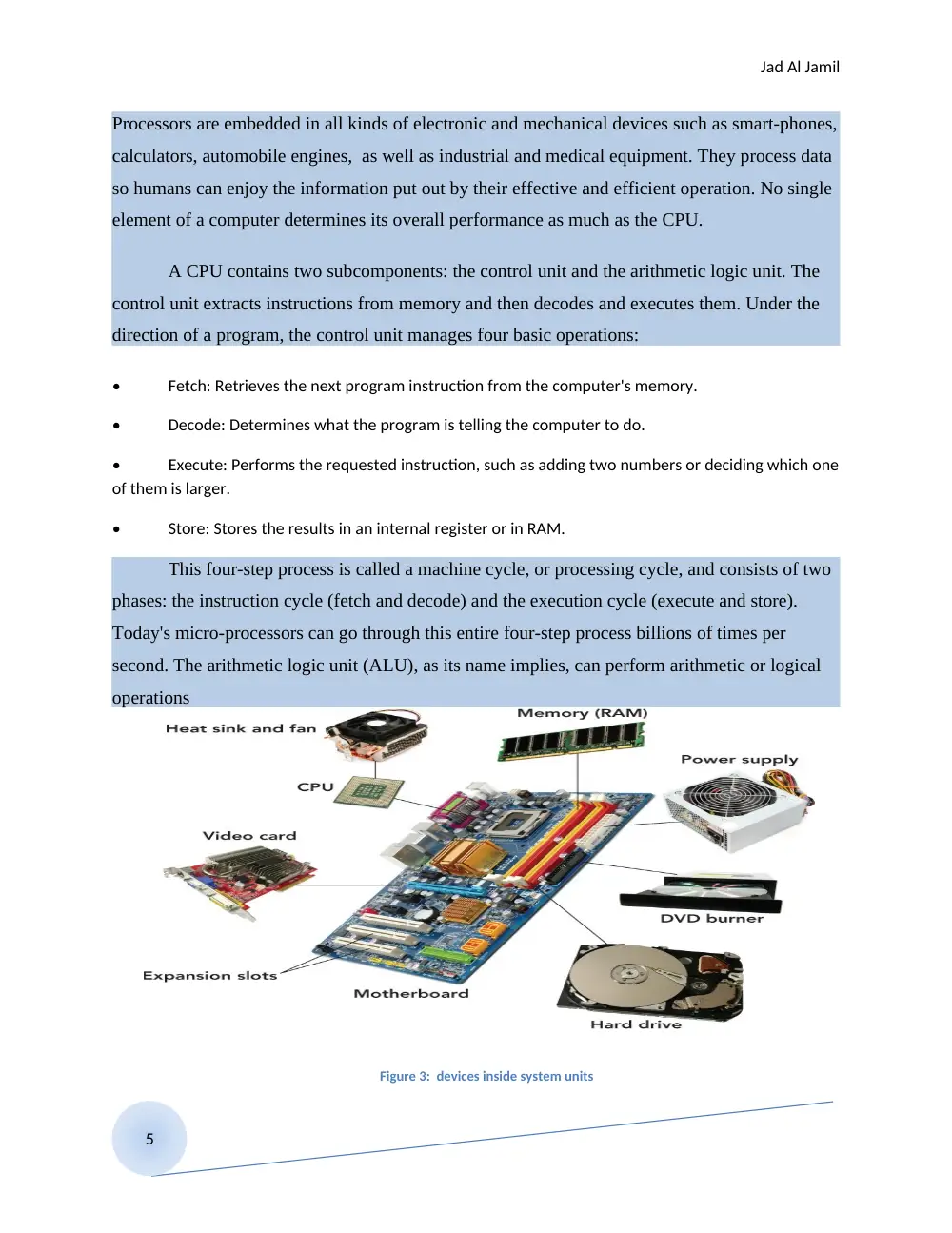
Figure 3: devices inside system units...................................................................................................6
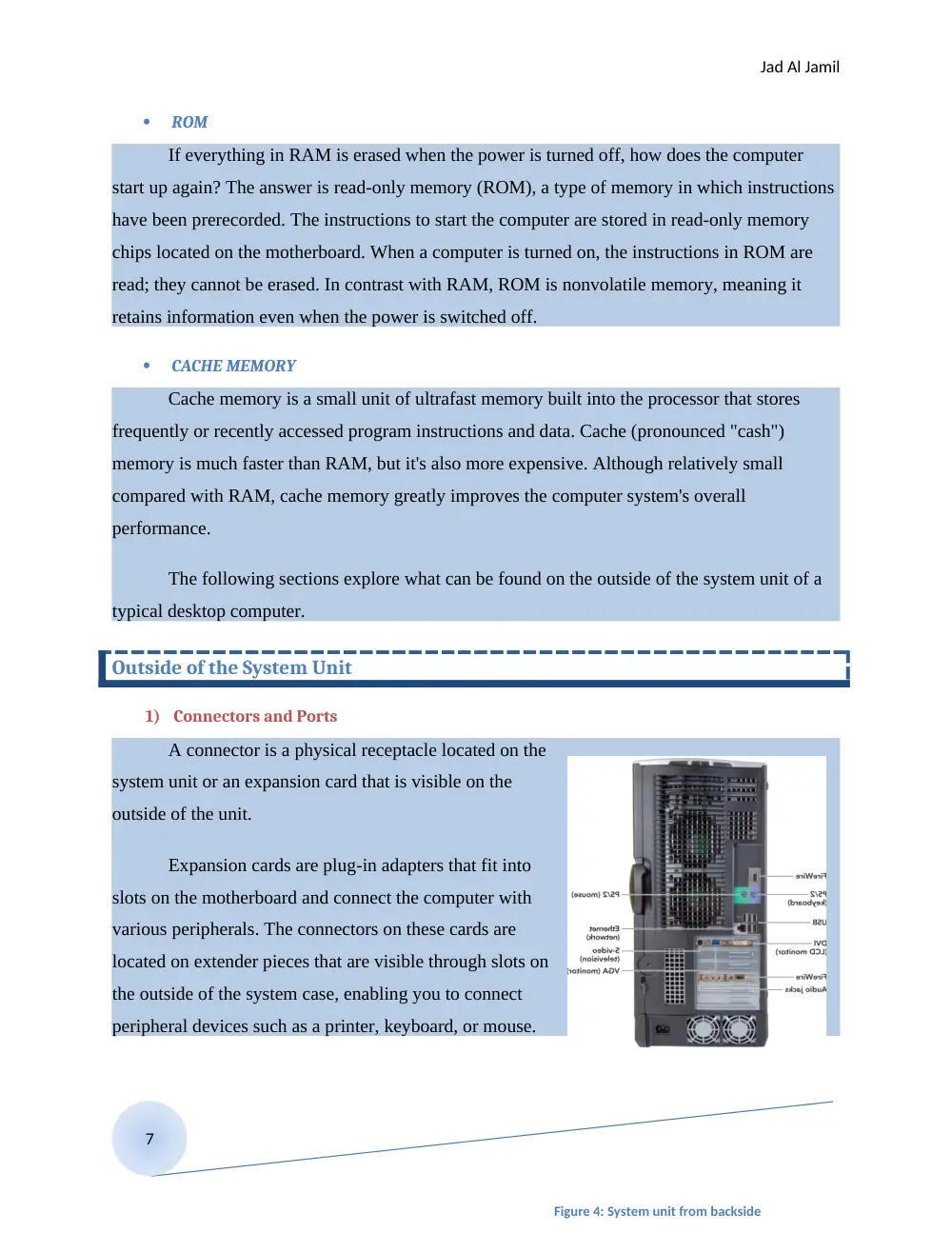
Figure 4: System unit from backside.....................................................................................................8
Figure 5: keyboard.............................................................................................................................11
Figure 6:plotter..................................................................................................................................16
Figure 7:storage devices.....................................................................................................................17
2/21
Jad Al Jamil
I-System Unit
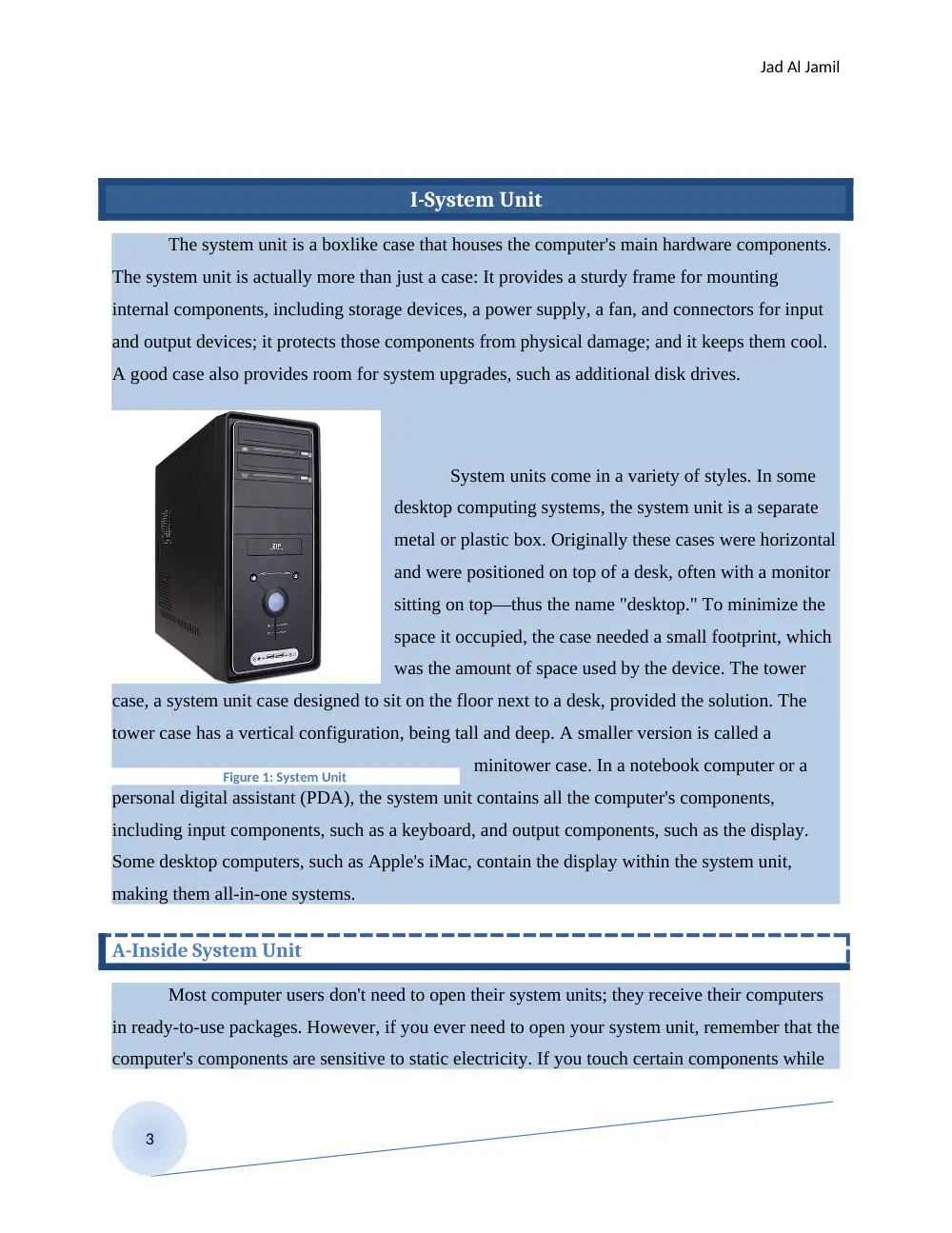
The system unit is a boxlike case that houses the computer's main hardware components.
The system unit is actually more than just a case: It provides a sturdy frame for mounting
internal components, including storage devices, a power supply, a fan, and connectors for input
and output devices; it protects those components from physical damage; and it keeps them cool.
A good case also provides room for system upgrades, such as additional disk drives.
System units come in a variety of styles. In some
desktop computing systems, the system unit is a separate
metal or plastic box. Originally these cases were horizontal
and were positioned on top of a desk, often with a monitor
sitting on top—thus the name "desktop." To minimize the
space it occupied, the case needed a small footprint, which
was the amount of space used by the device. The tower
case, a system unit case designed to sit on the floor next to a desk, provided the solution. The
tower case has a vertical configuration, being tall and deep. A smaller version is called a
minitower case. In a notebook computer or a
personal digital assistant (PDA), the system unit contains all the computer's components,
including input components, such as a keyboard, and output components, such as the display.
Some desktop computers, such as Apple's iMac, contain the display within the system unit,
making them all-in-one systems.
A-Inside System Unit
Most computer users don't need to open their system units; they receive their computers
in ready-to-use packages. However, if you ever need to open your system unit, remember that the
computer's components are sensitive to static electricity. If you touch certain components while
3
Figure 1: System Unit
Jad Al Jamil
you're charged with static electricity, you could destroy them. To avoid this disaster,
always disconnect the power cord before opening your computer's case, and discharge your
personal static electricity by touching something that's well-grounded or by wearing a grounding
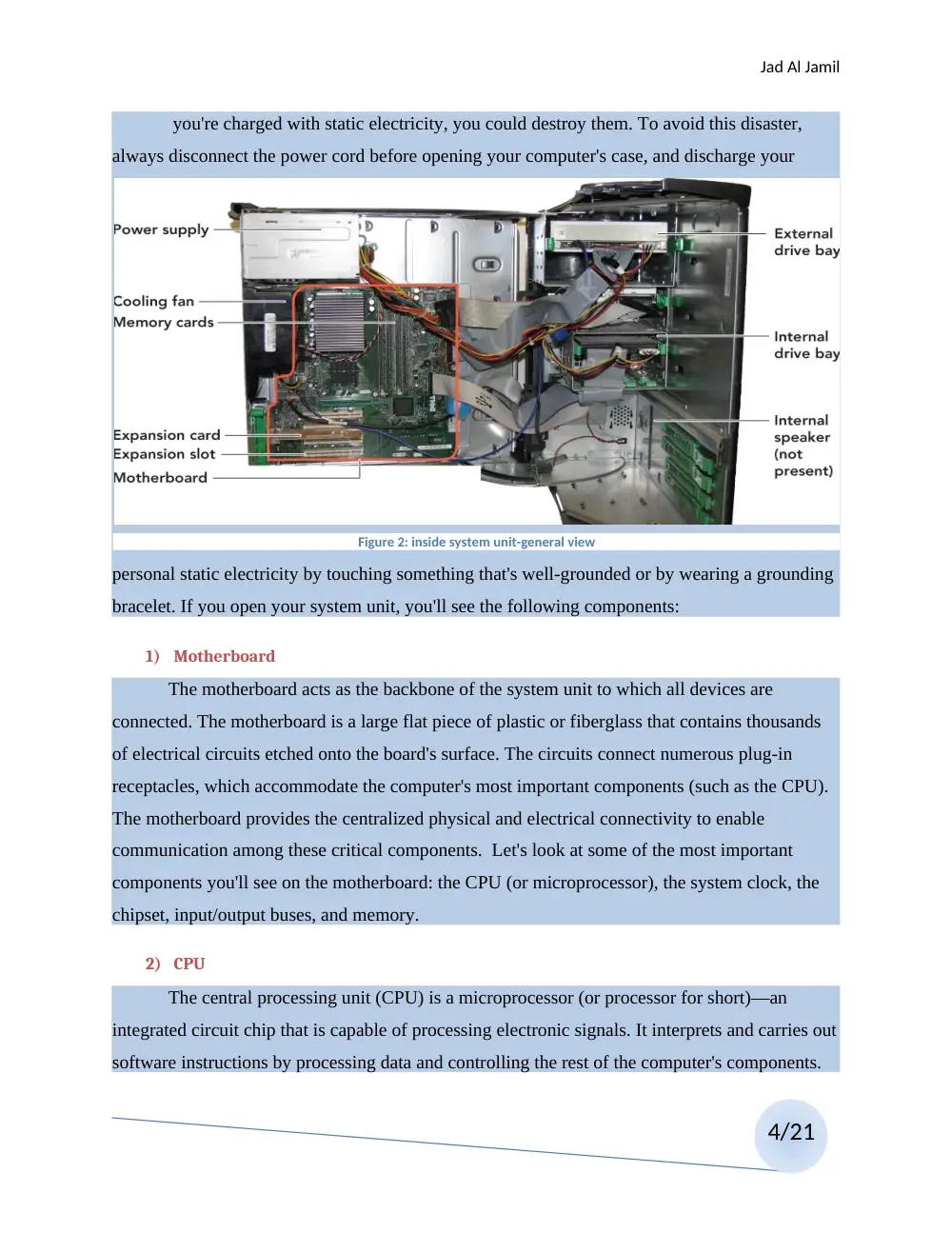
bracelet. If you open your system unit, you'll see the following components:
1) Motherboard
The motherboard acts as the backbone of the system unit to which all devices are
connected. The motherboard is a large flat piece of plastic or fiberglass that contains thousands
of electrical circuits etched onto the board's surface. The circuits connect numerous plug-in
receptacles, which accommodate the computer's most important components (such as the CPU).
The motherboard provides the centralized physical and electrical connectivity to enable
communication among these critical components. Let's look at some of the most important
components you'll see on the motherboard: the CPU (or microprocessor), the system clock, the
chipset, input/output buses, and memory.
2) CPU
The central processing unit (CPU) is a microprocessor (or processor for short)—an
integrated circuit chip that is capable of processing electronic signals. It interprets and carries out
software instructions by processing data and controlling the rest of the computer's components.
4/21
Figure 2: inside system unit-general view
Jad Al Jamil
Processors are embedded in all kinds of electronic and mechanical devices such as smart-phones,
calculators, automobile engines, as well as industrial and medical equipment. They process data
so humans can enjoy the information put out by their effective and efficient operation. No single
element of a computer determines its overall performance as much as the CPU.
A CPU contains two subcomponents: the control unit and the arithmetic logic unit. The
control unit extracts instructions from memory and then decodes and executes them. Under the
direction of a program, the control unit manages four basic operations:
•
Fetch: Retrieves the next program instruction from the computer's memory.
•
Decode: Determines what the program is telling the computer to do.
•
Execute: Performs the requested instruction, such as adding two numbers or deciding which one
of them is larger.
•
Store: Stores the results in an internal register or in RAM.
This four-step process is called a machine cycle, or processing cycle, and consists of two
phases: the instruction cycle (fetch and decode) and the execution cycle (execute and store).
Today's micro-processors can go through this entire four-step process billions of times per
second. The arithmetic logic unit (ALU), as its name implies, can perform arithmetic or logical
operations
5
Figure 3: devices inside system units
Jad Al Jamil
3) MEMORY
Memory refers to the chips that enable the computer to retain information. Memory chips
store program instructions and data so the CPU can access them quickly. As you'll see in this
section, the computer's motherboard contains several different types of memory, each optimized
for its intended use.
RAM
The large, rectangular memory modules housed on the computer's motherboard contain
the computer's random access memory (RAM). RAM stores information temporarily so it's
directly and speedily available to the microprocessor. This information includes all work in
progress— program instructions as well as the data to be processed by the program. RAM is
volatile memory, which means it is not permanent and its contents are erased when the
computer's power is switched off. Why is it called random access memory? RAM is called
random access because any storage location can be accessed directly without having to go from
the first location to the last in sequential order.
How much RAM does a computer need? In general, the more memory the better.
Windows Vista and Mac OS X theoretically require only 512 MB of RAM, but neither system
functions well with so little. For today's Microsoft Windows, Linux, and Macintosh operating
systems, 1 GB of RAM is a practical working minimum.
Virtual memory
Frequently operating systems use virtual memory in addition to RAM. With virtual
memory, the computer looks at RAM to identify data that have not been used recently and copies
those data onto the hard disk. This frees up space in RAM to load a new application or increase
the space needed by a program currently in use. The computer uses virtual memory when RAM
gets full (which can easily happen if you run two or more programs at once). Accessing data on a
disk drive is much slower than using RAM, so when virtual memory kicks in, the computer may
seem to slow to a crawl.
6/21
Jad Al Jamil
ROM
If everything in RAM is erased when the power is turned off, how does the computer
start up again? The answer is read-only memory (ROM), a type of memory in which instructions
have been prerecorded. The instructions to start the computer are stored in read-only memory
chips located on the motherboard. When a computer is turned on, the instructions in ROM are
read; they cannot be erased. In contrast with RAM, ROM is nonvolatile memory, meaning it
retains information even when the power is switched off.
CACHE MEMORY
Cache memory is a small unit of ultrafast memory built into the processor that stores
frequently or recently accessed program instructions and data. Cache (pronounced "cash")
memory is much faster than RAM, but it's also more expensive. Although relatively small
compared with RAM, cache memory greatly improves the computer system's overall
performance.
The following sections explore what can be found on the outside of the system unit of a
typical desktop computer.
Outside of the System Unit
1) Connectors and Ports
A connector is a physical receptacle located on the
system unit or an expansion card that is visible on the
outside of the unit.
Expansion cards are plug-in adapters that fit into
slots on the motherboard and connect the computer with
various peripherals. The connectors on these cards are
located on extender pieces that are visible through slots on
the outside of the system case, enabling you to connect
peripheral devices such as a printer, keyboard, or mouse.
7
Figure 4: System unit from backside
Jad Al Jamil
USB 2.0
USB 2.0 ports use an external bus standard that supports data transfer rates of 480 Mbps
(480 million bits per second) between the computer and its peripheral devices; they do not
transfer data between devices within the system. Some advantages include hot swapping and
support for plug-and-play (PnP). Hot swapping is the ability to connect and disconnect devices
without shutting down your computer. This is convenient when you're using portable devices
that you want to disconnect often, such as a digital camera. PnP refers to a set of standards,
jointly developed by Intel Corporation and Microsoft, that enable a computer to automatically
detect the brand, model, and characteristics of a device when you plug it in and configure the
system accordingly.
Up next on the horizon is USB 3.0, known as SuperSpeed USB. USB 3.0 is expected to
use a fiber optic link to attain a data transfer rate of 4.8 Gbps—up to 10 times faster than USB
2.0. Additionally, USB 3.0 will be compatible with older versions, providing the same benefits
while consuming less power.
1394 PORTS (FIREWIRE)
In 1995 Apple introduced FireWire, an interface Apple created and standardized as the
IEEE 1394 High Performance Serial Bus specification. It is also known as Sony i.Link or IEEE
1394, the official name for the standard. FireWire is similar to USB in that it offers a high-speed
connection for dozens of peripheral devices (up to 63 of them). It is especially well suited for
transmitting digital video and audio data.
On non-Apple systems a FireWire port is called a 1394 port after the international
standard that defines it. Like USB, FireWire enables hot swapping and PnP. However, it is more
expensive than USB and is used only for certain high-speed peripherals, such as digital video
cameras, that need greater throughput (data transfer capacity) than USB provides.
You may find the following additional ports and connectors on the exterior of a
computer's case or on one of the computer's expansion cards:
8/21
Jad Al Jamil
Telephone connector
The typical modem interface, a telephone connector (called RJ-11), is a standard modular
telephone jack that will work with an ordinary telephone cord.
Network connector
Provided with networking adapters, the network connector (called an RJ-45 or Ethernet
port) looks like a standard telephone jack but is bigger and capable of much faster data transfer.
Game card connector
Game cards provide connectors for high-speed access to the CPU and RAM for graphics-
intensive interaction.
TV/sound capture board connectors
If your computer is equipped with TV and video capabilities, you'll see additional
connectors that look like those found on a television monitor. These include a connector for a
coaxial cable, which can be connected to a video camera or cable TV system.
9
Jad Al Jamil
Input Devices
Input refers to providing data and instructions into the computer for processing. This section discusses input devices, the
hardware components that make it possible for you to get data and instructions into RAM, where it is held while in use.
Keyboard
Despite all of the high-tech input devices on the market, the keyboard is still the most common. A keyboard is an input device
that uses switches and circuits to translate keystrokes into a signal a computer understands.
0/21
Jad Al Jamil
The Mouse
A pointing device is an input device that allows you to control the movements of the on-screen pointer. The most widely used
pointing device is the mouse. Although older roller-ball mice needed a mouse pad for traction, newer optical mice do not unless the
surface that supports them is reflective or the wrong texture. Another type of mouse, the wireless mouse (also called a cordless
mouse), transmits infrared or radio signals (RF) to a base station receiver on the computer. Wireless mice eliminate the cord tangling
associated with the corded variety. The infrared mouse requires line of sight to the receiver, whereas the RF variety uses radio waves
that transmit in a wider pattern, eliminating the line of site requirement.
Speech Recognition & Microphones
Speech recognition, also called voice recognition, is the conversion of spoken words into computer text. The spoken word is
first digitized and then matched against a dictionary of coded voice waves. The matches are converted into text as if the words were
typed on the keyboard. This method of input is favored by individuals for whom traditional input devices are not an option (for
example, those with limited hand movement) and by those who want to significantly limit their use of the mouse and keyboard while
maintaining or increasing their overall productivity (for example, writers). To accept speech, a computer must have a microphone, an
input device that converts sound waves into electrical signals that the computer is able to process.
A speech recognition system that works with Microsoft's mainstream applications is included in the Microsoft Vista and
Windows 7 operating systems. It is a speaker-independent continuous system that allows the user to dictate documents and e-mails,
use voice commands to start and switch between applications, control the operating system, and even fill out forms on the Web.
1
Jad Al Jamil
Scanners
A scanner copies anything that's printed on a sheet of paper, including artwork, handwriting, and typed or printed text, and
converts the input into a graphics image for the computer. The scanner does not recognize or differentiate the type of material it is
scanning. Everything is converted into a graphic bitmapped image, a representation of an image as a matrix of dots called picture
elements (pixels). All images acquired by digital cameras and camcorders, scanners, and screen capture programs are bitmapped
images. Most scanners use optical character recognition (OCR) software to automatically convert scanned text into a text file instead
of a bit mapped image. Even though this technology has greatly improved, foreign characters and poor quality of the original
document will increase the errors in the final file.
2/21
Jad Al Jamil
Output Devices
Output devices enable people to see, hear, and even feel the results of processing
operations. The most widely used output devices are monitors and printers.
Monitors
Monitors (also called displays) are screens that display data and processed information
called output. It's important to remember that the screen display isn't a permanent record. To
drive home this point, screen output is sometimes called soft copy, as opposed to hard copy
(printed output). To make permanent copies of your work, you should save it to a storage device
or print it.
There are two basic types of monitors. The big, bulky cathode-ray tube (CRT) monitors
that look like traditional televisions and are usually connected to older desktop computers and
the thin, popular liquid crystal display (LCD) monitors like those that accompany new desktops
and all-in-one units, and are incorporated into notebooks, handheld computers, and smart-
phones.
Liquid crystal displays (LCDs), or flat-panel displays, are rapidly replacing CRT
monitors. An LCD screen is also a grid of pixels. A florescent panel at the back of the system
generates light waves to make the images and colors. These waves pass through a layer of crystal
solution. The electric current moves the crystals and either blocks the light or lets it through, thus
creating the images and colors viewable on the display. The least expensive LCDs are called
passive-matrix LCDs (also called dual scans). In these units, the electrical current drives the
display by charging groups of pixels, either in a row or column, at once. The screen brightens
and fades as the current moves from group to group. Appliances, toys, remote controls, and
home medical products use this type of display. Passive-matrix LCD displays are usually not as
sharp as active-matrix displays, have less of a viewing angle, and are too slow for full-motion
video. Active-matrix, or Thin Film Transistor (TFT), technology drives the display by charging
each pixel individually as needed.
0/21
Jad Al Jamil
Screen Size The size of a monitor is determined by measuring it diagonally. Typical
desktop PC monitors range from 17 to 21 inches, whereas notebook computers measure 12 to 17
inches. In fact, a recent study commissioned by Apple looked at the productivity impact of using
a 30-inch monitor as compared to a 20-inch or 17-inch monitor. The results indicated that a user
on a 30-inch monitor would save about 1.3 hours per week over a person using a 17-inch
monitor. The report is based on what they consider to be normal usage. Depending on your work,
the savings in productivity could be much greater.
The term resolution generally refers to the sharpness of an image and is controlled by the
number of pixels on the screen. The higher the resolution, the sharper the image is. Units of
resolution are written as 1024 X 786. This notation means the display has 1,024 distinct dots on
each of 768 lines.
Printers
Printers produce a permanent version, or hard copy, of the output on the computer's
display screen. Some of the most popular printers are inkjet printers and laser printers.
Inkjet printers are relatively inexpensive nonimpact printers that produce excellent color
output, making them popular choices for home users. They spray ionized ink from a series of
small jets onto a sheet of paper, creating the desired character shapes. Today, inkjet printers are
capable of producing high-quality print approaching that produced by laser printers. A typical
inkjet printer provides a resolution of 300 dots per inch, although some newer models offer
higher resolutions. One drawback of an inkjet printer is that it is relatively slow compared with
its laser competitor.
A laser printer is a high-resolution nonimpact printer that uses an electrostatic
reproductive technology similar to that used by copiers. Under the printer's computerized
control, a laser beam creates electrical charges on a rotating print drum. These charges attract
toner, which is transferred to the paper and fused to its surface by a heat process. Laser printers
print faster than inkjets; some laser printers can crank out 60 or more pages per minute. Black
and white laser printers are becoming more affordable and generally have a lower per-page print
1
Jad Al Jamil
cost than inkjet printers; however, color laser printers are still more expensive to buy and
maintain.
A plotter is a printer that produces high-quality images by
physically moving ink pens over the surface of the paper. A
continuous-curve plotter draws maps from stored data.
Additional Output Devices
All systems include basic built-in speakers to transmit the beeps normally made during
processing. These speakers, however, are not designed for playing CDs. You'll have to purchase
speakers to listen to computer-generated sound, such as music and synthesized speech, unless
higher-end speakers were included with your system. Like microphones, speakers require a
sound card to function. Sound cards play the contents of digitized recordings, such as "music
recorded in WAV (short for waveform) and MP3 sound file formats. Some sound cards do this
job better than others. Quality is most noticeably a consideration when the sound card reproduces
MIDI (musical instrument digital interface) files.
Computers equipped with a fax modem and fax software can receive incoming faxes. The
incoming document is displayed on the screen, and it can be printed or saved. Computers also
send faxes as output. To send a fax using your computer, you must save your document using a
special format that is compatible with the fax program. The fax program then sends the
document through the telephone system to a traditional distant fax machine. This output function
is helpful because you don't have to print the document to send it as a fax.
Multifunction devices combine inkjet or laser printers with a scanner, a fax machine, and
a copier, enabling home office users to obtain all of these devices without spending a great deal
of money.
Figure 6:plotter
2/21
Jad Al Jamil
Now that you've learned about a variety of output devices, let's look at how you can store
data for later use.
Storage Devices
Storage (also called mass storage, auxiliary storage, or secondary storage) refers to the
ways a computer system retains software and data for future use. Storage relies on two
components—
recording media
and storage
devices.
Recording media
are hardware
compo-nents, such
as hard disks,
floppy disks, flash
memory, CDs,
and DVDs, on
which data is
held. The storage
device is the
computer hardware
that facilitates
embedding data
onto recording
media. In other
words, storage
devices are the
actual-drives
(hard drive, floppy
drive, USB flash
drive, and so on)
that contain the
tools to place the
data on the
recording media.
Memory Versus Storage
To understand the distinction between memory and storage, think of the last time you
worked at your desk. In your file drawer you store all your personal items and papers, such as
your checking account statements. The file drawer is good for long-term storage. When you
decide to work on one or more of these items, you take it out of storage and put it on your desk.
The desktop is a good place to keep the items you're working with (work in progress); they're
close at hand and available for use right away. Your desktop can be thought of as memory—the
place where you temporarily put things that you are using or working on.
Figure 7:storage devices
3
Jad Al Jamil
Computers work the same way. When you want to work with the contents of a file, the
computer transfers the file to a temporary workplace: the computer's memory— technically
called RAM (random access memory) or primary memory. This memory is a form of storage—a
holding area for items in use—but it is temporary. Why don't computers just use RAM to hold all
of a user's files, regardless of whether or not they are in use? Here are some reasons:
Recording media retain data when the current is switched off. The computer's RAM is
volatile. This means that when you switch off the computer's power, all of the information in
RAM is irretrievably lost. So, if your work in progress has not been saved onto a recording
medium by a storage device, it is no longer retrievable unless the application you were running
has an auto save feature for emergency rescue. In contrast, recording media are nonvolatile; they
will not lose data when the power goes off or when they are removed from the system.
Storage devices are cheaper than memory. RAM operates very quickly to keep up with
the computer's CPU. For this reason, RAM is expensive— much more expensive than storage. In
fact, most computers are equipped with just enough RAM to accommodate all of the programs a
user wants to run at once. In contrast, a computer system's storage devices hold much more data
and software than the computer's memory does.
Storage devices play an essential role in system start-up operations. When you start your
computer, the operating system appears on the monitor. Actually, a copy of the operating system
software is transferred from the hard disk, where it is permanently stored, into the computer's
RAM—making it available and ready for use.
Storage devices are needed for output. When you've finished working, you use the
computer's storage system as an output device to save a file. When you save a file, the computer
transfers your work from the computer's RAM to recording media via a storage device. If you
forget to save your work, it will be lost when you switch off the computer's power. Remember,
the computer's RAM is volatile!
4/21
Jad Al Jamil
Hard Disk
On almost all computers, the hard disk drive is by far the most important storage device.
A hard disk drive (or simply hard disk) is a high-capacity, high-speed storage device, usually
housed in the system unit, that consists of several rapidly rotating disks called platters on which
programs, data, and processed results are stored. To communicate with the CPU, hard disks
require a hard disk controller.
The computer's hard disk, also referred to as secondary, or fixed, storage, consists of the
storage devices that are actively available to the computer system and that do not require any
action on the part of the user. Hard disks can also be categorized as both random access and
magnetic storage devices. A random access storage device can go directly to the requested data
without having to go through a linear search sequence. Magnetic storage devices use disk