
CSC 414 Tutorial, Spring 2003
Notre Dame University–Louaize · Applied Operating Systems · 16 pages · Ms. Nouhad Rizk
Showing the first 10 of 16 pages. Download the PDF to see all of it.
More CSC 414 files
Show the text of this file
Nouhad J. Rizk
Operating system
1/16
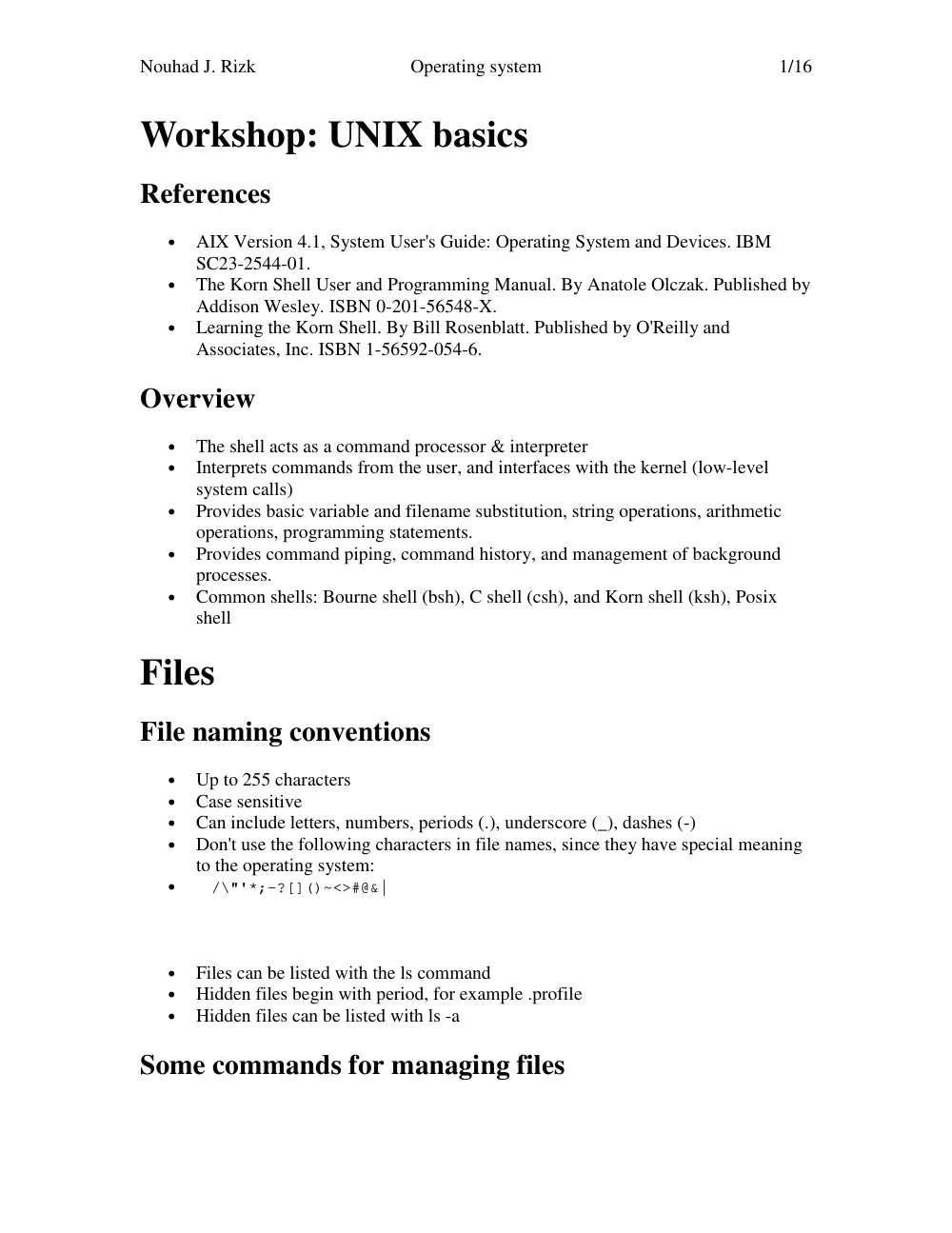
Workshop: UNIX basics
References
•
AIX Version 4.1, System User's Guide: Operating System and Devices. IBM
SC23-2544-01.
•
The Korn Shell User and Programming Manual. By Anatole Olczak. Published by
Addison Wesley. ISBN 0-201-56548-X.
•
Learning the Korn Shell. By Bill Rosenblatt. Published by O'Reilly and
Associates, Inc. ISBN 1-56592-054-6.
Overview
•
The shell acts as a command processor & interpreter
•
Interprets commands from the user, and interfaces with the kernel (low-level
system calls)
•
Provides basic variable and filename substitution, string operations, arithmetic
operations, programming statements.
•
Provides command piping, command history, and management of background
processes.
•
Common shells: Bourne shell (bsh), C shell (csh), and Korn shell (ksh), Posix
shell
Files
File naming conventions
•
Up to 255 characters
•
Case sensitive
•
Can include letters, numbers, periods (.), underscore (_), dashes (-)
•
Don't use the following characters in file names, since they have special meaning
to the operating system:
•
/\"'*;-?[]()~<>#@&|
•
Files can be listed with the ls command
•
Hidden files begin with period, for example .profile
•
Hidden files can be listed with ls -a
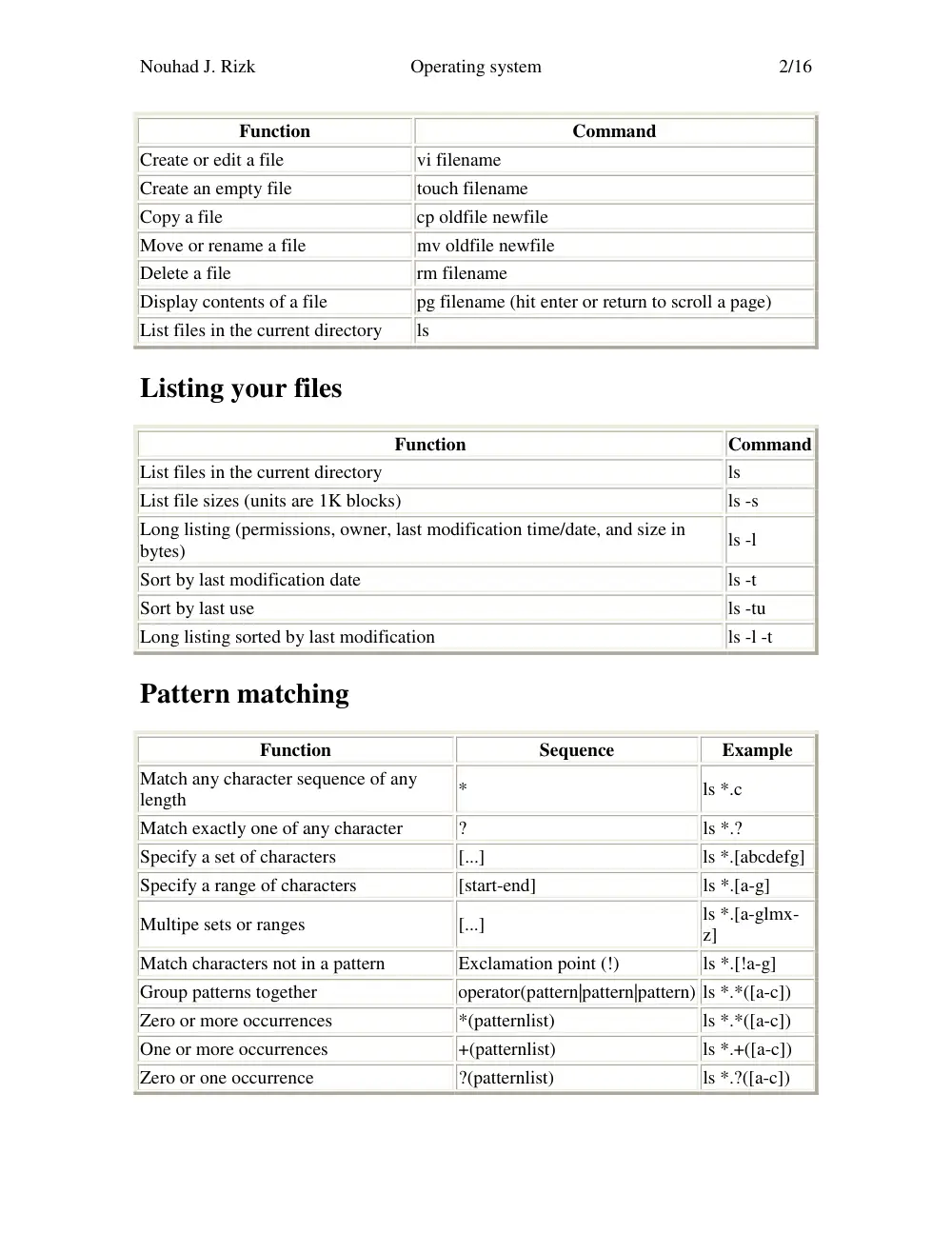
Some commands for managing files
Nouhad J. Rizk
Operating system
2/16
Function
Command
Create or edit a file
vi filename
Create an empty file
touch filename
Copy a file
cp oldfile newfile
Move or rename a file
mv oldfile newfile
Delete a file
rm filename
Display contents of a file
pg filename (hit enter or return to scroll a page)
List files in the current directory
ls
Listing your files
Function
Command
List files in the current directory
ls
List file sizes (units are 1K blocks)
ls -s
Long listing (permissions, owner, last modification time/date, and size in
bytes)
ls -l
Sort by last modification date
ls -t
Sort by last use
ls -tu
Long listing sorted by last modification
ls -l -t
Pattern matching
Function
Sequence
Example
Match any character sequence of any
length
*
ls *.c
Match exactly one of any character
?
ls *.?
Specify a set of characters
[...]
ls *.[abcdefg]
Specify a range of characters
[start-end]
ls *.[a-g]
Multipe sets or ranges
[...]
ls *.[a-glmx-
z]
Match characters not in a pattern
Exclamation point (!)
ls *.[!a-g]
Group patterns together
operator(pattern|pattern|pattern) ls *.*([a-c])
Zero or more occurrences
*(patternlist)
ls *.*([a-c])
One or more occurrences
+(patternlist)
ls *.+([a-c])
Zero or one occurrence
?(patternlist)
ls *.?([a-c])
Nouhad J. Rizk
Operating system
3/16
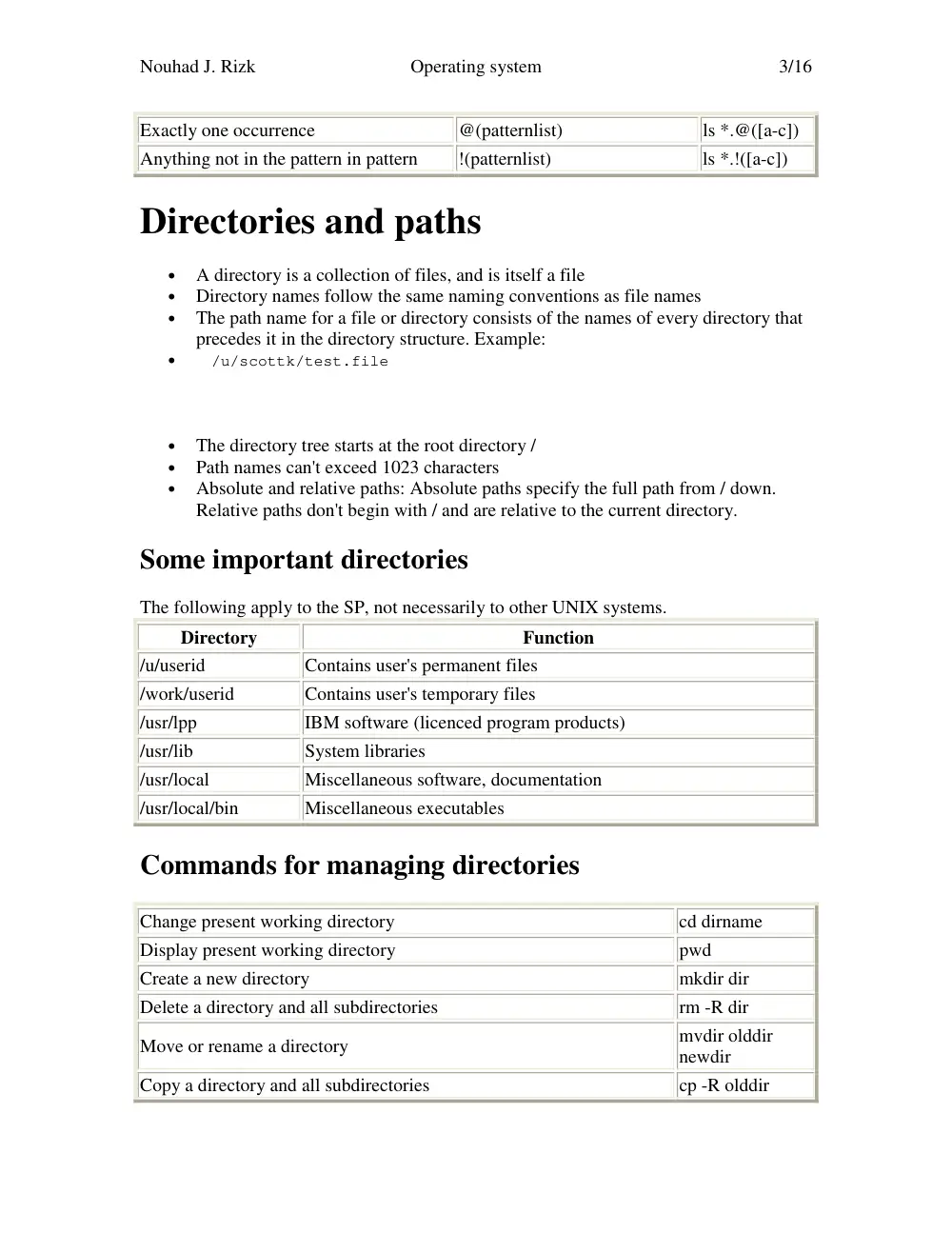
Exactly one occurrence
@(patternlist)
ls *.@([a-c])
Anything not in the pattern in pattern
!(patternlist)
ls *.!([a-c])
Directories and paths
•
A directory is a collection of files, and is itself a file
•
Directory names follow the same naming conventions as file names
•
The path name for a file or directory consists of the names of every directory that
precedes it in the directory structure. Example:
•
/u/scottk/test.file
•
The directory tree starts at the root directory /
•
Path names can't exceed 1023 characters
•
Absolute and relative paths: Absolute paths specify the full path from / down.
Relative paths don't begin with / and are relative to the current directory.
Some important directories
The following apply to the SP, not necessarily to other UNIX systems.
Directory
Function
/u/userid
Contains user's permanent files
/work/userid
Contains user's temporary files
/usr/lpp
IBM software (licenced program products)
/usr/lib
System libraries
/usr/local
Miscellaneous software, documentation
/usr/local/bin
Miscellaneous executables
Commands for managing directories
Change present working directory
cd dirname
Display present working directory
pwd
Create a new directory
mkdir dir
Delete a directory and all subdirectories
rm -R dir
Move or rename a directory
mvdir olddir
newdir
Copy a directory and all subdirectories
cp -R olddir
Nouhad J. Rizk
Operating system
4/16
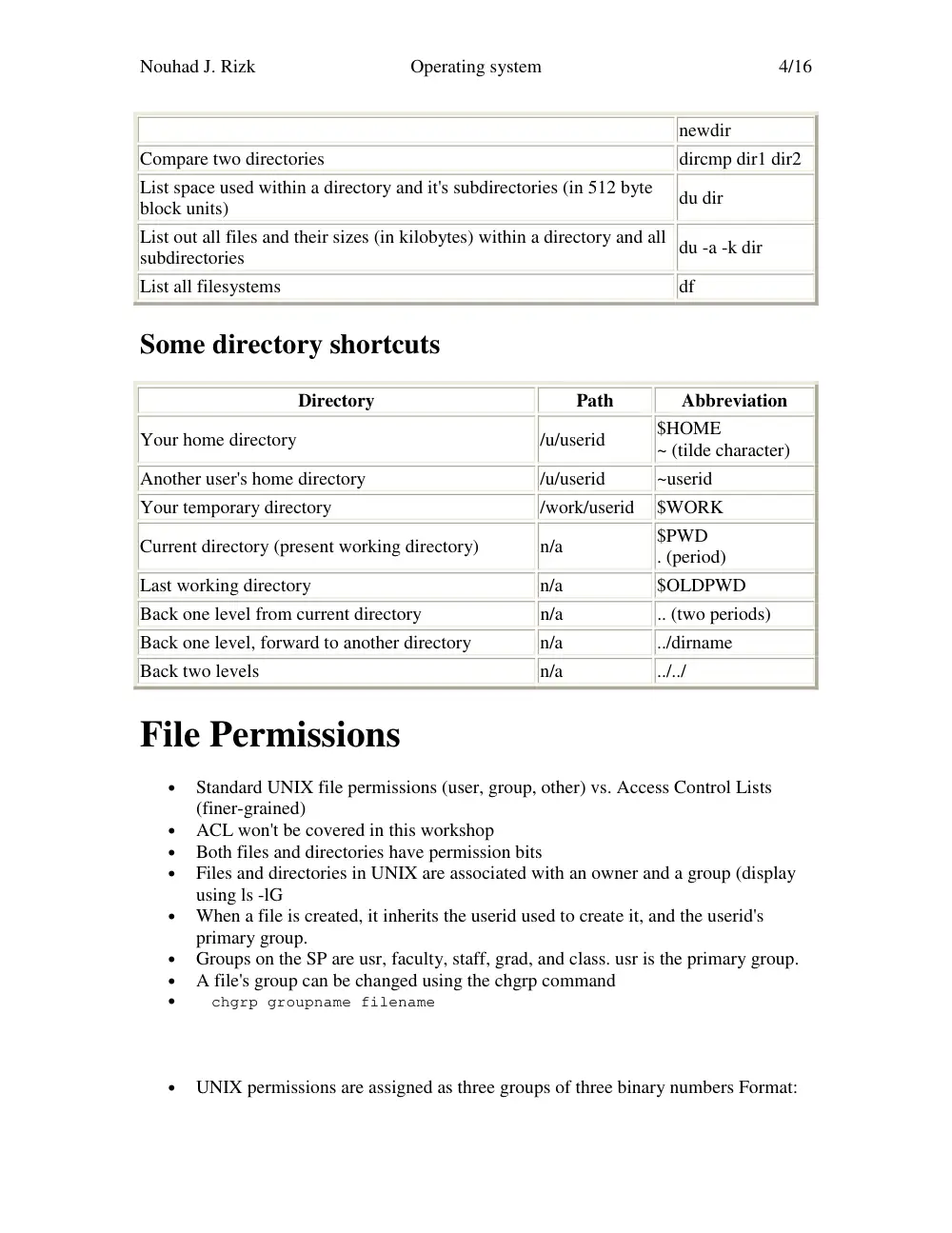
newdir
Compare two directories
dircmp dir1 dir2
List space used within a directory and it's subdirectories (in 512 byte
block units)
du dir
List out all files and their sizes (in kilobytes) within a directory and all
subdirectories
du -a -k dir
List all filesystems
df
Some directory shortcuts
Directory
Path
Abbreviation
Your home directory
/u/userid
$HOME
~ (tilde character)
Another user's home directory
/u/userid
~userid
Your temporary directory
/work/userid $WORK
Current directory (present working directory)
n/a
$PWD
. (period)
Last working directory
n/a
$OLDPWD
Back one level from current directory
n/a
.. (two periods)
Back one level, forward to another directory
n/a
../dirname
Back two levels
n/a
../../
File Permissions
•
Standard UNIX file permissions (user, group, other) vs. Access Control Lists
(finer-grained)
•
ACL won't be covered in this workshop
•
Both files and directories have permission bits
•
Files and directories in UNIX are associated with an owner and a group (display
using ls -lG
•
When a file is created, it inherits the userid used to create it, and the userid's
primary group.
•
Groups on the SP are usr, faculty, staff, grad, and class. usr is the primary group.
•
A file's group can be changed using the chgrp command
•
chgrp groupname filename
•
UNIX permissions are assigned as three groups of three binary numbers Format:
Nouhad J. Rizk
Operating system
5/16
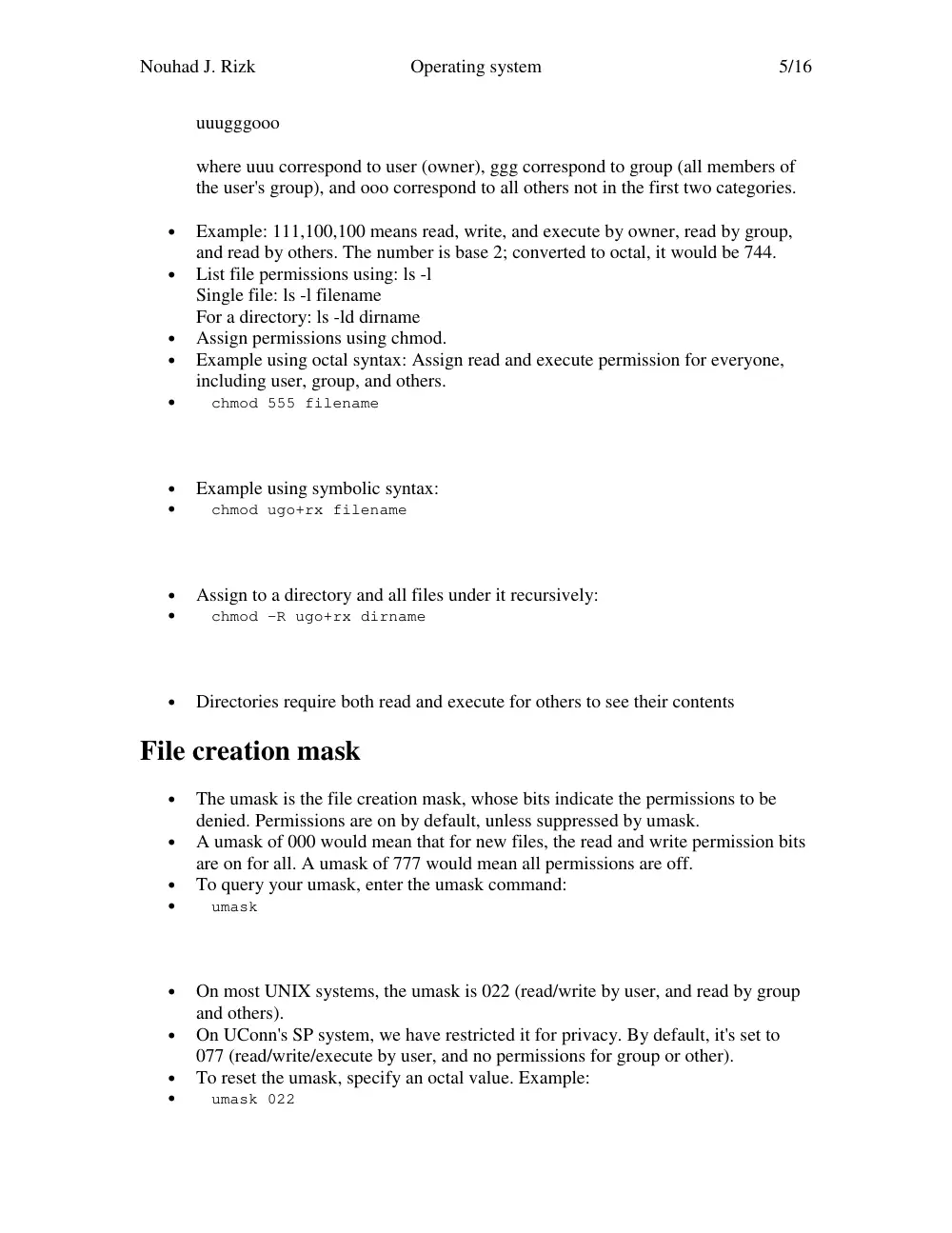
uuugggooo
where uuu correspond to user (owner), ggg correspond to group (all members of
the user's group), and ooo correspond to all others not in the first two categories.
•
Example: 111,100,100 means read, write, and execute by owner, read by group,
and read by others. The number is base 2; converted to octal, it would be 744.
•
List file permissions using: ls -l
Single file: ls -l filename
For a directory: ls -ld dirname
•
Assign permissions using chmod.
•
Example using octal syntax: Assign read and execute permission for everyone,
including user, group, and others.
•
chmod 555 filename
•
Example using symbolic syntax:
•
chmod ugo+rx filename
•
Assign to a directory and all files under it recursively:
•
chmod -R ugo+rx dirname
•
Directories require both read and execute for others to see their contents
File creation mask
•
The umask is the file creation mask, whose bits indicate the permissions to be
denied. Permissions are on by default, unless suppressed by umask.
•
A umask of 000 would mean that for new files, the read and write permission bits
are on for all. A umask of 777 would mean all permissions are off.
•
To query your umask, enter the umask command:
•
umask
•
On most UNIX systems, the umask is 022 (read/write by user, and read by group
and others).
•
On UConn's SP system, we have restricted it for privacy. By default, it's set to
077 (read/write/execute by user, and no permissions for group or other).
•
To reset the umask, specify an octal value. Example:
•
umask 022
Nouhad J. Rizk
Operating system
6/16
•
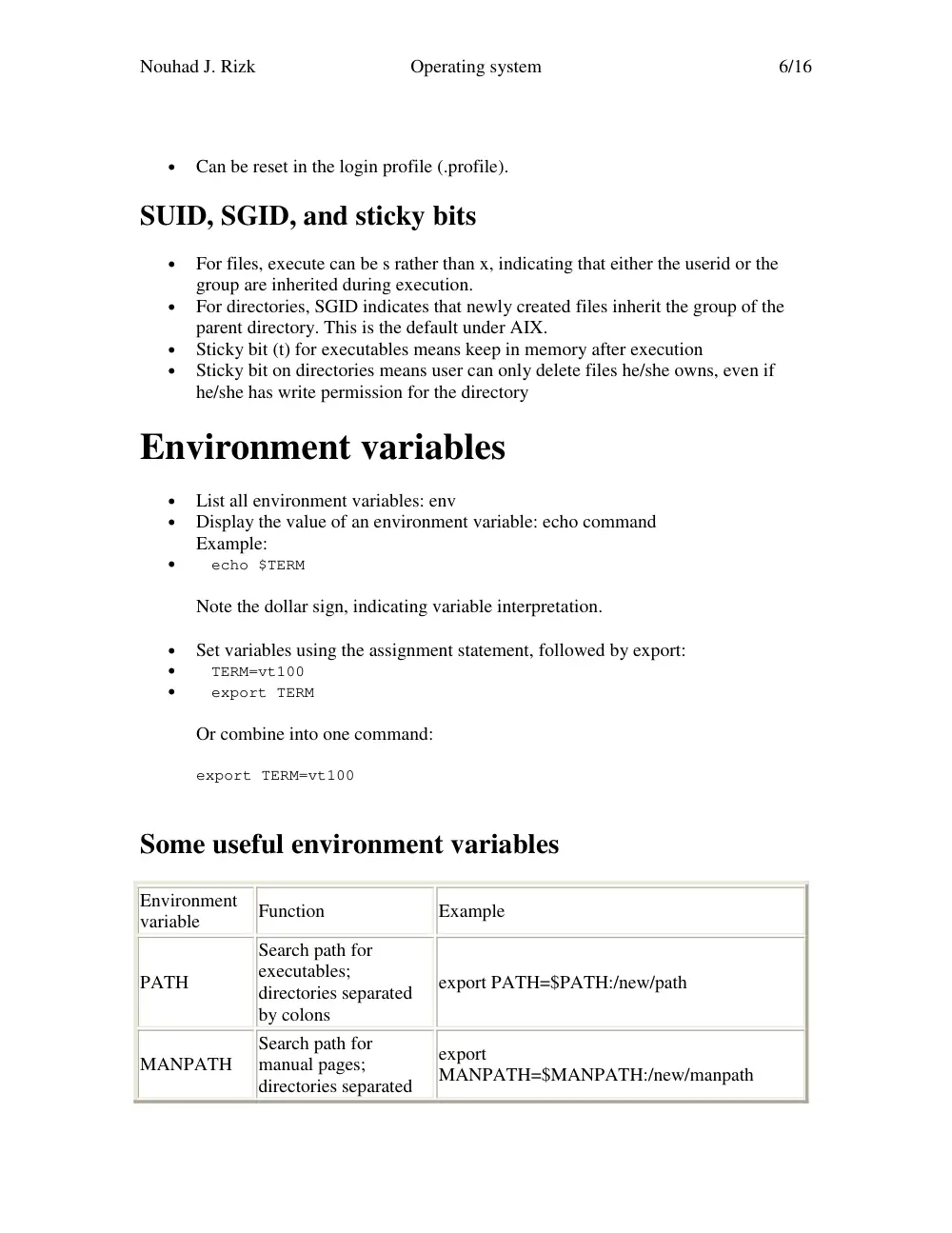
Can be reset in the login profile (.profile).
SUID, SGID, and sticky bits
•
For files, execute can be s rather than x, indicating that either the userid or the
group are inherited during execution.
•
For directories, SGID indicates that newly created files inherit the group of the
parent directory. This is the default under AIX.
•
Sticky bit (t) for executables means keep in memory after execution
•
Sticky bit on directories means user can only delete files he/she owns, even if
he/she has write permission for the directory
Environment variables
•
List all environment variables: env
•
Display the value of an environment variable: echo command
Example:
•
echo $TERM
Note the dollar sign, indicating variable interpretation.
•
Set variables using the assignment statement, followed by export:
•
TERM=vt100
•
export TERM
Or combine into one command:
export TERM=vt100
Some useful environment variables
Environment
variable
Function
Example
PATH
Search path for
executables;
directories separated
by colons
export PATH=$PATH:/new/path
MANPATH
Search path for
manual pages;
directories separated
export
MANPATH=$MANPATH:/new/manpath
Nouhad J. Rizk
Operating system
7/16
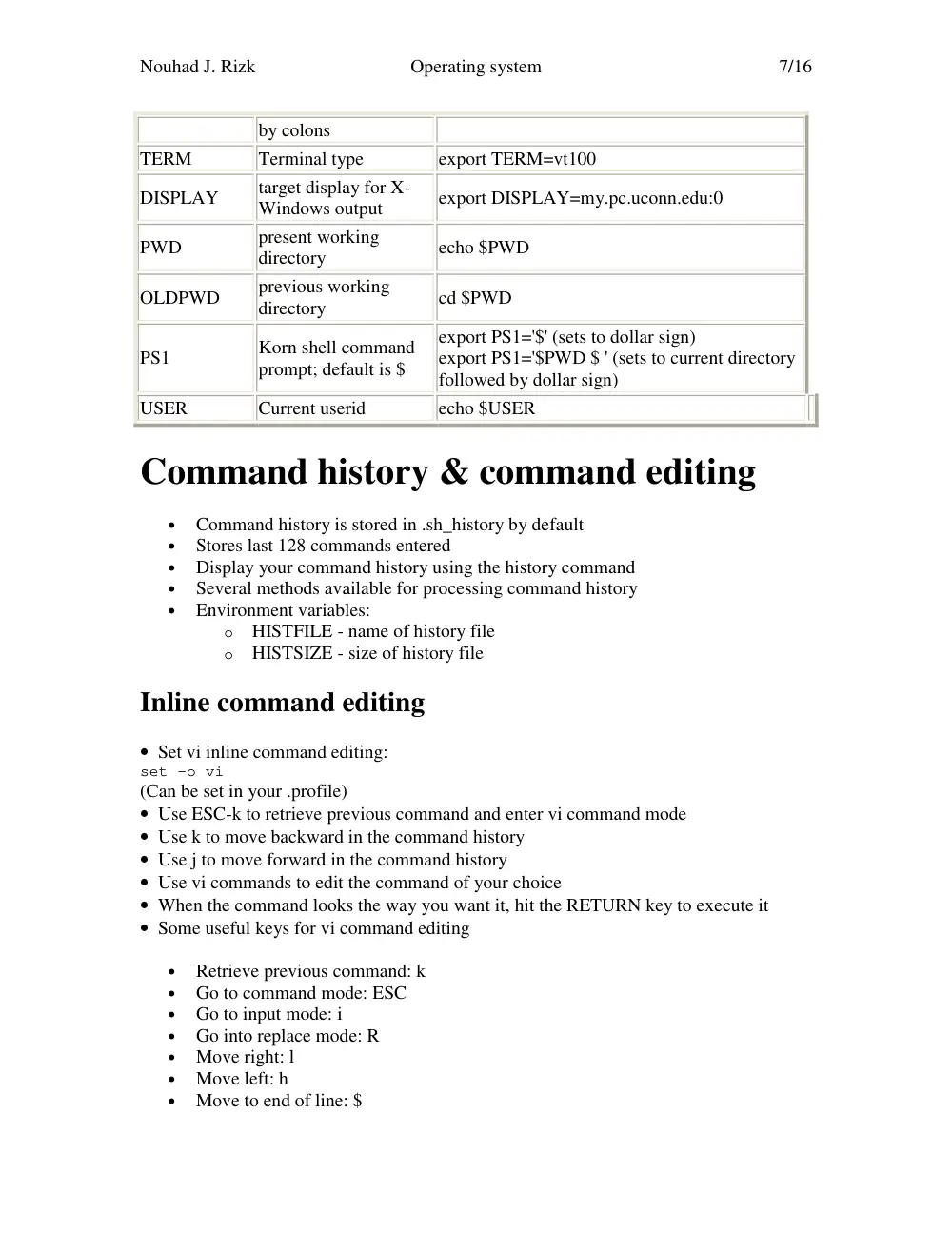
by colons
TERM
Terminal type
export TERM=vt100
DISPLAY
target display for X-
Windows output
export DISPLAY=my.pc.uconn.edu:0
PWD
present working
directory
echo $PWD
OLDPWD
previous working
directory
cd $PWD
PS1
Korn shell command
prompt; default is $
export PS1='$' (sets to dollar sign)
export PS1='$PWD $ ' (sets to current directory
followed by dollar sign)
USER
Current userid
echo $USER
Command history & command editing
•
Command history is stored in .sh_history by default
•
Stores last 128 commands entered
•
Display your command history using the history command
•
Several methods available for processing command history
•
Environment variables:
o HISTFILE - name of history file
o HISTSIZE - size of history file
Inline command editing
• Set vi inline command editing:
set -o vi
(Can be set in your .profile)
• Use ESC-k to retrieve previous command and enter vi command mode
• Use k to move backward in the command history
• Use j to move forward in the command history
• Use vi commands to edit the command of your choice
• When the command looks the way you want it, hit the RETURN key to execute it
• Some useful keys for vi command editing
•
Retrieve previous command: k
•
Go to command mode: ESC
•
Go to input mode: i
•
Go into replace mode: R
•
Move right: l
•
Move left: h
•
Move to end of line: $
Nouhad J. Rizk
Operating system
8/16
•
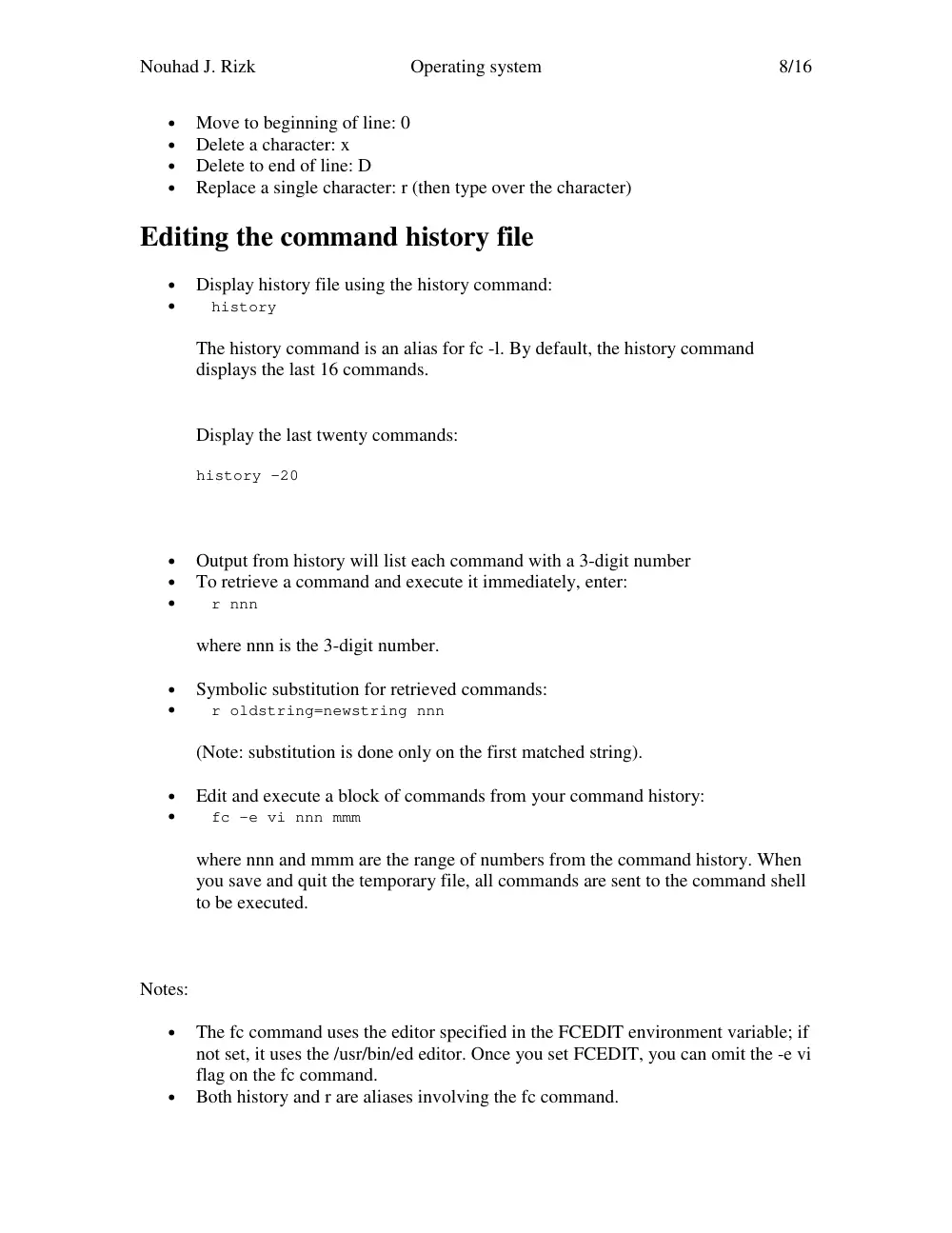
Move to beginning of line: 0
•
Delete a character: x
•
Delete to end of line: D
•
Replace a single character: r (then type over the character)
Editing the command history file
•
Display history file using the history command:
•
history
The history command is an alias for fc -l. By default, the history command
displays the last 16 commands.
Display the last twenty commands:
history -20
•
Output from history will list each command with a 3-digit number
•
To retrieve a command and execute it immediately, enter:
•
r nnn
where nnn is the 3-digit number.
•
Symbolic substitution for retrieved commands:
•
r oldstring=newstring nnn
(Note: substitution is done only on the first matched string).
•
Edit and execute a block of commands from your command history:
•
fc -e vi nnn mmm
where nnn and mmm are the range of numbers from the command history. When
you save and quit the temporary file, all commands are sent to the command shell
to be executed.
Notes:
•
The fc command uses the editor specified in the FCEDIT environment variable; if
not set, it uses the /usr/bin/ed editor. Once you set FCEDIT, you can omit the -e vi
flag on the fc command.
•
Both history and r are aliases involving the fc command.
Nouhad J. Rizk
Operating system
9/16
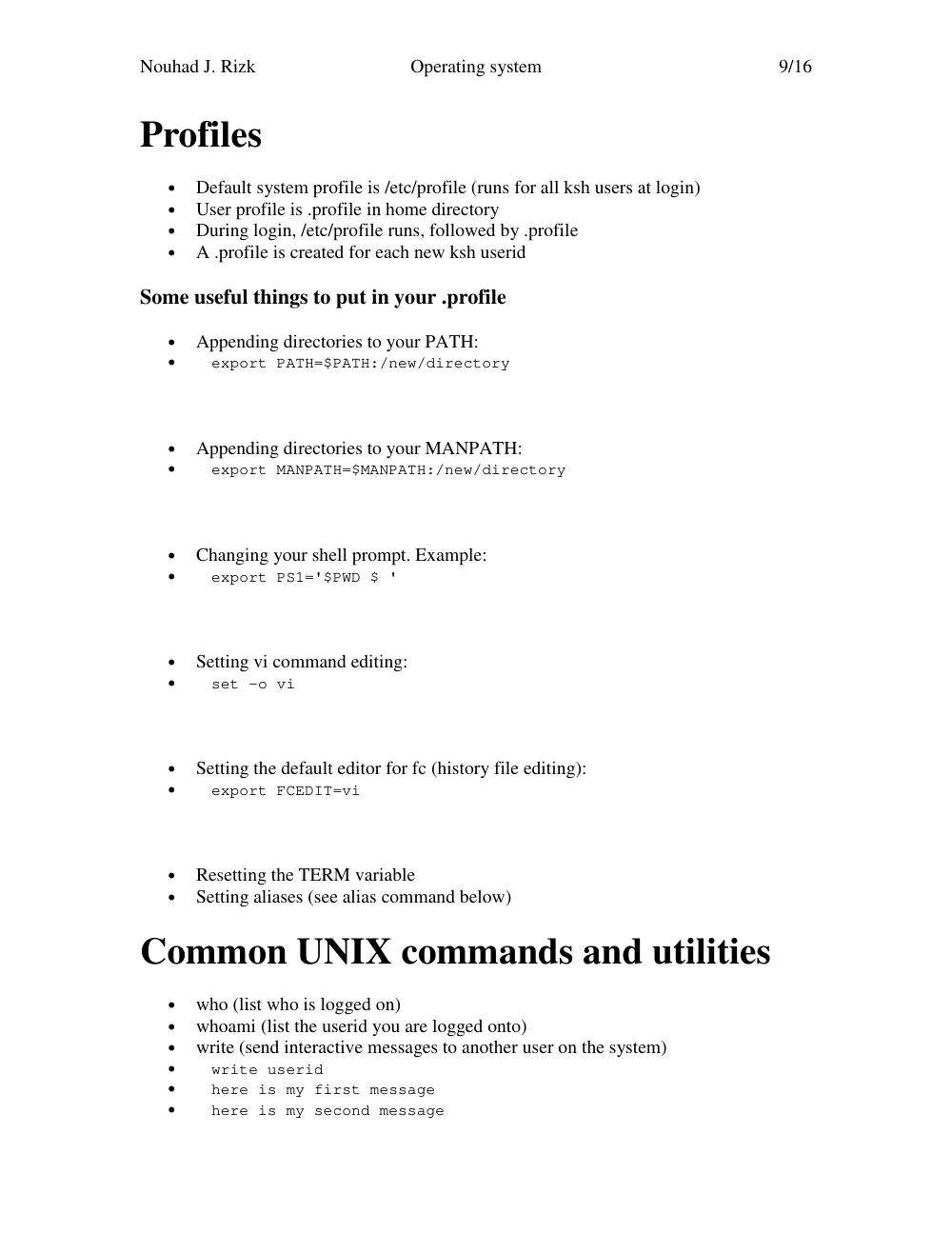
Profiles
•
Default system profile is /etc/profile (runs for all ksh users at login)
•
User profile is .profile in home directory
•
During login, /etc/profile runs, followed by .profile
•
A .profile is created for each new ksh userid
Some useful things to put in your .profile
•
Appending directories to your PATH:
•
export PATH=$PATH:/new/directory
•
Appending directories to your MANPATH:
•
export MANPATH=$MANPATH:/new/directory
•
Changing your shell prompt. Example:
•
export PS1='$PWD $ '
•
Setting vi command editing:
•
set -o vi
•
Setting the default editor for fc (history file editing):
•
export FCEDIT=vi
•
Resetting the TERM variable
•
Setting aliases (see alias command below)
Common UNIX commands and utilities
•
who (list who is logged on)
•
whoami (list the userid you are logged onto)
•
write (send interactive messages to another user on the system)
•
write userid
•
here is my first message
•
here is my second message
Nouhad J. Rizk
Operating system
10/16
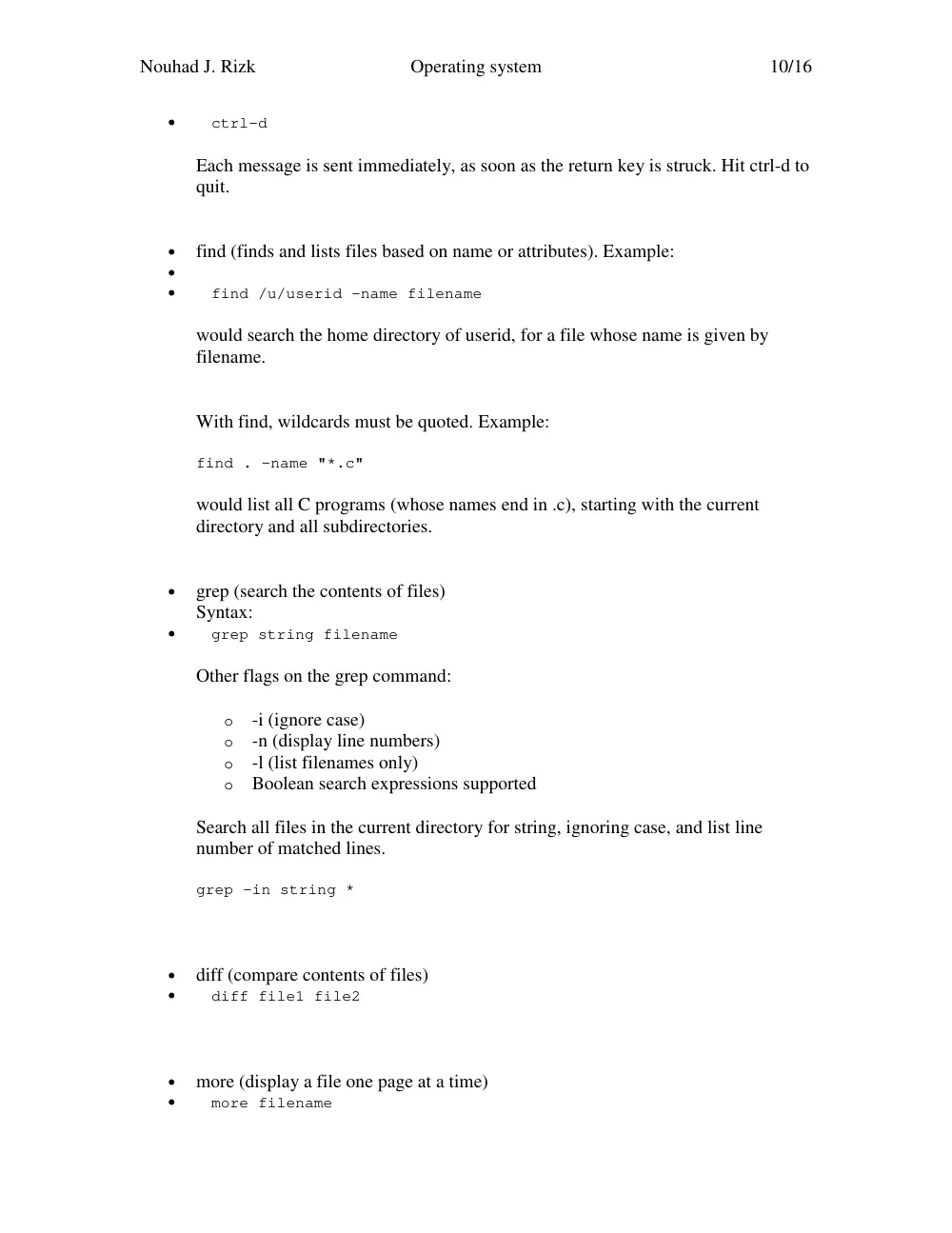
•
ctrl-d
Each message is sent immediately, as soon as the return key is struck. Hit ctrl-d to
quit.
•
find (finds and lists files based on name or attributes). Example:
•
•
find /u/userid -name filename
would search the home directory of userid, for a file whose name is given by
filename.
With find, wildcards must be quoted. Example:
find . -name "*.c"
would list all C programs (whose names end in .c), starting with the current
directory and all subdirectories.
•
grep (search the contents of files)
Syntax:
•
grep string filename
Other flags on the grep command:
o -i (ignore case)
o -n (display line numbers)
o -l (list filenames only)
o Boolean search expressions supported
Search all files in the current directory for string, ignoring case, and list line
number of matched lines.
grep -in string *
•
diff (compare contents of files)
•
diff file1 file2
•
more (display a file one page at a time)
•
more filename
Nouhad J. Rizk
Operating system
11/16
Use the space bar to scroll ahead one screen at a time. Use ctrl-c to exit.
•
cat (concatenate files; display files without scrolling)
•
cat filename1 filename2 filename3
•
sort (sort a file)
•
head, tail (display first n or last n lines of a file)
•
tail -20 my.file
•
cut, paste, colrm (column operations on files) Example:
•
cut -c 3-5,8 my.file
will break out columns 3-5 and column 8 of my.file.
•
nl (assign line numbers)
•
nl my.file
•
alias (set a command alias)
•
alias aliasname=string
Example: Define an alias, f, which lists fortran files and their permissions and
sizes, in the current directory.
alias f="ls -l *.f"
Pipes
•
Most commands read from a file if specified
•
If no file is specified, commands read from standard input, and write to standard
output, which default to the console (interactive)
•
Redirection allows the output of one command to be fed as input to the next
command. Example:
•
ls * | more
•
Example: Get a file, filter on some string, sort filtered records, display to console
a page at a time:
Nouhad J. Rizk
Operating system
12/16
•
cat filename | grep somestring | sort | more
•
Pipe to a file, using >
•
ls *.f > fortran.files
would save all the names of your fortran (.f) files into a file.
•
Concatenate to an existing file, using >>
•
Read from a file using <
•
write userid < message.file
Processes
•
Foreground processes vs. background processes
•
Foreground processes take up the session; nothing else can be started until they
complete; one at a time
•
Multiple background processes can run simultaneously.
•
Start a background process using ampersand. Example:
•
big.o &
•
List all non-kernel processes on this machine:
•
ps -ef | more
•
List your processes or those of some user:
•
ps -fu userid
•
List a subset of processes, using grep:
•
ps -ef | grep searchstring
•
To stop a foreground process, hit ctrl-c.
•
To stop a background process, use the kill command:
•
kill pid
where pid is the process id number.
Nouhad J. Rizk
Operating system
13/16
•
Current limit on memory for each process: 60 minutes on the interactive node
•
Processes longer than 60 minutes must be submitted to LoadLeveler.
•
As a courtesy to other users, please limit your background processes to 5-10
minutes. Submit longer jobs to LoadLeveler.
Lab Exercises
Exercise: File permissions
•
Login to your account on the SP.
•
List your files along with permissions:
•
ls -l
The permissions should indicate read and write by user, with no permissions for
group or other.
•
Make a copy of test.file:
•
cp test.file test2.file
•
Change permissions on test2.file, to add read by group and other:
•
chmod go+r test2.file
•
Now ask the person next to what his/her userid is. Change directories into their
home directory, and list their files.
•
cd ~userid
•
ls
where userid is the person's userid. Make sure they have made it to the point of
reassigning permissions on test2.file. You should see test2.file, but not test.file in
their directory.
Exercise: vi inline command editing
•
Make sure to cd back to your home directory:
•
cd ~
Nouhad J. Rizk
Operating system
14/16
•
List permissions for your two test files.
•
ls -l test*
You should see two files. test.file should have read/write by user. test2.file should
have read/write by user, and read by group and other.
•
The following command should be in your .profile so it's not really necessary.
This would be how you turn on vi command editing.
•
set -o vi
•
Hit ESC-k (that's the escape key, followed by letter k). You should see the
previous command pop up.
•
Keep hitting k until you see the chmod command from before. Note: If you need
to go forward rather than backward in the command history, use letter j.
•
When you have the chmod command displayed, edit it to modify permissions on
test.file. It should look like this:
•
chmod go+r test.file
Use the letters l to move right one character, or letter h to move left. Use letter x
to delete a single character. You can use i to go into insert mode if necessary.
Remember to go back to command mode by hitting the ESC key.
•
Once your command looks right, hit the enter or return key to execute it.
•
Now list permissions for your files.
•
ls -l test*
Now both files should have the same permissions.
Exercise: Resetting your command prompt
•
Reset your command prompt to display the present working directory, followed
by a dollar sign.
•
export PS1='$PWD $ '
Exercise: Creating directories
•
Make sure you are in your home directory.
•
Create a directory called lab.
•
mkdir lab
Nouhad J. Rizk
Operating system
15/16
•
cd into the lab directory:
•
cd lab
Your command prompt should reflect the current directory, assuming you reset it
correctly.
•
Go back one level to your home directory.
•
cd ..
•
Now move test.file and test2.file into the lab directory:
•
mv test*.file lab
Exercise: Using find
•
First, make sure you are in your home directory.
•
Issue a find command to list all files under your home directory, whose names
start with the string te.
•
find . -name "te*"
The first period indicates the current directory.
Optional exercise: Modify your .profile
•
Using vi, edit your .profile:
•
vi .profile
•
Go to the bottom of the file, by hitting SHIFT-G (upper case G)
•
Add a line, by hitting letter o (lower case o). This will add a new line and place
you in insert mode.
•
Type the following lines:
•
#
•
# Reset the command prompt.
•
export PS1='$PWD $ '
When you are in insert mode, you can start a new line by hitting enter or return.
Pound signs (#) indicate comments.
Nouhad J. Rizk
Operating system
16/16
•
Go back to command mode by hitting the ESC key.
•
Save and quit your file:
•
:wq
•
You should now be back at the UNIX prompt. Logout, and log back in. Your
command prompt should display your current directory.