
CSC 414 Tutorial, Spring 2003
Notre Dame University–Louaize · Applied Operating Systems · 14 pages · Ms. Nouhad Rizk



Showing the first 10 of 14 pages. Download the PDF to see all of it.
More CSC 414 files
Show the text of this file
Nouhad J. Rizk
Operating system
1/14
Workshop: Using the vi editor
References
•
Learning the vi Editor, by Linda Lamb. O'Reilly and Associates, Inc.
•
vi man page
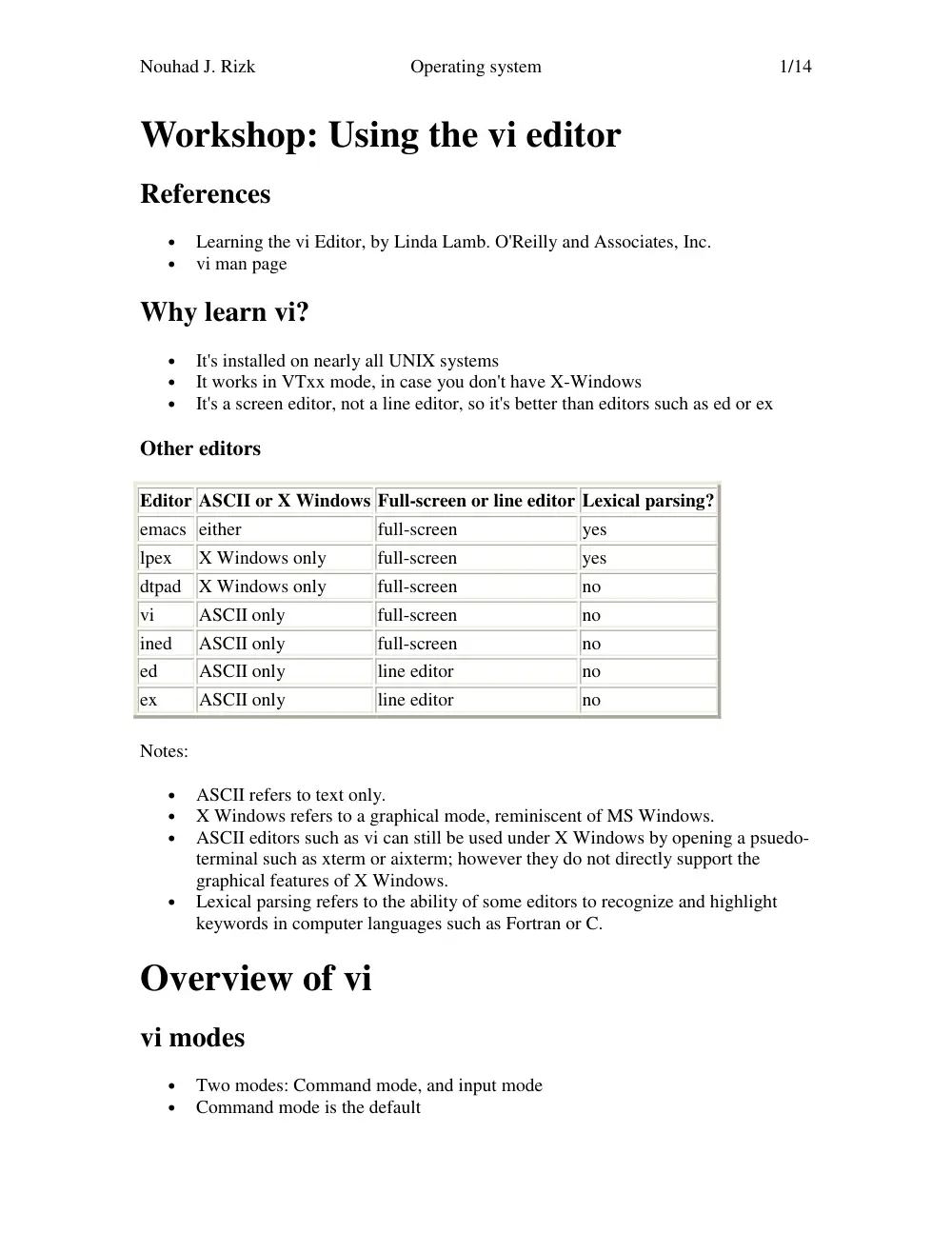
Why learn vi?
•
It's installed on nearly all UNIX systems
•
It works in VTxx mode, in case you don't have X-Windows
•
It's a screen editor, not a line editor, so it's better than editors such as ed or ex
Other editors
Editor ASCII or X Windows Full-screen or line editor Lexical parsing?
emacs either
full-screen
yes
lpex
X Windows only
full-screen
yes
dtpad X Windows only
full-screen
no
vi
ASCII only
full-screen
no
ined
ASCII only
full-screen
no
ed
ASCII only
line editor
no
ex
ASCII only
line editor
no
Notes:
•
ASCII refers to text only.
•
X Windows refers to a graphical mode, reminiscent of MS Windows.
•
ASCII editors such as vi can still be used under X Windows by opening a psuedo-
terminal such as xterm or aixterm; however they do not directly support the
graphical features of X Windows.
•
Lexical parsing refers to the ability of some editors to recognize and highlight
keywords in computer languages such as Fortran or C.
Overview of vi
vi modes
•
Two modes: Command mode, and input mode
•
Command mode is the default
Nouhad J. Rizk
Operating system
2/14
•
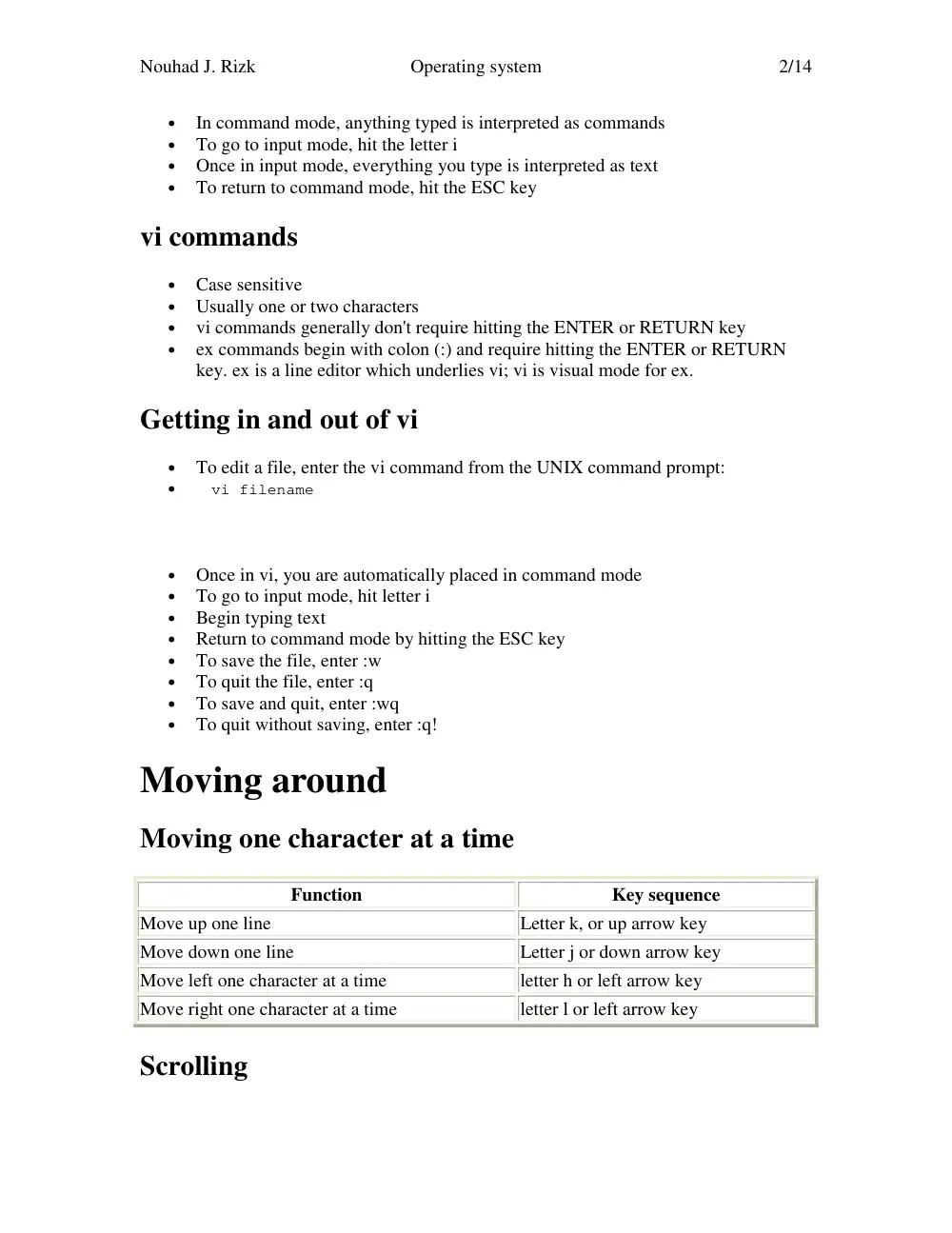
In command mode, anything typed is interpreted as commands
•
To go to input mode, hit the letter i
•
Once in input mode, everything you type is interpreted as text
•
To return to command mode, hit the ESC key
vi commands
•
Case sensitive
•
Usually one or two characters
•
vi commands generally don't require hitting the ENTER or RETURN key
•
ex commands begin with colon (:) and require hitting the ENTER or RETURN
key. ex is a line editor which underlies vi; vi is visual mode for ex.
Getting in and out of vi
•
To edit a file, enter the vi command from the UNIX command prompt:
•
vi filename
•
Once in vi, you are automatically placed in command mode
•
To go to input mode, hit letter i
•
Begin typing text
•
Return to command mode by hitting the ESC key
•
To save the file, enter :w
•
To quit the file, enter :q
•
To save and quit, enter :wq
•
To quit without saving, enter :q!
Moving around
Moving one character at a time
Function
Key sequence
Move up one line
Letter k, or up arrow key
Move down one line
Letter j or down arrow key
Move left one character at a time
letter h or left arrow key
Move right one character at a time
letter l or left arrow key
Scrolling
Nouhad J. Rizk
Operating system
3/14
Function
Key sequence
Scroll up one line
letter l or up arrow key
Scroll down one line
letter j or down arrow key
Scroll forward one screen
ctrl-f
Scroll backward one screen
ctrl-b
Scroll down half screen
ctrl-d
Scroll up half screen
ctrl-u
Global movements
Function
Key sequence
Go to a line, by line number
nG or :n (where n is a line number)
Go to the bottom of a file
G
Go to top of file
1G or :1
Display line numbers
:set nu
Suppress line numbers
:set nonu
Moving within a line
Function
Key sequence
Move right one character
letter l, or right arrow key
Move left one character
letter h, or left arrow key
Move to the beginning of a line
0 (zero)
Move to the end of a line
$ (dollar sign)
Moving by words
Function
Key sequence
Move to the next word (treating punctuation as separate words)
letter w (lower case)
Move to the next word (treating punctuation as part of the word)
letter W (upper
case)
Move to the previous word (treating punctuation as separate words) letter b (lower case)
Move to the previous word (treating punctuation as part of the
word)
letter B (upper case)
Nouhad J. Rizk
Operating system
4/14
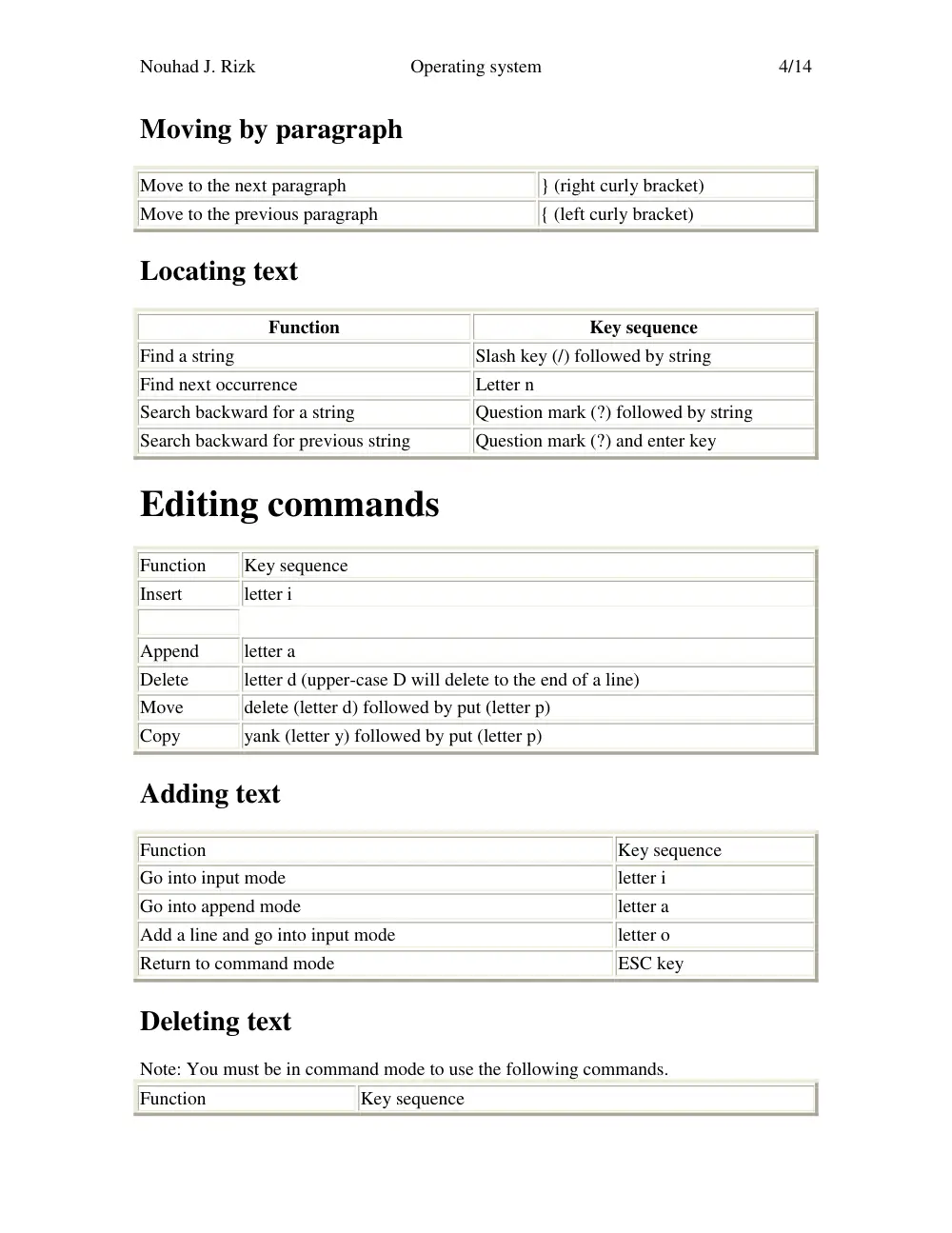
Moving by paragraph
Move to the next paragraph
} (right curly bracket)
Move to the previous paragraph
{ (left curly bracket)
Locating text
Function
Key sequence
Find a string
Slash key (/) followed by string
Find next occurrence
Letter n
Search backward for a string
Question mark (?) followed by string
Search backward for previous string
Question mark (?) and enter key
Editing commands
Function
Key sequence
Insert
letter i
Append
letter a
Delete
letter d (upper-case D will delete to the end of a line)
Move
delete (letter d) followed by put (letter p)
Copy
yank (letter y) followed by put (letter p)
Adding text
Function
Key sequence
Go into input mode
letter i
Go into append mode
letter a
Add a line and go into input mode
letter o
Return to command mode
ESC key
Deleting text
Note: You must be in command mode to use the following commands.
Function
Key sequence
Nouhad J. Rizk
Operating system
5/14
Delete a line
dd
Delete n lines
ndd (where n is the number of lines to delete, e.g. 2dd)
Delete a single character
letter x
Delete to the end of a line
letter D (upper case)
Delete a word
dw
Delete up to some string
d/string/
Copying text
Function
Key sequence
Get text into buffer (yank)
letter y
Put text from buffer onto screen (put)
letter p
Get a line into buffer
yy
Get n lines into buffer
nyy (where n is a number,
e.g. 3yy)
Get all text from current cursor location, up to but not
including some string
y/string
Get all text from cursor to bottom of file
yG
Moving text
Moving text is done by first deleting it (d), then putting it (p). Please refer to the section
above on deleting text.
Joining and splitting lines
Function
Key sequence
Join the next line to the current line letter J (upper case)
Join the next n lines
nJ (where n is the number of lines)
Split a line
Hit letter i at location to split, then hit the enter key
More ways to add and replace text
Note: All the following commands (except r) leave you in input mode. Remember to hit
the ESC key if you want to return to command mode.
Insert text at current cursor location
letter i
Nouhad J. Rizk
Operating system
6/14
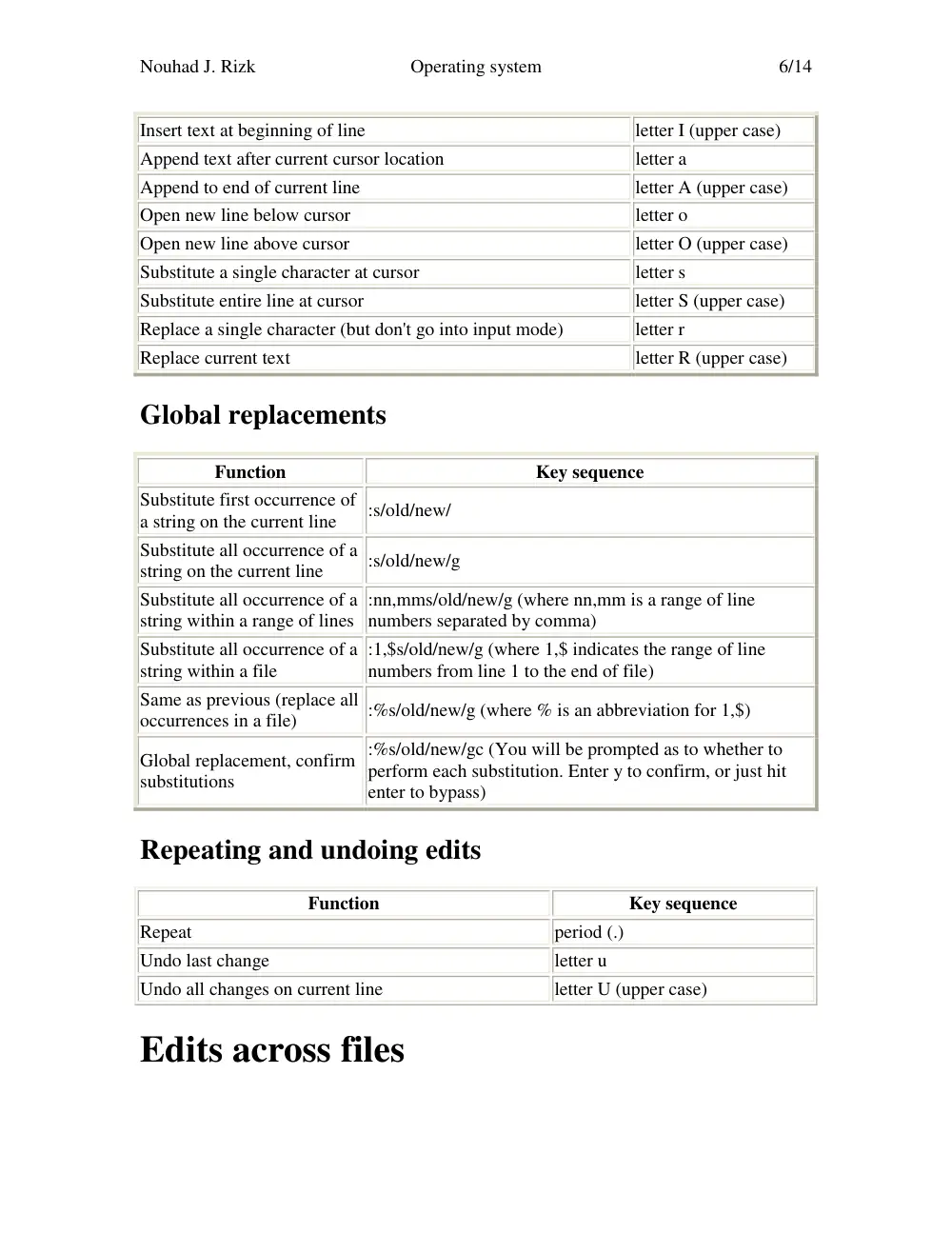
Insert text at beginning of line
letter I (upper case)
Append text after current cursor location
letter a
Append to end of current line
letter A (upper case)
Open new line below cursor
letter o
Open new line above cursor
letter O (upper case)
Substitute a single character at cursor
letter s
Substitute entire line at cursor
letter S (upper case)
Replace a single character (but don't go into input mode)
letter r
Replace current text
letter R (upper case)
Global replacements
Function
Key sequence
Substitute first occurrence of
a string on the current line
:s/old/new/
Substitute all occurrence of a
string on the current line
:s/old/new/g
Substitute all occurrence of a
string within a range of lines
:nn,mms/old/new/g (where nn,mm is a range of line
numbers separated by comma)
Substitute all occurrence of a
string within a file
:1,$s/old/new/g (where 1,$ indicates the range of line
numbers from line 1 to the end of file)
Same as previous (replace all
occurrences in a file)
:%s/old/new/g (where % is an abbreviation for 1,$)
Global replacement, confirm
substitutions
:%s/old/new/gc (You will be prompted as to whether to
perform each substitution. Enter y to confirm, or just hit
enter to bypass)
Repeating and undoing edits
Function
Key sequence
Repeat
period (.)
Undo last change
letter u
Undo all changes on current line
letter U (upper case)
Edits across files
Nouhad J. Rizk
Operating system
7/14
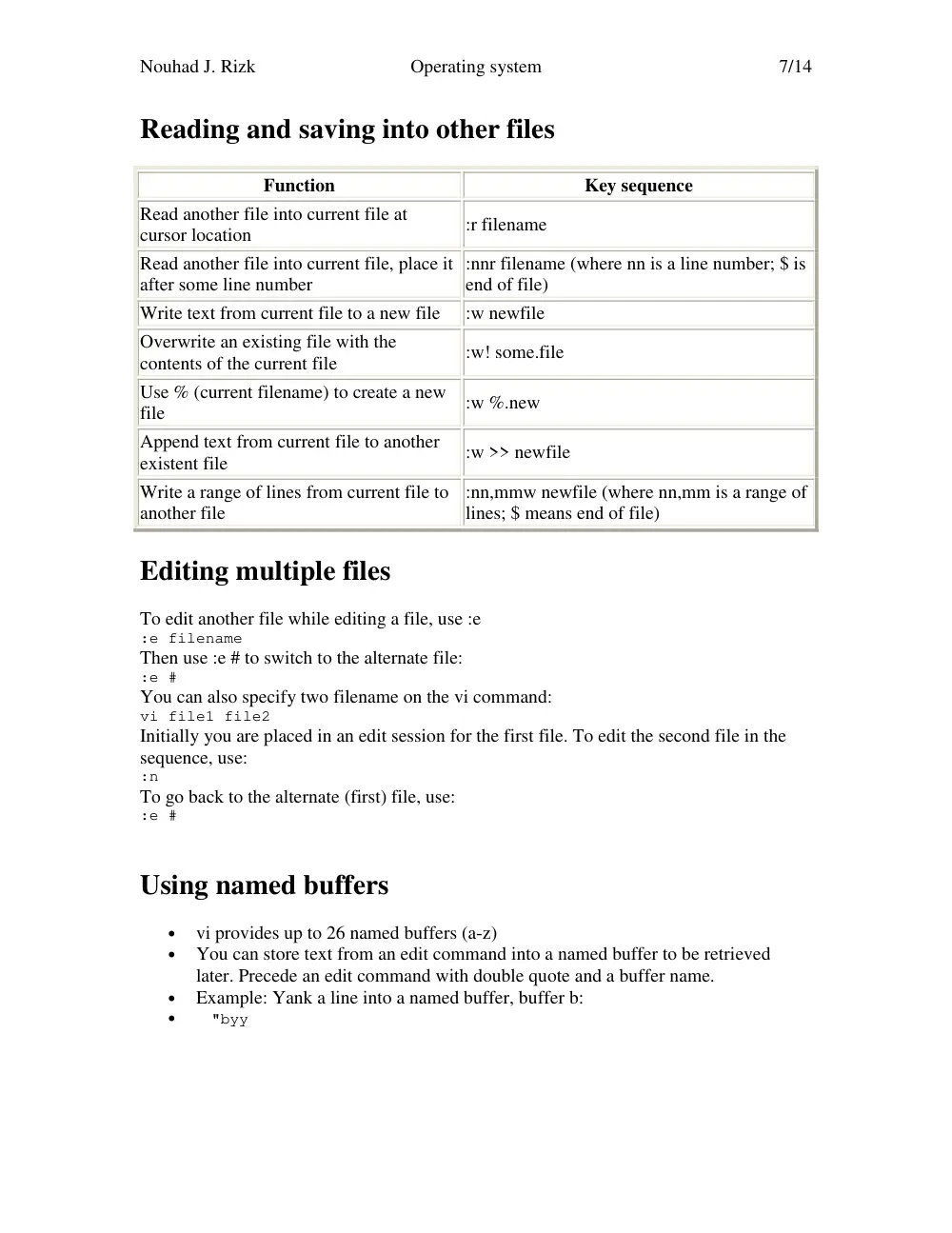
Reading and saving into other files
Function
Key sequence
Read another file into current file at
cursor location
:r filename
Read another file into current file, place it
after some line number
:nnr filename (where nn is a line number; $ is
end of file)
Write text from current file to a new file
:w newfile
Overwrite an existing file with the
contents of the current file
:w! some.file
Use % (current filename) to create a new
file
:w %.new
Append text from current file to another
existent file
:w >> newfile
Write a range of lines from current file to
another file
:nn,mmw newfile (where nn,mm is a range of
lines; $ means end of file)
Editing multiple files
To edit another file while editing a file, use :e
:e filename
Then use :e # to switch to the alternate file:
:e #
You can also specify two filename on the vi command:
vi file1 file2
Initially you are placed in an edit session for the first file. To edit the second file in the
sequence, use:
:n
To go back to the alternate (first) file, use:
:e #
Using named buffers
•
vi provides up to 26 named buffers (a-z)
•
You can store text from an edit command into a named buffer to be retrieved
later. Precede an edit command with double quote and a buffer name.
•
Example: Yank a line into a named buffer, buffer b:
•
"byy
Nouhad J. Rizk
Operating system
8/14
•
Once the buffer has data stored into it, it can be retrieved using the put (p)
command. Example:
•
"bp
•
Copying is done by a sequence of yank and put; move is done by a sequence of
delete and put.
•
Delete a line and store it into buffer b:
•
"bdd
You can then move your cursor, and use "bp to move the text to the new location.
•
Named buffers are stored across edit sessions. You can use the :e command to
edit a second file while still inside the first. The use p to retrieve named buffers.
•
% and # refer to the current and alternate filenames. To switch from to the other
file, enter:
•
:e #
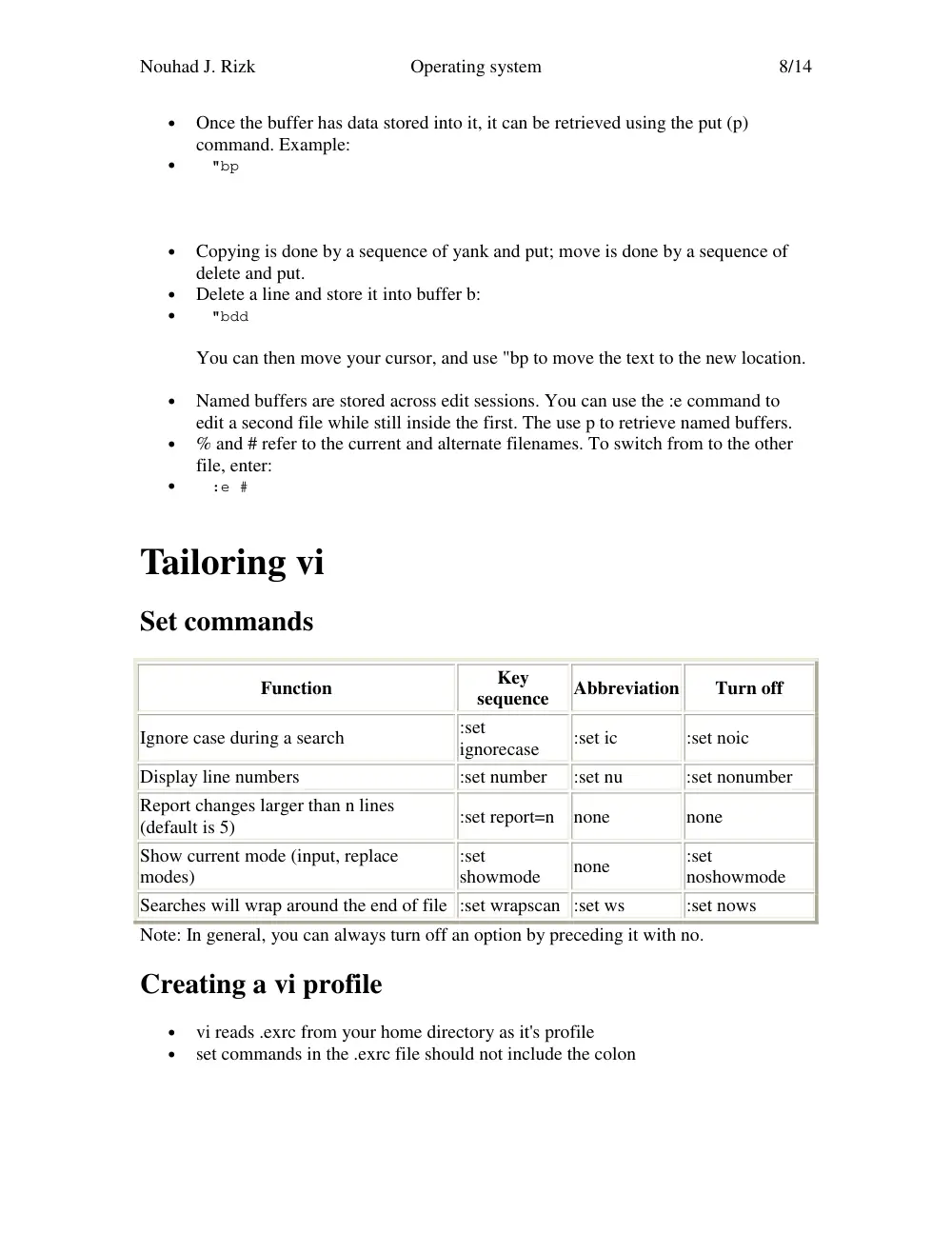
Tailoring vi
Set commands
Function
Key
sequence
Abbreviation
Turn off
Ignore case during a search
:set
ignorecase
:set ic
:set noic
Display line numbers
:set number
:set nu
:set nonumber
Report changes larger than n lines
(default is 5)
:set report=n none
none
Show current mode (input, replace
modes)
:set
showmode
none
:set
noshowmode
Searches will wrap around the end of file :set wrapscan :set ws
:set nows
Note: In general, you can always turn off an option by preceding it with no.
Creating a vi profile
•
vi reads .exrc from your home directory as it's profile
•
set commands in the .exrc file should not include the colon
Nouhad J. Rizk
Operating system
9/14
Summary of most useful commands
Function
Key sequence
Save current file
:w
Save and quit
:wq
Quit without saving latest changes
:q!
Go into input mode
i
Return to command mode
ESC key
Add a line and go into input mode
o
Go into replace mode
R
Replace a single character
r
Delete a single character
x
Delete a line
dd
Delete n lines
ndd (e.g. 3dd, 5dd)
Delete to end of current line
D
Delete to end of file
dG
Go to top of file
:1
Go to botton of file
G
Scroll forward one screen
ctrl-f
Scroll backward one screen
ctrl-b
Copy a line
yy followed by p
Copy n lines
nyy followed by p
Copy up to but not including some string
y/string followed by p
Global change
:%s/oldstring/newstring/g
Show modes
:set showmode
Show line numbers
:set number (turn off with :set nonu)
Exercises
Please note: Within vi, ex commands, or commands starting with a colon (:) require that
you hit the return key to enter them. Other commands not starting with colon (:) don't
require the return key.
Basic editing
1. Edit the file from the previous workshop:
Nouhad J. Rizk
Operating system
10/14
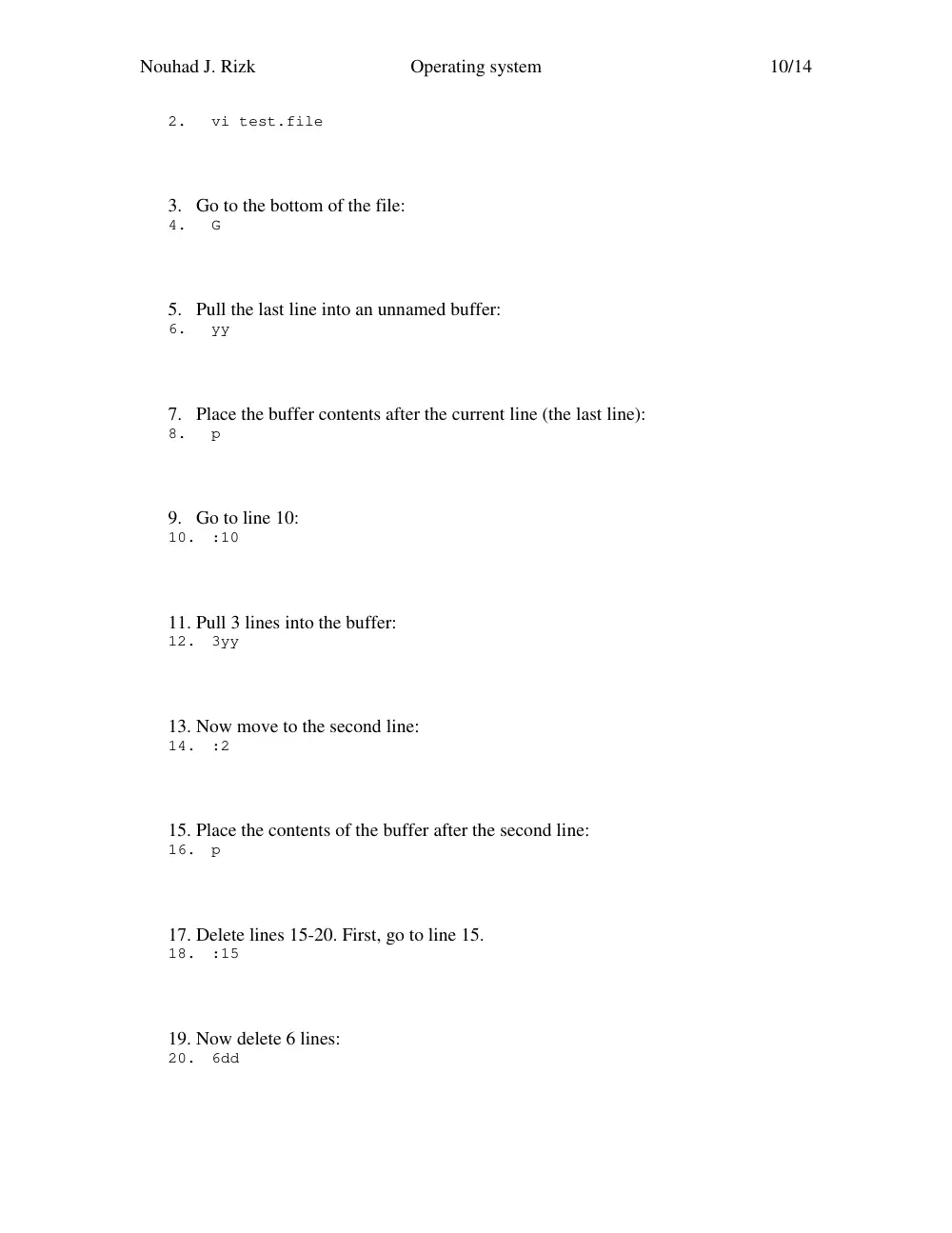
2.
vi test.file
3. Go to the bottom of the file:
4.
G
5. Pull the last line into an unnamed buffer:
6.
yy
7. Place the buffer contents after the current line (the last line):
8.
p
9. Go to line 10:
10. :10
11. Pull 3 lines into the buffer:
12. 3yy
13. Now move to the second line:
14. :2
15. Place the contents of the buffer after the second line:
16. p
17. Delete lines 15-20. First, go to line 15.
18. :15
19. Now delete 6 lines:
20. 6dd
Nouhad J. Rizk
Operating system
11/14
21. Moving text is done by combininig deletion with placement. Move lines 25-26 to
the bottom of the file as follows.
22. :25
23. 2dd
24. G
25. p
26. Join the top two lines as follows:
27. :1
28. J
29. Join 3 lines (current plus next two):
30. 3J
31. Move your cursor to somewhere in the middle of the newly joined line, and delete
everything past the location of the cursor, by hitting capital D
32. Go to column 1 of the current line, by hitting number 0
33. Go to the end of the current line, by hitting the key $
34. Go to the top of the file, by entering :1
35. Change all occurrences of the word line to stuff
36. :%s/line/stuff/g
37. Turn line numbers on:
38. :set nu
39. Turn them off again:
40. :set nonu
41. Continue experimenting with basic editing commands as you like.
42. Save your changes periodically by entering :w
43. When you are through, save and quit by entering :wq
Editing across files
1. Edit test.file
2.
vi test.file
Nouhad J. Rizk
Operating system
12/14
3. Turn line numbers on
4.
:set nu
5. Save lines 11-20 into a new file called new.file
6.
:11,20w new.file
7. From the first edit session, edit new.file, to verify that you correctly saved lines
11-20.
8.
:e new.file
9. Return to the first edit session for test.file
10. :e #
11. Now use a named buffer, to transfer lines 1-10 from test.file to new.file. The
buffer can be named a.
First, go to the top of test.file
:1
12. Retrieve 10 lines into named buffer a.
13. "a10yy
14. Edit new.file
15. :e new.file
16. Go to the top of new.file
17. :1
18. Retrieve the contents of buffer a, and place them prior to the top line
Nouhad J. Rizk
Operating system
13/14
19. "aP
20. Return to test.file
21. :e #
22. Append lines 10-12 to the end of new.file
23. :10,12w>> new.file
24. Verify that the new lines were appended, by editing the alternate file (new.file)
and going to the bottom.
25. :e #
26. G
27. Save and quit:
28. :wq
Create a vi profile (.exrc)
1. At the UNIX command prompt, make sure you are in your home directory:
2.
cd $HOME
3. Create a .exrc file:
4.
vi .exrc
5. Go into input mode, by hitting letter i
6. Type the following text:
7.
set showmode
8. Optional: If you want line numbers to always be displayed, then hit the return key,
and enter the text set nu.
9.
set nu
Nouhad J. Rizk
Operating system
14/14
10. Return to command mode by hitting the ESC key
11. Save and quit by entering :wq
12. Now test your profile, by opening test.file:
13. vi test.file
14. Go into input mode, by hitting letter i. You should see INPUT MODE in the
bottom right.
15. Hit the ESC key to return to command mode.
16. Hit capital R (shift-R) to go to replace mode. You should see REPLACE MODE
at the bottom right.
17. Return to command mode, by hitting the ESC key.
18. Save and quit by entering :wq
Log out
If you are finished now, remember to logout at the UNIX command prompt:
logout