
EECE 200 Report, Fall 2011
American University of Beirut · Introduction to Electrical and Computer Engineering · 13 pages



Showing the first 10 of 13 pages. Download the PDF to see all of it.
More EECE 200 files
- Report · Fall 2013FileView
- Useful File EECE 200 Midterm Material Summary · Fall 2013FileView
- Report · Fall 2011FileView
- Other · Spring 2008FileView
- Homework 2 · Fall 2014HomeworkView
- Homework 1 · Fall 2014HomeworkView
- Homework 1 Sol · Fall 2014Homework · with solutionView
- Homework 1 with Solution · Fall 2014Homework · with solutionView
Show the text of this file
Modeling Data in Excel
Ali NAJI
201200805
Section 2
Tuesday, January 3, 2012.
1
REPORT GRADING
2
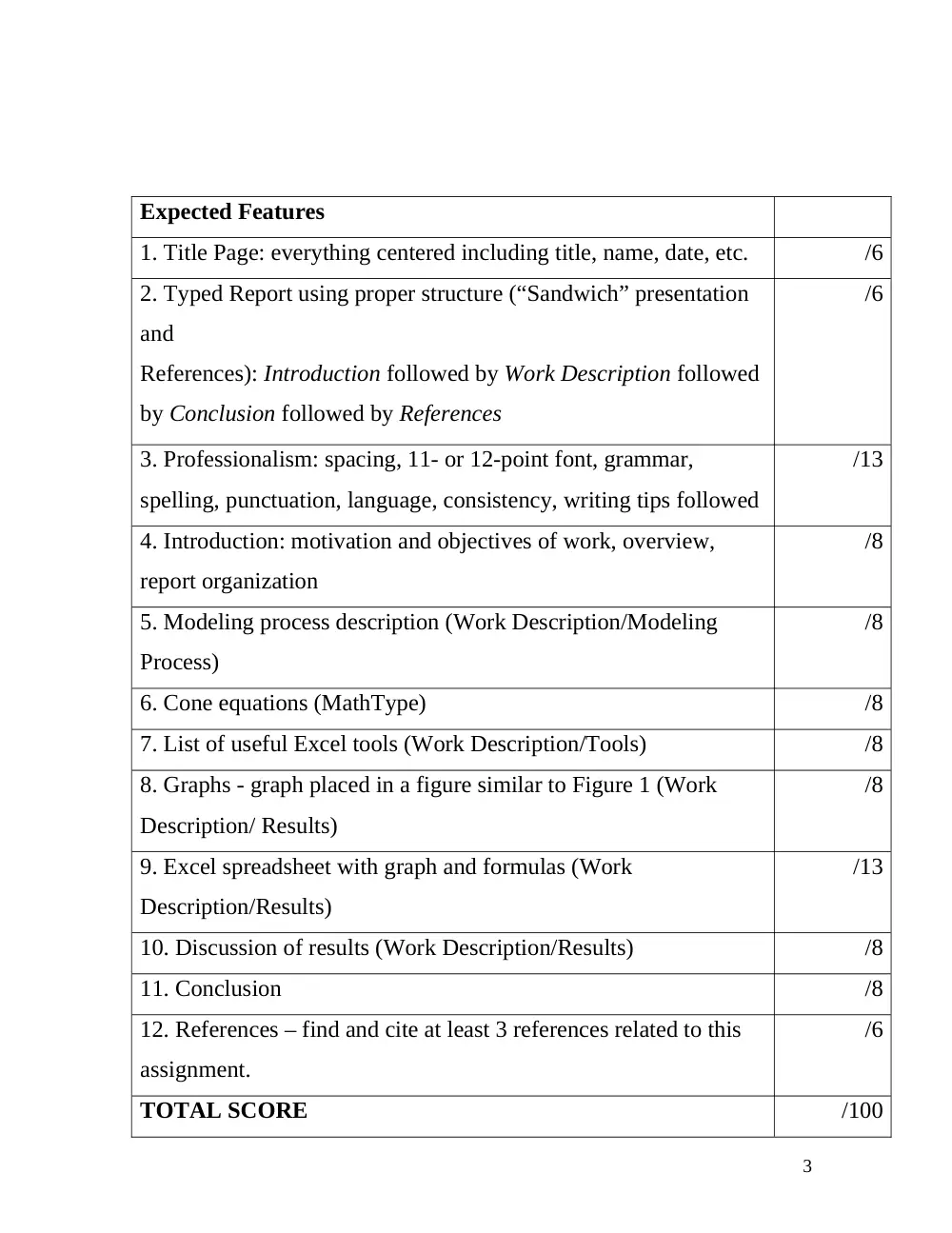
Expected Features
1. Title Page: everything centered including title, name, date, etc.
/6
2. Typed Report using proper structure (“Sandwich” presentation
and
References): Introduction followed by Work Description followed
by Conclusion followed by References
/6
3. Professionalism: spacing, 11- or 12-point font, grammar,
spelling, punctuation, language, consistency, writing tips followed
/13
4. Introduction: motivation and objectives of work, overview,
report organization
/8
5. Modeling process description (Work Description/Modeling
Process)
/8
6. Cone equations (MathType)
/8
7. List of useful Excel tools (Work Description/Tools)
/8
8. Graphs - graph placed in a figure similar to Figure 1 (Work
Description/ Results)
/8
9. Excel spreadsheet with graph and formulas (Work
Description/Results)
/13
10. Discussion of results (Work Description/Results)
/8
11. Conclusion
/8
12. References – find and cite at least 3 references related to this
assignment.
/6
TOTAL SCORE
/100
3
Introduction
Motivation:
Microsoft Office is one of the most important used softwares nowadays for its
practicality and consistency. Especially, when it comes to excel, it is a flexible way of
modeling data which is why understanding its process is crucial for many useful reports
and operations.
Objective:
Using several equations in Excel to calculate the surface area and the volume of a
cone, depending on the radius of its base
Applying methods in Excel to view the influence of the base’s radius on the cone
in the form of a graph.
Making use of the Microsoft Office tool MathType to write the corresponding
equations.
Overview
Other woks have been done, similar to the one completed in the lab. For example,
previous sophomore students have done the same lab session and their reports can be
found on: http://www.unnect.com/course/AUB-EECE-200-Introduction-to-Electrical-
and-Computer-Engineering/1673#!/ .
4
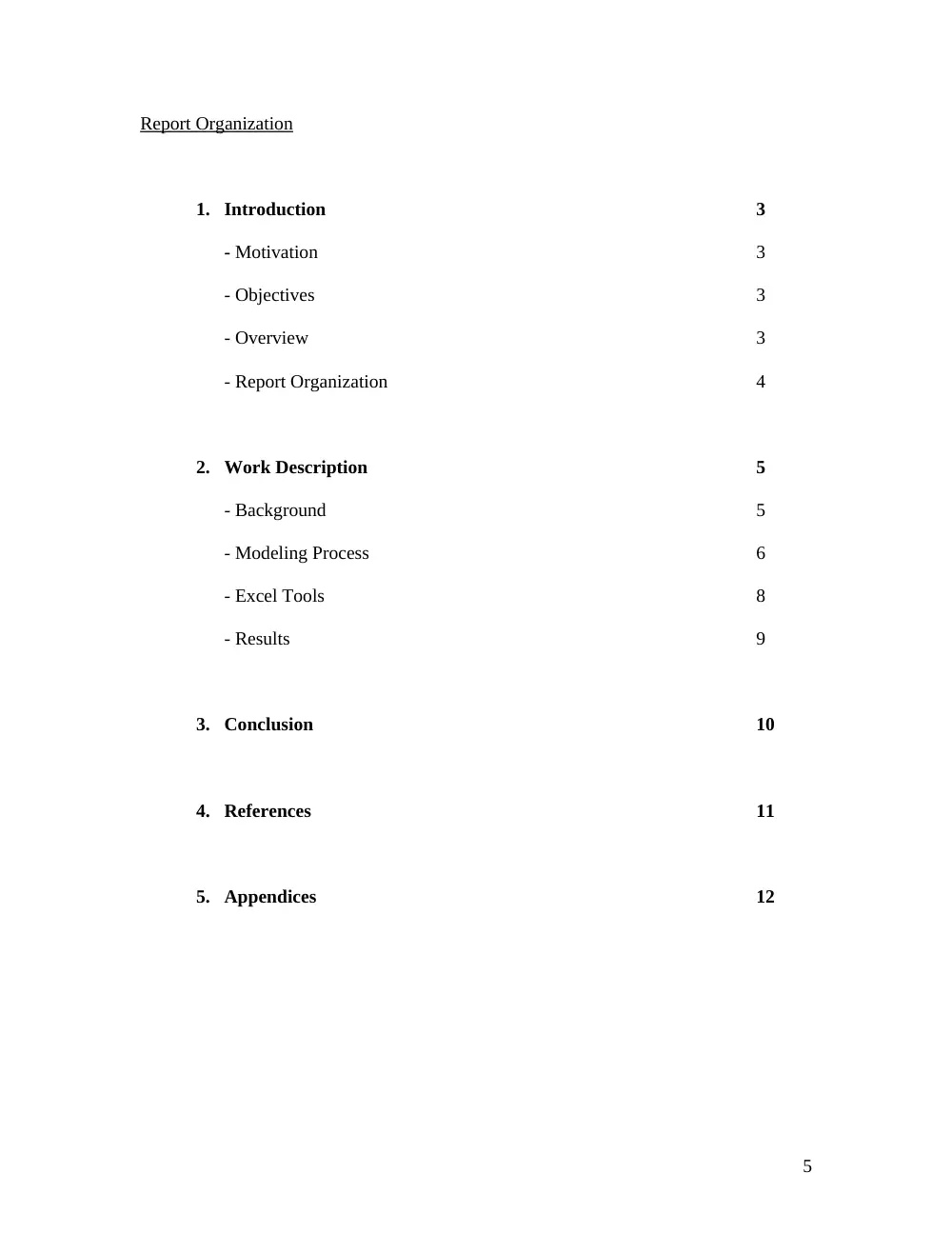
Report Organization
1. Introduction
3
- Motivation
3
- Objectives
3
- Overview
3
- Report Organization
4
2. Work Description
5
- Background
5
- Modeling Process
6
- Excel Tools
8
- Results
9
3. Conclusion
10
4. References
11
5. Appendices
12
5
Work Description
Background
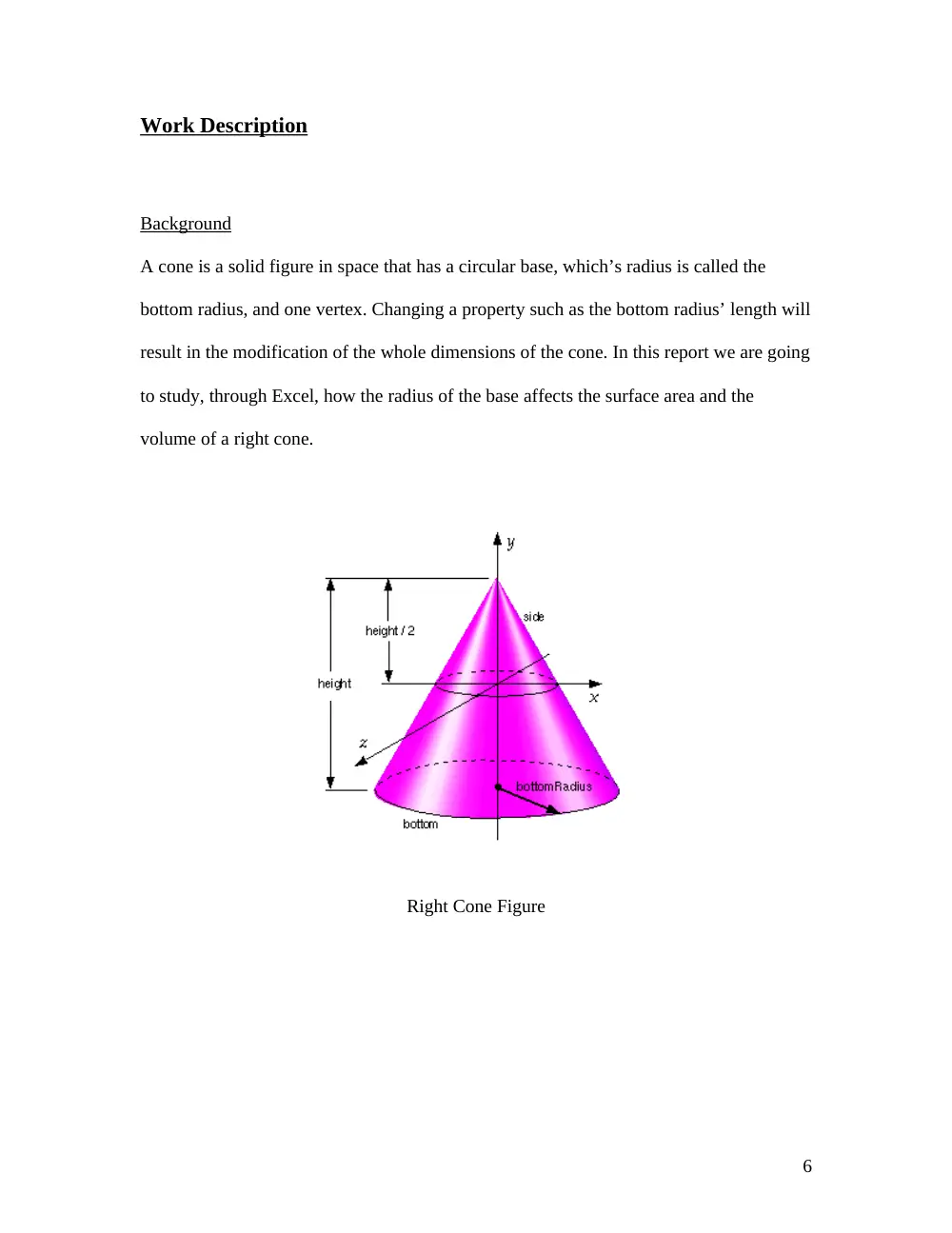
A cone is a solid figure in space that has a circular base, which’s radius is called the
bottom radius, and one vertex. Changing a property such as the bottom radius’ length will
result in the modification of the whole dimensions of the cone. In this report we are going
to study, through Excel, how the radius of the base affects the surface area and the
volume of a right cone.
Right Cone Figure
6
Modeling Process
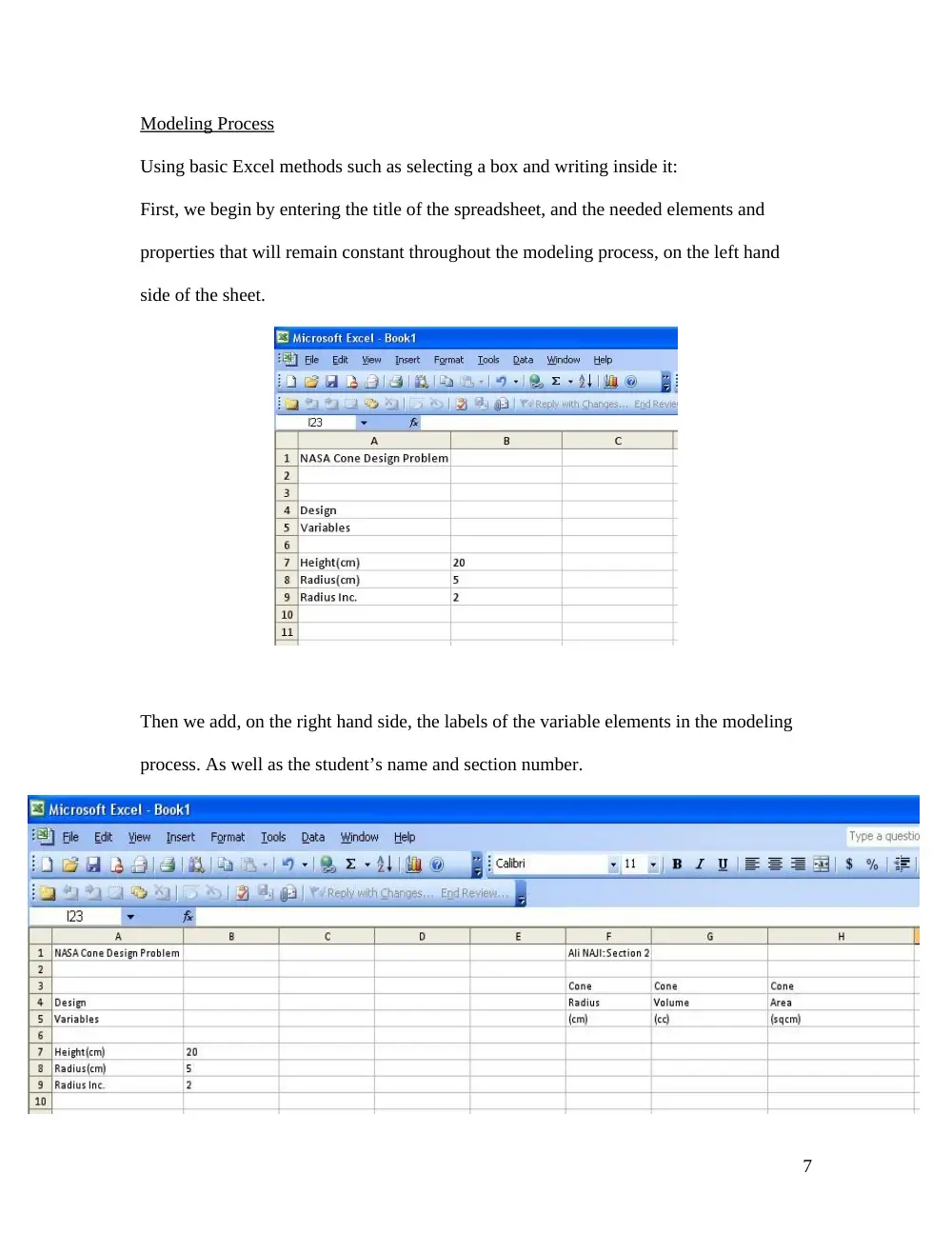
Using basic Excel methods such as selecting a box and writing inside it:
First, we begin by entering the title of the spreadsheet, and the needed elements and
properties that will remain constant throughout the modeling process, on the left hand
side of the sheet.
Then we add, on the right hand side, the labels of the variable elements in the modeling
process. As well as the student’s name and section number.
7
The next step is to write the equations that will show how the length of the radius will
affect the surface area and the volume of the cone.
“h” being the height of the cone (20 cm) and “r” the radius of the base (5cm then
increasing with an increment of 2 cm):
To increase the length of the radius by the specified increment, we write the formula:
=B8 for the first value, then =F7+B$9 for the next value, and so on for the other values
(pulling the black dot on the corner of the cell and dragging till the last needed value.
The formula of the volume of the cone is
, so we enter in Excel for the value
of the volume the equation: =(1/3)*PI()*$B$7*F7^2 and so on for the other values.
The formula of the surface area of the cone is
with
, so we
enter in Excel for the first value of the surface area the equation:
=PI()*F7*($B$7^2+F7^2)^0.5 and so on for the other values.
The spreadsheet will become the following:
8
Finally, to represent the results in the form of a graph, we select cells F7 to H16 and
select in the “chart” layout the proper X-axis and Y-axis and their labels. The graph will
be as following:
NASA Cone Design Problem
0
2000
4000
6000
8000
10000
12000
0
5
10
15
20
25
Radius (cm)
Volume (cc)
0
500
1000
1500
2000
2500
Area (sqcm)
Cone Volume (cc)
Cone Area (sqcm)
Excel Tools
Selecting cells and writing inside them
Increasing the width of cells
Writing functions using the equal sign “=”
Adding to successive values the same increment using the absolute (dollar) sign
“$” as in the equation of the radius =F7+B$9
Writing more complex formulas using equations such as the ones used for the
volume values =(1/3)*PI()*$B$7*F7^2 and the surface area values
=PI()*F7*($B$7^2+F7^2)^0.5
Applying functions for numerous cells by click on the right bottom black dot on
the cell, and dragging until reaching the final wanted value
Creating a graph using the Chart Layout tools.
9
Results
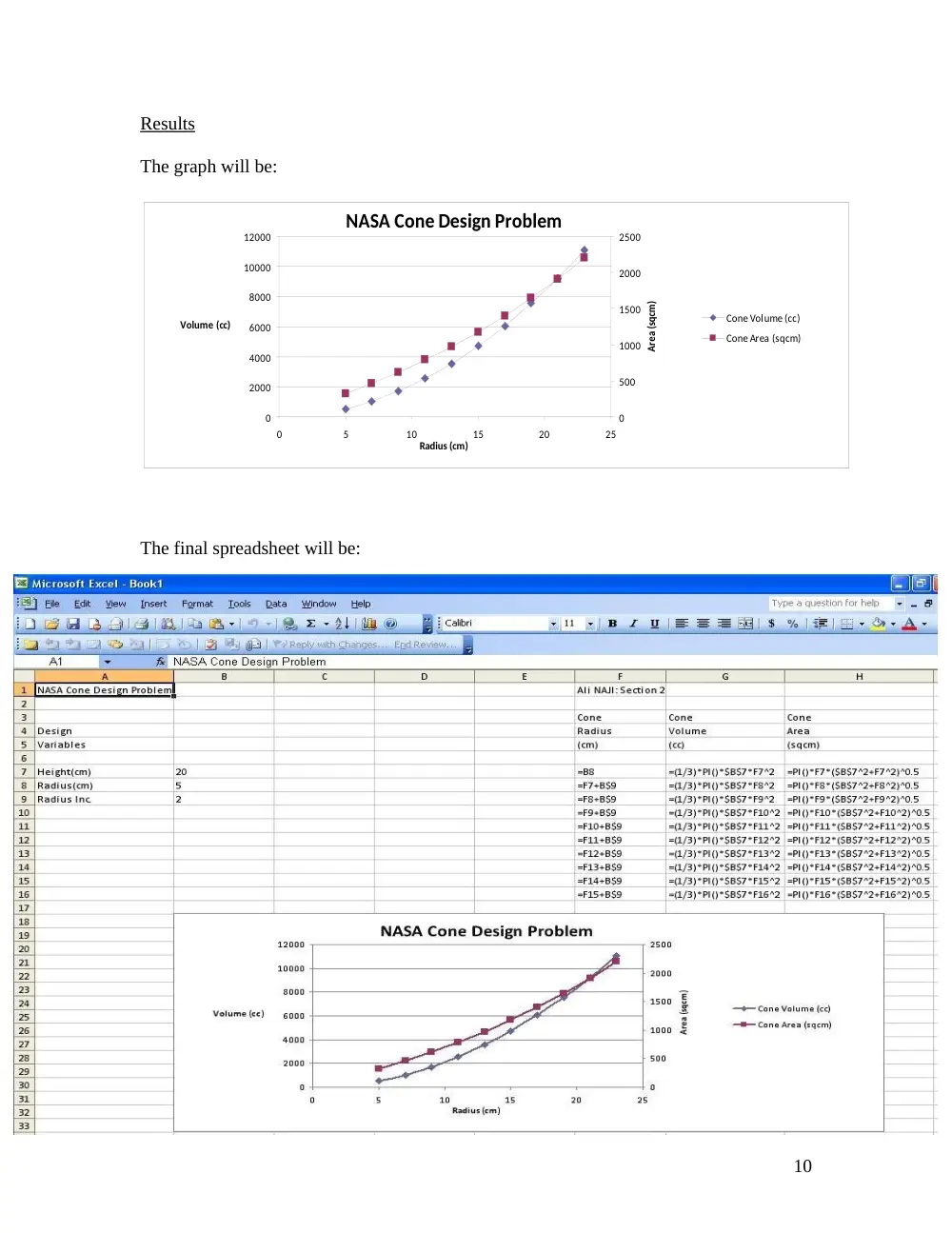
The graph will be:
NASA Cone Design Problem
0
2000
4000
6000
8000
10000
12000
0
5
10
15
20
25
Radius (cm)
Volume (cc)
0
500
1000
1500
2000
2500
Area (sqcm)
Cone Volume (cc)
Cone Area (sqcm)
The final spreadsheet will be:
10
As we study the graph showing the results, we notice that when the radius of the base
increases, the volume and the surface area of the cone increase as well. We also note that
due to the difference in their formulas, the volume and the surface area do not increase in
a parallel manner, the volume being the faster and having the bigger slope since its curve
begins below the surface area’s and intersects with it at r=21cm, approximately, then
becomes above it.
Conclusion
As, we have seen, Microsoft Excel has enabled us to perform many complex operations
such as getting numerous values for the volume and the surface area of the cone while
increasing its radius by a constant increment, saving a lot of time. It also enabled us to
visualize our results by representing them in the form of a graph, which makes
manipulation much easier. MathType tool in Microsoft word also helped us write the
equations formulas needed in the report. By completing this modeling process we have
therefore shown the capabilities of Microsoft Office as well as its practicality and
effectiveness.
11
References
http://www.unnect.com/course/AUB-EECE-200-Introduction-to-Electrical-and-
Computer-Engineering/1673#!/
http://accad.osu.edu/~pgerstma/class/vnv/resources/info/AnnotatedVrmlRef/ch3-
311.htm
http://moodle.aub.edu.lb/mod/resource/view.php?id=237561
http://office.microsoft.com/en-us/??CTT=6&Origin=EC010229861033
12
Appendices
To get familiar with basic and complex functions and methods of using Microsoft Excel,
refer to the “Microsoft Excel Help” under the Help tab, or by pressing F1.
To get support go to Microsoft Office Online, also under the Help tab or by following the
link http://office.microsoft.com/en-us/??CTT=6&Origin=EC010229861033 .
13