
EECE 200 Report, Fall 2013
American University of Beirut · Introduction to Electrical and Computer Engineering · 15 pages
Showing the first 10 of 15 pages. Download the PDF to see all of it.
More EECE 200 files
- Useful File EECE 200 Midterm Material Summary · Fall 2013FileView
- Report · Fall 2011FileView
- Report · Fall 2011FileView
- Other · Spring 2008FileView
- Homework 2 · Fall 2014HomeworkView
- Homework 1 · Fall 2014HomeworkView
- Homework 1 Sol · Fall 2014Homework · with solutionView
- Homework 1 with Solution · Fall 2014Homework · with solutionView
Show the text of this file
Modeling Data in Excel
Nour Khodr Agha
201400770
Section 4
October 15th, 2013
1
Introduction:
Motivation: Develop and enhance the skills and abilities needed to formulate,
compute, and evaluate certain mathematical formulas and their corresponding
variations by fully utilizing the spreadsheets of Microsoft Excel, a useful and efficient
program with various tools and functions. The aim is to effectively create, develop,
and solve qualitative mathematical models, and present and display the results
using charts, tables, and graphs. In this case, we are modeling data to build a cone.
Objectives:
1. Calculate the area and volume of the cone (under a variable radius) using
Excel tools.
2. Displaying and illustrating the results on a graph.
3. Using MathType to present formulas and equations.
2
Organization:
Introduction – (page 1)
o Motivation – (page 1)
o Objectives – (page 1)
Work Description – (page 3-12)
o Background – (page 3-4)
o Cone Modeling Process – (page 4-8)
o Tools – (page 9-11)
o Results – (page 11-12)
Conclusion – (page 13)
References – (page 14)
3
Work Description:
o Background:
A cone is a three-dimensional geometric shape that tapers smoothly from a flat (circular,
usually) base to a point called the vertex.
A right cone is defined as a cone with its vertex above the center of its base. In general,
a cone is a pyramid with a circular cross section. A cone is an object which can either
be solid, or hollow (e.g. traffic cones and ice-cream cones). The most common type of
cones is a right cone and as a result we usually use the term ‘cone’ to denote a ‘right
cone’, unless otherwise specified (i.e. oblique cone). A cone looks like a circular base
converging to one point, the vertex.
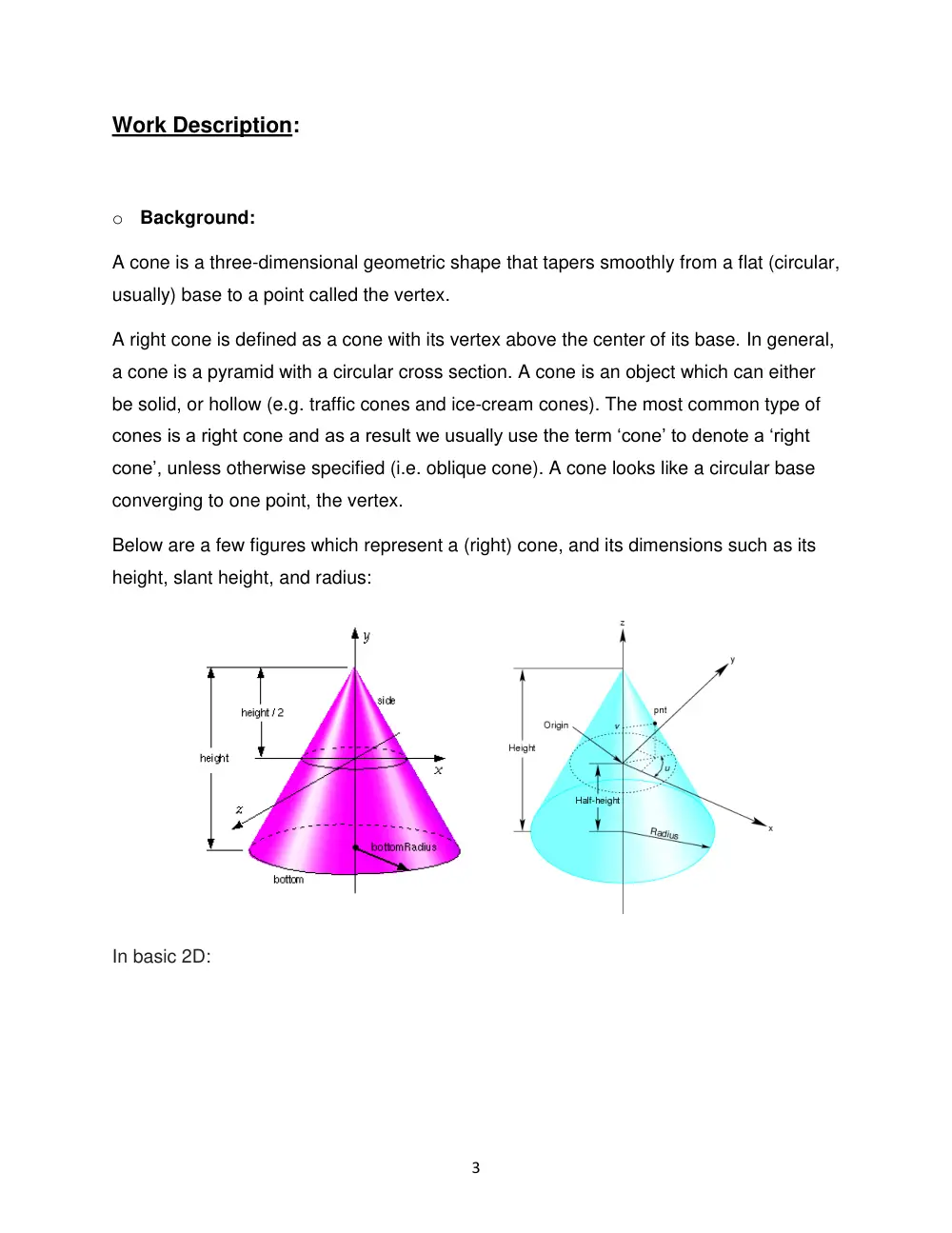
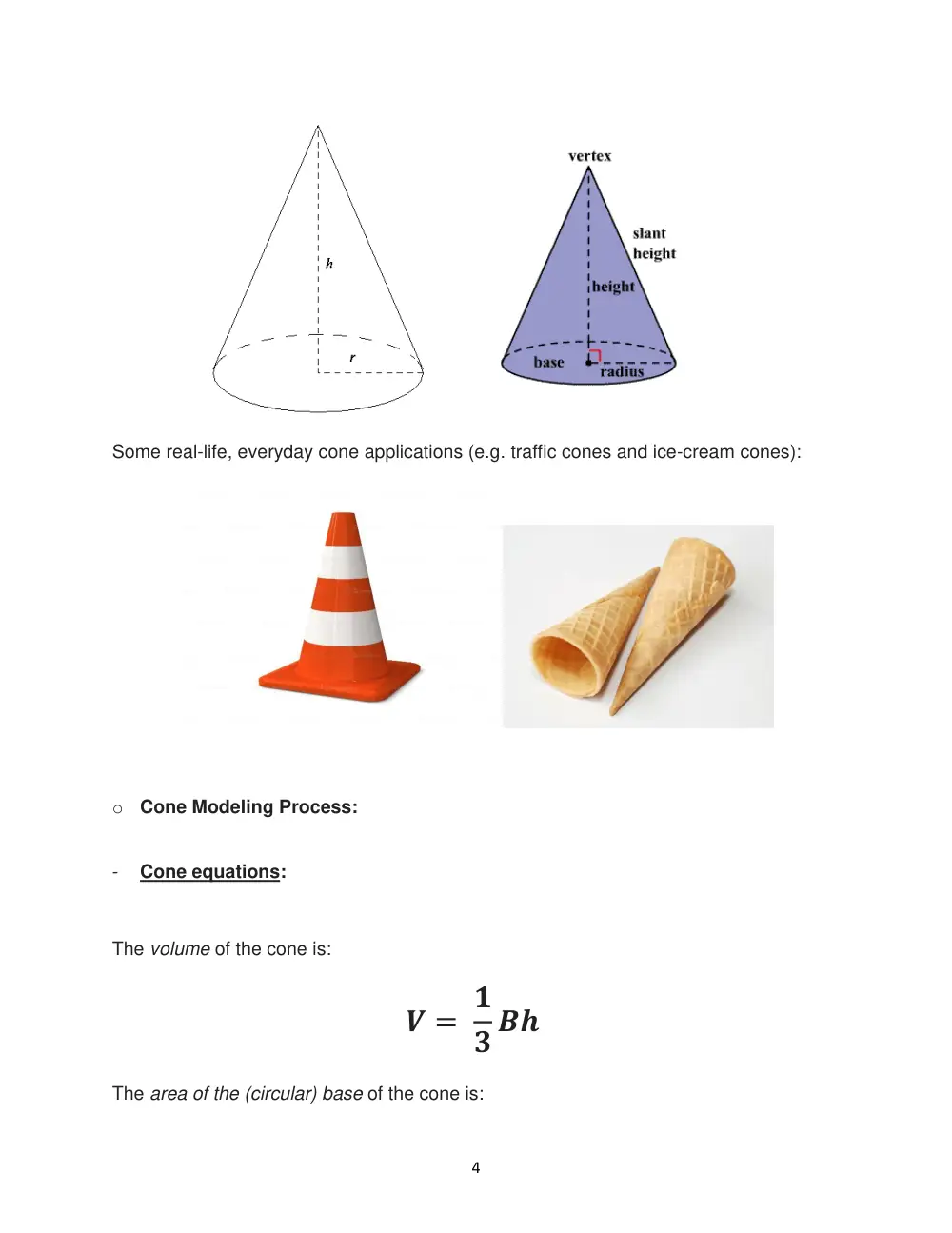
Below are a few figures which represent a (right) cone, and its dimensions such as its
height, slant height, and radius:
In basic 2D:
4
Some real-life, everyday cone applications (e.g. traffic cones and ice-cream cones):
o Cone Modeling Process:
-
Cone equations:
The volume of the cone is:
𝑽 = 𝟏
𝟑 𝑩𝒉
The area of the (circular) base of the cone is:
5
𝑩 = 𝝅𝒓𝟐
Hence, by substitution, the formula for the volume of the cone is:
𝑽 =
𝟏
𝟑 𝝅𝒓𝟐𝒉
Note: The formula for the volume of an oblique cone is the same as that of a right cone.
The formula for the total surface area of the cone is:
𝑻𝑺𝑨 = 𝝅𝒓(𝒓 + 𝒔)
where 𝒔 = √𝒉𝟐 + 𝒓𝟐 is the slant height.
The sum of the area of the base of the cone 𝝅𝒓𝟐 and the area of the curved surface of
the cone 𝝅𝒓𝒔 is equal to the total surface area of the cone.
Note: In the following section, what is referred to as ‘the area’ of the cone is the area of the
curved surface of the cone.
-
Model development:
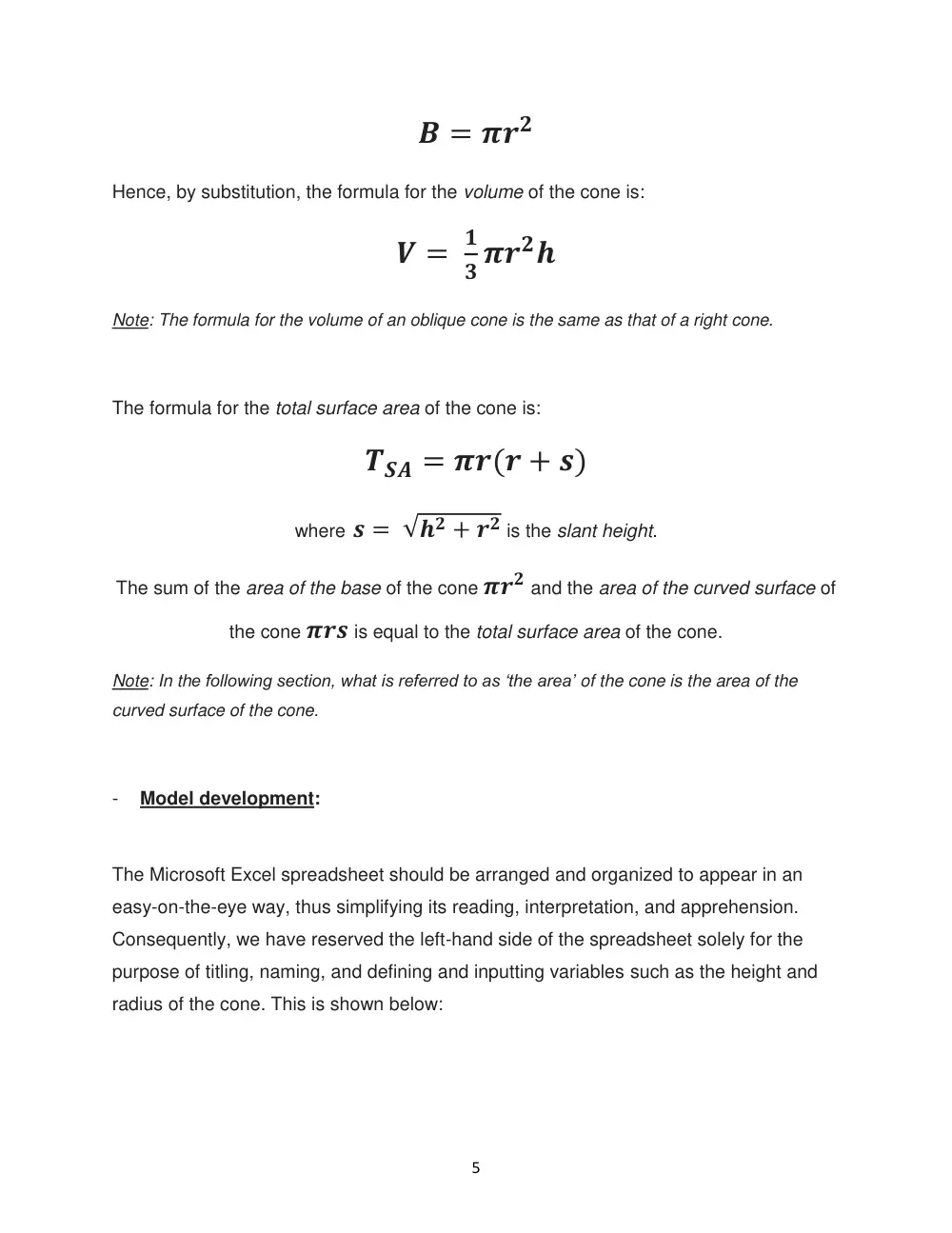
The Microsoft Excel spreadsheet should be arranged and organized to appear in an
easy-on-the-eye way, thus simplifying its reading, interpretation, and apprehension.
Consequently, we have reserved the left-hand side of the spreadsheet solely for the
purpose of titling, naming, and defining and inputting variables such as the height and
radius of the cone. This is shown below:
6
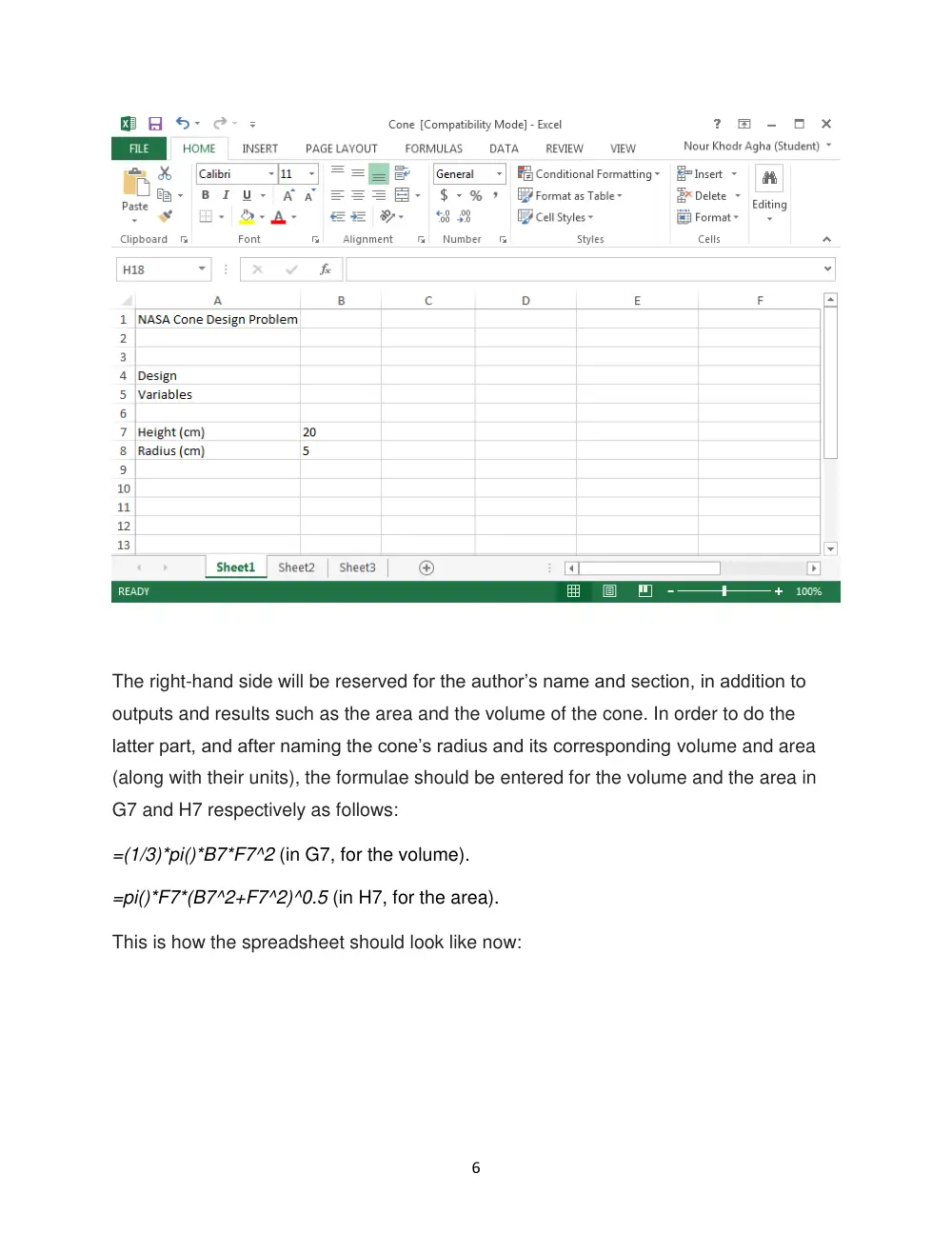
The right-hand side will be reserved for the author’s name and section, in addition to
outputs and results such as the area and the volume of the cone. In order to do the
latter part, and after naming the cone’s radius and its corresponding volume and area
(along with their units), the formulae should be entered for the volume and the area in
G7 and H7 respectively as follows:
=(1/3)*pi()*B7*F7^2 (in G7, for the volume).
=pi()*F7*(B7^2+F7^2)^0.5 (in H7, for the area).
This is how the spreadsheet should look like now:
7
We notice that changing the input in the variables on the left-hand side such as the
height (in B7) and radius (in F7) of the cone yields an observable change on the right-
hand side in the volume and the area of the cone in cells G7 and H7 respectively.
This is because the outputs of cells G7 and H7 are controlled by or dependent on the
inputs of cells B7 and F7, due to the formulas inserted in the former two cells which
contain the values of the latter two cells as variables.
-
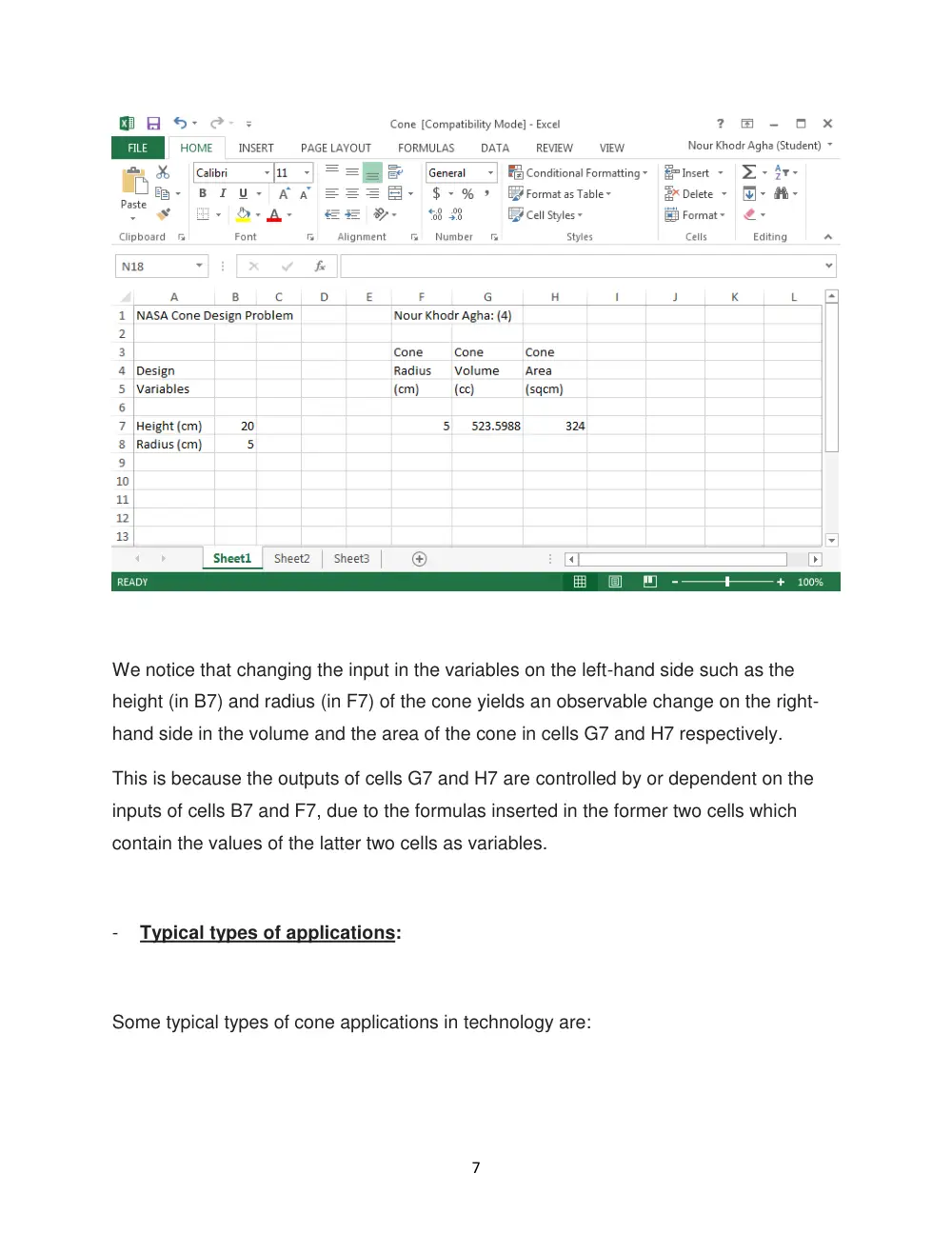
Typical types of applications:
Some typical types of cone applications in technology are:
8
-
‘Cone beam computed tomography (CBCT)’, for 3D X-ray medical imaging, which is
based on voxels (volume pixels), and is recently being used in dentistry (particularly
in the fields of endodontics and orthodontics).
-
High quality loudspeakers and subwoofers, in which cones play a pivotal role in
sound and bass production; the larger their area, the larger the output level is.
-
Electrical CPT(U) (cone penetration testing) used in geotechnical engineering to
determine soil properties and stratigraphy.
-
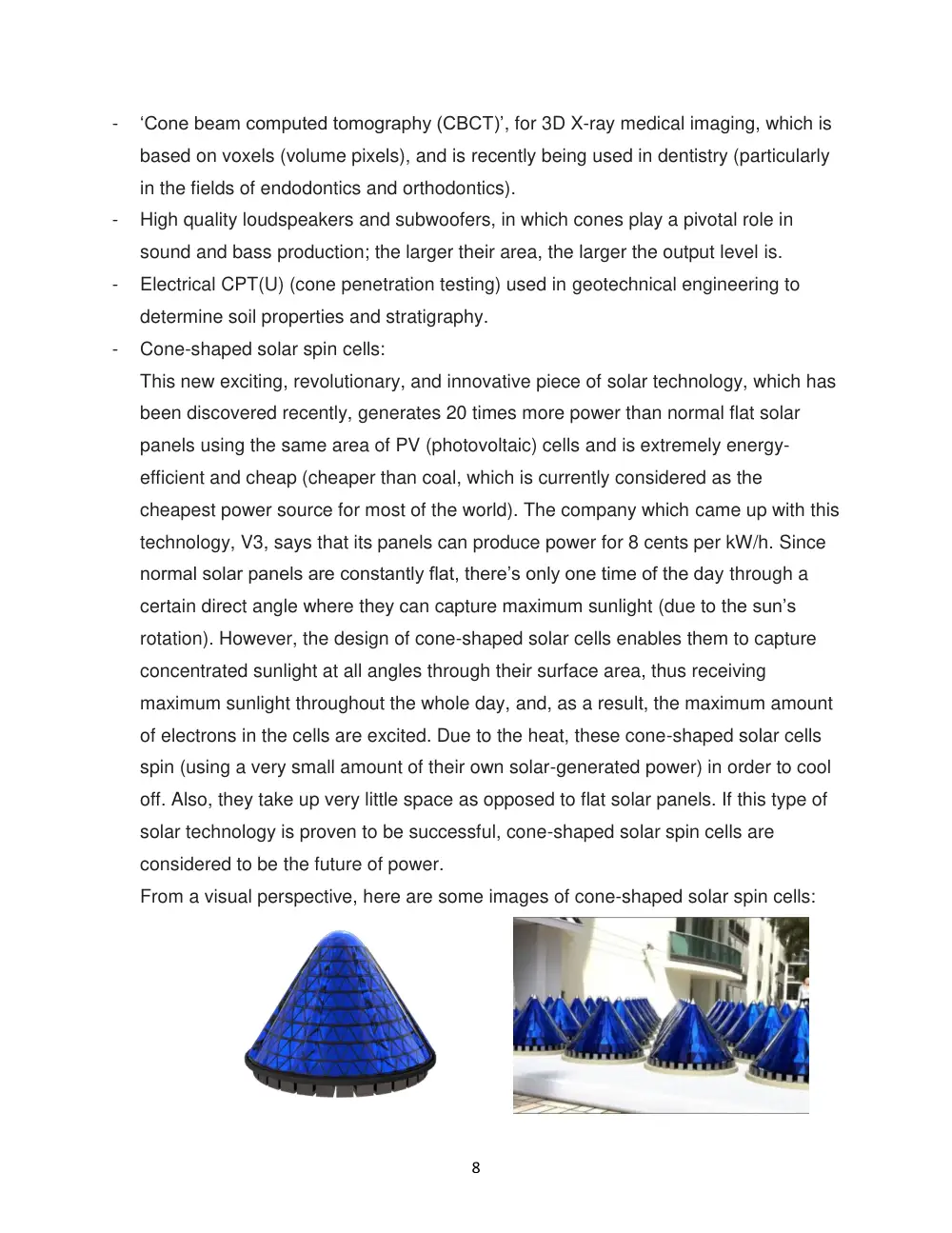
Cone-shaped solar spin cells:
This new exciting, revolutionary, and innovative piece of solar technology, which has
been discovered recently, generates 20 times more power than normal flat solar
panels using the same area of PV (photovoltaic) cells and is extremely energy-
efficient and cheap (cheaper than coal, which is currently considered as the
cheapest power source for most of the world). The company which came up with this
technology, V3, says that its panels can produce power for 8 cents per kW/h. Since
normal solar panels are constantly flat, there’s only one time of the day through a
certain direct angle where they can capture maximum sunlight (due to the sun’s
rotation). However, the design of cone-shaped solar cells enables them to capture
concentrated sunlight at all angles through their surface area, thus receiving
maximum sunlight throughout the whole day, and, as a result, the maximum amount
of electrons in the cells are excited. Due to the heat, these cone-shaped solar cells
spin (using a very small amount of their own solar-generated power) in order to cool
off. Also, they take up very little space as opposed to flat solar panels. If this type of
solar technology is proven to be successful, cone-shaped solar spin cells are
considered to be the future of power.
From a visual perspective, here are some images of cone-shaped solar spin cells:
9
o Tools:
In this section, some useful Excel tools will be discussed and elaborated.
Namely, some of such tools are relative and absolute addresses. Since we are varying
the radius and finding the resulting volume and area, it is not a good idea to keep on
inputting different values for the radius – it would be a tedious task. Hence, it is much
more practical to use a formula-copying feature which has an updating capability by
entering the appropriate formulas into the cells; providing flexibility. This is what is
known as Excel’s relative address feature.
For instance, let’s say that we enter this formula into cell C1: =B1+B2. If we expand this
formula to cells C2, C3, and C4 by using ‘fill handle’, we obtain in cell C2: =B2+B3, C3:
=B3+B4, C4: =B4+B5, and so on (if we expand further). The formulas in this case are
not fixed, and are varying relatively; this is why it is called the relative address feature.
However, if we want to make B1 fixed, we use the absolute address feature. This is
done by putting ‘$’ in front of B, to specify it as the absolute column, and ‘$’ in front of 1,
to specify it as the absolute row. The formula in cell C1 thus becomes: =$B$1+B2. Cell
B1 is now absolute and fixed (i.e. C1: =$B$1+B2, C2: =$B$1+B3, C3: =$B$1+B4, C4:
$B$1+B5…). Alternatively, we can give cell B1 a name by typing it into the Name Box,
and the name will always be an absolute address.
To proceed in our application, we enter the formula in cell F7 as: =B8 (since in cell F7
we need the (same) value of the radius in cell B8). We define the Radius Inc (an
increment for the radius) and its value, and apply the concept mentioned above by
making the cell (B9) containing its value absolute ($B$9) and entering the formula into
cell F8 as: =F7+$B$9, and then we expand the column down to row 16 (using ‘fill
handle’).
Since we are varying the radius only, the height (in cell B7) should be fixed. Similarly
(by applying the same concept), we adjust the formulas in cells G7 (for the volume) and
H7 (for the area) so that they appear as =(1/3)*PI()*$B$7*F7^2 and
10
=PI()*F7*($B$7^2+F7^2)^0.5 respectively, and then expand each column down to row
16.
After clicking on ‘Show Formulas’ in the ‘Formulas’ tab, this is what our spreadsheet will
look like:
Note: In the Home tab, under the Format menu, we click on AutoFit Column Width so that the
formulas are displayed fully and clearly.
We now need to plot the volume and area of the cone against its radius. One of Excel’s
essential tools is its charts, and we will utilize this tool and its functions to generate a
chart.
In order to create an XY (Scatter) chart, we go to the ‘Insert’ tab and under the ‘Scatter’
menu we select ‘Scatter with Straight Lines and Markers’ and click on ‘Select Data’ (in
11
the Design tab) to add the values that will form our chart. To do that, we click on cell F3
and drag down to cell H16, highlighting (inside dotted lines) the required cells containing
the data that will serve as inputs for the chart. However, to avoid having the volume and
area curve plotted with respect to the same y-axis, we click on the area curve and
choose ‘Format Selection’ from the ‘Layout’ tab and then (under Series Options) select
‘Secondary Axis’. Now, after separating them, we have two y-axes; the volume curve is
plotted with respect to the one on the left (primary axis), while the area curve is plotted
with respect to the one on the right (secondary axis) – each curve is, of course, as a
function of the radius (on the x-axis).
In the ‘Layout’ tab, under the ‘Chart area’ menu, we fill in the appropriate titles (and
units, where necessary) in the Chart Title, Axis Titles (Horizontal Axis and Vertical Axis,
using rotated titles for the latter), and Legend.
o Results:
Finally, our Microsoft Excel spreadsheet will appear as shown below:
12
Note: The significant digits of the columns are adjusted so that the values displayed are integers
(using Increase/Decrease Decimal in the Home tab).
-
Discussion:
1. The chart (or graph) shows an increase in the volume and area of the cone as
the radius increases.
2. By studying the graph, as the radius increases, we are able to approximate the
value of the volume and the area. Also, we can find the value of the volume given
the area, and vice versa.
3. The volume and area curves tend to converge towards each other (when the
radius is a little greater than 20) to meet at a point, and then they tend to diverge
away from each other.
13
Conclusion:
Microsoft Excel is a very useful program which, using simple means, tools, and
techniques, allows the user to perform mathematical tasks such as creating and solving
mathematical models. It computes and calculates certain inputs by using formulas, and
provides the user with a dynamic display of the outputs and results in the form of
spreadsheets, tables, graphs, charts and figures. In this experiment of finding the
volume and area of the cone; through graphical interpretation, we were able to discover
that they are proportional to the cone’s radius by studying and analyzing the clear
results. Hence, Excel is a very powerful and efficient tool for data modeling.
14
References:
Cone description:
-
www.mathworld.wolfram.com/Cone.html
-
www.math.com/school/subject3/lessons/S3U4L4DP.html
-
www.hotmath.com/hotmath_help/topics/volume-of-a-cone.html
-
www.mathsteacher.com.au/year10/ch14_measurement/18_cone/20cone.htm
-
www.andrews.edu/~calkins/math/webtexts/geom09.htm
Cone technological applications:
-
www.sedentexct.eu/content/technical-description-cbct
-
www.barefacedbass.com/technical-information/speaker-size-frequency-
response.htm
-
www.geomil.com/products/cones-probes/eletrical-cptu
-
www.motherboard.vice.com/blog/the-future-of-power-is-spinning-solar-cones
-
www.treehugger.com/solar-technology/Cone-Shaped-spinning-solar-cells-claim-
generate-20x-more-electricity.html
-
www.inhabitat.com/v3solars-photovoltaic-spin-cell-cones-capture-sunlight-all-day-
long
-
www.inhabitat.com/v3solars-spin-cell-cones-could-produce-electricity-for-the-
insanely-low-cost-of-eight-cents-per-kwh
-
www.triplepundit.com/2013/01/v3solar-solar-cones-electricity-cheaper-coal
-
www.v3solar.com
Images:
-
www.techpubs.sgi.com/library/tpl/cgi-
bin/getdoc.cgi?coll=linux&db=bks&fname=/SGI_Developer/Perf_PG/ch09.html
-
www.cs.vu.nl/~eliens/documents/vrml/reference/CH3.HTM
-
www.commons.wikimedia.org/wiki/File:Cone_(geometry).png
-
www.hotmath.com/hotmath_help/topics/volume-of-a-cone.html
-
www.backgroundsy.com/photos/traffic-cones
-
www.realitypod.com/2013/04/top-10-accidental-inventions/2