
COE 201 Lecture 5, Fall 2017
Lebanese American University · Computer Proficiency · 28 pages · Ms. Sana Al Hakim



Showing the first 10 of 28 pages. Download the PDF to see all of it.
More COE 201 files
Show the text of this lab
Presentations
CSC 201- Computer Applications
Outline
• Short Introduction
• View Modes:
▫ Normal
▫ Slide Sorter
▫ Slide Show
▫ Notes Page
• Slide Master and Title Master
• Inserting Objects:
▫ Diagrams
▫ Charts
▫ Tables
•
Format Options
▫ Slide Design
▫ Slide Layout
▫ Background
• Slide Effects
▫ Slide Animation
▫ Slide Transitions
• Running your Slideshow:
▫ Colors and Effects
▫ Slide Hiding
• Preparing your slideshow for
Packaging
• Saving as a Video
2
View Mode: Normal
3
Slide Notes
View Mode: Slide Sorter
4
Allows you to
organize your
slides easier.
You can move, copy,
paste and delete
one or more slides
at the same time.
Slide Shorter tool in the Slide View Toolbar
View Mode: Notes Page
Allows you to write important
notes about every slide.
These notes can be printed for
rehearsal or distribution to
the audience.
5
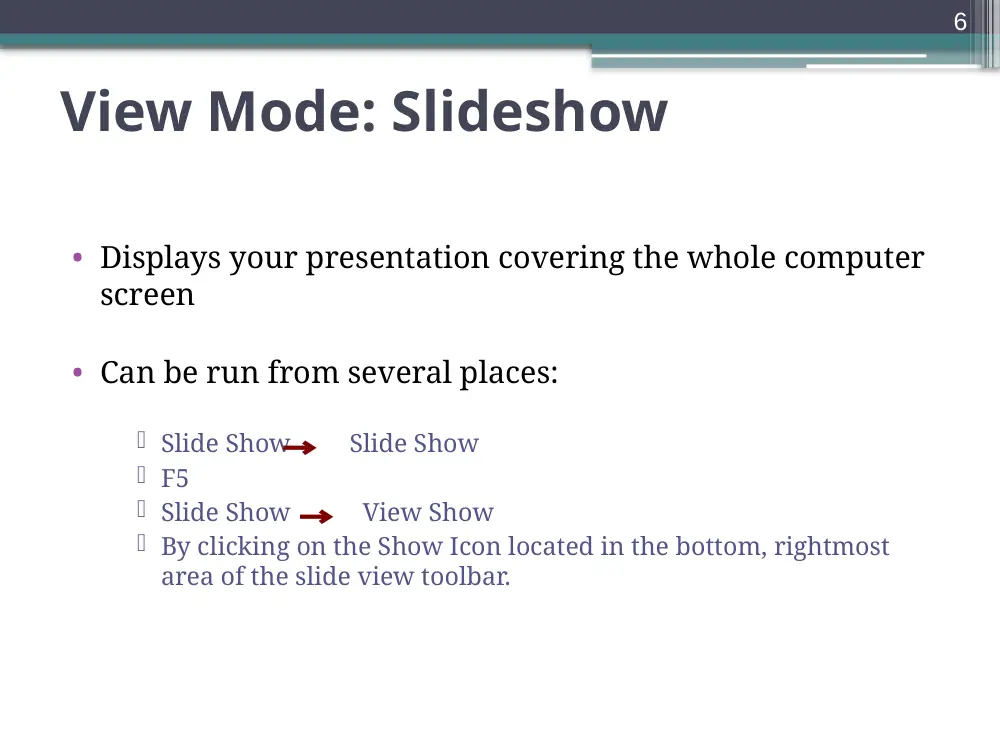
View Mode: Slideshow
• Displays your presentation covering the whole computer
screen
• Can be run from several places:
Slide Show Slide Show
F5
Slide Show View Show
By clicking on the Show Icon located in the bottom, rightmost
area of the slide view toolbar.
6
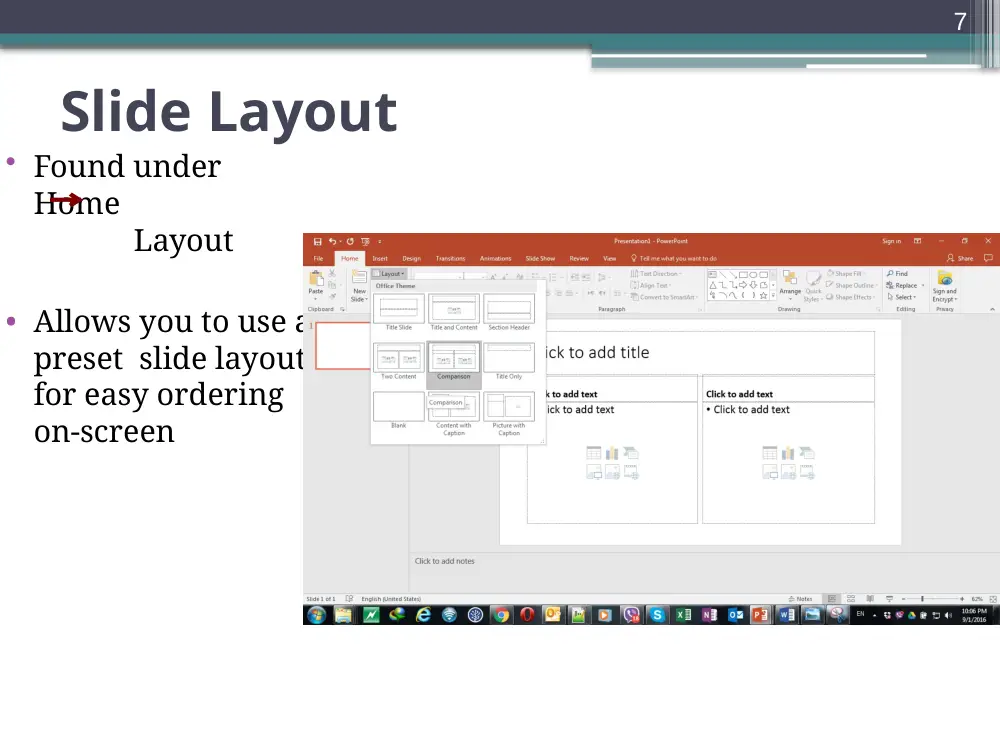
Slide Layout
• Found under
Home
Layout
• Allows you to use a
preset slide layout
for easy ordering
on-screen
7
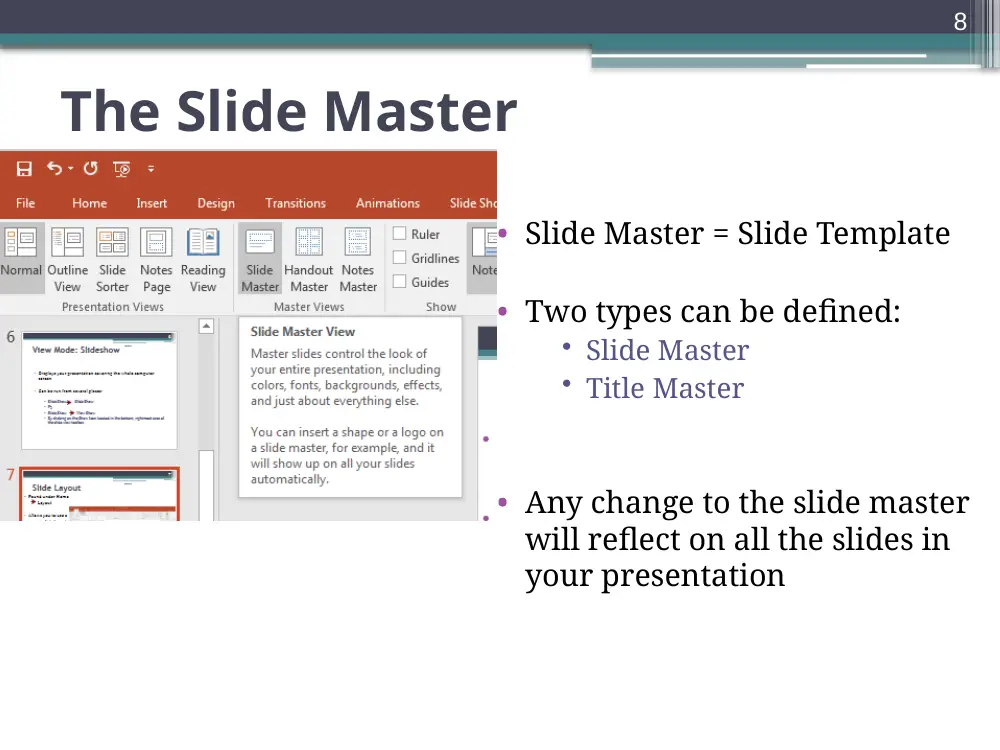
The Slide Master
• Slide Master = Slide Template
• Two types can be defined:
• Slide Master
• Title Master
• Any change to the slide master
will reflect on all the slides in
your presentation
8
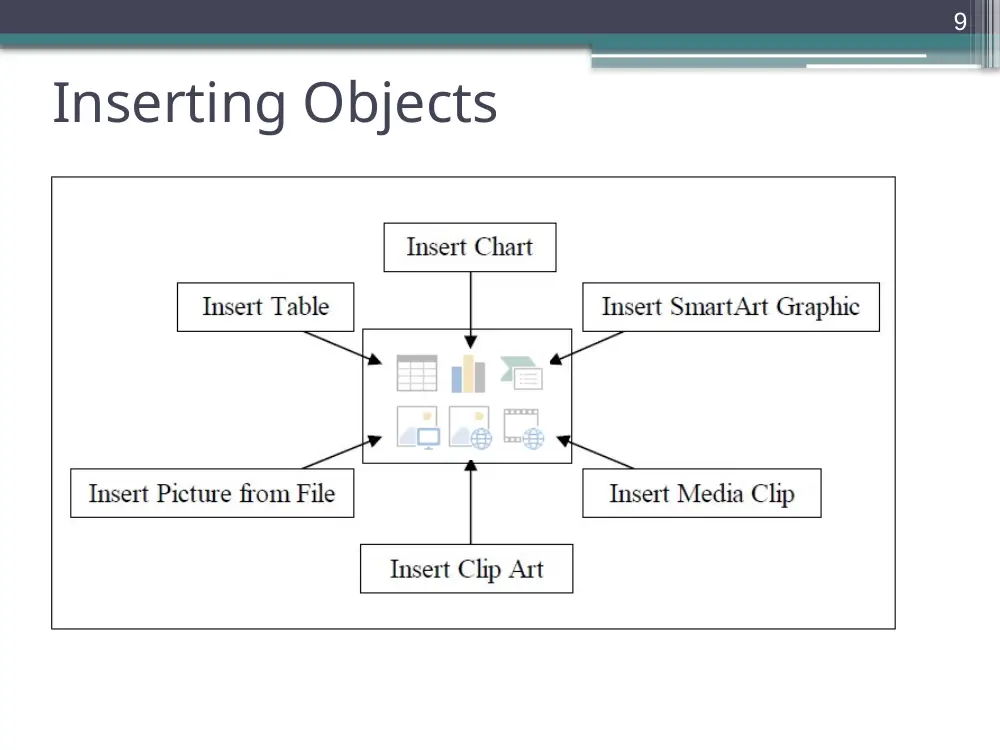
Inserting Objects
9
Insert Objects: Charts
• Found under
Insert Chart
• Easy alternative
to Microsoft
Excel
• Add more
elements in the
datasheet or
modify existing
elements.
10
Insert Objects: Tables
• Found under Insert
Table
11
Shapes, Smart Art etc…
12
13
Slide Design
• Found under: Design
• Under the design tab you can edit the theme, colors, fonts,
effects and other settings.
• The design can be modified in the Slide/Title Master
14
Background
Select a background for
one or more slides
• Right click on the slide
editing area
• Select “Format
Background”
15
Slide Transitions
• Found under Animations
Transition to This Slide
• Allows you to add transition effects between every two slides.
• Optionally, you can set the slide advancement to ‘automatic’
after a certain time.
16
Slide Animation
• Select any object
• Go to “Animations”
▫ select ‘Custom Animation’
• You can:
▫ Add an animation
▫ Edit an animation
▫ Time and/or reorganize
animations
17
18
19
Click for
more
effects
20
Select
the effect
that you
like from
the list
Hyperlinks
• Right click on the object and select “Hyperlink”
21
The Slide Show
• Never put too much text on your
slide!
• Careful with the used colors!!
• A picture is worth a thousand
words!
22
The Slide Show
Slide Hiding
23
Packaging
• The Pack-and-go feature:
• Compact format on USB or CD-ROM
• Include Fonts and Objects
• Include a standalone viewer
24
25
Saving As A Video
• Save As…
• Select “.wmv” as the type
26
Application
• You’ll have to prepare a 5-10 slides
presentation in which you apply what you
have learned in this Lecture.
27
• The presentation should include slides with
different layouts.
• You will have to include :
1. Pictures- Charts and Tables
2. SmartArt
3. Animations and Transitions
4. Hyperlinks
5. Background pictures and themes
6. Make sure you define a Master Slide with
your name being in the Footer
28