
MEE 211 Tutorial AutoCAD 3D, Spring 2013
Lebanese American University · Engineering Graphics · 228 pages · Dr. Suhail Shatila


Showing the first 10 of 228 pages. Download the PDF to see all of it.
More MEE 211 files
- Tutorial OGEE Curve · Fall 2016FileView
- Tutorial Hex Nut · Fall 2016FileView
- Final Section 1 · Fall 2016Final examView
- Problems Assignment 4 A (autocad 2D) · Fall 2016ProblemsView
- Problems Assignment 4 B (autocad 2D) · Fall 2016ProblemsView
- Problems Assignment 5 A(autocad 2D) · Fall 2016ProblemsView
- Problems Assignment 5 B (autocad 2D) · Fall 2016ProblemsView
- Problems Problem Assignment 9 (autocad 3d) · Fall 2016ProblemsView
Show the text of this file
AutoCAD 3D Tutorial
- 1 -
Written by Kristen Kurland
Copyright © 2008
3D Tutorials
AutoCAD 2009
AutoCAD 3D Tutorial
- 2 -
AutoCAD 3D – Chapter 1
3D Interface
AutoCAD 3D Tutorial
- 3 -
1.1 Launching AutoCAD 3D
1.
Choose
Start from the Windows program manager.
2.
Choose
Programs, Autodesk ,AutoCAD 2009.
Workspaces
AutoCAD workspaces are sets of menus, toolbars and dockable windows
(such as the Properties palette, DesignCenter, and the Tool palettes
window) that are grouped and organized so that you can work in a
custom, task-oriented drawing environment.
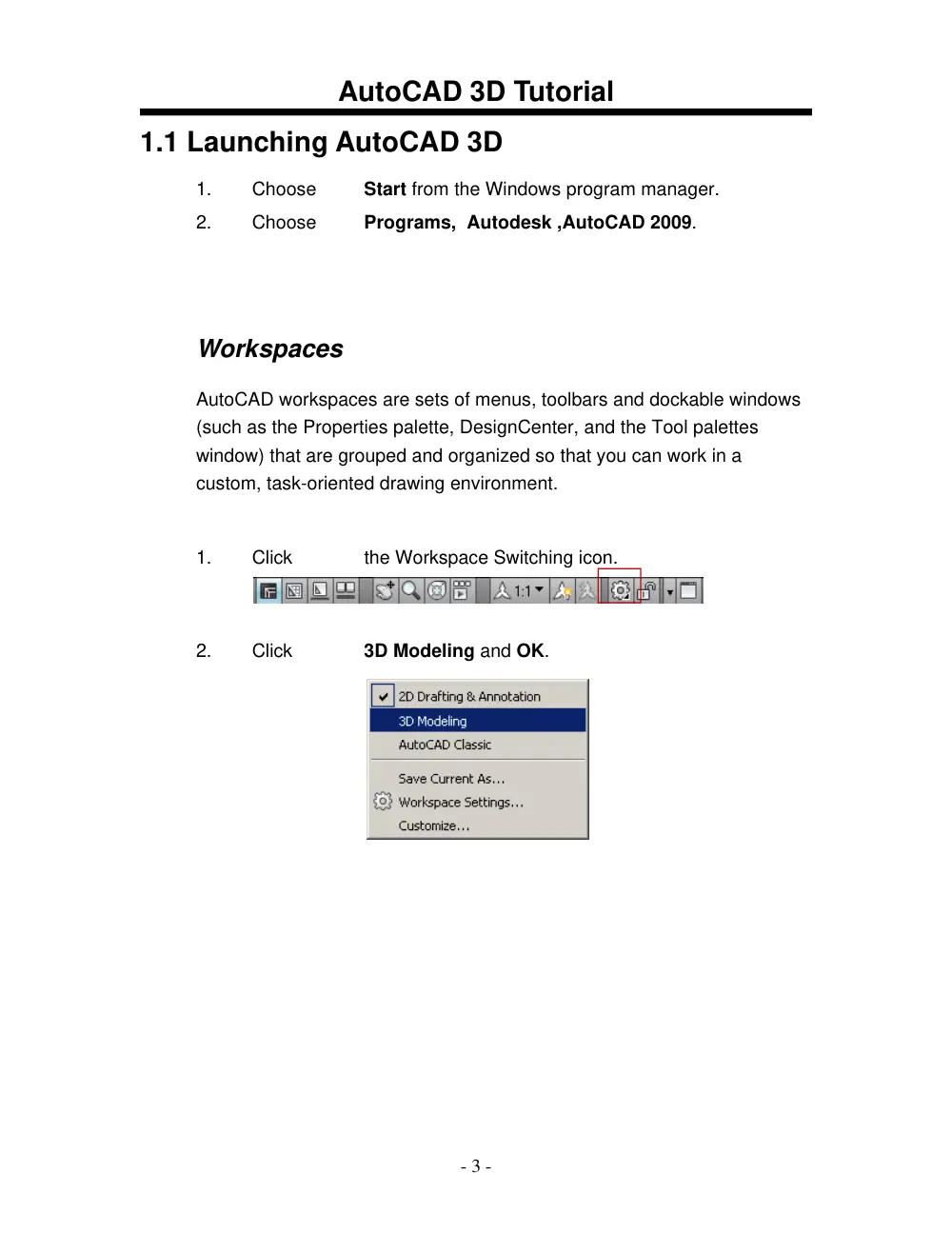
1.
Click
the Workspace Switching icon.
2.
Click
3D Modeling and OK.
AutoCAD 3D Tutorial
- 4 -
1.2 3D Interface
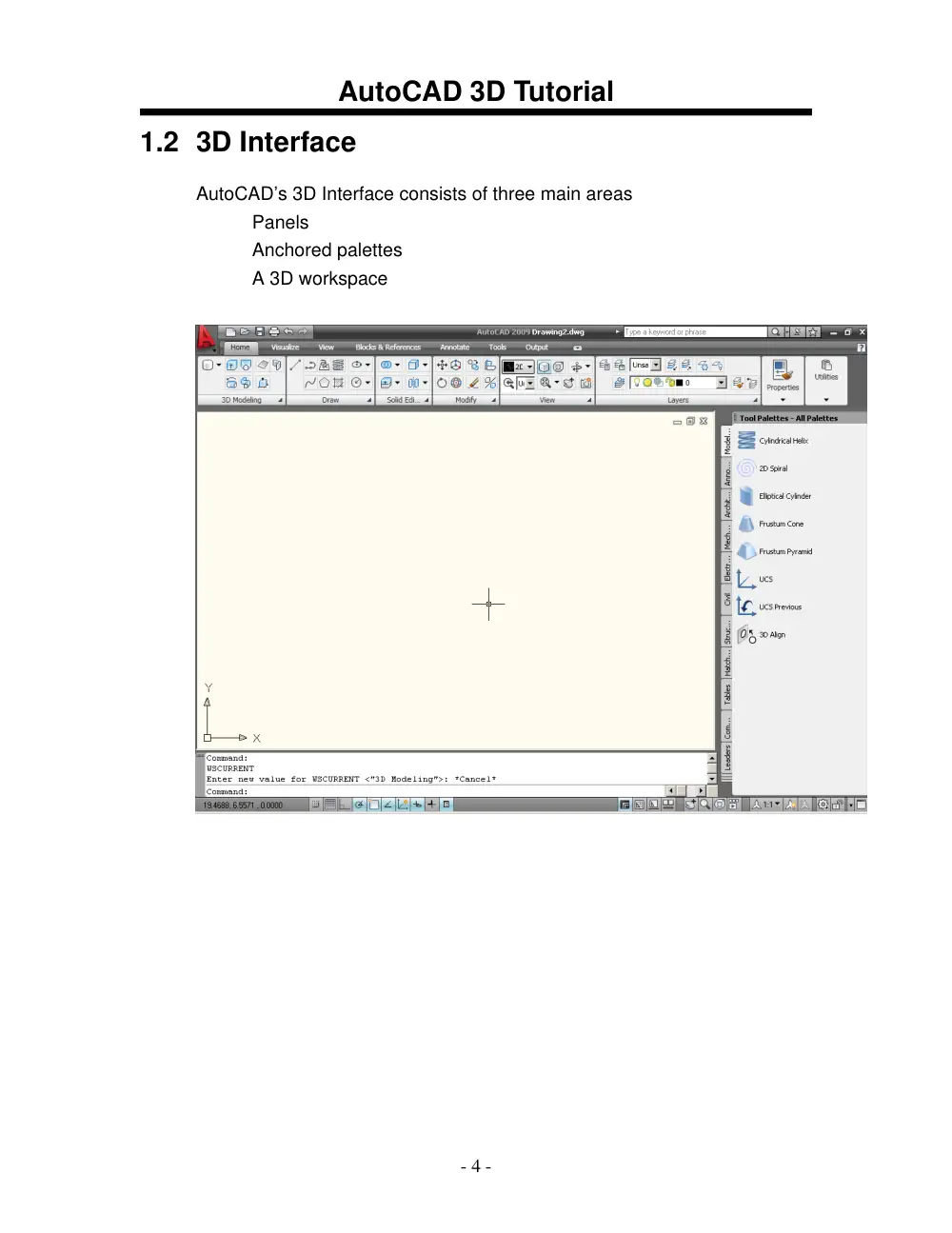
AutoCAD’s 3D Interface consists of three main areas
Panels
Anchored palettes
A 3D workspace
AutoCAD 3D Tutorial
- 5 -
1.3 3D Dashboard
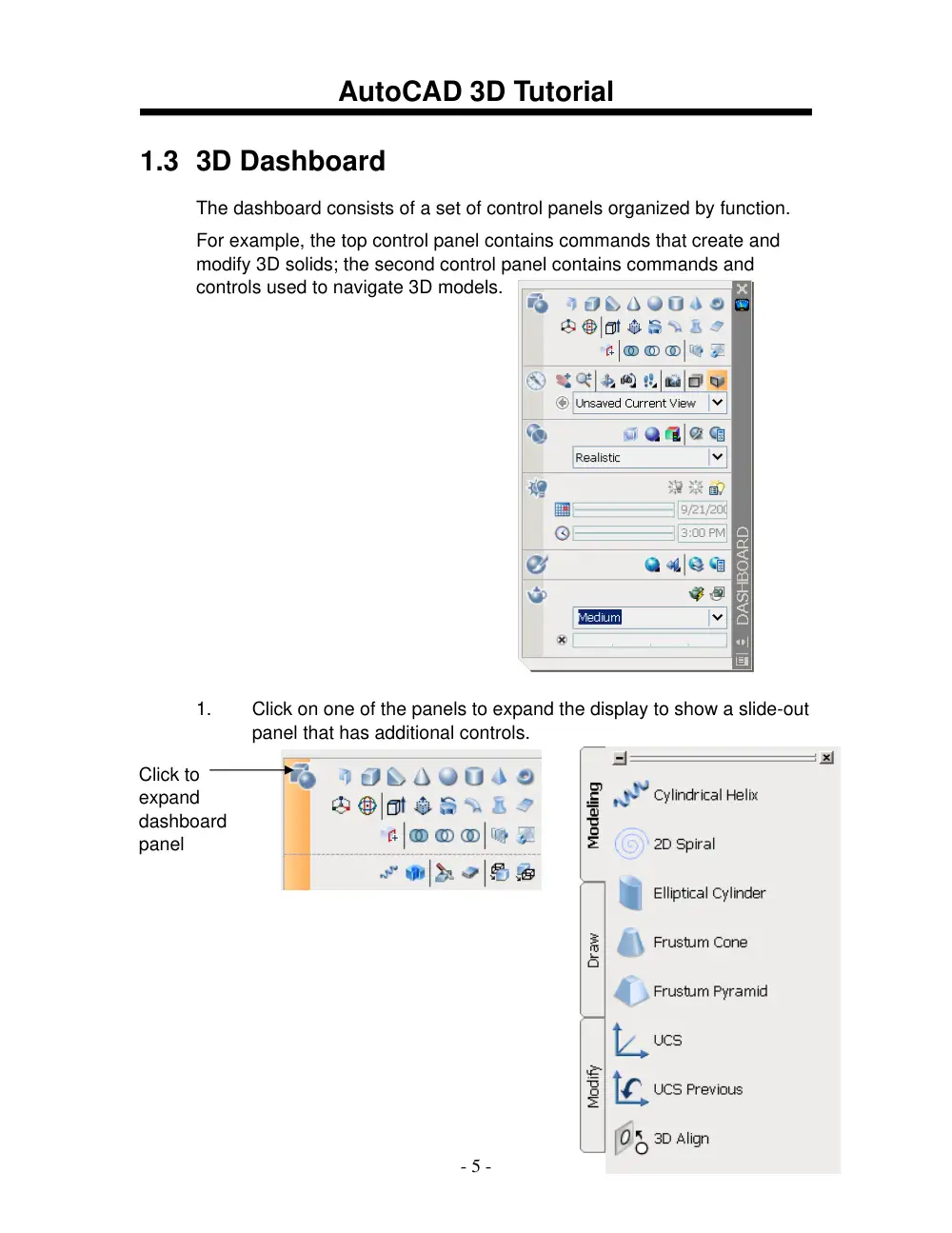
The dashboard consists of a set of control panels organized by function.
For example, the top control panel contains commands that create and
modify 3D solids; the second control panel contains commands and
controls used to navigate 3D models.
1.
Click on one of the panels to expand the display to show a slide-out
panel that has additional controls.
Click to
expand
dashboard
panel
AutoCAD 3D Tutorial
- 6 -
1.4 Viewports
1.
Choose View, Viewports, 4 Viewports.
or
2.
Type -VPORTS at the command prompt.
Command: -VPORTS
Enter an option [Save/Restore/Delete/Join/SIngle/?/2/3/4] 4: enter
Enter a configuration option [Horizontal/Vertical/Above/
Below/Left/Right] <Right>: enter
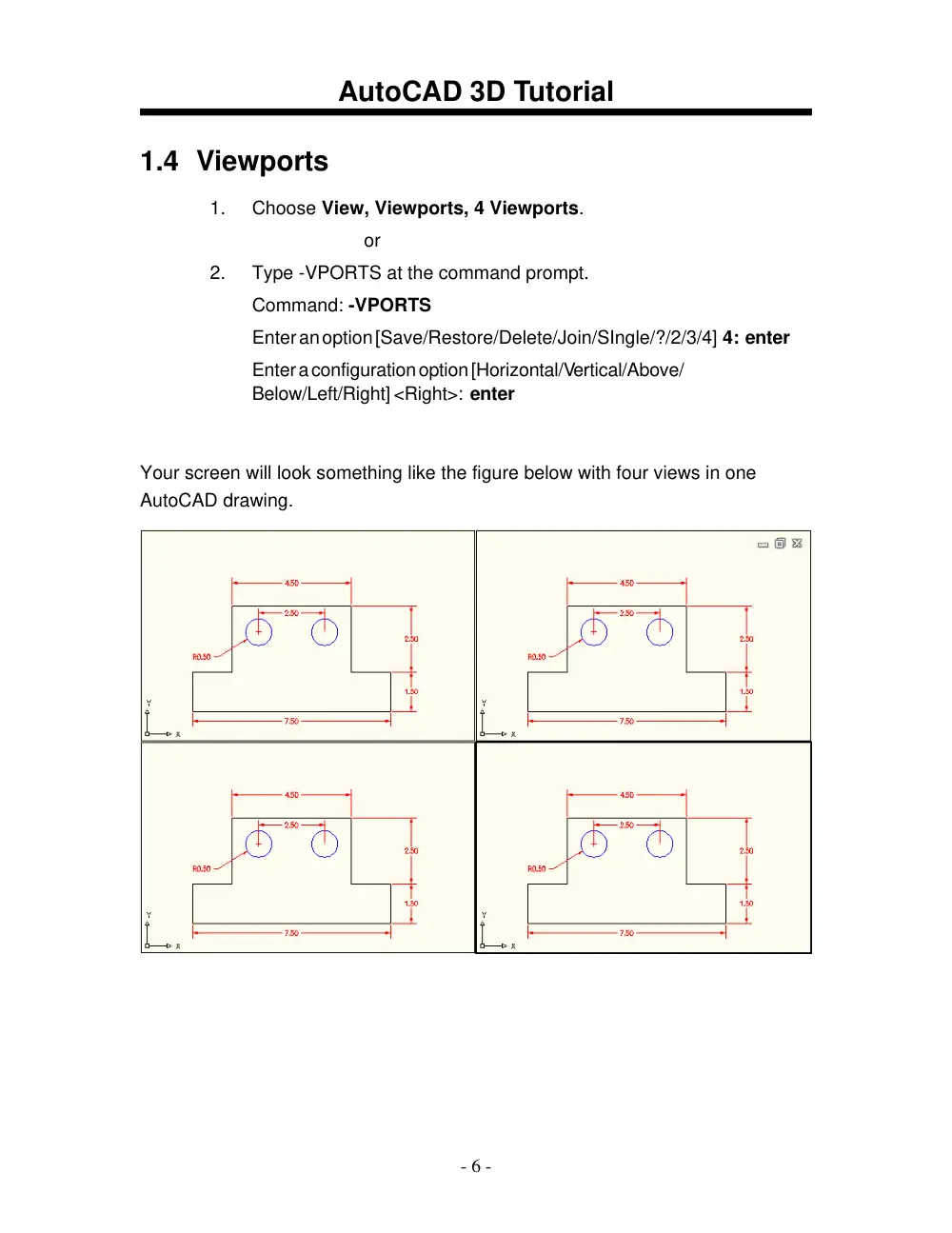
Your screen will look something like the figure below with four views in one
AutoCAD drawing.
AutoCAD 3D Tutorial
- 7 -
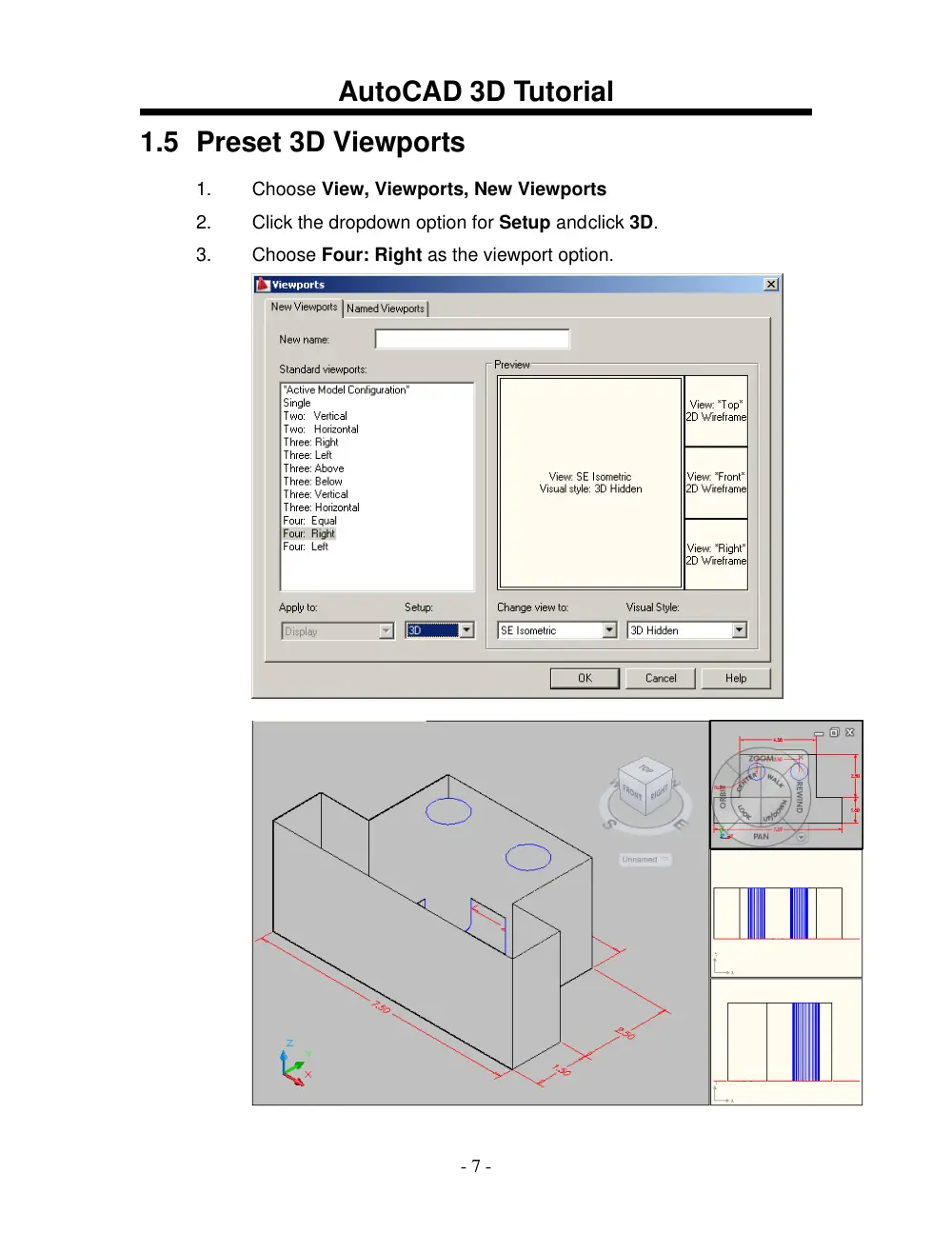
1.5 Preset 3D Viewports
1.
Choose View, Viewports, New Viewports
2. Click the dropdown option for Setup and click 3D.
3.
Choose Four: Right as the viewport option.
AutoCAD 3D Tutorial
- 8 -
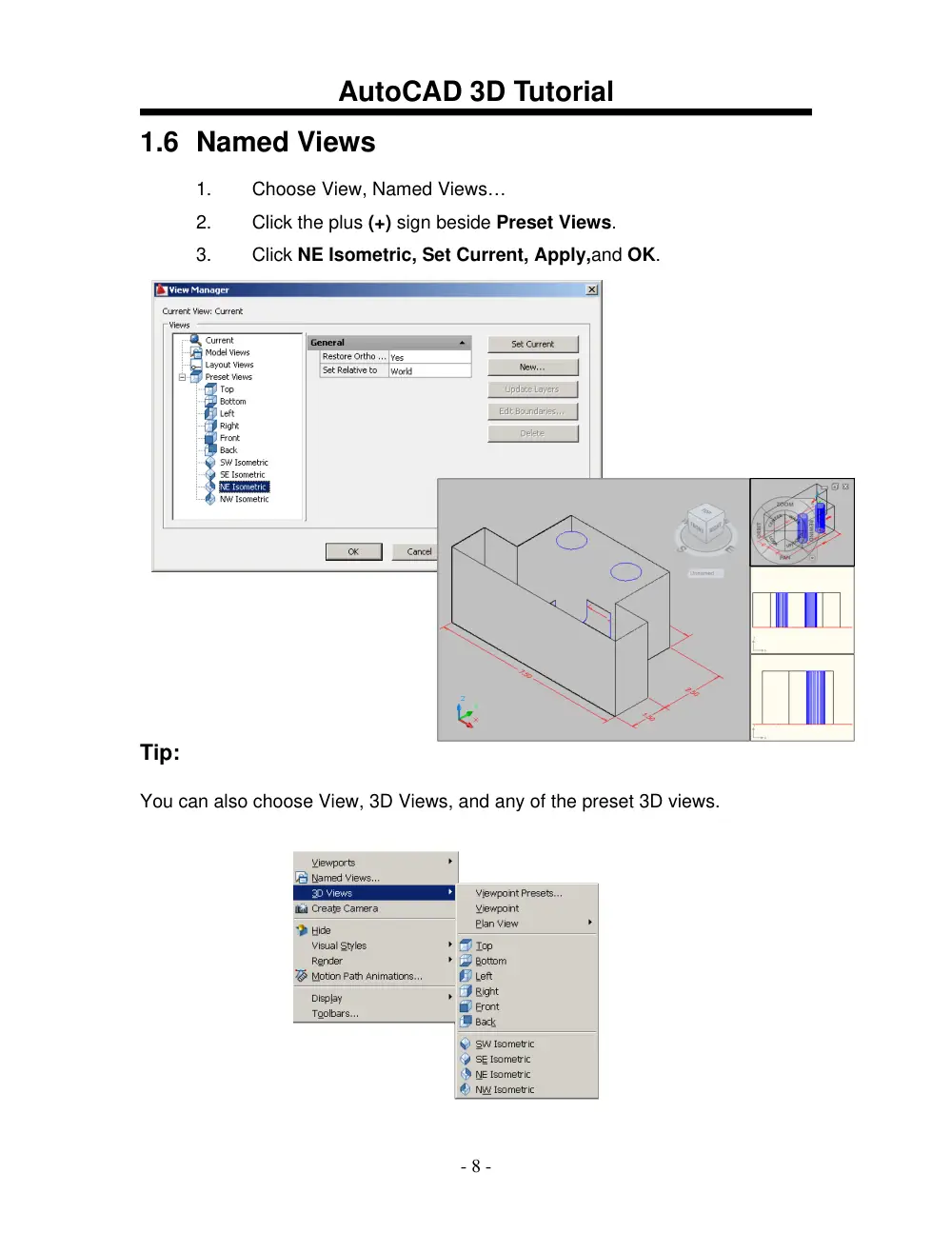
1.6 Named Views
1.
Choose View, Named Views…
2.
Click the plus (+) sign beside Preset Views.
3.
Click NE Isometric, Set Current, Apply,and OK.
Tip:
You can also choose View, 3D Views, and any of the preset 3D views.
AutoCAD 3D Tutorial
- 9 -
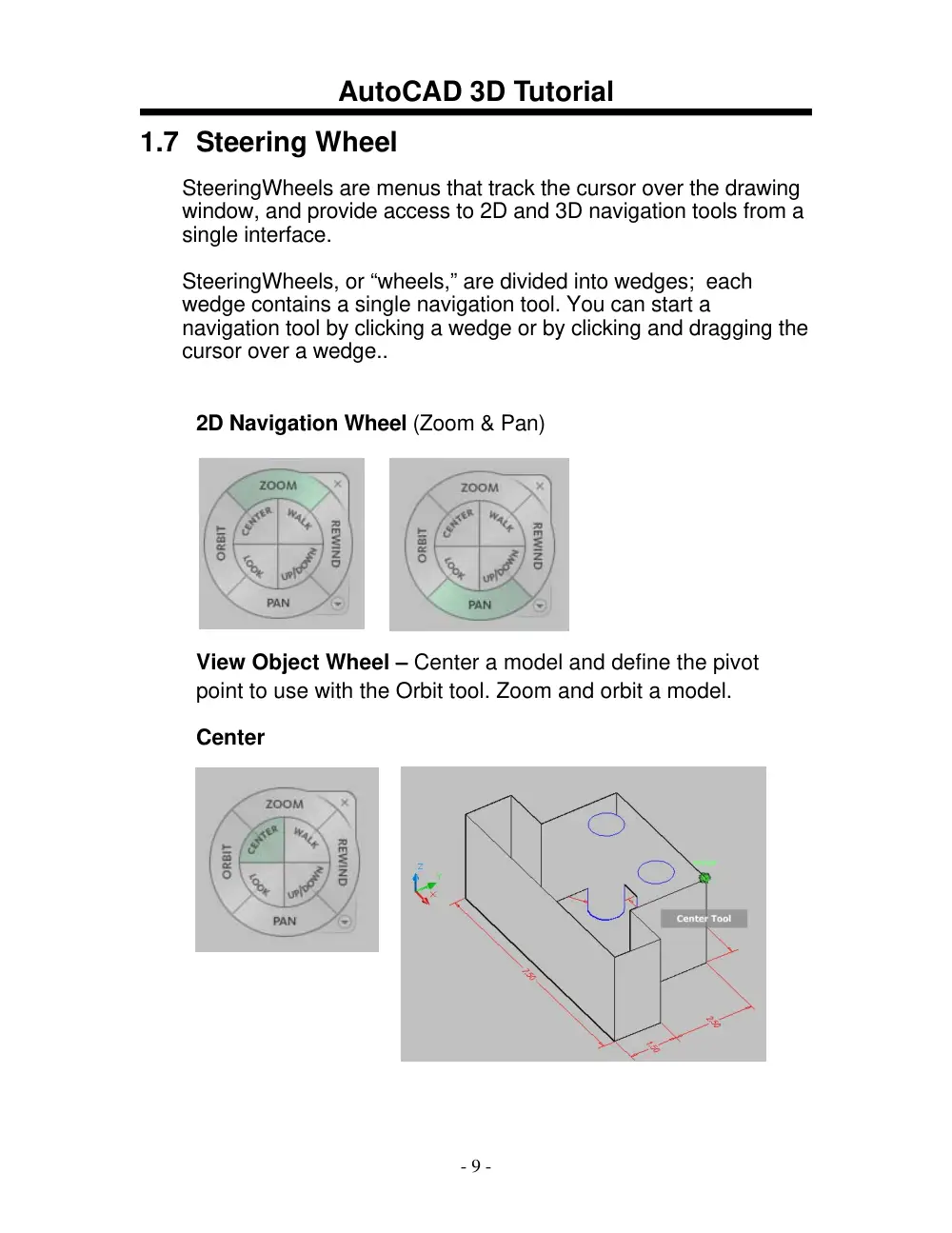
1.7 Steering Wheel
SteeringWheels are menus that track the cursor over the drawing
window, and provide access to 2D and 3D navigation tools from a
single interface.
SteeringWheels, or “wheels,” are divided into wedges; each
wedge contains a single navigation tool. You can start a
navigation tool by clicking a wedge or by clicking and dragging the
cursor over a wedge..
2D Navigation Wheel (Zoom & Pan)
View Object Wheel – Center a model and define the pivot
point to use with the Orbit tool. Zoom and orbit a model.
Center
AutoCAD 3D Tutorial
- 10 -
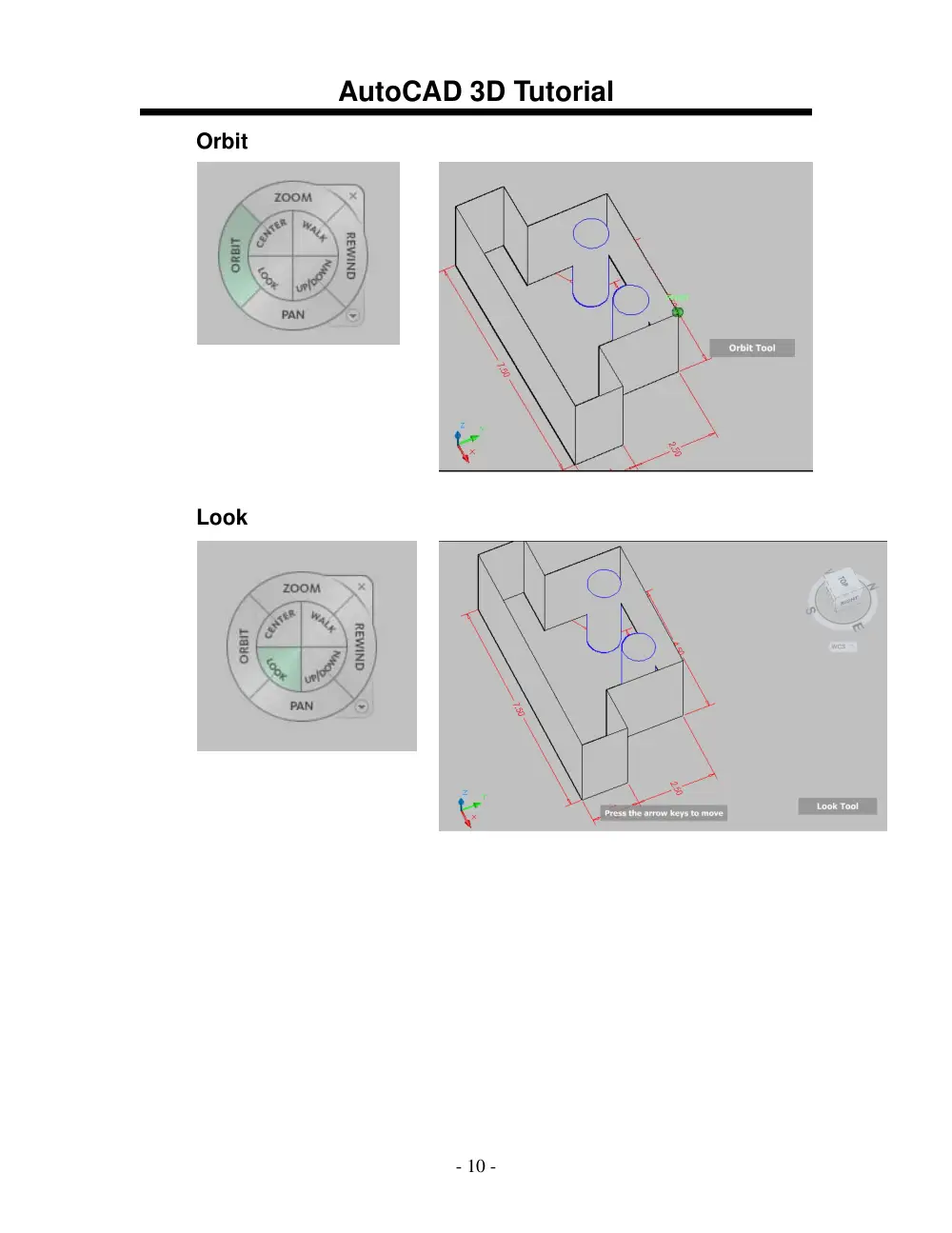
Orbit
Look
AutoCAD 3D Tutorial
- 11 -
Walk/Up/ Down
Rewind
Shortcuts
AutoCAD 3D Tutorial
- 12 -
Steering Wheel Settings
AutoCAD 3D Tutorial
- 13 -
1.8 VPOINT Command (Tripod)
Displays a compass and tripod for defining a view rotation. The
compass represents a two dimensional globe.
1. Choose View, 3D Views, point
or
2. Type VPOINT at the command
prompt.
Command: vpoint
Rotate/<Viewpoint><-0.614,-0.614,0.500>:
(enter)
3. Click a point on the compass to define the viewing angle.
Point in the center
of the compass is
the north pole
Middle ring of the
compass
is
the
equator
Entire outer ring
is the south pole
Tripod
AutoCAD 3D Tutorial
- 14 -
1.9 VPOINT Command (Rotate)
Enters a rotation angle at the viewpoint prompt.
1.
Type VPOINT at the command prompt.
Command: vpoint
Rotate/<View point> <-0.614,-0.614,0.500>: R (enter)
Enter angle in XY plane from X axis <225>: 225 (enter)
Enter angle from XY plane <30>: 15 (enter)
AutoCAD 3D Tutorial
- 15 -
1.10
DDVPOINT
1. Choose View, 3D Views, Viewpoint Preset.
or
2. Type DDVPOINT at the command prompt.
Command: ddvpoint
3. Set a viewing angle by typing the From X axis and XY Plane angle.
or
4. Pick a viewing angle in the 2 graphics Left graphic = From X Axis
Right graphic = In XY Plane
5.
Click OK.
AutoCAD 3D Tutorial
- 16 -
1.11 Plan View
1. Choose View, 3D Views, Plan View the one of the following:
Current UCS, World UCS, Named UCS
or
2. Type PLAN at the command prompt.
Command: plan
Enter an option [Current Ucs/Ucs/World] <Current>: World
AutoCAD 3D Tutorial
- 17 -
AutoCAD 3D – Chapter 2
Thickness and Elevation
AutoCAD 3D Tutorial
- 18 -
2.1 Thickness Command
1.
Begin a new drawing using a 3D Modeling workspace.
2.
Choose View, Viewports, 2 Viewports.
3.
Press ENTER for the default of two vertical viewports.
4.
In the left viewport, type PLAN and World.
5.
Type THICKNESS at the command prompt.
Command: thickness
Enter new value for THICKNESS <0.0000>: 3
6.
In the plan view, draw a rectangle using in the LINE command.
The lines will have a 3D “thickness” that can be seen in the 3D view.
AutoCAD 3D Tutorial
- 19 -
2.2 Change Existing Thickness
1.
Select the object whose thickness you would like to change (e.g.
one line of the rectangle you drew in 2.1.
2.
Choose Modify, Properties…or right click and choose
Properties…
3.
In the Properties dialog box type a new line thickness.
The following result is a new line thickness for the selected object.
AutoCAD 3D Tutorial
- 20 -
2.3 Elevation
Stores the elevation for new objects relative to the current UCS for the
current space.
1. Type ELEVATION at the command prompt.
Command: elevation
Enter new value for ELEVATION <0.0000>: 1.00
2.
Draw two circles at the new elevation. Note that they appear to be
“floating” 1 unit above the ground.
AutoCAD 3D Tutorial
- 21 -
2.4 Elevation Shortcut
1. Type ELEV at the command prompt.
Command: elev
Specify new default elevation: <1.0000>: 1
Specify new default thickness: <3.000>: 1
2.
Draw a new line to see the elevation and thickness settings.
AutoCAD 3D Tutorial
- 22 -
AutoCAD 3D – Chapter 3
Visualizing Your Model
AutoCAD 3D Tutorial
- 23 -
3.1 HIDE Command
Regenerates a three-dimensional model with hidden lines
1.
Open a drawing with 3D objects and display in a 3D view.
2. Choose View, Hide.
or
3. Type HIDE at the command prompt.
Command: hide
AutoCAD 3D Tutorial
- 24 -
3.2 Visual Styles
A visual style is a collection of settings that control the display of edges
and shading in the viewport.
1.
Open a drawing with 3D objects and display in a 3D view.
2.
Choose View, Visual Styles and one of the following style options.
2D Wireframe
3D Wireframe
3D Hidden
Realistic
Conceptual
AutoCAD 3D Tutorial
- 25 -
3.3 Visual Style Manager
The Visual Styles Manager displays sample images of the visual styles
available in the drawing. The selected visual style is indicated by a yellow
border, and its settings are displayed in the panel below the sample
images.
1.
Choose View, Visual Styles, Visual Styles Manager…
or
2.
Type VISUALSTYLES at the command prompt.
Command: visualstyles
3.
Choose the desired option from one of those available in the
drawing for 2D Wireframe, 3D Wireframe, 3D Hidden, Realistic, or
Conceptual options.
AutoCAD 3D Tutorial
- 26 -
3.4 Visual Styles Panel
AutoCAD 3D Tutorial
- 27 -
3.5 Adaptive 3D Grid
When you choose a shaded or 3D wireframe visual style, the grid changes from
a dotted grid to a rectangular grid. The new grid provides a better sense of a
model’s orientation in 3D. The rectangular grid supports perspective, can display
major and minor grid lines, provides color options, and can automatically control
the grid density when zooming in or out (adaptive grid.) You can change the grid
settings using the drafting settings dialog box.
1.
Choose View, Visual Styles and one of the following options:
3D Wireframe, 3D Hidden, Realistic, or Conceptual.
Change the adaptive grid settings
1.
Choose Tools, Drafting Settings, and the Snap and Grid TAB.
AutoCAD 3D Tutorial
- 28 -
AutoCAD 3D – Chapter 4
Z Coordinates
AutoCAD 3D Tutorial
- 29 -
4.1 3D Coordinates
Entering 3D Cartesian coordinates (X,Y,Z) is similar to entering 2D
coordinates (X,Y). In addition to specifying X and Y values, you specify a Z
value.
1.
Open a drawing with 3D objects and display in a 3D view.
2. Type 3DPoly at the command prompt.
Command: 3DPOLY
Specify start point of polyline: 1,1,0
Specify endpoint of line or [Undo]: 1,2,1
Specify endpoint of line or [Undo]: 2,2,1
Specify endpoint of line or [Close/Undo]: 2,1,0
Specify endpoint of line or [Close/Undo]: 1,1,0
The result will be the following lines that are drawn in 3D:
AutoCAD 3D Tutorial
- 30 -
4.2 Track in Z Direction
With AutoTrack (polar tracking and object snap tracking), you can track in
the Z direction as well as in the XY plane. Similarly, when Ortho mode is
turned on, you can lock the cursor to the Z direction.
1.
Press F11 or click OSnap Tracking on the status bar if it is not
already on.
2.
Press F10 or click Polar Tracking on the status bar if it is not
already on.
3.
In a 3D view, issue the LINE command and draw a line in the Z
direction using tracking.
AutoCAD 3D Tutorial
- 31 -
4.3 Move in Z Direction
1.
Open a drawing with 3D objects in it.
2. Type MOVE at the command prompt.
Command: move
Select objects: pick object in 3D view
Select objects: press enter
Specify base point or displacement:
Specify second point of displacement or
<use first point as displacement>: 0,0,1 or use polar tracking to move
the object.
before move
after move
AutoCAD 3D Tutorial
- 32 -
4.4 3D Point Filters
Draws in 3D Z direction by filtering X and Y coordinates.
1.
Open a drawing with 3D objects in it.
2.
Use the CIRCLE command and place it using 3D point filters (.xy)
3.
Command: circle
4.
Specify center point for circle or [3P/2P/Ttr (tan tan radius)]: .XY
5.
of pick endpoint to filter
6.
(need Z): 1
7.
Specify radius of circle or [Diameter] <0.2500>: press enter
endpoint to filter
AutoCAD 3D Tutorial
- 33 -
AutoCAD 3D – Chapter 5
User Coordinate System
AutoCAD 3D Tutorial
- 34 -
5.1 UCS Icon
The UCS icon represents the orientation of the user coordinate system
(UCS) axes and the location of the current UCS origin. It also represents
the current viewing direction relative to the XY plane. AutoCAD displays
the UCS icon differently for 2D, 3D and Paper Space environments.
1. Choose View, Display, UCS Icon.
or
2.
Type UCSICON at the command prompt.
Command: ucsicon
Enter an option [ON/OFF/All/Noorigin/ORigin/Properties] <ON>:
ON
Displays the UCS icon.
OFF
Turns off the display of the UCSICON.
All
Affects the display of the UCSICON in all viewports.
Noorigin
Always displays the UCS at the lower left corner.
Origin
Shows the UCS at the 0,0,0 origin of the current UCS.
Properties
Changes the display properties of the UCS icons(s).
3D UCS icons
2D UCSIcon
Pspace UCSICON
AutoCAD 3D Tutorial
- 35 -
UCS Icon Properties
1. Choose View, Display, UCS Icon, Properties.
or
2.
Type UCSICON at the command prompt.
Command: ucsicon
Enter an option [ON/OFF/All/Noorigin/ORigin/Properties] <ON>: P
AutoCAD 3D Tutorial
- 36 -
5.2 UCS Overview
The user coordinate system provides an alternate movable coordinate
system for coordinate entry, planes of operation, and viewing. Most
AutoCAD geometric editing commands are dependent on the location and
orientation of the UCS. There are a variety of ways to set the User
Coordinate System using the UCS command.
1. Type UCS at the command prompt.
Command: ucs
Enter an option [New/Move/orthoGraphic/Prev/Restore/
Save/Del/Apply/?/World] <World>:
New
Defines a new coordinate system by one of six
methods: Origin, Z Axis, 3 Point, Object,
Face, View X, Y, Z
Origin
Defines a new UCS by shifting the origin of the
current UCS, leaving the direction of the X,Y, and Z
axes unchanged.
ZAxis Allows you to define a new origin.
3 Point Specifies a UCS by its origin and a point on the
positive X and Y axes.
Object Lets you define a new UCS by pointing at an object.
Face Aligns the UCS to the selected face of a solid object.
View
Establishes a new UCS whose XY plane is
perpendicular to your viewing direction (e.g. parallel to
your screen).
X/Y/Z Rotates the ucs around a specified axis
UCS Toolbars
AutoCAD 3D Tutorial
- 37 -
5.3 3 Point UCS
The 3 Point option is one of the easiest ways to define a new UCS on a
given 3D object.
1.
Open a drawing with a simple 3D object (e.g. 3D box)
2.
Type UCS at the command prompt.
Command: ucs
Enter an option [New/Move/orthoGraphic/Prev/Restore/
Save/Del/Apply/?/World] <World>: N
Specify origin of new UCS or [ZAxis/3point/OBject/
Face/View/X/Y/Z] <0,0,0>: 3
Specify new origin point <0,0,0>: pick origin
Specify point on positive portion of X-axis <3.53,7.73,0.00>: pick
point for X direction
Specify point on positive-Y portion of the UCS XY plane
<2.53,8.73,0.00>: pick point for Y direction
Positive Y
New 0,0,0 origin
Positive X
AutoCAD 3D Tutorial
- 38 -
New UCS
AutoCAD 3D Tutorial
- 39 -
5.4 Plan UCS
To work in the plan view of your new UCS, use the PLAN command with
the current UCS option. New entities that you draw will be in relation to
this current UCS.
1.
Type PLAN at the command prompt.
Command: plan
Enter an option [Current ucs/Ucs/World] <Current>: press enter
AutoCAD 3D Tutorial
- 40 -
5.5 World UCS
The World UCS is the only UCS guaranteed to be the same in all
AutoCAD drawings and can be used to set the UCS back to its original
state. This is the UCS you should use when creating Wblocks and
inserting Wblocks.
1.
Type UCS at the command prompt.
Command: ucs
Current ucs name: *NO NAME*
Enter an option [New/Move/orthoGraphic/Prev/Restore/
Save/Del/Apply/?/World] <World> W
AutoCAD 3D Tutorial
- 41 -
5.6 View UCS
Establishes a new coordinate system whose XY plane is perpendicular to
your viewing direction (i.e. parallel to your screen)
1.
Type UCS at the command prompt.
Command: ucs
Current ucs name: *NO NAME*
Enter an option [New/Move/orthoGraphic/Prev/Restore/
Save/Del/Apply/?/World] <World>: N
Specify origin of new UCS or [ZAxis/3point/OBject/ Face/View/X/Y/Z]
<0,0,0>: vOrigin/ZAxis/3point/
OBject/View/X/Y/Z/Prev/Restore/Save/Del/?/<World>:V
X.X XXXXXXXXXXXXXXX
Regenerates a three-dimensional model with hidden lines
1.
Open a drawing with 3D objects and display in a 3D view.
or
2. Choose View, Hide.
3. Type HIDE at the command prompt.
Command: hide
AutoCAD 3D Tutorial
- 42 -
5.7 Dynamic UCS
You can use the dynamic UCS to create objects on a planar face of a 3D
solid without manually changing the UCS orientation.
During a command, the dynamic UCS temporarily aligns the XY plane of
the UCS with a planar face of a 3D solid when you move the cursor over
the face.
When the dynamic UCS is active, specified points, and drawing tools,
such as polar tracking and the grid, are all relative to the temporary UCS
established by the dynamic UCS. 1.
1.
Click the DUCS icon on the status bar or press CTRL +D.
2.
Type any draw command.
Command: circle
3.
Move the cursor to the face of the 3D object that you would like to
draw on.
4.
Click to begin drawing your new object.
AutoCAD 3D Tutorial
- 43 -
5.8 Naming and Saving a UCS
User coordinate systems can sometimes be complicated and it is often
useful to name and save them so you can quickly recall them.
1.
Type UCS at the command prompt.
Command: UCS
Specify origin of UCS or
[Face/NAmed/OBject/Previous/View/World/X/Y/Z/ZAxis]
<World>: NA
Enter an option [Restore/Save/Delete/?]: S
Enter name to save current UCS or [?]: LeftSide
AutoCAD 3D Tutorial
- 44 -
5.9 Restoring a UCS
A named and saved UCS can be restored at any time.
1.
Type UCS at the command prompt.
Command: UCS
Specify origin of UCS or
[Face/NAmed/OBject/Previous/View/World/X/Y/Z/ZAxis]
<World>: NA
Enter an option [Restore/Save/Delete/?]: R
Enter name to save current UCS or [?]: LeftSide
AutoCAD 3D Tutorial
- 45 -
5.10 UCS Dialog Box
Displays and modifies defined and unnamed user coordinate systems,
restores named and orthographic UCSs, and specifies UCS icon and UCS
settings for viewports via a dialog box.
1.
Chose Tools, Named UCS.
or
2. Type UCSMAN at the command prompt.
Command: ucsman
AutoCAD 3D Tutorial
- 46 -
5.10 Viewcube
The ViewCube provides visual feedback about the current orientation
of a model. The ViewCube can help you adjust the viewpoint of a
model. The orientation shown by the ViewCube is based on the North
direction of the WCS for the model. The ViewCube also shows the
current UCS and allows you to restore a named UCS.
AutoCAD 3D Tutorial
- 47 -
AutoCAD 3D – Chapter 6
3D Orbit
AutoCAD 3D Tutorial
- 48 -
6.1 Constrained 3D Orbit
3DORBIT activates a 3D Orbit view in the current viewport. You can view
your entire drawing or select one or more objects before starting the
command.
When 3DORBIT is active, the target of the view stays stationary and the
camera location, or point of view, moves around the target. However, from
the user's point of view, it appears as if the 3D model is turning as the
mouse cursor is dragged. In this way, you can specify any view of the
model.
1.
Open a drawing with 3D objects.
2. Choose View, Orbit, Constrained Orbit.
or
3.
Type 3D Orbit at the command prompt.
Command: 3DOrbit
4. Click and drag to move your object in 3D.
AutoCAD 3D Tutorial
- 49 -
6.2 Zoom and Pan in 3D Orbit
Zoom
1. Click with the right mouse button while in the 3D Orbit command.
2. Choose Zoom Window from the pop-up menu.
3.
Zoom to a new area of the 3D drawing.
4. Click with the right mouse button while in the 3D Orbit command.
5. Choose Zoom Previous or Zoom Extents from the pop-up menu.
Pan
1. Click with the right mouse button while in the 3D Orbit command.
2. Choose Other Navigation Modes from the pop-up menu.
3.
Choose Pan.
4.
Pan to a new area of the drawing.
5. Click with the right mouse button while in the 3D Orbit command.
6. Choose Other Navigation Modes from the pop-up menu.
7.
Choose Constrained Orbit to set the mode back to orbit.
AutoCAD 3D Tutorial
- 50 -
6.3 Projection Mode
1. Click with the right mouse button while in the 3D Orbit command.
2.
Choose Perspective.
Perspective view displays objects in perspective so that all parallel
lines converge at one point. Objects appear to recede into the
distance, and parts of the objects appear larger and closer to you.
The shapes are some what distorted when the object is very close.
This view correlates more closely to what your eye sees.
Parallel view displays objects so that two parallel lines in a drawing
never con verge at a single point. The shapes in your drawing always
remain the same and do not appear distorted when they are closer.
Perspective View
Parallel View
AutoCAD 3D Tutorial
- 51 -
6.4 Visual Styles
Displays your objects in one of the following selected styles:
1. Click with the right mouse button while in the 3D Orbit command.
2. Choose Visual Styles from the pop-up menu.
3.
Choose 3D Hidden, 3D Wireframe, Conceptual or Realistic.
3D Hidden 3D Wireframe
Conceptual Realistic
AutoCAD 3D Tutorial
- 52 -
6.5 Visual Aids
1. Click with the right mouse button while in the 3D Orbit command.
2. Choose Visual Aids from the pop-up menu.
3.
Choose Compass, Grid, or UCS Icon.
Compass Grid
UCS Icon
AutoCAD 3D Tutorial
- 53 -
6.6 Preset Views
Sets the 3D view while in the orbit command
1. Click with the right mouse button while in the 3D Orbit command.
2. Choose Preset Views from the pop-up menu.
3.
Choose one of the following standard 3D views.
AutoCAD 3D Tutorial
- 54 -
6.7 Free Orbit
1. Choose View, Orbit, Free Orbit.
The 3D Orbit Arcball appears.
2. Click on one of the 3D Orbit arcball locations to move the display of
your object(s).
Inside the Arcball - Allows movement in any direction
Outside the Arcball - Moves View about an axis that
extends through the center (acts like twist)
Inside one of the small circles to the left/right - Rotates
around the “Y” axis through the center.
Inside one of the small circles to the top/bottom - Rotates
around the “X” axis through the center.
AutoCAD 3D Tutorial
- 55 -
6.8 Continuous Orbit
1. Choose View, Orbit, Continuous Orbit.
2. Click and drag to define the direction and speed of a continuous
orbit for your object(s).
3.
Press ESC on the keyboard to stop the orbit.
AutoCAD 3D Tutorial
- 56 -
6.9 Other Navigational Modes
1. Click with the right mouse button while in the 3D Orbit command.
2. Choose Other Navigational Modes from the pop-up menu.
3.
Choose one of the following modes.
Adjust Distance (4)
Simulates moving the camera closer to the
object or farther away.
Swivel (5)
Changes the cursor to an arched arrow and
simulates the effect of swiveling the camera.
See 3DSWIVEL.
Walk (6)
Changes the cursor to a plus sign and enables
you to "walk through" a model at a fixed height
above the XY plane, by dynamically controlling
the location and target of the camera. See
3DWALK.
Fly (7)
Changes the cursor to a plus sign and enables
you to "fly through" a model without being
restricted to a fixed height above the XY plane.
See 3DFLY.
Zoom (8)
Changes the cursor to a magnifying glass with
plus (+) and minus (-) sign and simulates
moving the camera closer to an object or
farther away. Works like the Adjust Distance
option. See 3DZOOM.
AutoCAD 3D Tutorial
- 57 -
AutoCAD 3D – Chapter 7
3D Navigation
AutoCAD 3D Tutorial
- 58 -
7.1 Creating a Camera
Sets a camera and target location to create and save a 3D perspective
view of objects.
1.
Open a drawing with 3D objects.
2.
Choose View, Create Camera.
or
3. Type CAMERA at the command prompt.
Command: camera
Current camera settings: Height=5.0000 Lens Length=50.0000 mm
Specify camera location: .xy
of (need Z): 7
Specify target location: endp
Enter an option
[?/Name/LOcation/Height/Target/LEns/Clipping/View/eXit]<eXit>: X
Camera location
using .XY filter
and Z height of 7
Camera target
AutoCAD 3D Tutorial
- 59 -
7.2 Viewing a Camera
Once a camera is created, it becomes a named view in the drawing and
can be viewed using the Named View Manager. You can also view the
camera using the view option when creating the camera.
1.
Choose View, 3D Views, Southwest Isometric to be sure you are
not in an existing camera view.
2. Choose View, Named Views.
3. Click the plus (+) sign beside Model Views.
4.
Click Camera1, Set Current, Apply, and OK.
View from Camera
AutoCAD 3D Tutorial
- 60 -
7.3 Camera Preview
Camera preview is a quick and easy way to see the properties of a
camera before viewing from the camera.
1.
Choose View, 3D Views, Southwest Isometric to be sure you are
not in an existing camera view.
2. Zoom out until you see the camera in your 3D view.
3.
Click once on a camera in your view.
The Camera Preview dialog box will show the view from the chosen
camera. You can change the Visual style of this preview to 3DHidden,
3DWireframe, Conceptual, or Realistic.