
MEE 211 Tutorial OGEE Curve, Fall 2016
Lebanese American University · Engineering Graphics · 1 page · Dr. Suhail Shatila
Stuck on a question? A tutor can walk you through it.
More MEE 211 files
- Tutorial Hex Nut · Fall 2016FileView
- Tutorial AutoCAD 3D · Spring 2013FileView
- Final Section 1 · Fall 2016Final examView
- Problems Assignment 4 A (autocad 2D) · Fall 2016ProblemsView
- Problems Assignment 4 B (autocad 2D) · Fall 2016ProblemsView
- Problems Assignment 5 A(autocad 2D) · Fall 2016ProblemsView
- Problems Assignment 5 B (autocad 2D) · Fall 2016ProblemsView
- Problems Problem Assignment 9 (autocad 3d) · Fall 2016ProblemsView
Show the text of this file
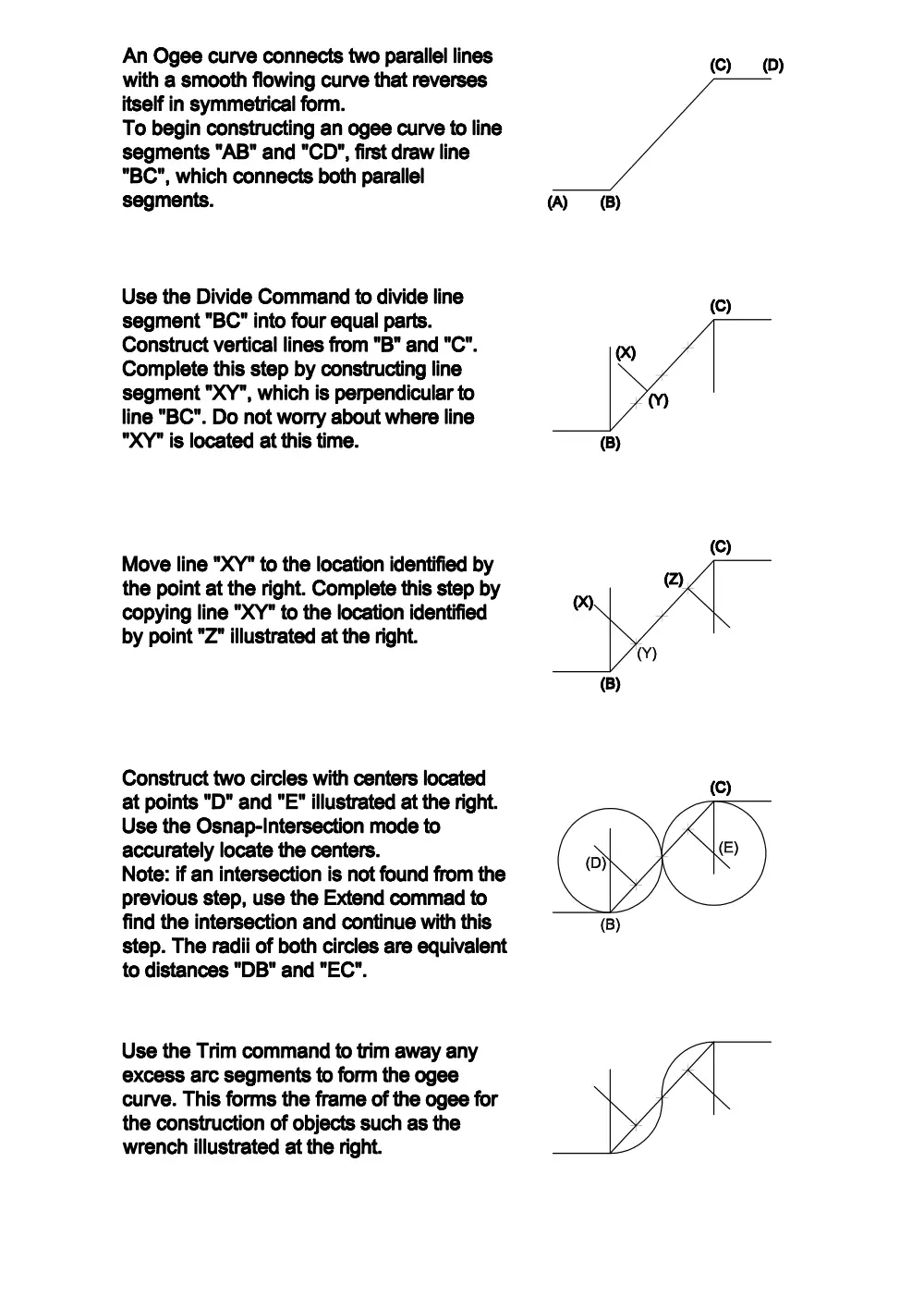
An Ogee curve connects two parallel lines
with a smooth flowing curve that reverses
itself in symmetrical form.
To begin constructing an ogee curve to line
segments "AB" and "CD", first draw line
"BC", which connects both parallel
segments.
Use the Divide Command to divide line
segment "BC" into four equal parts.
Construct vertical lines from "B" and "C".
Complete this step by constructing line
segment "XY", which is perpendicular to
line "BC". Do not worry about where line
"XY" is located at this time.
Move line "XY" to the location identified by
the point at the right. Complete this step by
copying line "XY" to the location identified
by point "Z" illustrated at the right.
Construct two circles with centers located
at points "D" and "E" illustrated at the right.
Use the Osnap-Intersection mode to
accurately locate the centers.
Note: if an intersection is not found from the
previous step, use the Extend commad to
find the intersection and continue with this
step. The radii of both circles are equivalent
to distances "DB" and "EC".
Use the Trim command to trim away any
excess arc segments to form the ogee
curve. This forms the frame of the ogee for
the construction of objects such as the
wrench illustrated at the right.
(Cc) (0)
(B)
(C)