
MEE 211 Tutorial Hex Nut, Fall 2016
Lebanese American University · Engineering Graphics · 8 pages · Dr. Suhail Shatila


More MEE 211 files
- Tutorial OGEE Curve · Fall 2016FileView
- Tutorial AutoCAD 3D · Spring 2013FileView
- Final Section 1 · Fall 2016Final examView
- Problems Assignment 4 A (autocad 2D) · Fall 2016ProblemsView
- Problems Assignment 4 B (autocad 2D) · Fall 2016ProblemsView
- Problems Assignment 5 A(autocad 2D) · Fall 2016ProblemsView
- Problems Assignment 5 B (autocad 2D) · Fall 2016ProblemsView
- Problems Problem Assignment 9 (autocad 3d) · Fall 2016ProblemsView
Show the text of this file
1
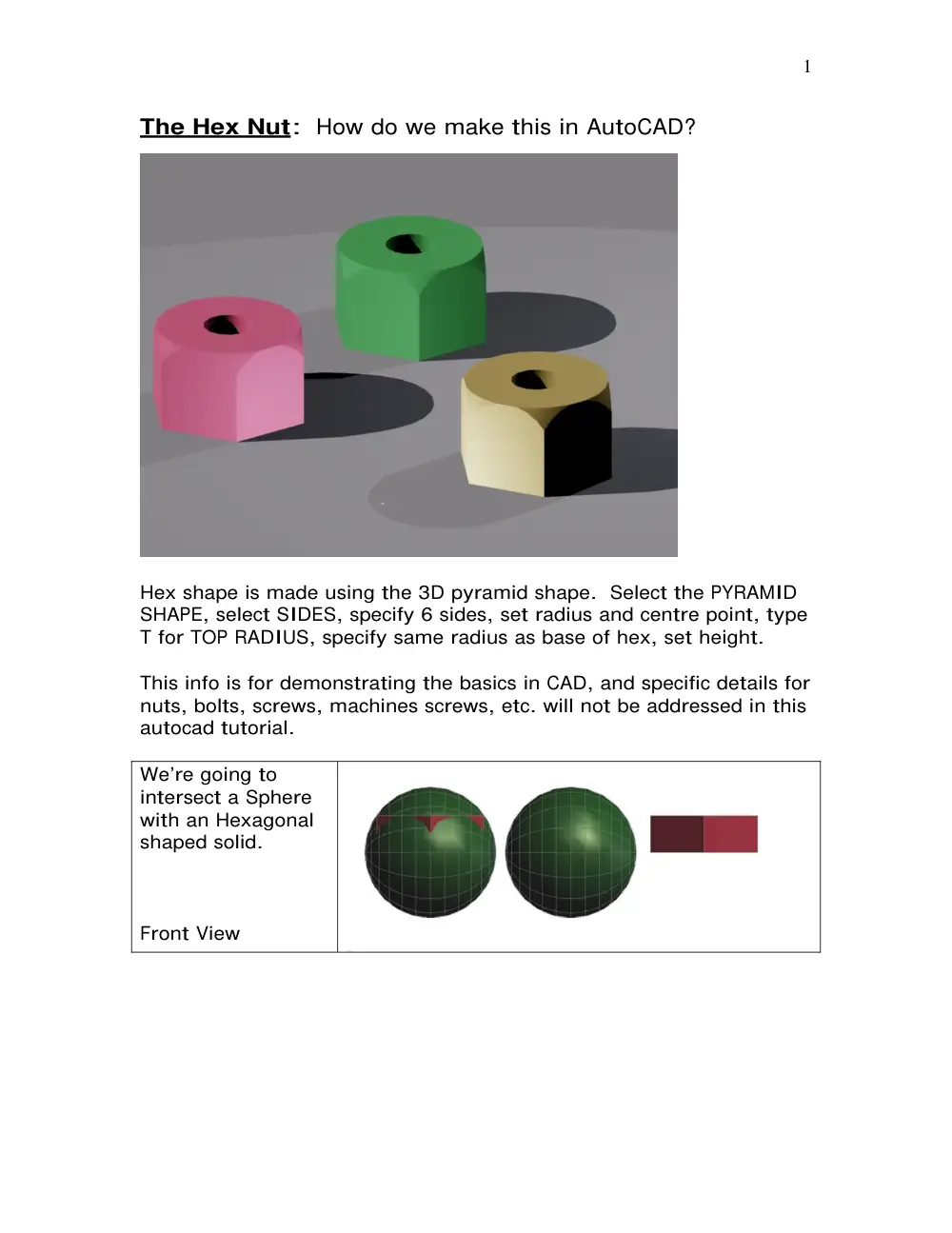
The Hex Nut: How do we make this in AutoCAD?
Hex shape is made using the 3D pyramid shape. Select the PYRAMID
SHAPE, select SIDES, specify 6 sides, set radius and centre point, type
T for TOP RADIUS, specify same radius as base of hex, set height.
This info is for demonstrating the basics in CAD, and specific details for
nuts, bolts, screws, machines screws, etc. will not be addressed in this
autocad tutorial.
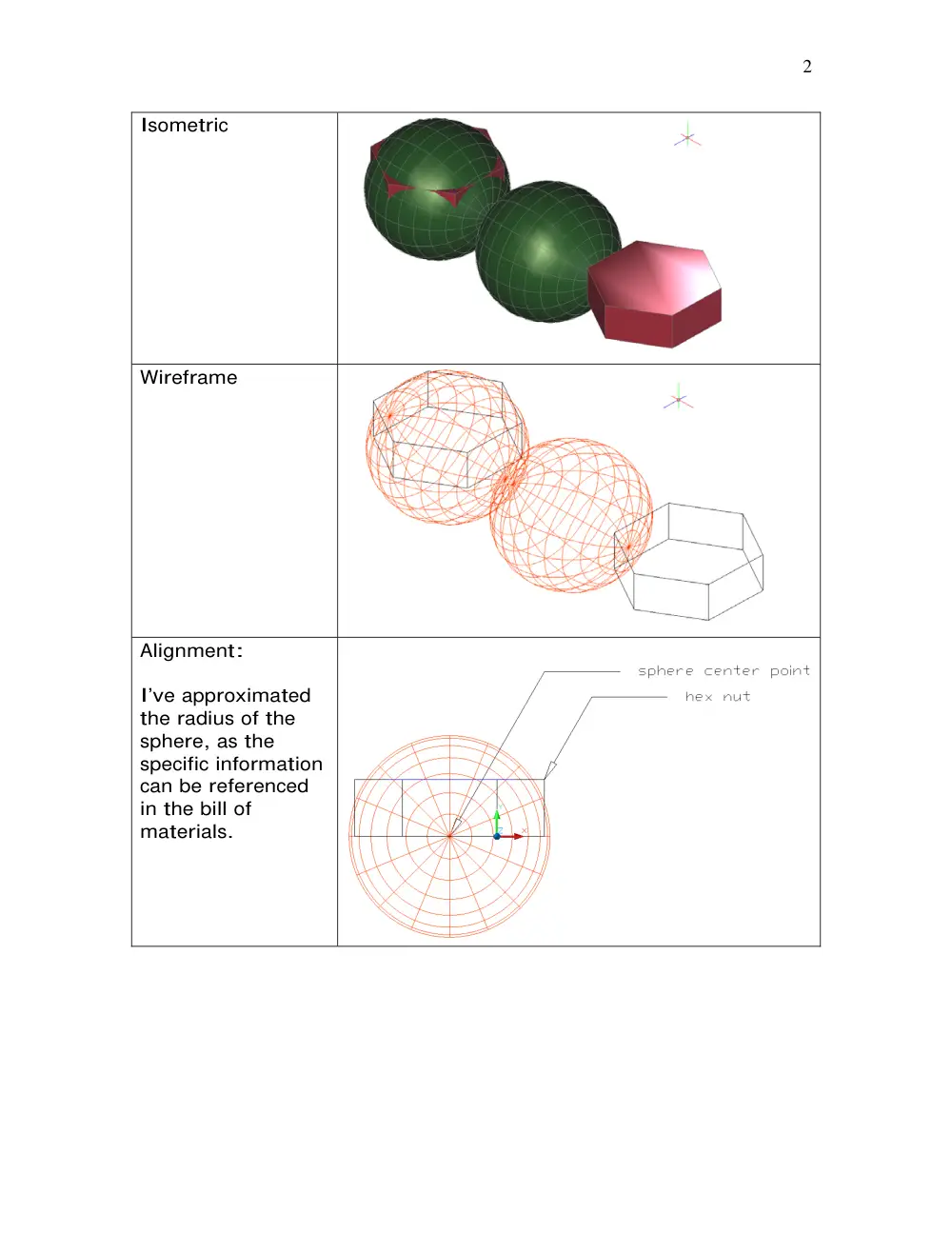
We’re going to
intersect a Sphere
with an Hexagonal
shaped solid.
Front View
2
Isometric
Wireframe
Alignment:
I’ve approximated
the radius of the
sphere, as the
specific information
can be referenced
in the bill of
materials.
3
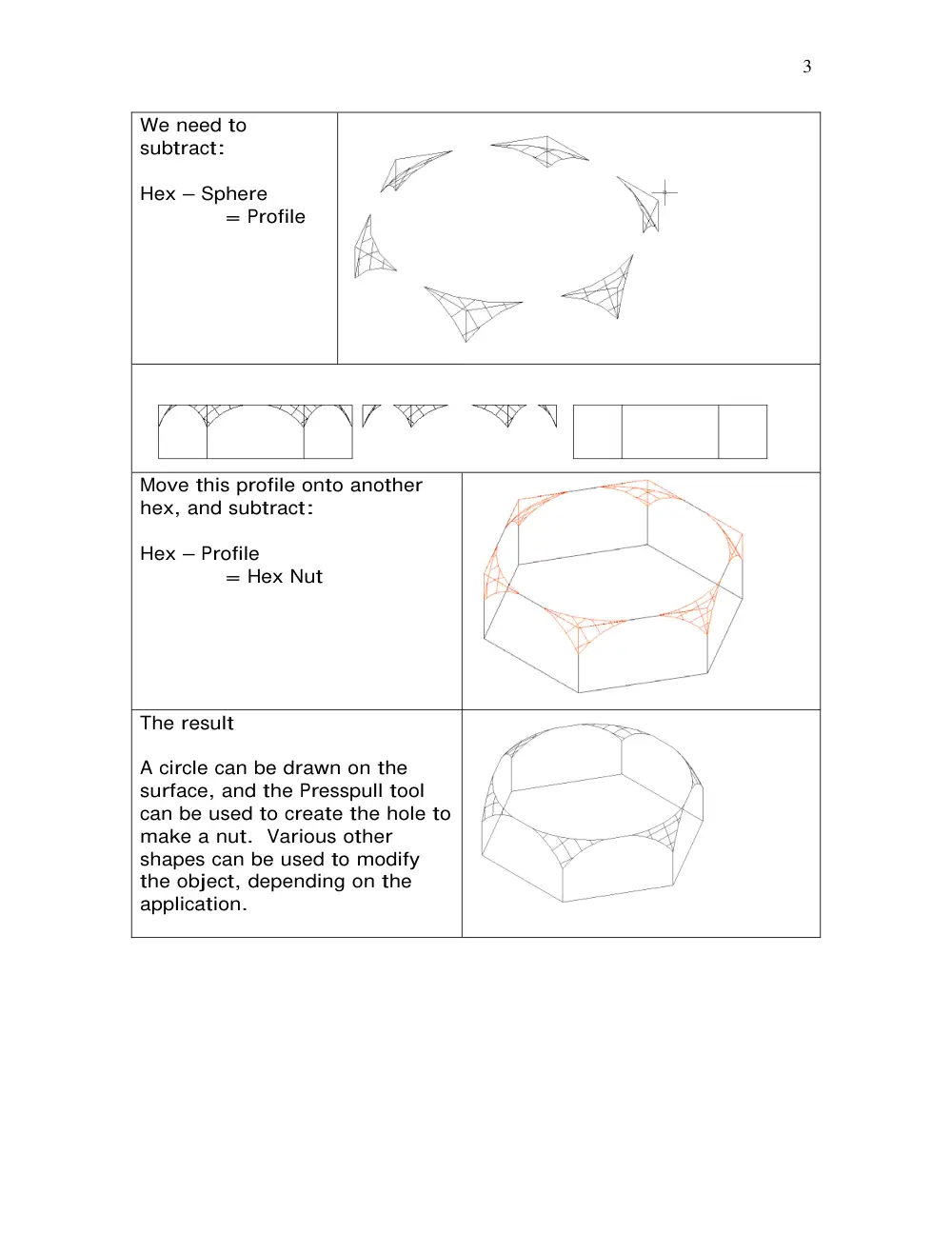
We need to
subtract:
Hex – Sphere
= Profile
Move this profile onto another
hex, and subtract:
Hex – Profile
= Hex Nut
The result
A circle can be drawn on the
surface, and the Presspull tool
can be used to create the hole to
make a nut. Various other
shapes can be used to modify
the object, depending on the
application.
4
5
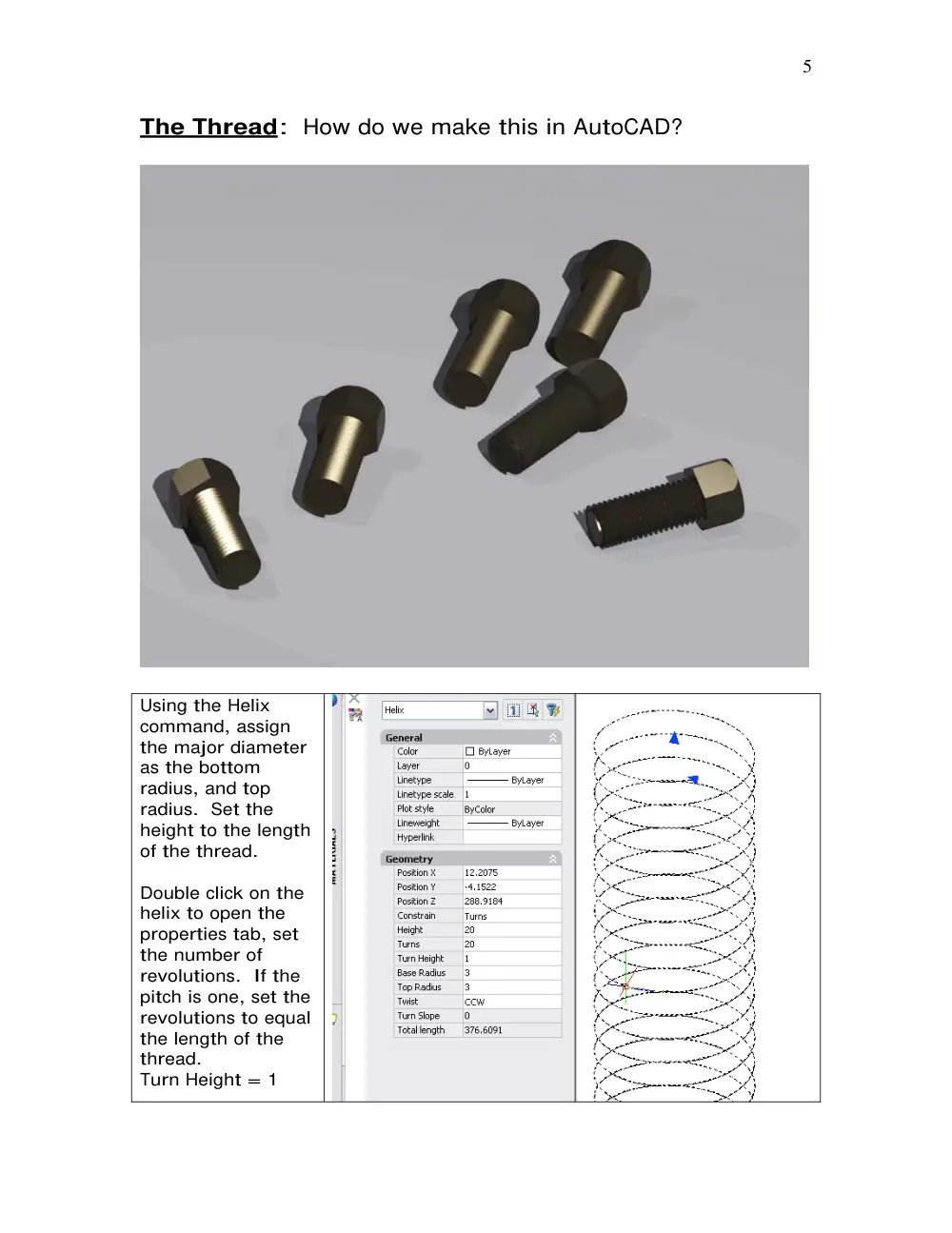
The Thread: How do we make this in AutoCAD?
Using the Helix
command, assign
the major diameter
as the bottom
radius, and top
radius. Set the
height to the length
of the thread.
Double click on the
helix to open the
properties tab, set
the number of
revolutions. If the
pitch is one, set the
revolutions to equal
the length of the
thread.
Turn Height = 1
6
Next, we need to create a shape with 60 degree angles. We will use
this shape to illustrate the threads by sweeping the shape along the
helix.
Using the polygon draw tool,
set the number of sides to 3,
set the radius to .5 (if the
minor diameter is 2).
There are several possibilities
for this sweep shape. I
exploded the triangle, added
some lines.
Using the pedit command, I
converted the shape to a
closed polyline, and moved
the grips for make the
following shape.
The V is set to 60 degrees.
7
The tricky part is
aligning the shape
along the helix. From a
top view I orient the
shape in one direction,
and then rotate it to
create the threads.
The shape and the path
(helix) do not have to
be connected, but I
have connected them
for illustrative purposes
to show the correct
sweep angles.
It may take a couple of tries to get the threads working correctly, but
the file can be saved and modified for all future thread use.
8
To fill the interior of the thread, I have added a cylinder that is the
same length as the helix. This can be easily modified to illustrate the
preferred shape.
Ykje_Piera©08/11/08