
CSC 201 Chapter 5, Fall 2001
Notre Dame University–Louaize · Computers and Their Use · 88 pages

Showing the first 10 of 88 pages. Download the PDF to see all of it.
More CSC 201 files
- Chapter 7 · Spring 2007ChapterView
- Chapter 10- MS Excel 2003 · Spring 2007ChapterView
- Chapter 11- Computer in Everyday Life · Spring 2007ChapterView
- Chapter 12- IT and Society · Spring 2007ChapterView
- Chapter 13- MS Powerpoint 2003 · Spring 2007ChapterView
- Chapter 14- Security, Copyright and Law · Spring 2007ChapterView
- Chapter 15- MS Internet Explorer 6 · Spring 2007ChapterView
- Chapter 16- Programming and Languages · Spring 2007ChapterView
Show the text of this chapter
Windows 2000 - Slide No. 1
Notre Dame University
What is Windows 2000?
Windows 2000
Windows 2000 - Slide No. 2
Notre Dame University
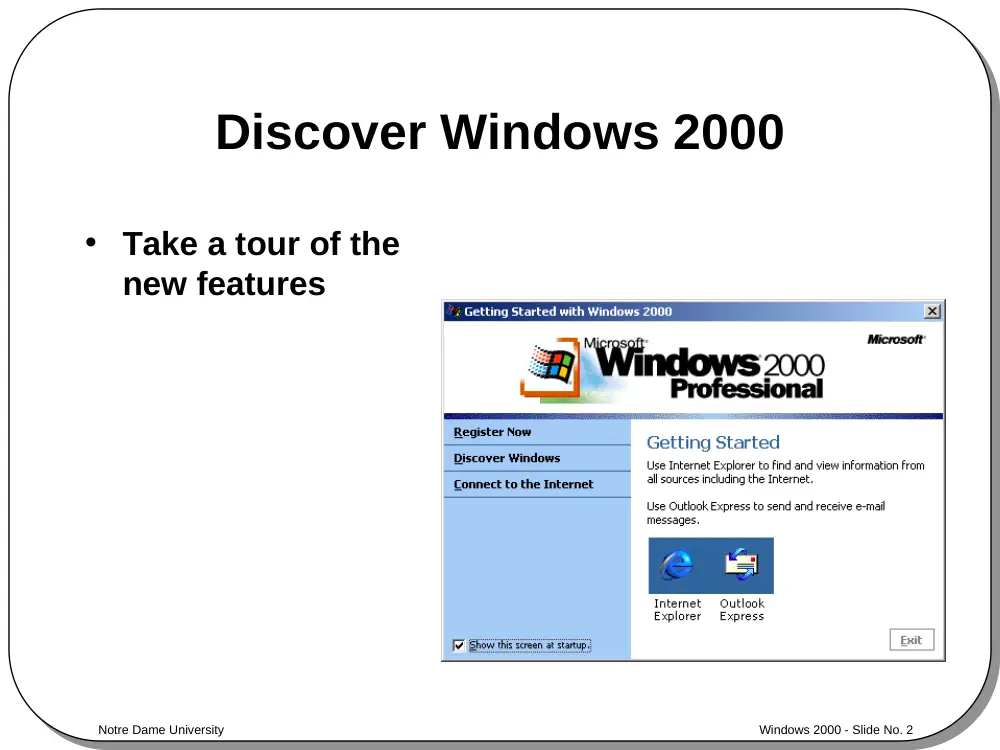
Discover Windows 2000
• Take a tour of the
new features
Windows 2000 - Slide No. 3
Notre Dame University
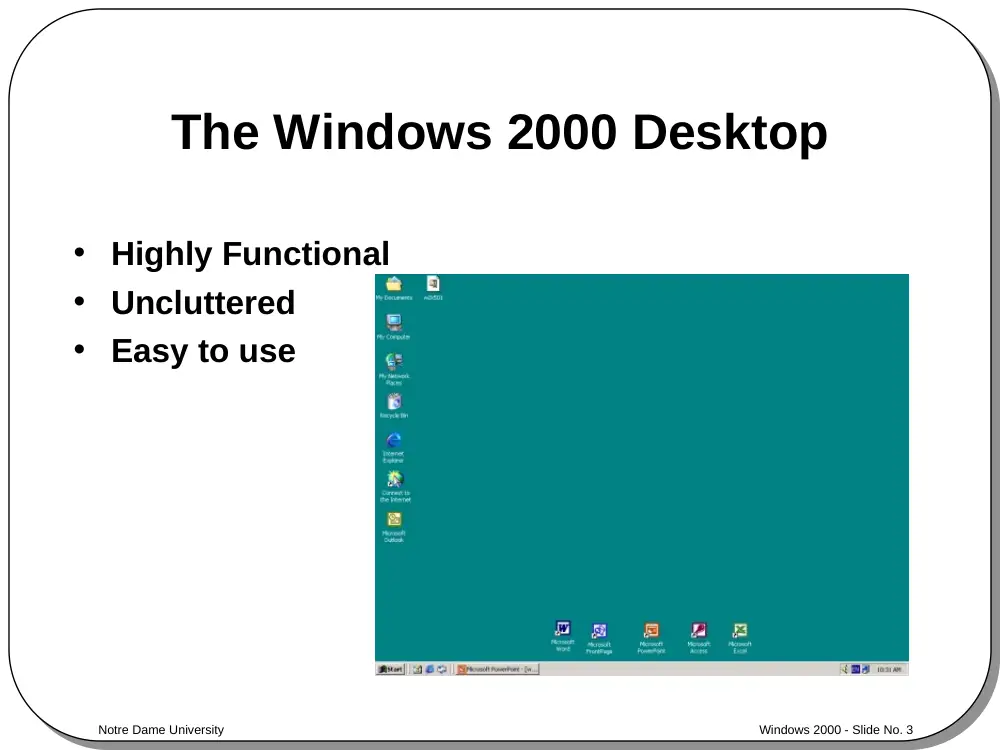
The Windows 2000 Desktop
• Highly Functional
• Uncluttered
• Easy to use
Windows 2000 - Slide No. 4
Notre Dame University
The Start Icon
• Easy to use
• Allows you to access your
programs and your data
• Allows you to configure your
copy of Windows 2000 to suit
you
Windows 2000 - Slide No. 5
Notre Dame University
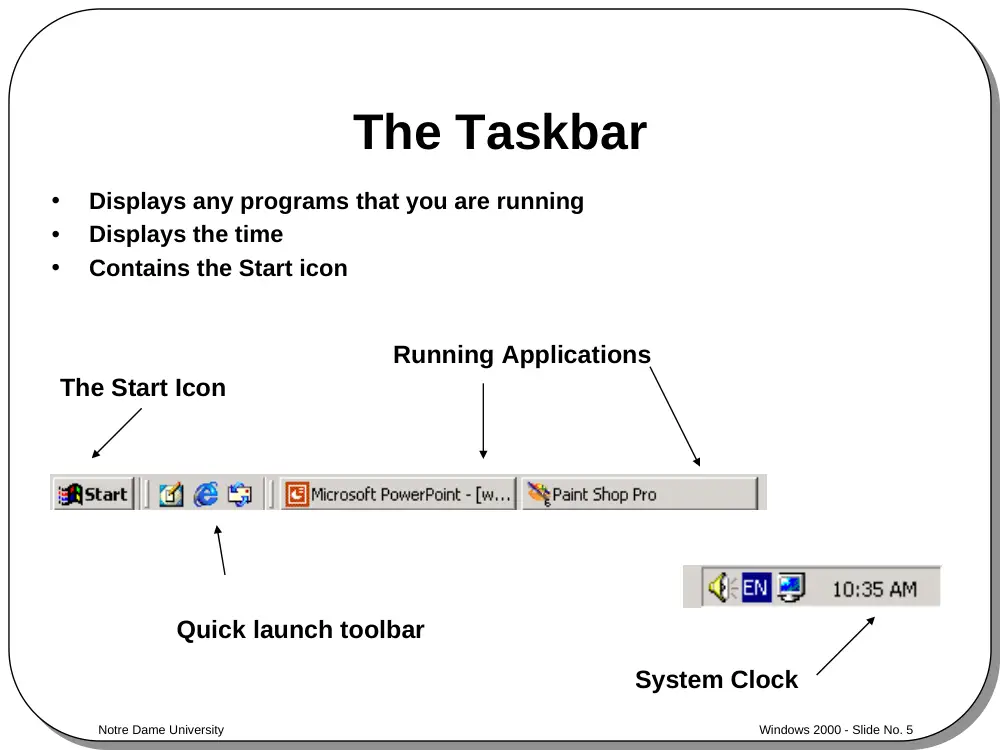
The Taskbar
•
Displays any programs that you are running
•
Displays the time
•
Contains the Start icon
The Start Icon
System Clock
Running Applications
Quick launch toolbar
Windows 2000 - Slide No. 6
Notre Dame University
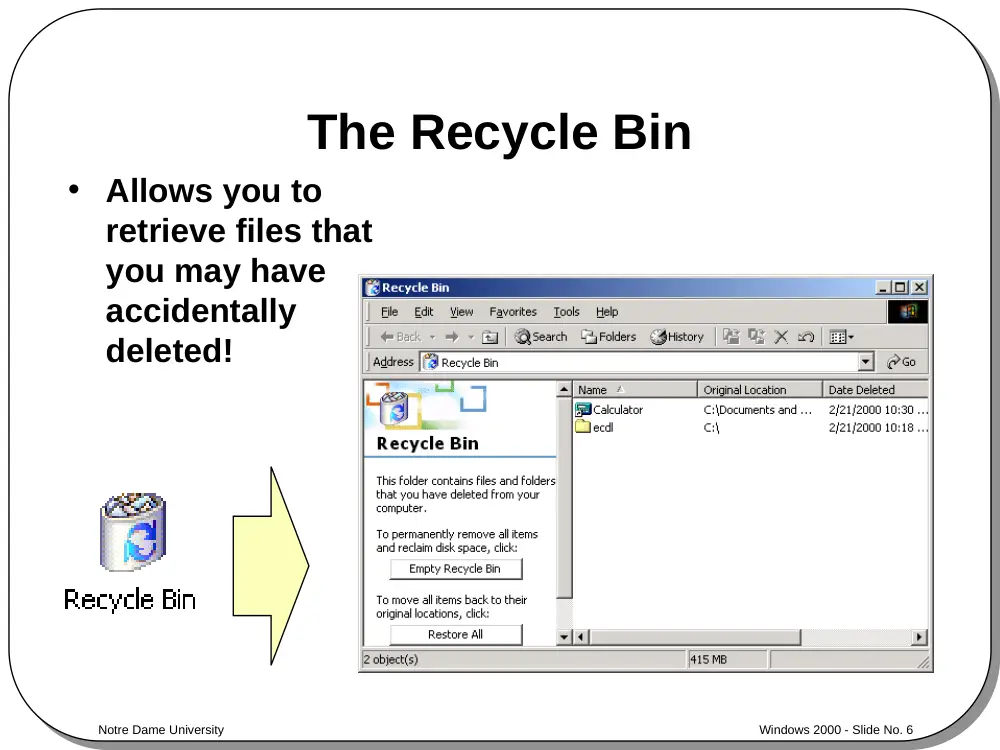
The Recycle Bin
• Allows you to
retrieve files that
you may have
accidentally
deleted!
Windows 2000 - Slide No. 7
Notre Dame University
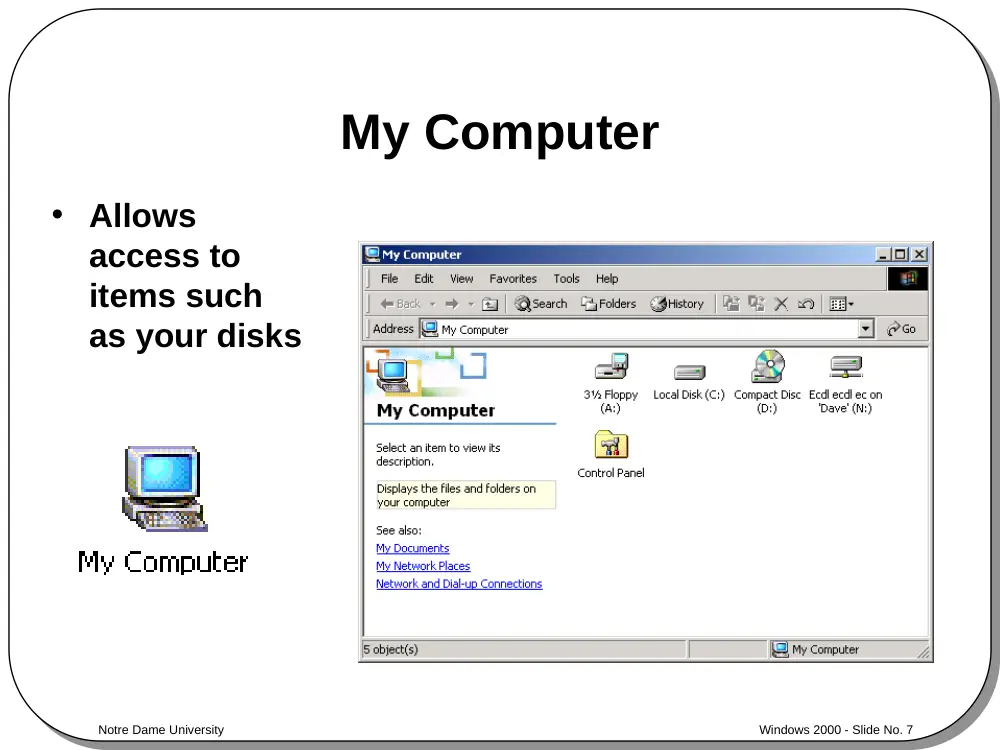
My Computer
• Allows
access to
items such
as your disks
Windows 2000 - Slide No. 8
Notre Dame University
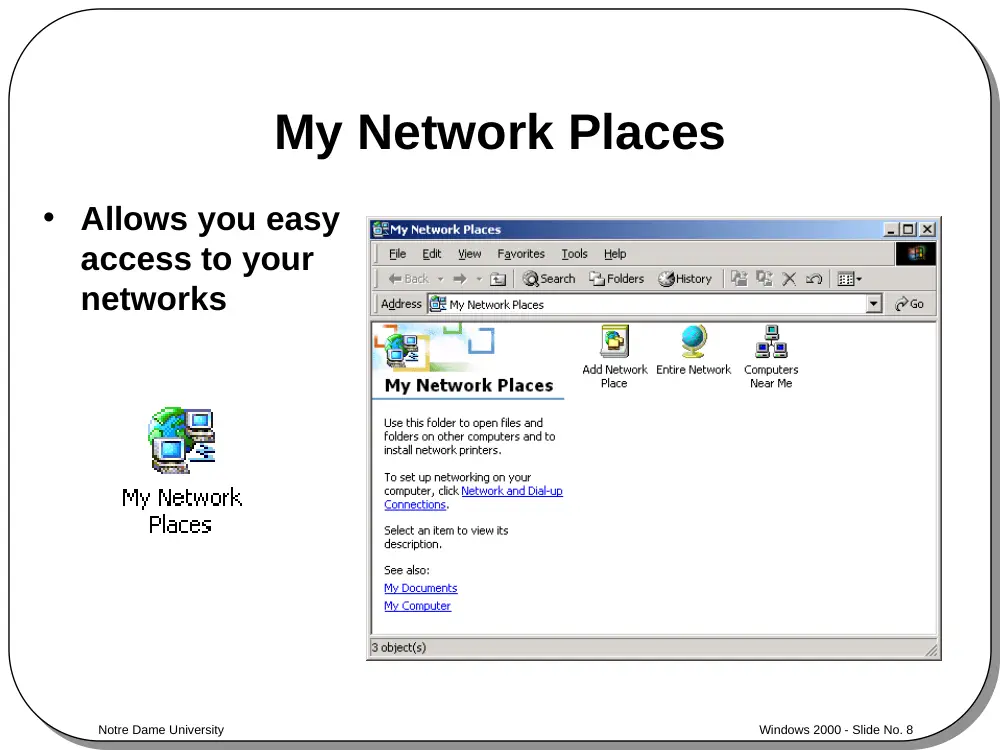
My Network Places
• Allows you easy
access to your
networks
Windows 2000 - Slide No. 9
Notre Dame University
Review Questions
Windows 2000 - Slide No. 10
Notre Dame University
Window Components
and Selection Techniques
Windows 2000
Windows 2000 - Slide No. 11
Notre Dame University
The Title Bar
• Provides added
information
• May be used to
maximize or
restore window
size
Title Bar
Windows 2000 - Slide No. 12
Notre Dame University
The Scroll Bars
• Allows for movement of text and graphics within a
window
Scroll Bars
Windows 2000 - Slide No. 13
Notre Dame University
Maximize, Minimize, Restore
and Close Buttons
•
Use the Maximize, Minimize and Restore buttons to size
your applications
Minimize
Maximize
The Restore
button is only
visible when the
window has
been maximized
Running
applications
are displayed
here
Close
Windows 2000 - Slide No. 14
Notre Dame University
Borders
• Borders can be used for
resizing a window
Click and drag the
vertical border to
make the window
narrower or wider
Click and drag the
horizontal border
to make the
window taller or
shorter
Click and drag the corner of the
window to re-size a window in two
dimensions simultaneously
Windows 2000 - Slide No. 15
Notre Dame University
The Control Icon
• All windows have a Control (or System) icon
• Click to display the Control (or System) drop down
menu
Control icon
Windows 2000 - Slide No. 16
Notre Dame University
Dialog Boxes
•
Dialog boxes represent a fast way of displaying a wide
range of options from which you can make choices
To close a dialog
box, press the
Esc key
Windows 2000 - Slide No. 17
Notre Dame University
Text Boxes
• Allows you to enter text into dialog boxes
– Click in the text box and type in the text required
Note: Some text boxes have a down
arrow on the right-hand side which,
when clicked, will reveal a drop down
list of available options
Windows 2000 - Slide No. 18
Notre Dame University
List Boxes
• Select from a
list of options
displayed
Windows 2000 - Slide No. 19
Notre Dame University
Drop Down List Boxes
• Drop down list of options from which an item may
be selected
Clicking here displays a drop down list
Windows 2000 - Slide No. 20
Notre Dame University
Check Boxes and Radio Buttons
• Check boxes allows the selection of one or more
items
• Radio buttons allow a single selection from a
range of options
– These options are mutually exclusive
Radio Buttons
Check Boxes
Windows 2000 - Slide No. 21
Notre Dame University
Command Icons
• Command icons provide a
shortcut to advanced
features within your
applications
– Increasingly if you move the mouse
pointer to a command icon, then a
pop-up will be displayed indicating
the function of the icon
Windows 2000 - Slide No. 22
Notre Dame University
Tabs
• Some dialog boxes have multiple sections and
categories
• Categories are separated by tabs
• Click on each tab to choose available options
Windows 2000 - Slide No. 23
Notre Dame University
Mouse Selection Techniques
REMEMBER THE WINDOWS TECHNIQUE
Select Then Manipulate!
Windows 2000 - Slide No. 24
Notre Dame University
Keyboard Selection Techniques
•
Accelerated application
interaction
•
Notice the keyboard
shortcuts on the example
illustrated
–
Ctrl-N
–
Ctrl-O
–
Ctrl-S
Ctrl+P
Windows 2000 - Slide No. 25
Notre Dame University
Drag and Drop Techniques
• Allows you
to move or
copy items
Remember:
“Drag and drop” moves
Control +“Drag and drop” copies
Windows 2000 - Slide No. 26
Notre Dame University
The ‘Other’ Mouse Button
• Click the right-hand mouse button
to display a pop-up menu pertaining
to the object you click on
Clicking with the right-
hand mouse button on
the Desktop background
displays this menu
Windows 2000 - Slide No. 27
Notre Dame University
What are Property Sheets?
• Allows for
customization of the
selected item
Click with the
right-hand mouse
button
Windows 2000 - Slide No. 28
Notre Dame University
Review Questions
Windows 2000 - Slide No. 29
Notre Dame University
Starting to Use Windows 2000
Windows 2000
Windows 2000 - Slide No. 30
Notre Dame University
What is the Start Icon?
• The initial launch point for Windows 2000
Right-clicking
Left-clicking
Windows 2000 - Slide No. 31
Notre Dame University
The Start Menu
• Allows easy access to the
components that make up
Windows 2000, and also to
your application programs
• Easily configurable to suit the
way YOU wish to work
– Items may be added or removed
TIP: Keyboard shortcut
to display the Start Menu
Ctrl+Esc
Windows 2000 - Slide No. 32
Notre Dame University
The Start Icon - Programs
Windows 2000 - Slide No. 33
Notre Dame University
The Start Icon - Documents
• Recently opened
or edited files are
displayed here
Windows 2000 - Slide No. 34
Notre Dame University
The Start Icon - Settings
• Access to
configuration utilities
– Control Panel
– Printers
– Taskbar
Windows 2000 - Slide No. 35
Notre Dame University
The Start Icon - Search
• Searches all system
resources
– Files or folders
– On the Internet
– Using Microsoft Outlook
– For People …
Windows 2000 - Slide No. 36
Notre Dame University
The Start Icon - Help Topics
Windows 2000 - Slide No. 37
Notre Dame University
The Start Icon - Run
• Allows you to run programs by entering their file
name
Windows 2000 - Slide No. 38
Notre Dame University
The Start Icon - Shut Down
• Cleanly shuts down
the system
Windows 2000 - Slide No. 39
Notre Dame University
The Startup Folder
• Programs in the
Startup folder will
start automatically
when Windows 2000
is started
Windows 2000 - Slide No. 40
Notre Dame University
What is the Taskbar?
• Displays running applications
• Click with the right-hand
mouse button to:
– Customize Taskbar options
– Customize Start Menu programs
Double click to show the
Date/Time Properties dialog
box
Click to select these programs
Windows 2000 - Slide No. 41
Notre Dame University
Controlling Applications
From the Taskbar
– Running applications are displayed within the Taskbar
– Right clicking on these applications, as displayed in the
Taskbar, will display a pop-up menu which allows you to
control that program
Windows 2000 - Slide No. 42
Notre Dame University
Tiling and Cascading Windows
Using the Taskbar
• Options include:
– Cascade Windows
– Tile Horizontally
– Tile Vertically
Windows 2000 - Slide No. 43
Notre Dame University
Arranging Your Desktop Icons
– You can easily customize the way icons are displayed on
your Windows 2000 desktop
– Right-click on the Desktop to display a pop-up menu
– Select the required icon arrangement
Windows 2000 - Slide No. 44
Notre Dame University
Review Questions
Windows 2000 - Slide No. 45
Notre Dame University
Help Within Windows 2000
Windows 2000
Windows 2000 - Slide No. 46
Notre Dame University
Help Within the Start Menu
• Help
– Fully indexed
– You can
search for a
word or phrase
Windows 2000 - Slide No. 47
Notre Dame University
Using The F1 Key To Get Help
• Pressing the F1 Key:
– Invokes help
– Provides application specific help
Windows 2000 - Slide No. 48
Notre Dame University
“What’s This” Help
•
Many dialog boxes offer “What’s This” Help
•
Click on the question mark icon
•
Click on the item within the dialog box you need help on
Windows 2000 - Slide No. 49
Notre Dame University
Wizards
• Guide your through complicated
processes!
Windows 2000 - Slide No. 50
Notre Dame University
Review Questions
Windows 2000 - Slide No. 51
Notre Dame University
The Windows 2000 Accessories
Windows 2000
Windows 2000 - Slide No. 52
Notre Dame University
What is WordPad?
• By default WordPad acts like a cut down version of
Microsoft Word
Windows 2000 - Slide No. 53
Notre Dame University
WordPad
Editing an Existing Document
• Word 6 files are the default file format
• WARNING: Do NOT edit existing Word files if the
files contain styles, headers or footers
Windows 2000 - Slide No. 54
Notre Dame University
What is Paint?
• A simple tool
for editing or
creating
graphics
(pictures)
Windows 2000 - Slide No. 55
Notre Dame University
Paint - Drawing Tools
• Simple, but easy to use
graphics tool
Windows 2000 - Slide No. 56
Notre Dame University
The Calculator
• Two modes
– Standard and Scientific
Windows 2000 - Slide No. 57
Notre Dame University
The Clock
• Located in the Taskbar
Move the mouse to the clock
and after a few moments the
date is displayed
Double click to open the
Date/Time Properties dialog
box, to allow modifications
Windows 2000 - Slide No. 58
Notre Dame University
Review Questions
Windows 2000 - Slide No. 59
Notre Dame University
The Explorer, My Computer
and the Recycle Bin
Windows 2000
Windows 2000 - Slide No. 60
Notre Dame University
What are Drives, Folders and Files?
• You need to understand the terminology,
such as:
– Physical drives
– Drive letters
– Folders/directories
– Files