
CSC 201 Chapter 6, Fall 2001
Notre Dame University–Louaize · Computers and Their Use · 70 pages

Showing the first 10 of 70 pages. Download the PDF to see all of it.
More CSC 201 files
- Chapter 7 · Spring 2007ChapterView
- Chapter 10- MS Excel 2003 · Spring 2007ChapterView
- Chapter 11- Computer in Everyday Life · Spring 2007ChapterView
- Chapter 12- IT and Society · Spring 2007ChapterView
- Chapter 13- MS Powerpoint 2003 · Spring 2007ChapterView
- Chapter 14- Security, Copyright and Law · Spring 2007ChapterView
- Chapter 15- MS Internet Explorer 6 · Spring 2007ChapterView
- Chapter 16- Programming and Languages · Spring 2007ChapterView
Show the text of this chapter
Notre Dame University
Word 2000 - Slide No. 1
Microsoft Word 2000
Notre Dame University
Word 2000 - Slide No. 2
Starting Word and Manipulating Files
Microsoft Word 2000
Notre Dame University
Word 2000 - Slide No. 3
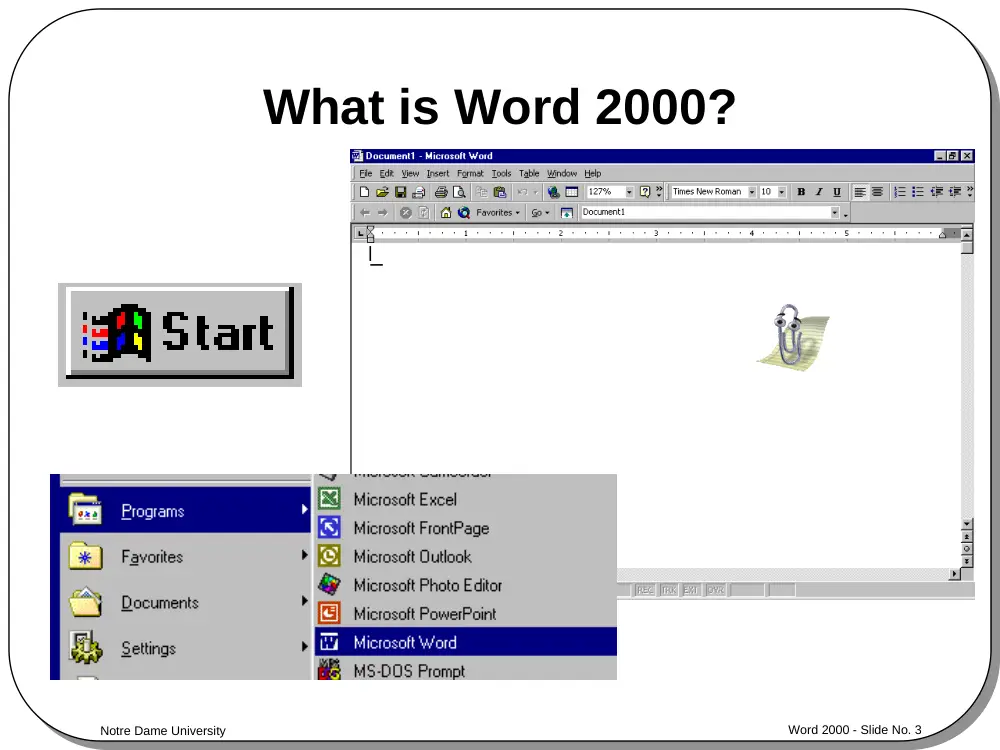
What is Word 2000?
Notre Dame University
Word 2000 - Slide No. 4
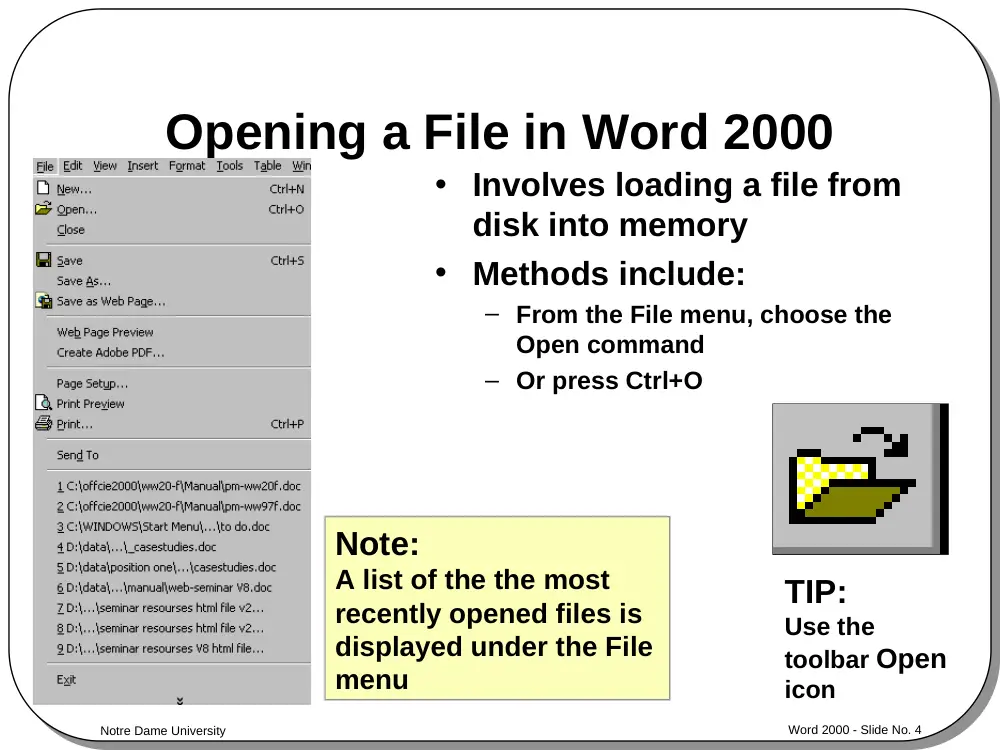
Opening a File in Word 2000
• Involves loading a file from
disk into memory
• Methods include:
– From the File menu, choose the
Open command
– Or press Ctrl+O
Note:
A list of the the most
recently opened files is
displayed under the File
menu
TIP:
Use the
toolbar Open
icon
Notre Dame University
Word 2000 - Slide No. 5
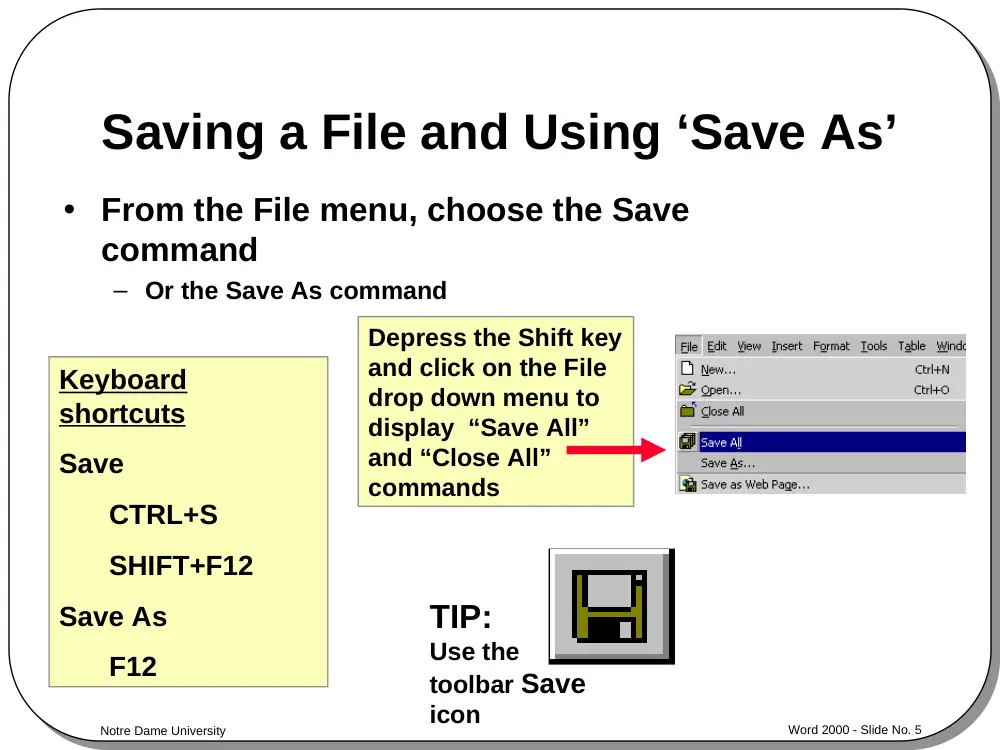
Saving a File and Using ‘Save As’
• From the File menu, choose the Save
command
– Or the Save As command
Keyboard
shortcuts
Save
CTRL+S
SHIFT+F12
Save As
F12
Depress the Shift key
and click on the File
drop down menu to
display “Save All”
and “Close All”
commands
TIP:
Use the
toolbar Save
icon
Notre Dame University
Word 2000 - Slide No. 6
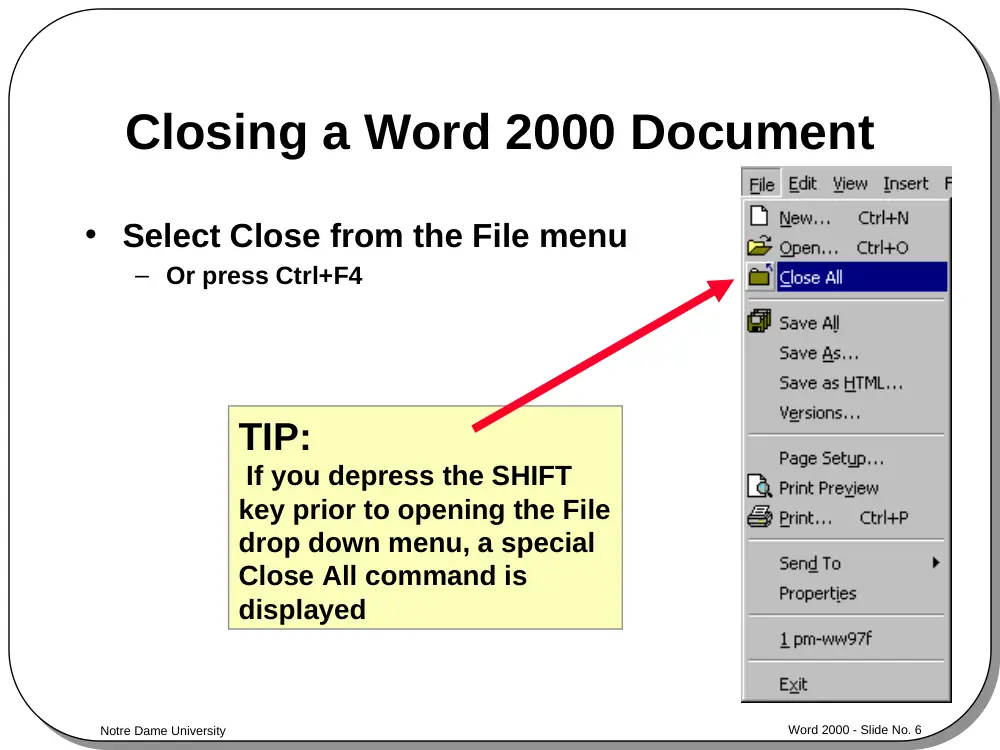
Closing a Word 2000 Document
• Select Close from the File menu
– Or press Ctrl+F4
TIP:
If you depress the SHIFT
key prior to opening the File
drop down menu, a special
Close All command is
displayed
Notre Dame University
Word 2000 - Slide No. 7
Review Questions
Notre Dame University
Word 2000 - Slide No. 8
Starting to Use Word 2000
Microsoft Word 2000
Notre Dame University
Word 2000 - Slide No. 9
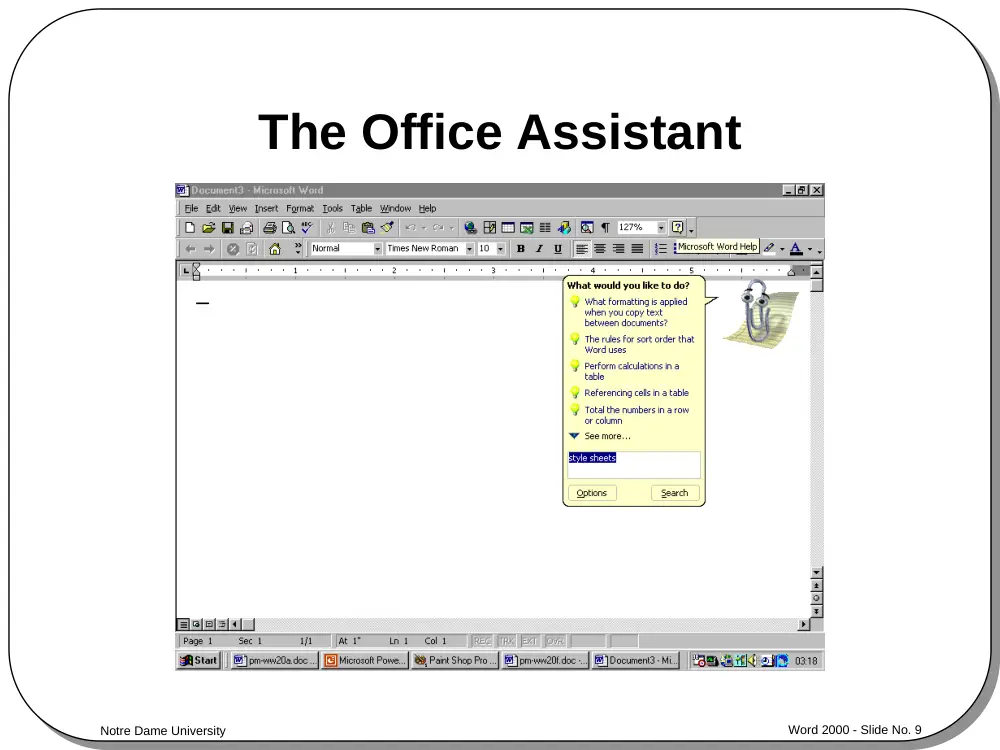
The Office Assistant
Notre Dame University
Word 2000 - Slide No. 10
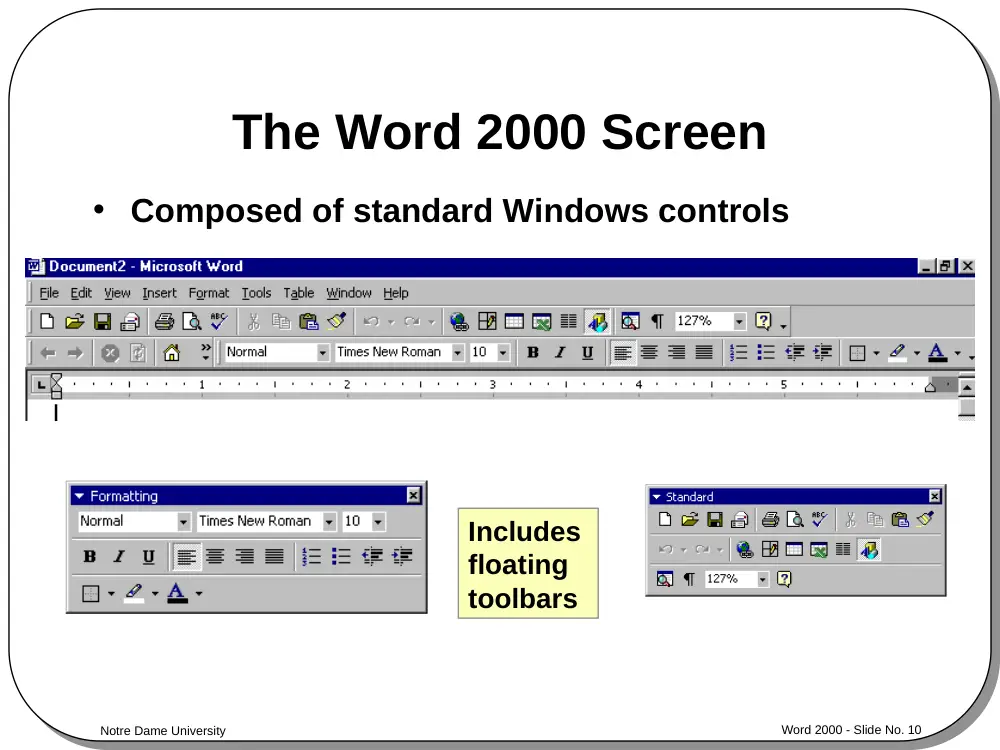
The Word 2000 Screen
• Composed of standard Windows controls
Includes
floating
toolbars
Notre Dame University
Word 2000 - Slide No. 11
Moving Through A Word Document
•
Arrow keys
•
Scroll bars
•
PageUp
•
PageDown
Notre Dame University
Word 2000 - Slide No. 12
The Word 2000 Menu Bar
and Drop Down Menus
• Drop down menu options include:
File
Edit
View
Insert
Format Tools Table
Window
Help
Notre Dame University
Word 2000 - Slide No. 13
Word 2000 Toolbars
• Toolbars contain small pictures called tool icons
– When clicked they provide a shortcut method of performing a
Word action
The toolbars that are
displayed on your
system are controlled
via the Toolbars
command, located
under the View drop
down menu
TIP:
Right clicking on any Word 2000
toolbar displays the Toolbar list
Notre Dame University
Word 2000 - Slide No. 14
Floating Toolbars in Word 2000
The Word 2000 toolbars are not
always fixed to to top of the Word
window - they can float
Notre Dame University
Word 2000 - Slide No. 15
The Word 2000 Status Bar
• Used by Word 2000 to convey information
to you such as:
– The document page number or section number
– Whether you are in ‘insertion’ or ‘overtyping’ mode
Displayed along the bottom of the Word 2000 screen
Notre Dame University
Word 2000 - Slide No. 16
Entering Text into a Word Document
• Word 2000 normally functions in Insert
mode
– Which means that text is added to a document
without overwriting anything else
• Word 2000 can function in Overtype
mode
– Which will overwrite existing text with any new
text that you type in
Notre Dame University
Word 2000 - Slide No. 17
Click and Type
• New feature in Word 2000
• Double clicking on a blank area of the document
and Word 2000 will automatically insert the
necessary blank lines and tab stops to position
the insertion point at that location
Notre Dame University
Word 2000 - Slide No. 18
Word 2000 Selection Techniques
• Double click on a word to
select it
• Move to the ‘Selection Bar’
– To select a line, click once
– To select a paragraph, double click
– To select everything, triple click
Keyboard shortcut to select everything
CTRL+A
Notre Dame University
Word 2000 - Slide No. 19
Deleting Text
• Make sure that you know how to:
– Delete a character
– Delete a word
– Delete a line or lines
– Delete a sentence
– Delete a paragraph
– Delete a block of text
– Delete an entire document
BEWARE of deleting
text!
Remember the Undo
tool!
Notre Dame University
Word 2000 - Slide No. 20
Different Word 2000 Views
• This feature allows you
to select different views
of your document:
– Normal
– Web Layout
– Print Layout
– Outline
– Full Screen
– Zoom
Notre Dame University
Word 2000 - Slide No. 21
Full Screen View
• Displays the document over the entire computer
screen
– You are still able to edit and scroll the document
This drop down menu is displayed if
you move the mouse pointer to the top
of the screen
Notre Dame University
Word 2000 - Slide No. 22
Zoom
• Allows you to enlarge or reduce the view of a
page on the screen
From the View
menu, choose
the Zoom
command
Notre Dame University
Word 2000 - Slide No. 23
Undo and Repeat
• The Undo feature allows you to
reverse, or undo, your recent
actions.
– The last action you performed will be
the first Undo level, the penultimate
action is the second Undo, and so on.
• The Repeat function allows you
to redo recent actions.
– It can be used to duplicate text in a
long document, apply complex
character and paragraph formats to
text, and perform searches.
Notre Dame University
Word 2000 - Slide No. 24
Help Within Word 2000
• The Help feature allows you to learn to use the basic
and advanced features of Word 2000
– Word 2000 equivalents of WordPerfect commands
– On-line, context-sensitive help for any Word for Windows function
TIP:
Press SHIFT+F1 to add a
question mark to the mouse
pointer
Then click on an item to see
relevant Help!
Notre Dame University
Word 2000 - Slide No. 25
Word 2000 Keyboard Shortcuts
• Remember F1 for context-sensitive Help!
HELP
Notre Dame University
Word 2000 - Slide No. 26
Review Questions
Notre Dame University
Word 2000 - Slide No. 27
Font Formatting
Microsoft Word 2000
Notre Dame University
Word 2000 - Slide No. 28
What is Word 2000 Font Formatting?
•
Font formatting as the
name implies allows you
to control how the font will
be formatted and
displayed
Notre Dame University
Word 2000 - Slide No. 29
Bold and Italics
• Bold keyboard shortcut
– Ctrl+B
• Italic keyboard shortcut
– Ctrl+I
• Formatting toolbar shortcuts
Notre Dame University
Word 2000 - Slide No. 30
Underlining Text
• Underline keyboard
shortcut
– Ctrl+U
• Or use the
Underline tool on
the Formatting
toolbar
To customize the type of
underlining, use the Font
command under the
Format menu
Notre Dame University
Word 2000 - Slide No. 31
Highlighting Text
• Acts just like a pen highlighter
• The default color for highlighted text is yellow,
but you can customize this
Notre Dame University
Word 2000 - Slide No. 32
Changing Case
• From the Format menu, select Change Case
Notre Dame University
Word 2000 - Slide No. 33
Drop Caps
• Allows you to
draw attention to
the start of a
paragraph
Notre Dame University
Word 2000 - Slide No. 34
Text Effects
• The text effects
include:
– None
– Blinking Background
– Las Vegas Lights
– Marching Black Ants
– Marching Red Ants
– Shimmer
– Sparkle Text
• The effects DO NOT
PRINT!
Notre Dame University
Word 2000 - Slide No. 35
Font Formatting - Keyboard Shortcuts
All Caps
CTRL+SHIFT+A
Bold
CTRL+B
Change Case
SHIFT+F3
Decrease Point Size
CTRL+[
Double Underline
CTRL+SHIFT+D
Font
CTRL+SHIFT+F
Hidden Text
CTRL+SHIFT+H
Increase Point Size
CTRL+]
Italic
CTRL+I
Revert to Default Font
CTRL+SHIFT+Z
Small Caps
CTRL+SHIFT+K
Subscript
CTRL+=
Superscript
CTRL+SHIFT+=
Underline
CTRL+U
Word Underline
CTRL+SHIFT+W
Notre Dame University
Word 2000 - Slide No. 36
Review Questions
Notre Dame University
Word 2000 - Slide No. 37
Paragraph Formatting
Microsoft Word 2000
Notre Dame University
Word 2000 - Slide No. 38
Paragraph Formatting Shortcuts
1.5 Spacing
CTRL+5
Centred
CTRL+E
Double Spacing
CTRL+2
Hanging Indent
CTRL+T
Indent from Left
CTRL+M
Justified
CTRL+J
Left-Aligned
CTRL+L
Normal Style
CTRL+SHIFT+N
Remove Formatting
CTRL+Q
Right-Aligned
CTRL+R
Single Spacing
CTRL+1
Style
CTRL+SHIFT+S
Notre Dame University
Word 2000 - Slide No. 39
Aligning Text in a Document
• Aligns text relative to the left and right margins
and the center of the page
– Left
– Centered
– Right
– Justified
Notre Dame University
Word 2000 - Slide No. 40
Indenting
• Aligns paragraphs relative to the margins of a
document
Indentation
Left
Right
Special
By
First Line
Hanging
Notre Dame University
Word 2000 - Slide No. 41
Bullets and Numbering
• Apply this formatting to a list
• Use the toolbar icons
• You can also apply this type
of formatting to selected text
paragraphs, in which case
the paragraphs are
numbered or bulleted
Notre Dame University
Word 2000 - Slide No. 42
Review Questions
Notre Dame University
Word 2000 - Slide No. 43
Page Formatting
Microsoft Word 2000
Notre Dame University
Word 2000 - Slide No. 44
What is Page Formatting?
• Page formatting allows you to control features
that will effect the entire page, such as print paper
size, orientation, margins etc.
Four tabs:
1. Margins
2. Paper Size
3. Paper Source
4. Layout
File/Page
Setup
Notre Dame University
Word 2000 - Slide No. 45
Page Margins
• You can set the top, bottom, right, and left margins
• You can change margin settings for:
– The whole document
– For document pages from the position of the insertion point
– For a single paragraph
Notre Dame University
Word 2000 - Slide No. 46
Page Size and Orientation
• Allows you to control the paper size and
orientation of a page
Orientation
Portrait or Landscape
Paper Size
Notre Dame University
Word 2000 - Slide No. 47
Page Breaks
• Soft page breaks
– Automatically inserted by Word whenever you fill a page with
text
– Indicated by a dotted line on the screen (viewed within Normal
View)
• Hard page breaks
– Inserted manually in a specific location using Ctrl+Enter
– Indicated by a dotted line on the screen
• Note: Page breaks can be viewed in Normal View (selected from
the View menu)
Notre Dame University
Word 2000 - Slide No. 48
Headers and Footers
• Allows you to insert information below the top
margin, or above the bottom margin
– Usually consists of chapter headings, page numbers and dates
– You can see header and footer information on your screen when
in Page Layout View and Print Preview
Notre Dame University
Word 2000 - Slide No. 49
Numbering Pages
• Allows page numbers to be inserted
automatically
Specific positioning and
formats may be specified
Insert/Page Numbers ...
Notre Dame University
Word 2000 - Slide No. 50
Review Questions
Notre Dame University
Word 2000 - Slide No. 51
Introducing Tables and Columns
Microsoft Word 2000
Notre Dame University
Word 2000 - Slide No. 52
Creating a Table
• Allows you to create
tables in order to
organize items in
columns and rows
– Instead of calculating tab
settings
Notre Dame University
Word 2000 - Slide No. 53
Columns
• You can create
newspaper columns,
parallel columns and
uneven columns
Notre Dame University
Word 2000 - Slide No. 54
Review Questions
Notre Dame University
Word 2000 - Slide No. 55
Proofing Tools Within Word 2000
Microsoft Word 2000
Notre Dame University
Word 2000 - Slide No. 56
Spell Checking
• Can be used to quickly check the spelling in a
document
– May check the spelling of a particular word, a selection of text,
or the whole document
– Custom dictionaries are useful for medical, legal, or technical
documents which may contain unfamiliar terms
Notre Dame University
Word 2000 - Slide No. 57
The Thesaurus
• The Thesaurus can be used to look up synonyms
and antonyms
Notre Dame University
Word 2000 - Slide No. 58
Review Questions
Notre Dame University
Word 2000 - Slide No. 59
Using the Clipboard
Microsoft Word 2000
Notre Dame University
Word 2000 - Slide No. 60
What is the Clipboard?
• An area of memory used for temporary storage of
information
• Traditionally the Clipboard only held one item of
information at a time
– However Office 2000 introduced the concept of multiple items
being stored within the Clipboard (up to 12 items)
• Allows you to transfer data between programs
Word
Excel