
CSC 201 Chapter 8, Spring 2007
Notre Dame University–Louaize · Computers and Their Use · 156 pages

Showing the first 10 of 156 pages. Download the PDF to see all of it.
More CSC 201 files
- Chapter 7 · Spring 2007ChapterView
- Chapter 10- MS Excel 2003 · Spring 2007ChapterView
- Chapter 11- Computer in Everyday Life · Spring 2007ChapterView
- Chapter 12- IT and Society · Spring 2007ChapterView
- Chapter 13- MS Powerpoint 2003 · Spring 2007ChapterView
- Chapter 14- Security, Copyright and Law · Spring 2007ChapterView
- Chapter 15- MS Internet Explorer 6 · Spring 2007ChapterView
- Chapter 16- Programming and Languages · Spring 2007ChapterView
Show the text of this chapter
CCHHAAPPTTEERR 88
M
MIICCRRO
OSSO
OFFTT W
WO
ORRDD 22000033
Starting Word 2003 and Manipulating Files
3
Word 2003
Notre Dame University
Starting Word 2003 and Manipulating Files
Learning Module Objectives
When you have completed this
learning module you will have
seen how to:
•
Start Word 2003 using the Windows Start menu
•
Open Word 2003 and create a new Word document, via the
Start button
•
Start Word and open an existing document, via the Start
button
•
Open a file in Word 2003
•
Open a recently used file
•
Open more than one file at a time
•
Select a continuous block of files
•
Select files that are not in a continuous block
•
Move up one folder level
•
View files, without any additional details
•
Save a file
•
Create a new folder in which to save your document
•
Display a hidden “Save All” command
•
Close a Word 2003 Document
•
Display a hidden “Close All” command
•
Exit Word 2003
Starting Word 2003 and Manipulating Files
4
Word 2003
Notre Dame University
What is Word 2003?
Background
Microsoft Word 2003 is an advanced Windows based word processor. As Word
2003 is based on Windows 95/98/NT, rather than Windows 3.x, it can make better
use of your PCs memory and disk resources. As Windows 95/98/NT is a
multitasking system, you can run your Word 2003 program at the same time as
other programs such as spreadsheets (i.e. Excel) or graphics programs (i.e.
PowerPoint). You also have the ability to exchange information with other
Windows-based programs. Thus, you can produce a spreadsheet in Excel and then
copy the information into a Word 2003 document for inclusion in a report.
Other comparable Windows-based word processors include WordPro (from Lotus)
and WordPerfect for Windows. Like any advanced software, Word 2003 contains
bugs and it is important when using Word 2003 that you save your work regularly, in
fact you may wish to use the “AutoRecover” feature that automatically saves your
work after a pre-defined amount of time. You may also want Word 2003 to create
backup copies of all your documents that, on the one hand, will consume more disk
space but has the benefit of being much safer if you make mistakes or the system
crashes. Another key feature to remember is that Word 2003 has an “undo” feature.
This means that you can change your mind if you have inadvertently done
something foolish on your PC.
To start Word
2003 using the
Windows Start
menu
•
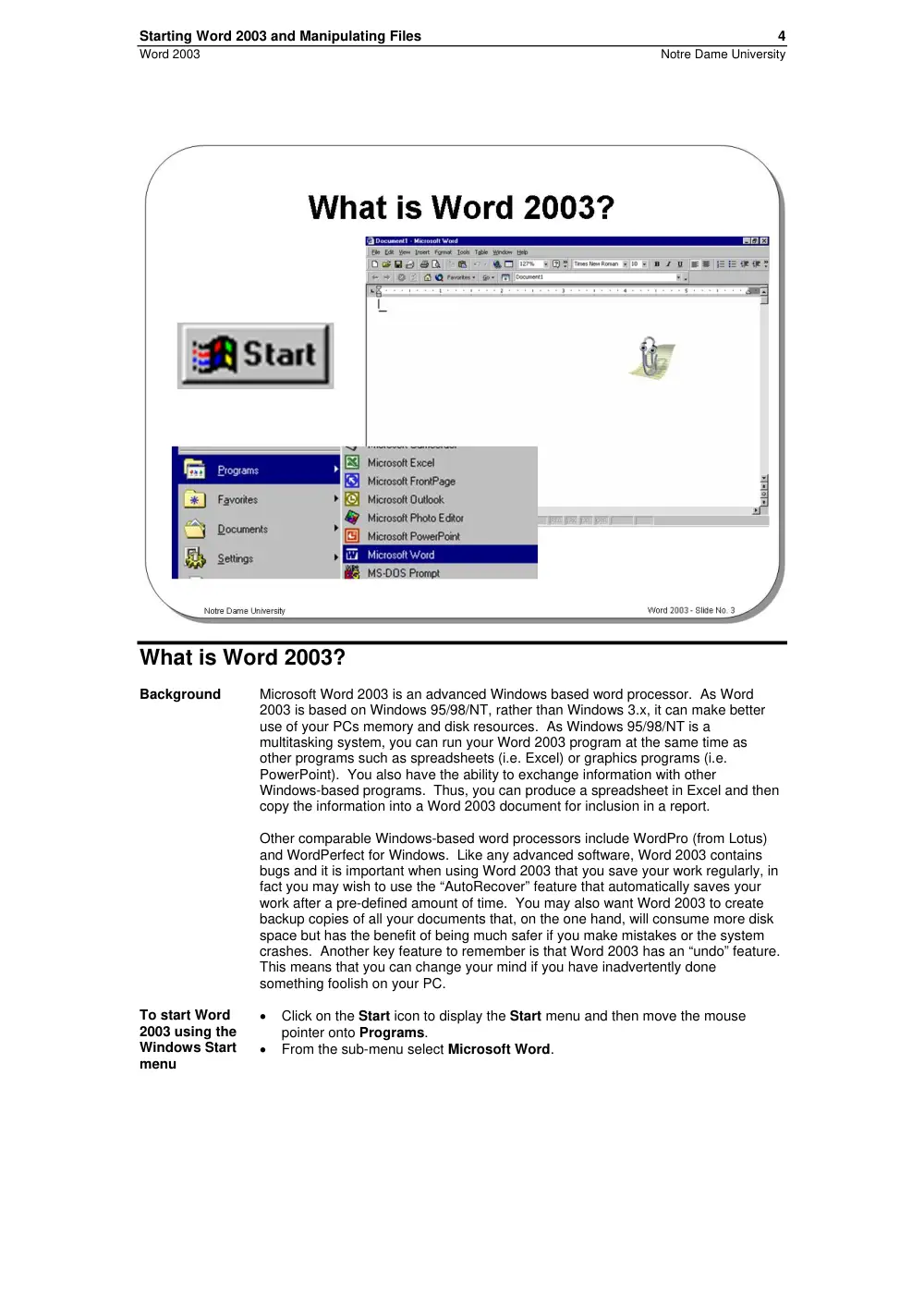
Click on the Start icon to display the Start menu and then move the mouse
pointer onto Programs.
•
From the sub-menu select Microsoft Word.
Starting Word 2003 and Manipulating Files
5
Word 2003
Notre Dame University
To start Word
2003 using the
"New Office
Document”
icon
•
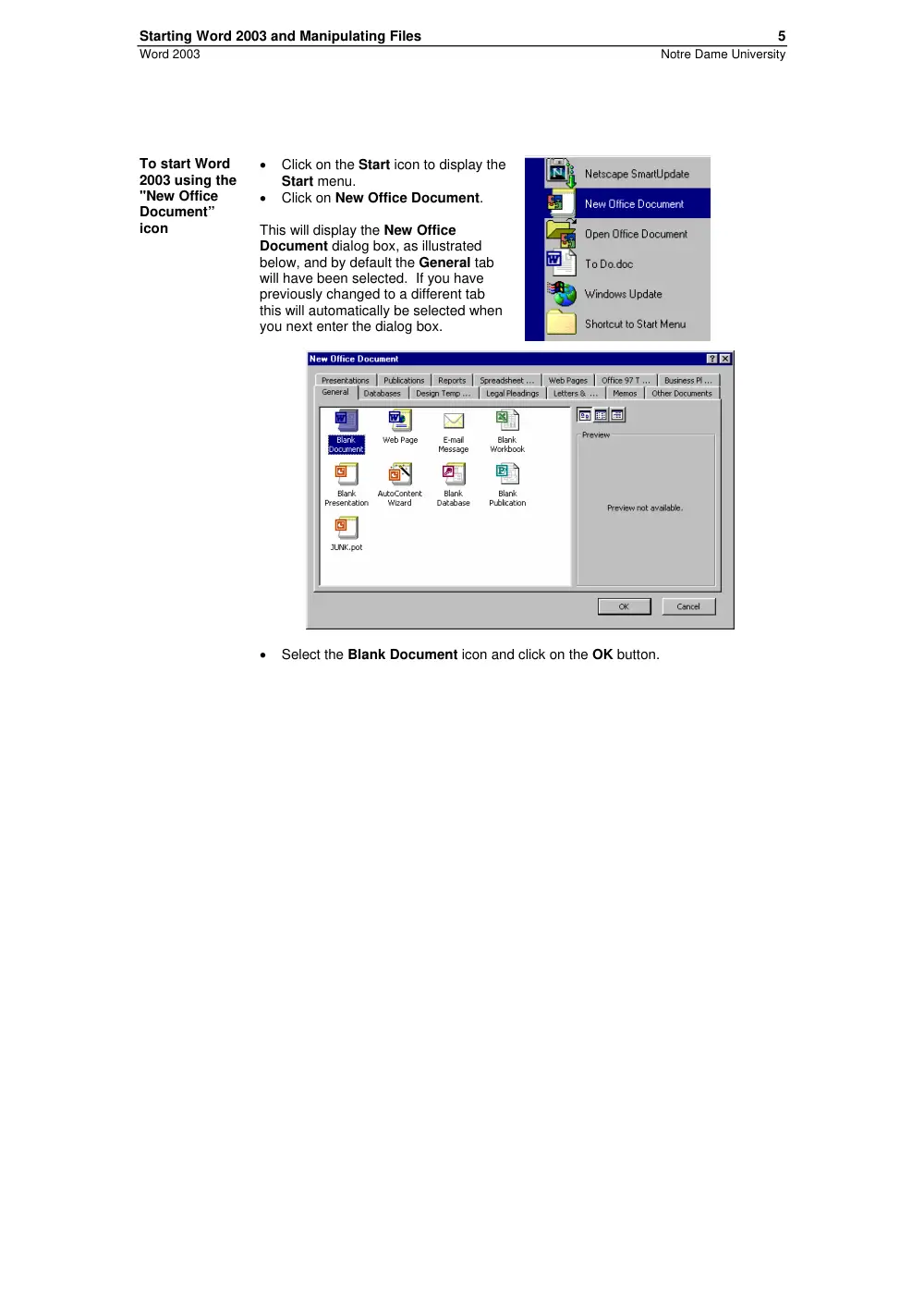
Click on the Start icon to display the
Start menu.
•
Click on New Office Document.
This will display the New Office
Document dialog box, as illustrated
below, and by default the General tab
will have been selected. If you have
previously changed to a different tab
this will automatically be selected when
you next enter the dialog box.
•
Select the Blank Document icon and click on the OK button.
Starting Word 2003 and Manipulating Files
6
Word 2003
Notre Dame University
Opening a File in Word 2003
Opening
recently used
files
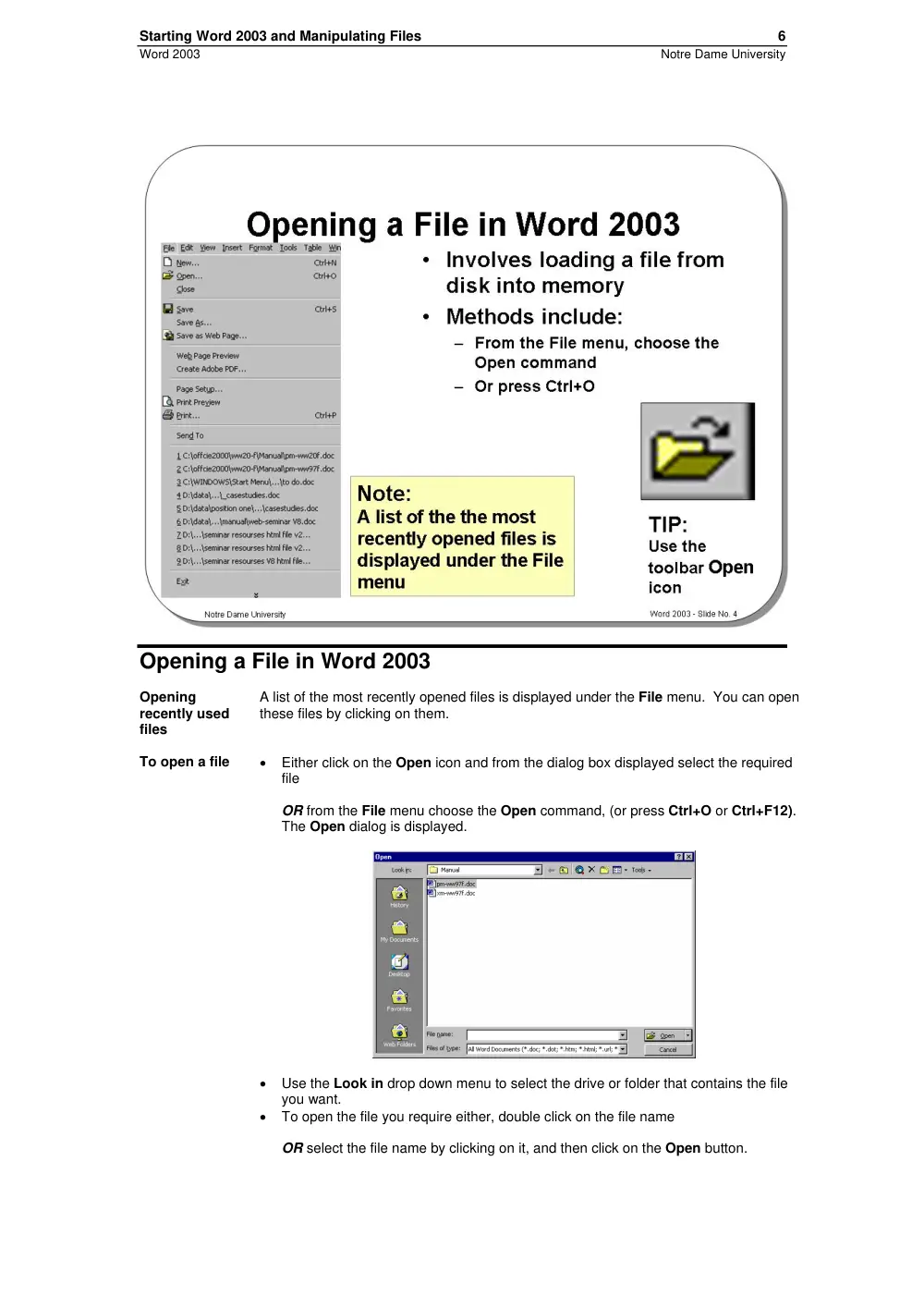
A list of the most recently opened files is displayed under the File menu. You can open
these files by clicking on them.
To open a file
•
Either click on the Open icon and from the dialog box displayed select the required
file
OR from the File menu choose the Open command, (or press Ctrl+O or Ctrl+F12).
The Open dialog is displayed.
•
Use the Look in drop down menu to select the drive or folder that contains the file
you want.
•
To open the file you require either, double click on the file name
OR select the file name by clicking on it, and then click on the Open button.
Starting Word 2003 and Manipulating Files
7
Word 2003
Notre Dame University
Opening
documents
from other
locations
•
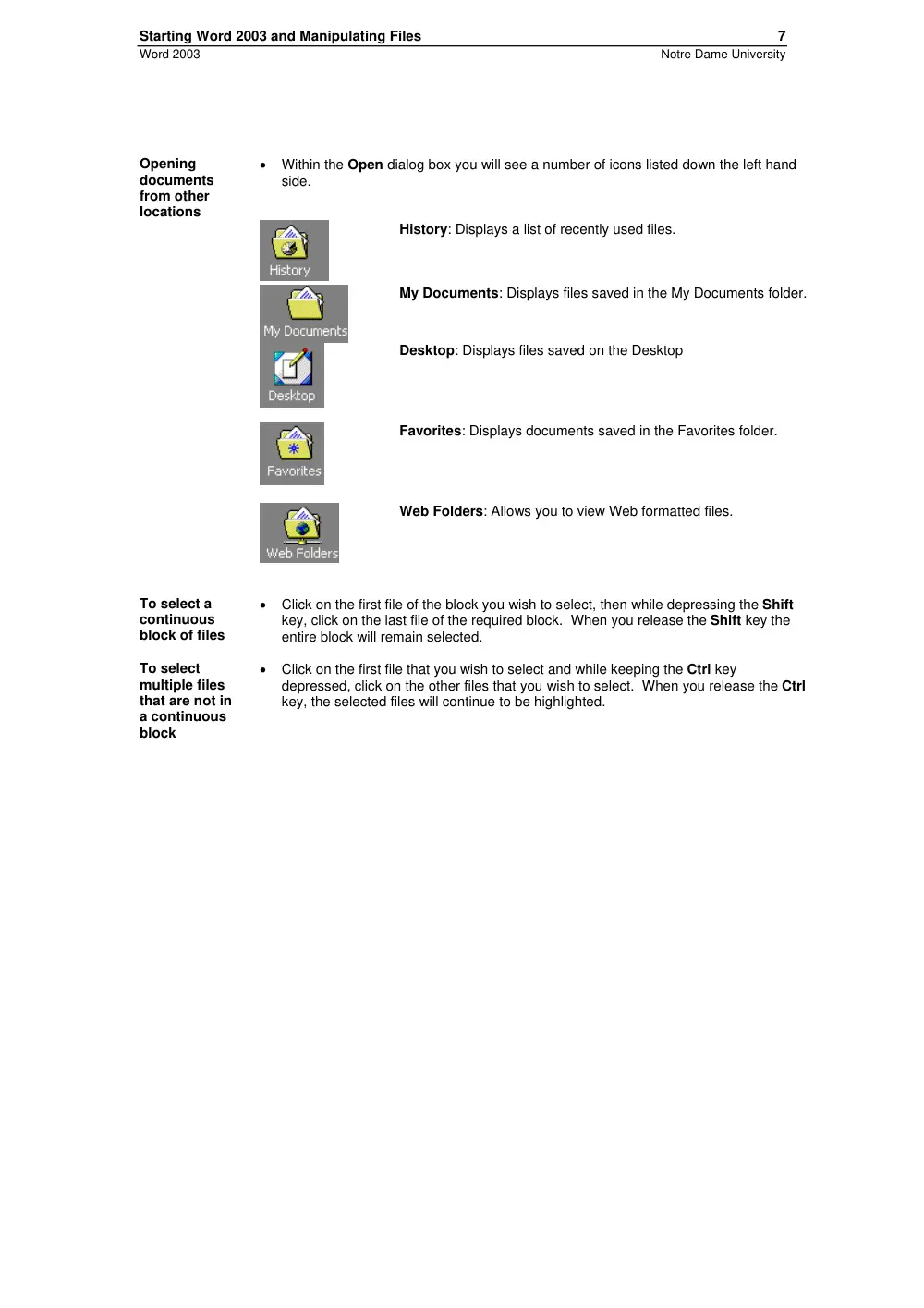
Within the Open dialog box you will see a number of icons listed down the left hand
side.
History: Displays a list of recently used files.
My Documents: Displays files saved in the My Documents folder.
Desktop: Displays files saved on the Desktop
Favorites: Displays documents saved in the Favorites folder.
Web Folders: Allows you to view Web formatted files.
To select a
continuous
block of files
•
Click on the first file of the block you wish to select, then while depressing the Shift
key, click on the last file of the required block. When you release the Shift key the
entire block will remain selected.
To select
multiple files
that are not in
a continuous
block
•
Click on the first file that you wish to select and while keeping the Ctrl key
depressed, click on the other files that you wish to select. When you release the Ctrl
key, the selected files will continue to be highlighted.
Starting Word 2003 and Manipulating Files
8
Word 2003
Notre Dame University
Tools to help
you with
opening files
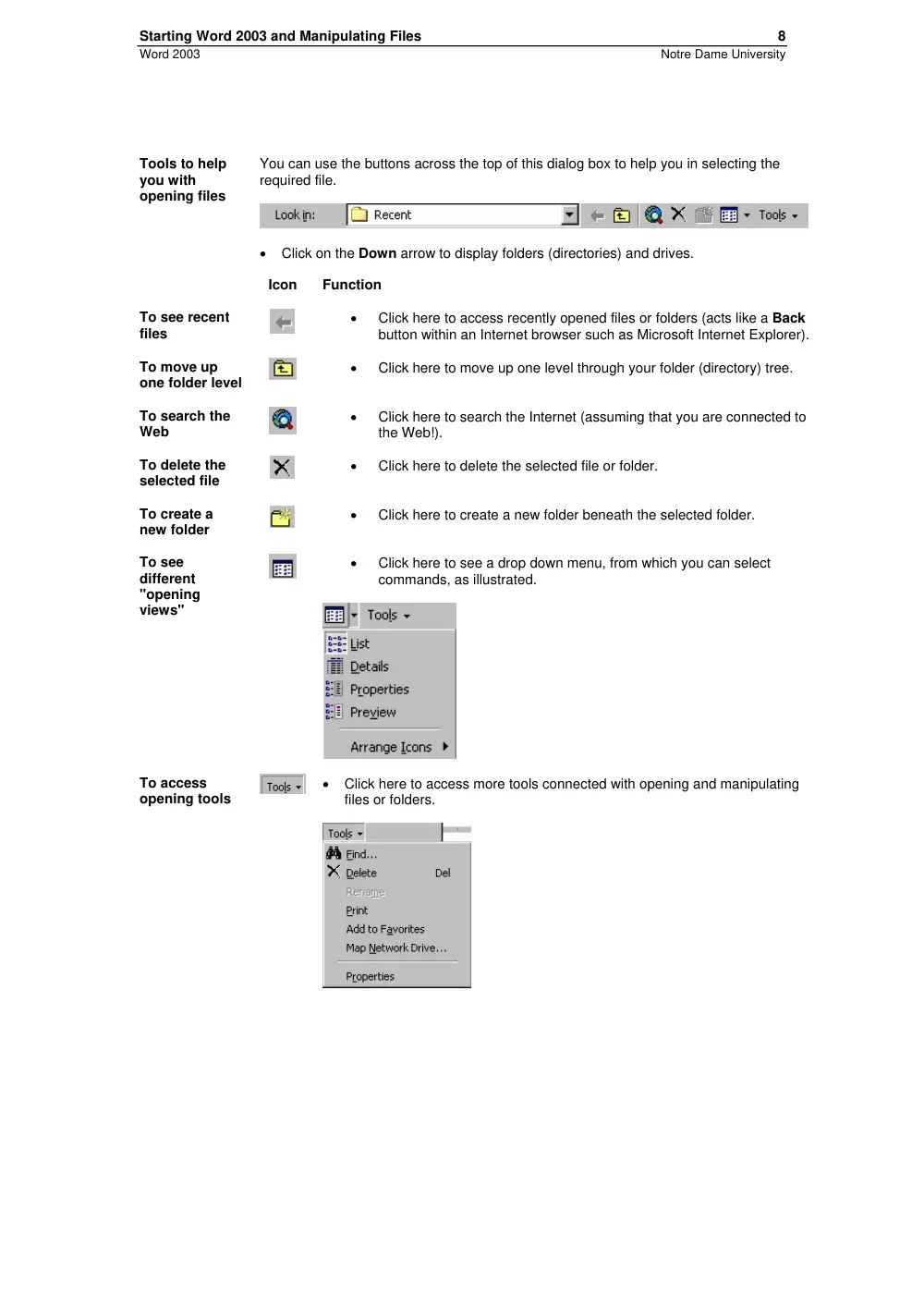
You can use the buttons across the top of this dialog box to help you in selecting the
required file.
•
Click on the Down arrow to display folders (directories) and drives.
Icon
Function
To see recent
files
•
Click here to access recently opened files or folders (acts like a Back
button within an Internet browser such as Microsoft Internet Explorer).
To move up
one folder level
•
Click here to move up one level through your folder (directory) tree.
To search the
Web
•
Click here to search the Internet (assuming that you are connected to
the Web!).
To delete the
selected file
•
Click here to delete the selected file or folder.
To create a
new folder
•
Click here to create a new folder beneath the selected folder.
To see
different
"opening
views"
•
Click here to see a drop down menu, from which you can select
commands, as illustrated.
To access
opening tools
•
Click here to access more tools connected with opening and manipulating
files or folders.
Starting Word 2003 and Manipulating Files
9
Word 2003
Notre Dame University
Saving a File and Using “Save As”
Background
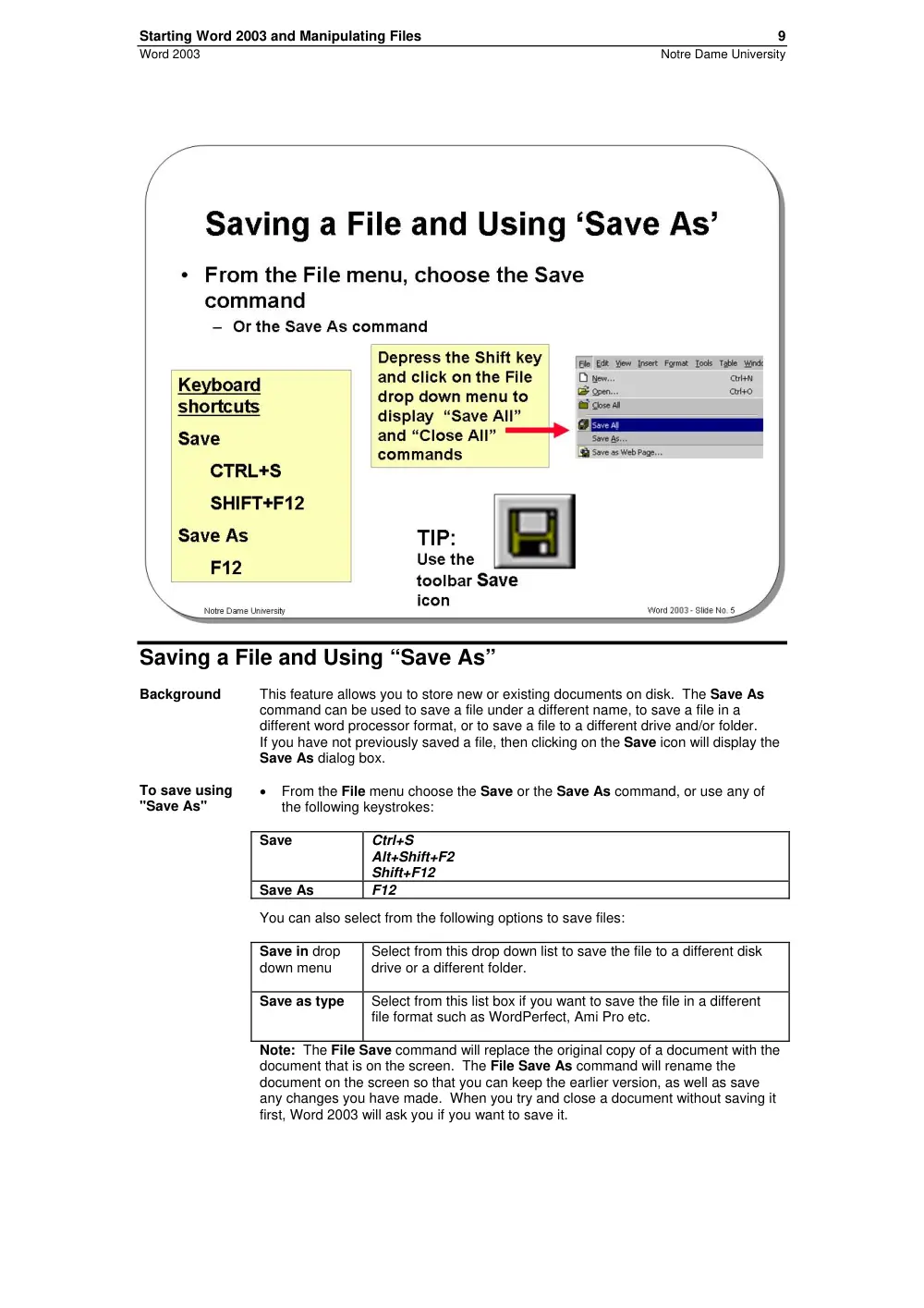
This feature allows you to store new or existing documents on disk. The Save As
command can be used to save a file under a different name, to save a file in a
different word processor format, or to save a file to a different drive and/or folder.
If you have not previously saved a file, then clicking on the Save icon will display the
Save As dialog box.
To save using
"Save As"
•
From the File menu choose the Save or the Save As command, or use any of
the following keystrokes:
Save
Ctrl+S
Alt+Shift+F2
Shift+F12
Save As
F12
You can also select from the following options to save files:
Save in drop
down menu
Select from this drop down list to save the file to a different disk
drive or a different folder.
Save as type
Select from this list box if you want to save the file in a different
file format such as WordPerfect, Ami Pro etc.
Note: The File Save command will replace the original copy of a document with the
document that is on the screen. The File Save As command will rename the
document on the screen so that you can keep the earlier version, as well as save
any changes you have made. When you try and close a document without saving it
first, Word 2003 will ask you if you want to save it.
Starting Word 2003 and Manipulating Files
10
Word 2003
Notre Dame University
To save a
document
using the Save
icon on the
Standard
toolbar
•
Click on the Save icon and from the dialog box displayed select the required
folder. Enter a file name and then click on the Save button.
•
After you have saved the file for the first time, clicking on the file icon will
automatically save your document with the filename you gave it. It does not give
you the option to rename.
Creating a new
folder in which
to save your
document
•
Click on the Create New Folder icon, displayed within the Save As dialog box.
•
This will display the New Folder dialog box. Enter the name of the new folder,
and then click on the OK button.
NOTE: The folder will be created under the current folder.
To display
hidden “Save
All” & "Close
All" commands
•
Depress the Shift key while clicking on the File drop down menu. This will
display the extra Save/Close All commands.
Starting Word 2003 and Manipulating Files
11
Word 2003
Notre Dame University
Closing a Word 2003 Document
To close a
document in
Word 2003
•
Select Close from the File drop down menu
OR press Ctrl+F4. The document will be closed and the screen will be cleared.
If you try to close a document without saving it, Word 2003 displays a dialog box
asking if you want to save any of the changes you made to the document
OR double-click on the Control menu box in the top, left-hand corner of any
window. This closes the active program or file. If an open file contains unsaved
changes, you will be prompted to save the file before closing
OR click on the Close icon displayed at the top-right of the document window.
Be sure to click on the document close icon, as opposed to the program Close
icon.
To display a
hidden “Close
All” command
•
Depress the Shift key while clicking on the File drop down menu. This will
display an extra Close All command.
To exit Word
2003 and
return to
Windows
•
Click on the Close icon displayed at the top right of the Word 2003 window,
OR press Alt+F4.
If you have not saved your work, a dialog box will be displayed which asks you if
you wish to save your changes. Make your choice from one of the following:
Yes
Saves the changes and exits the program.
No
Does not save the changes and exits the program.
Warning: Choosing No will lose any work which you have done since
you last saved the file.
Cancel
Cancels the command and stays in the Word 2003 program.
Starting Word 2003 and Manipulating Files
12
Word 2003
Notre Dame University
Review Questions – How Would You …
1.
Start Word 2003 using the Windows Start menu?
2.
Open Word 2003 and create a new Word document, via the Start button?
3.
Start Word and open an existing document, via the Start button?
4.
Open a file in Word 2003?
5.
Open a recently used file?
6.
Open more than one file at a time?
7.
Select a continuous block of files?
8.
Select files that are not in a continuous block?
9.
Move up one folder level?
10.
View files, without any additional details?
11.
Save a file?
12.
Create a new folder in which to save your document?
13.
Display a hidden “Save All” command?
14.
Close a Word 2003 Document?
15.
Display a hidden “Close All” command?
Starting to Use Word 2003
13
Word 2003
Notre Dame University
Starting to Use Word 2003
Learning Module Objectives
When you have completed this
learning module you will have
seen how to:
•
Use the Office Assistant
•
Display tips via the Office Assistant
•
Choose the Office Assistant that you want
•
Turn the Office Assistant off
•
Display the Office Assistant
•
Move through a Word document
•
Use the arrows key to move up or down
•
Use the PageUp or PageDown
•
Use the scroll bar
•
Drag the Scroll Bar “elevator”
•
Use Go To which allows you to jump to a particular page
number
•
Use the Word 2003 Menu Bar, Drop Down Menus and
Toolbars
•
Display additional toolbars
•
Manipulate floating toolbars in Word 2003
•
Use the Word 2003 Status Bar
•
Display the “Find and Replace” dialog box via the Status Bar
•
Enter text into a Word 2003 document
•
Insert text in a document
•
Overtype text in a document
•
Use “Click and Type”
•
Select a word
•
Select a line
•
Select a paragraph
•
Select all text
•
Delete a character, a word, a line (or lines), a sentence, a
paragraph, a block of text, all text
•
Display a document in different Word 2003 Views
•
Display a document as Full Screen View
•
Use Zoom
•
Use Undo and Repeat
•
Use Help
•
Display shortcut keys help
•
Use keyboard shortcuts
Starting to Use Word 2003
14
Word 2003
Notre Dame University
The Office Assistant
Today's Tip
By default Word 2003 will display a "tip of the day" each time you start Word. If you
take the time to read these as they are displayed, then you will soon find that you
are on the way to becoming a Word 2003 expert!
Example tip!
Starting to Use Word 2003
15
Word 2003
Notre Dame University
What is the
Microsoft
Office
Assistant?
By default this friendly little creature, will watch what you do and offer tips on how to
work more productively. You can ask it questions in plain English!
Occasionally the Office Assistant will display information on the screen. If you are
unsure about how to use this product you should always read the help offered. You
can choose to implement the tip, have it explained, or to ignore the tip.
Displaying the
Office
Assistant
•
The Office Assistant is displayed by default. If the assistant has been hidden
and you wish to reactivate it, click on the Help drop down menu and select the
Show the Office Assistant command
To hide the
Office
Assistant
•
Right click on the Office Assistant and from the menu displayed, click on the
Hide command.
Starting to Use Word 2003
16
Word 2003
Notre Dame University
The Word 2003 Screen
Background
Most Windows based programs have the same “look and feel”. If you transfer from
one manufacturers Windows based program to a program from a totally different
manufacturer then you have a fairly shallow learning curve.
The Microsoft Office programs have taken this a step further. If you examine the
items within the different programs Menu Bars you will find that they are almost
identical.
The way you drive any Windows based program is also becoming more standard.
For instance, in Windows you will normally have to select an item (by clicking on it
once), and then manipulate it by double-clicking, right clicking or “dragging and
dropping”. The concept of “drag and drop” is also being used increasingly to move
or copy items.
Word 2003 uses the right-hand mouse button primarily as a method of accessing
shortcut menus.
The Word 2003 program window, in common with most other Windows based
programs, contains a number of standard features including the Title Bar, Toolbar,
Scroll Bar, Drop Down menus etc.
What is a
floating
toolbar?
Normally the toolbars are attached to the top of the Word screen, but in some
instances they may "float". This means that they are displayed anywhere on the
screen, rather than at the top. To attach a floating toolbar, simply double click on
the title bar (normally the blue bar along the top) of the floating toolbar.
Starting to Use Word 2003
17
Word 2003
Notre Dame University
Moving Through a Word Document
Using the
arrows key to
move up or
down
Place the insertion point anywhere in your document. Use the arrow keys to move
left, right, up or down. If you move down to the bottom of the page (as displayed on
your screen) and keep pressing the down arrow the document will scroll downwards
(assuming that the document does in fact extend beyond what was previously
visible on the screen!). The same applies when moving up through the document.
Using PageUp
or PageDown
If you press the PageUp or PageDown keys you will move through your document
by approximately one screen per press.
Using the
scroll bar
If you click once on the down or up arrows at the top and bottom of the scroll bar
you will scroll through your document one line at a time.
Starting to Use Word 2003
18
Word 2003
Notre Dame University
Dragging the
Scroll Bar
“elevator”
•
Click on the “elevator” within the vertical scroll bar. As you drag it up and down,
you will see page numbers displayed. When you release the mouse button,
you will go to the page number indicated within the yellow colored pop-up.
To use Go To
which allows
you to jump to
a particular
page number
•
Double click on the status bar at the bottom of the Word screen.
OR press Ctrl+G.
•
Select the Go To tab.
•
In the Go to what section make sure that Page is selected.
•
In the Enter page number field enter the number of the page that you wish to
jump to, and then click on the Next button.
Starting to Use Word 2003
19
Word 2003
Notre Dame University
The Word 2003 Menu Bar and Drop Down Menus
Background
Most Windows programs, including Word 2003, have a menu bar displayed across
the top of the window. In the case of Word 2003 the menu bar items include File,
Edit, View, Insert, Format, Tools, Table, Window and Help. Clicking on any of
these menu bar items will cause Word 2003 to display a drop down menu, which in
turn contains further items that may be selected.
In some cases the items within a drop down menu may appear “grayed out”. This
means that the option is not currently available. For instance, in many cases you
must first select either text or a picture for an item within a drop down menu to be
available.
In some cases a drop down menu item will be displayed, followed by three full stops
(or periods). This means that, when you select the item, further “dialog boxes” will
be displayed from which you are invited to make further selections.
Note that the actual words displayed in a particular drop down menu may change
from one situation to another depending on what you are doing within Word 2003.
The menus are dynamic in the sense that what they display depends on what you
are doing.
To access the drop down menus using the keyboard, depress the Alt key and enter
the letter that is underlined within the drop down menu command, i.e. to display the
File drop down menu list, press Alt+F.
Starting to Use Word 2003
20
Word 2003
Notre Dame University
Word 2003 Toolbars
To display
additional
toolbars
Toolbars contain small pictures called tool
icons which, when clicked on, provide a
shortcut method of performing a Word 2003
action. For instance, clicking on the Spelling
tool icon will cause Word 2003 to spell check
your document. The long way to activate the
Word 2003 spell checker is to click on the
Tools drop down menu, and then to select
the Spelling command from the drop down
list displayed.
Word 2003 has a number of distinct toolbars,
but often only the Standard and Formatting
toolbars are displayed. You can customize
Word 2003 so that other toolbars are
displayed by default.
•
From the View drop down menu, click on
the Toolbars command which will display
the Toolbars sub-menu.
•
Click on the required toolbar.
To display
additional
toolbars, by
right clicking
•
Right click on any toolbar to display a list of other toolbars that may be
displayed.
Starting to Use Word 2003
21
Word 2003
Notre Dame University
Floating Toolbars in Word 2003
Background
The toolbars are not fixed to a certain part of the Word 2003 window - they can
float. This means that the toolbars can be moved around on your screen (by
dragging and dropping them).
To turn a fixed
toolbar into a
floating toolbar
•
Move the mouse pointer to an empty part of the particular toolbar you wish to
detach that is not occupied by an icon tool or drop down list.
•
Double-click with the mouse button.
To move a
floating toolbar
•
Move to the Title Bar of the floating toolbar (normally displayed in blue).
•
Depress the mouse button and keep it depressed.
•
Move the mouse pointer on the screen.
•
Release the mouse button, when the toolbar is in the desired screen location.
To re-attach a
floating toolbar
•
Move the mouse pointer to the Title Bar of the particular floating toolbar you
wish to re-attach and double-click with the mouse button.
Starting to Use Word 2003
22
Word 2003
Notre Dame University
The Word 2003 Status Bar
Background
The Status Bar is located along the bottom of the Word 2003 window. It is used by
Word 2003 to convey information to you. For instance, it will tell you what page of a
document you are working on. It will also display more subtle information such as
whether you are in “insertion” or “overtyping” mode.
To display the
“Find and
Replace”
dialog box via
the Status Bar
•
Double click on the left part of the Status Bar to display the Find and Replace
dialog box.
This can be used to Find items, Replace items and also to Go To a specified
item within a Word document. This facility will be covered in detail in a
separate learning module.
Starting to Use Word 2003
23
Word 2003
Notre Dame University
Entering Text into a Word 2003 Document
Background
Word 2003 normally functions in Insert mode that means that text is added to a
document without overwriting anything else. Alternatively, Word 2003 can function
in Overtype mode that will overwrite existing text with any new text that you type in.
The status bar at the bottom of the Word 2003 window indicates that you are in
Overtype mode by highlighting the OVR indicator.
To insert text
in a document
In Insert mode, text is inserted into the document at the insertion point. This is the
default mode. Text that already exists is moved forward to make way for the new
text.
•
Position the insertion point where you want to insert the new text.
•
When you begin typing, the existing text will move to the right and wrap to the
next line.
To overtype
text in a
document
In Overtype mode, text overwrites the existing text.
•
Position the insertion point where you want to type the new text.
•
Press the Insert key to switch to overtype mode. The OVR indicator on the
status bar will be highlighted.
•
When you begin typing, the existing text will be replaced with your new text.
Starting to Use Word 2003
24
Word 2003
Notre Dame University
Click and Type
Background
Click and type is a new feature of Word 2003. It enables your to double click on any
blank area of your document and immediately begin to enter text at that location.
To use “Click
and Type”
•
Ensure that you are in Page Layout view by clicking on the View drop down
menu and selecting the Page Layout command.
•
Double click on any empty area of the page. Word will move the insertion point
to that location.
•
Type your text.
Enabling /
Disabling
“Click and
Type”
•
Click on the Tools drop down menu and select the Options command. The
Options dialog box will be displayed.
•
Select the Edit tab to display the Edit folder.
•
Check or un-check the Enable click and type check box.
•
Click on the OK button to close the Options dialog box.
Starting to Use Word 2003
25
Word 2003
Notre Dame University
Word 2003 Selection Techniques
To select a
word
•
Double click on the word.
To select a line
•
Move the mouse pointer to the left of the line you wish to select, until the mouse
pointer changes from an I bar to an arrow pointing upwards and to the right.
You are now in the “Selection Bar”, a hidden screen element.
•
Click once with the mouse button.
To select a
paragraph
•
Move the mouse pointer to the left of the paragraph you wish to select, until the
mouse pointer changes from an I bar to an arrow pointing upwards and to the
right. You are now in the “Selection Bar”, a hidden screen element.
•
Click twice with the mouse button.
To select all
text
•
Move the mouse pointer to the “Selection Bar”.
•
Either click three times with the mouse button.
OR press Ctrl+A
OR select the Select All command, located under the Edit drop down menu.
Sometimes you
do not need to
select first!
Normally when using a Windows based product such as Word 2003 the golden rule
is select first then manipulate. However because Word 2003 recognizes the
concepts of what a word is and what a paragraph is, in some cases you will not
have to select first. Thus if you wish to apply font (i.e. word) formatting, such as
making a word bold, then you only have to click anywhere within the word and then
apply the font formatting, such as clicking on the Bold icon to make the word bold.
In the same way if you wish to apply paragraph formatting to a whole paragraph,
you need only click anywhere within the paragraph to apply the formatting. For
example to indent an entire paragraph, click within it and then click on the Increase
Indent icon located on the Formatting Toolbar.
Starting to Use Word 2003
26
Word 2003
Notre Dame University
Deleting Text
To delete a
character
•
Place the insertion point to the left of the character to be deleted and press
Delete
OR place the insertion point to the right of the character to be deleted and press
Backspace.
To delete a
word
•
Double-click on the word to be deleted and press the Delete key
OR place the insertion point to the right of the word to be deleted and press
Ctrl+Backspace.
To delete a line
or lines
•
Place the mouse pointer in the left-hand margin, next to the first line of text or
first blank line to be deleted. The mouse pointer changes to an arrow pointing
up and to the right.
•
Click on the left-hand mouse button to select the line of text or the blank line you
wish to delete,
OR drag the mouse pointer down the left-hand margin to select the lines you
want to delete.
•
Press the Delete key.
Starting to Use Word 2003
27
Word 2003
Notre Dame University
To delete a
sentence
•
Depress the Ctrl key.
•
Place the mouse pointer anywhere on the sentence to be deleted.
•
Select the sentence by clicking the left-hand mouse button.
•
Press the Delete key.
To delete a
paragraph
•
Place the mouse pointer in the left-hand margin, next to the first paragraph to be
deleted.
•
To select the paragraph, double-click on the left-hand mouse button.
•
Press the Delete key.
To delete a
block of text
•
Select the block of text you wish to delete by dragging the mouse pointer over
the text with the left button depressed. Once the text is selected press the
Delete key.
To delete an
entire
document
•
Place the mouse pointer in the left-hand margin.
•
Depress the Ctrl key.
•
To select the entire document, click the left-hand mouse button.
•
Press the Delete key.
Starting to Use Word 2003
28
Word 2003
Notre Dame University
Different Word 2003 Views
Background
This feature allows you to select different views of your document such as Normal,
Outline, or Print Layout view. Print Layout view gives a better approximation
between what you see on the screen and what you will see when you print.
Normal View is often quicker to use as less memory is used, but often when using
complicated formatting does not give a true indication of how the document will
print.
To view a
document
•
Select the View menu, and choose one of the following:
Normal
Allows you to type, edit and format documents, but does not
display additional information such as headers and footers.
Web Layout
Displays the document as it would appear if published on the
Web.
Print Layout
Allows you to display multiple columns, footnotes, and headers
and footers in the document. You can also view graphics in this
format.
Outline
Allows you to view and edit the documents structure.
Full Screen
Allows you to type, edit and format a document.
Zoom
Allows you to enlarge or reduce the view of a page on-screen.
Starting to Use Word 2003
29
Word 2003
Notre Dame University
Full Screen View
Background
Full Screen view removes the tool bars and menus from the screen and displays the
document over the entire computer screen. You can bring the toolbars and menus
back onto the screen and edit the document as usual.
To turn on Full
Screen View
•
From the View menu, choose Full Screen. The document is displayed over the
entire screen, with no Word 2003 elements visible.
•
Click on the Close Full Screen box to return to the Word 2003 screen display,
or press ESC.
To edit in Full
Screen View
•
Pull down the hidden menus by moving the mouse pointer to the top of the
screen or by using the Alt key and the appropriate keystroke. The toolbars can
be selected as before by going to the View menu and selecting Toolbars.
Proceed to edit the document as normal.
Starting to Use Word 2003
30
Word 2003
Notre Dame University
Zoom
Background
This feature allows you to enlarge or reduce the view of a page on the screen. You
can show the whole page, or just a section of it.
To zoom a
document
using the drop
down menus
•
From the View menu, choose the Zoom command.
Zoom to
Allows you to reduce or enlarge the page by 100% (the default),
200%, 75%, Page Width or you can view more than one page at a
time on the screen.
•
Press Enter or choose OK.
To zoom a
document
using the
Zoom Control
icon
•
Use the Zoom Control button on the Standard
toolbar to quickly zoom to certain settings.
NOTE: You can enter any value you like, you do not
have to accept the values offered to you.
Starting to Use Word 2003
31
Word 2003
Notre Dame University
Undo and Repeat
To use Undo
to reverse
your last
actions
•
From the Edit menu choose the Undo command
OR press Ctrl+Z
OR click on the Undo button on the Standard toolbar.
•
Repeat as required to perform multiple undo actions.
To repeat a
command,
action, or
typing
•
From the Edit menu, select Repeat
OR press F4
OR click on the Redo button on the Standard toolbar.
To undo or
repeat a
specific
number of
commands,
actions, or
typing
changes
•
Move the mouse pointer over a downward facing arrowhead to the right of the
Undo or Redo buttons on the Standard toolbar and click the left mouse button.
•
Pull the mouse pointer down the list until the number of items required are
selected and click the left mouse button again or press Enter.
•
If you decide that you do not want to undo or repeat anything but the list has
already been selected press Esc to get out of it. You can also get out of the list
by moving the mouse pointer onto your document and clicking the left mouse
button.
Starting to Use Word 2003
32
Word 2003
Notre Dame University
Help
Background
The Help feature allows you to learn to use the basic and advanced features of Word
2003, as well as the Word 2003 equivalents of WordPerfect commands. You can get on-
line, context-sensitive help for any Word 2003 function at any time while working on a
document.
To use Help
The Help menu is divided into sections: Microsoft Word Help, Show the Office
Assistant, What’s This?, Office on the Web, WordPerfect Help and About Microsoft
Word.
To display
shortcut keys
help
•
Normally when you place