
CSI 446 Useful File, Fall 2012
American University of Science and Technology · Advanced Networking · 292 pages · Mr. Joseph Khoury

Showing the first 10 of 292 pages. Download the PDF to see all of it.
More CSI 446 files
Show the text of this file
This document is exclusive property of Cisco Systems, Inc. Permission is granted to
print and copy this document for non-commercial distribution and exclusive use by
instructors in the CCNA Discovery Introducing Routing and Switching in the
Enterprise course as part of an official Cisco Networking Academy.
CCNA Discovery
CCNA Discovery Server Live CD v2.0
Installation Instructions
Overview
The Discovery Server Live CD provides all of the network services necessary to support the CCNA Discovery
curriculum and hands-on labs. The Live CD is built using the ADIOS development platform and is based on
Fedora Core 6. It requires no installation and will run on minimal hardware. The Live CD runs adequately on a PII
machine with 256 MB of RAM, an Ethernet interface card, and a CDROM drive. Because the entire server runs
from RAM, there is no need for the machine to have a hard disk drive or operating system. The Discovery Server
Live CD will run on less powerful hardware but will run noticeably slower. More powerful hardware provides better
performance. Increasing the amount of RAM has the most impact on speed and performance.
NOTE: Although the Discovery Server Live CD will run on a broad range of computers, it will not run on every
system. The machine used to run the Discovery Server Live CD must be able to support Fedora Core 6. The
current version of the Live CD is known to have problems with USB keyboards and certain BIOSs and chipsets. If
the server fails to run on your hardware, try a different machine. The Discovery Server Live CD runs with fewer
problems on older hardware.
The CD is built entirely from open source solutions and can be freely duplicated and distributed. The CD must be
distributed in its entirety; no copyright notices should be removed or altered.
The server is designed to provide preconfigured services such as DHCP, DNS, FTP, TFTP, HTTP, SSH, Telnet,
SMTP, POP3, IMAP, and streaming video. Many other services and tools are available on the CD to allow the
creation of more challenging lab exercises. The following applications are among the more useful:
•
WireShark, a packet sniffer
•
nmap, a port scanner
•
Diag, a network diagramming tool
•
Complete office suite, including word processing, presentation, and spreadsheet applications
Starting the Server
Obtain a Discovery Server Live CD from your instructor and use it to boot the computer that will be used for the
Discovery Server.
NOTE: You may first have to modify the boot order in your computer BIOS setup program. The CD/DVD drive
must be listed before the system hard disk drive. Some systems have a designated key that you can press to
display a menu of boot choices during the boot process; other systems require the change to be made in the
BIOS. Often a message appears on the bottom of the screen during boot that lists which key should be pressed to
enter the BIOS setup or to boot from the CD. If no message is displayed, consult your system documentation for
details.
All contents are Copyright © 1992–2007 Cisco Systems, Inc. All rights reserved. This document is Cisco Public Information.
Page 1 of 8
1. Before starting the server, be sure to connect the computer NIC to a switch or router port using an
appropriate cable.
2. To start the Discovery Server Live CD, insert the CD into the CDROM drive and reboot the machine.
3. During startup, you will be presented with a list of boot options. At the first options menu, select ’a’. All
other options are provided in the event that ’a‘ does not run properly on your machine. During the booting
process you may notice that the eth0 address and the DHCP daemon (dhcpd) fail. This is normal on
some machines and these functions will be started manually. Allow the server to boot fully into the KDE
graphical environment.
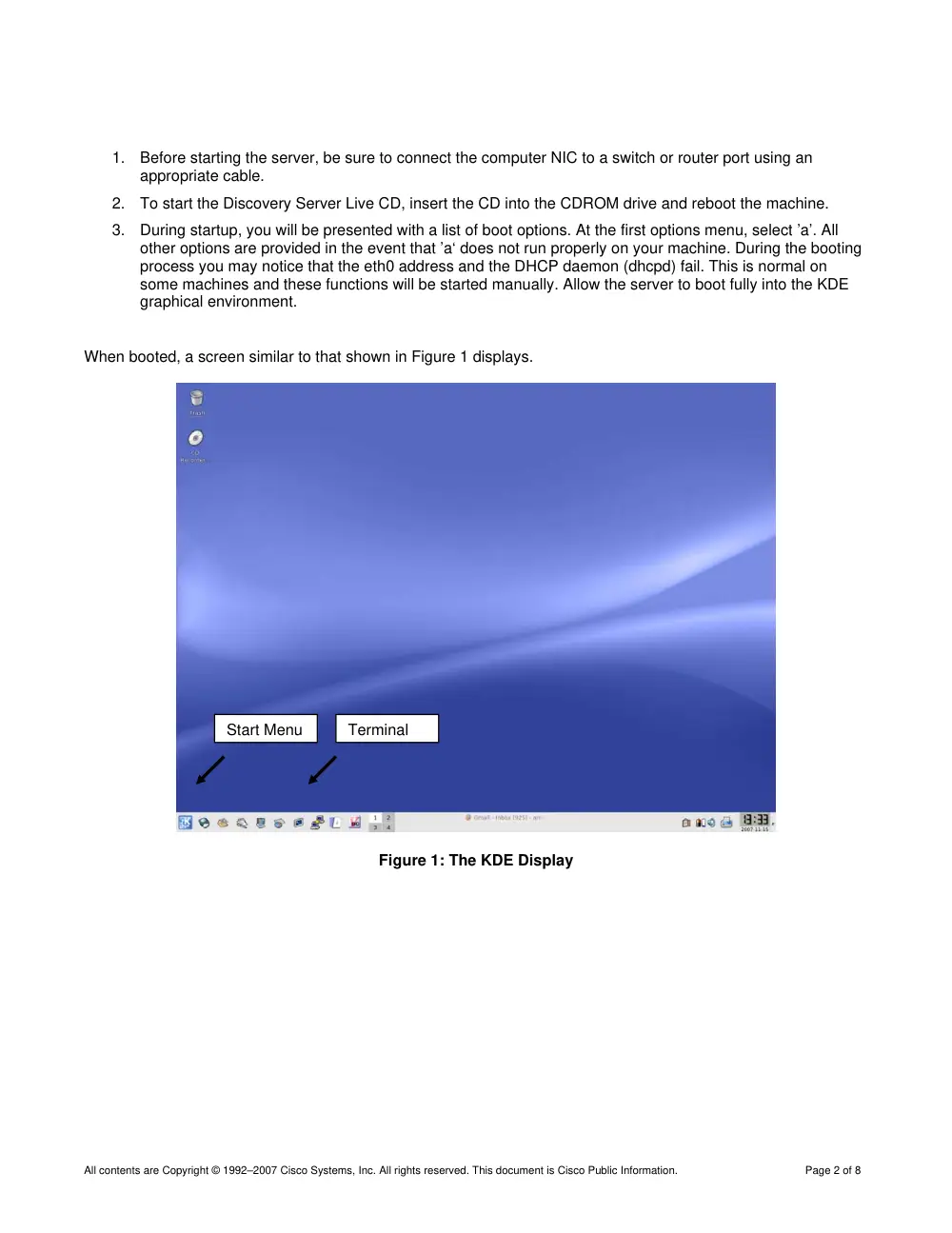
When booted, a screen similar to that shown in Figure 1 displays.
Start Menu
Terminal
Figure 1: The KDE Display
All contents are Copyright © 1992–2007 Cisco Systems, Inc. All rights reserved. This document is Cisco Public Information.
Page 2 of 8
Quick Info
Root Password:
discoverit
User Accounts:
20 ordinary user accounts set up as userX with a password of cheetahX where X is any
number between 1 and 20 inclusive
Server Name:
server.discovery.ccna
IP Address:
172.17.1.1
Subnet Mask:
255.255.0.0
Default Gateway:
172.17.0.1
DHCP
Pool Address Range:
172.17.1.50 to 172.17.1.254
Lease:
4 hours
Default Gateway:
172.17.1.1
Domain Name:
discovery.ccna
DNS
Resolves names for the discovery.ccna domain
server.discovery.ccna
resolves to 172.17.1.1
server-1.discovery.ccna
resolves to 172.17.1.1 (for the troubleshooting labs in CCNA Discovery 1)
server-2.discovery.ccna
resolves to 172.17.1.2 (for the troubleshooting labs in CCNA Discovery 1)
Configuring the Server
The following instructions address the most common setup processes and issues:
NOTE: On some hardware, eth0 may be the wireless NIC. In that case, these instructions will apply to eth1,
which should be the first Ethernet card in the system. You may also notice eth0 and eth0.bak on some hardware.
This is normal and will not interfere with the setup.
After the server has started, it may be necessary to manually configure the IP address information, start the
DHCP daemon (dhcpd), and restart the DNS (named). To determine if these steps are necessary, use the
following procedure to check the IP address assigned to the computer’s NIC:
1. Choose Terminal to open a terminal window.
2. Enter su - and click Enter (note that the ‘-‘ is very important).
3. When prompted, enter the root password discoverit.
4. When the terminal window is open, enter the ifconfig command to see information about the interfaces
found in the machine.
If the IP address information is not correct, complete Steps A and B below.
All contents are Copyright © 1992–2007 Cisco Systems, Inc. All rights reserved. This document is Cisco Public Information.
Page 3 of 8
A. Setting the Network Address
1. From the K start button in the lower left corner of the screen, click Administration and then click
Network.
2. When prompted, enter the root password discoverit and click OK. The Network Configuration window,
similar to that shown in Figure 2, should open. The interfaces displayed will depend on the computer
system.
Figure 2: The Network Configuration Window
3. On the Network Configuration window, click the Devices tab.
All contents are Copyright © 1992–2007 Cisco Systems, Inc. All rights reserved. This document is Cisco Public Information.
Page 4 of 8
4. Select eth0 or the interface that corresponds to your first Ethernet card and then click Edit. This should
display the Ethernet Device configuration pane shown in Figure 3.
Figure 3: The Ethernet Device Configuration Pane
5. To set the IP addressing information, click the Statically set IP addresses radio button and enter the
following information:
Address: 172.17.1.1
Subnet mask: 255.255.0.0
Default gateway address: 172.17.0.1
6. Click OK.
7. Return to the Network Configuration window and click the DNS tab.
8. Enter the following information, as shown in Figure 4:
Set hostname: server.discovery.ccna
Set Primary DNS: 127.0.0.1
All contents are Copyright © 1992–2007 Cisco Systems, Inc. All rights reserved. This document is Cisco Public Information.
Page 5 of 8
Figure 4: Discovery Server DNS Configuration
9. Next, click the Devices tab.
10. Choose eth0.
11. Click Activate.
12. Answer Yes / OK to any questions.
13. Close the Network Configuration window. When prompted, click Yes to save changes.
B. Starting DNS and DHCP
The DNS service must be restarted to reflect the new IP address on the Ethernet interface. In addition, because
the Ethernet interface failed to initialize during startup, the DHCP service must also be manually started.
1. Click Terminal to open a terminal window.
2. Enter su - and click Enter (note that the ‘-‘ is very important).
3. When prompted, enter the root password discoverit.
4. Enter service named restart and press Enter.
5. Enter dhcpd and press Enter.
You should now have a fully operational server. It may take a few minutes for DNS to become fully operational.
All contents are Copyright © 1992–2007 Cisco Systems, Inc. All rights reserved. This document is Cisco Public Information.
Page 6 of 8
Streaming Video Server
Some of the labs in CCNA Discovery 4 require that a video stream be established. This service is off by default
and must be turned on.
To stream a video, use the following procedure from the server console:
1. Choose Terminal to open a terminal window.
2. Enter su - and click Enter (note that the ‘-‘ is very important).
3. When prompted, enter the root password discoverit.
After you are logged in as root and have a terminal session open, complete the following steps:
1. Enter cd / to go to the root directory.
2. Enter cd /usr/StreamingServer to go to the directory with the streaming server files.
3. Enter DarwinStreamingServer to start the server.
4. Enter perl streamingadminserver.pl to start the administration server.
When the administration server is running, all further configuration is accomplished using a web browser.
1. Use a web browser to bring up the configuration server by connecting to the server on port 1220
(http://172.17.1.1:1220). All usernames and passwords are stream.
2. Delete any old playlists that may be present.
3. Create a new playlist by dragging the movie file to the right box. Select Sequential Looped for the play
mode, name the stream, and click the Save Changes button at the bottom of the screen.
4. Click the button next to the stream name to start the streaming video.
5. To connect to the stream, use the Quicktime Player (free download from Apple Inc. at www.apple.com).
6. Launch Quicktime Player.
7. Under File, click Open URL.
8. Enter the URL rtsp://<server ip>/stream; for example, rtsp://172.17.1.1/MWO.sdp, assuming that the
server has the default IP address of 172.17.1.1 and the stream was named MWO.sdp for "Mind Wide
Open."
NOTE: The Discovery Server Live CD is provided without warranty of any kind. It is intended to be used only to
support the CCNA Discovery labs. For information on the Cisco Networking Academy Program, visit
http://cisco.netacad.net.
All contents are Copyright © 1992–2007 Cisco Systems, Inc. All rights reserved. This document is Cisco Public Information.
Page 7 of 8
Quick Start Instructions
1. Obtain a Discovery Server Live CD from your instructor.
2. In the BIOS of the computer to be used as a server, change the boot order to boot from the CD-ROM first.
3. Connect the NIC of the computer being used for the Discovery Server to a switch or router per the lab
setup using an appropriate cable.
4. Disable all extra network cards in the machine.
5. Insert the CD and restart the computer to boot to the CD.
6. At the first options menu, select ’a’.
7. If the second menu displays, select ‘1’. NOTE: This menu will not be seen on all machines.
8. Follow the instructions above to set IP address, streaming, etc.
Common Issues and Answers
Problem:
Machine boots to the first menu and then freezes.
Solution:
This occurs on many machines that use a USB keyboard. Discovery Server does not currently
support USB keyboards. If the machine is capable of using a PS/2 style keyboard, replace the
USB keyboard with one using a PS/2 interface and restart the server. If the machine is not
capable of accepting a PS/2 style keyboard, try a different machine.
Problem:
Machine boots to a command prompt and not to the graphical screen.
Solution:
On some machines, the graphical interface is started but hidden from view. If presented with a
login prompt, switch to the graphical interface by pressing Alt-F7.
Problem:
Multiple network cards are visible in setup.
Solution:
The Discovery Server is currently designed to use only a single NIC. If multiple NICs are enabled
in the machine, these will be detected and shown as eth0, eth1, eth2, etc. On some machines an
eth0.bak interface also appears. The first network card is eth0, and this is the one that should
normally be terminated and configured.
Problem:
Eth0 interface is not working but eth1 is present.
Solution:
This occurs on many laptop computers that have an internal wireless NIC. The wireless NIC
appears as eth0 and the standard Ethernet NIC is eth1. In this case, configure eth1 with the
appropriate IP address.
Problem:
Machine will not work with Discovery Server.
Solution:
The Discovery Server does not work on all machines. If it does not work on your machine, try
another computer. If another computer is not available, run the server in a virtual environment
using software such as Microsoft Virtual PC, VMWare, or Innotek VirtualBox software.
All contents are Copyright © 1992–2007 Cisco Systems, Inc. All rights reserved. This document is Cisco Public Information.
Page 8 of 8
CCNA Discovery
Introducing Routing and Switching in the Enterprise
Lab 1.2.2 Capturing and Analyzing Network Traffic
Host Name
IP Address
Fa0/0
Subnet
Mask
IP Address
S0/0/0
Subnet
Mask
Default
Gateway
RouterA
172.17.0.1
255.255.0.0
192.168.1.1 (DCE)
255.255.255.0
N/A
RouterB
192.168.3.1 255.255.255.0
192.168.1.2
255.255.255.0
N/A
Server
172.17.1.1
255.255.0.0
172.17.0.1
Switch
Host
192.168.3.2
255.255.255.0
192.168.3.1
Objectives
•
Use Wireshark to capture protocol data packets as they cross the networks.
•
Use Wireshark to analyze protocol data packets from the captured results.
All contents are Copyright © 1992–2007 Cisco Systems, Inc. All rights reserved. This document is Cisco Public Information.
Page 1 of 17
CCNA Discovery
Introducing Routing and Switching in the Enterprise
Background / Preparation
This lab focuses on the basic configuration of the Cisco 1841 or comparable routers using Cisco IOS
commands. The information in this lab applies to other routers; however, command syntax may vary. The
Cisco Catalyst 2960 switch comes preconfigured and only needs to be assigned basic security information
before being connected to a network.
The following resources are required:
•
Cisco 2960 switch or other comparable switch
•
Two Cisco 1841 or comparable routers with minimum one serial and one fast Ethernet interface
•
Two Windows-based PCs, one with a terminal emulation program. Use one PC as the host, and use
the other as the server.
•
RJ-45-to-DB-9 connector console cable to configure the routers
•
Two straight-through Ethernet cables
•
One crossover Ethernet cable
•
Access to the PC command prompt
•
Access to PC network TCP/IP configuration
NOTE: Make sure that all routers and the switch have been erased and have no startup configurations. If you
need instructions, refer to the end of this lab. Instructions are provided for both the switch and router.
Step 1: Connect the routers and configure
a. Connect the two routers with a serial cable. RouterA will provide the clocking signal between the two
routers. Use S0/0/0 on both routers to connect them.
b. Use RIP as the protocol when configuring both routers. Advertise the appropriate networks on each
router.
c. Connect the Fa0/0 on RouterA with a crossover cable to the server running the Discovery Server Live
CD.
d. RouterB will use a straight-through cable from its Fa0/0 to connect to the switch through the Fa0/1.
Configure the routers as shown in the topology diagram above.
Step 2: Connect the host to the switch and configure
Step 3: Verify connectivity using ping
a. To verify that the network is set up successfully, ping from the host to the server.
b. If the ping is not successful, verify the connections and configurations again. Check to ensure that all
cables are correct and that connections are seated. Check the host, server, and router configurations.
c. Was the ping successful? __________________________________________________
Step 4: Launch Wireshark
NOTE: Wireshark may be downloaded from the Internet at www.wireshark.org and installed on
each local host. If this is not possible, Wireshark may be run from the Discovery Live CD.
Check with your instructor to determine which procedure to follow.
a. If running Wireshark from the local host, double-click on the icon to begin the application and proceed
to step d. If running Wireshark from the Discovery server, proceed to step b.
b. From the K Start menu on the server desktop, choose Internet> Wireshark Network Analyzer.
All contents are Copyright © 1992–2007 Cisco Systems, Inc. All rights reserved. This document is Cisco Public Information.
Page 2 of 17
CCNA Discovery
Introducing Routing and Switching in the Enterprise
c. Launch Wireshark if it is not already open. If prompted for a password, enter discoverit.
d. To start data capture, go to the Capture menu click Options. The Options dialog provides a range of
settings and filters that determine how much data traffic is captured.
e. Ensure that Wireshark is set to monitor the correct interface. From the Interface drop-down list,
select the network adapter in use. For most computers, this will be the connected Ethernet Adapter.
All contents are Copyright © 1992–2007 Cisco Systems, Inc. All rights reserved. This document is Cisco Public Information.
Page 3 of 17
CCNA Discovery
Introducing Routing and Switching in the Enterprise
f.
Next, other options can be set. The two options highlighted below are worth examination: Capture
packets in promiscuous mode and Enable transport name resolution.
•
Setting Wireshark to capture packets in promiscuous mode
•
Setting Wireshark for network name resolution
•
Clicking the Start button starts the data capture process. A message box displays the progress of this
process.
•
Create some traffic to be captured. Issue a ping and tracert from the host and watch for routing
updates.
All contents are Copyright © 1992–2007 Cisco Systems, Inc. All rights reserved. This document is Cisco Public Information.
Page 4 of 17
CCNA Discovery
Introducing Routing and Switching in the Enterprise
All contents are Copyright © 1992–2007 Cisco Systems, Inc. All rights reserved. This document is Cisco Public Information.
Page 5 of 17
CCNA Discovery
Introducing Routing and Switching in the Enterprise
•
Clicking the Stop button terminates the capture process. The main screen is displayed.
Packet List Pane
Packet Details Pane
Packets Bytes Pane
•
The PDU (or Packet) List pane at the top of the diagram displays a summary of each packet
captured. By clicking on packets in this pane, you control what is displayed in the other two panes.
•
The PDU (or Packet) Details pane in the middle of the diagram displays the packet selected in the
Packet List Pane in more detail.
•
The PDU (or Packet) Bytes pane at the bottom of the diagram displays the actual data (in
hexadecimal form representing the actual binary) from the packet selected in the Packet List pane,
and highlights the field selected in the Packet Details pane.
Packet List Pane
Each line in the Packet List pane corresponds to one PDU or packet of the captured data. If you select a
line in this pane, additional details are displayed in the Packet Details and Packet Bytes panes. The
example above shows the PDUs captured when the ping utility was used and http://www.Wireshark.org
was accessed. Packet number 1 is selected in this pane.
Packet Details Pane
The Packet Details pane shows the current packet (selected in the Packet List pane) in a more detailed
form. This pane shows the protocols and protocol fields of the selected packet. The protocols and fields of
the packet are displayed using a tree, which can be expanded and collapsed.
All contents are Copyright © 1992–2007 Cisco Systems, Inc. All rights reserved. This document is Cisco Public Information.
Page 6 of 17
CCNA Discovery
Introducing Routing and Switching in the Enterprise
Packet Bytes Pane
The Packet Bytes pane shows the data of the current packet (selected in the Packet List pane) in what is
known as "hexdump" style. In this lab, this pane will not be examined in detail. However, when a more in-
depth analysis is required, this displayed information is useful for examining the binary values and content
of PDUs.
The information captured for the data PDUs can be saved in a file. This file can then be opened in
Wireshark for future analysis without the need to recapture the same data traffic again. The information
displayed when a capture file is opened is the same as the original capture.
When closing a data capture screen or exiting Wireshark, you are prompted to save the captured PDUs.
Step 5: Ping PDU Capture
a. Launch Wireshark.
b. Set the Capture Options as described in Step 4 and start the capture process.
c. From the command line of the host, ping the IP address of the server on the other end of the lab
topology. In this case, ping the Discovery Server Live CD using the command ping 172.17.1.1.
d. After receiving the successful replies to the ping in the command-line window, stop the packet
capture.
Step 6: Examine the Packet List pane
a. The Packet List pane on Wireshark should now look similar to this:
b. Look at the packets listed; we are interested in the packets numbered 3 through 10.
c. Locate the equivalent packets on the packet list on your computer. The numbers may be different.
d. From the Wireshark Packet List, answer the following questions:
1) What protocol is used by ping? ___________________________________
2) What is the full protocol name? ___________________________________
3) What are the names of the two ping messages? ___________________________________ and
4) Are the listed source and destination IP addresses what you expected? _____________
5) Why?
All contents are Copyright © 1992–2007 Cisco Systems, Inc. All rights reserved. This document is Cisco Public Information.
Page 7 of 17
CCNA Discovery
Introducing Routing and Switching in the Enterprise
Step 7: Examine the Packet Details pane
a. Select (highlight) the first echo request packet on the list with the mouse. The Packet Detail pane will
now display something similar to this:
b. Click each of the four + to expand the information. The packet Detail Pane will now be similar to:
c. Spend some time scrolling through this information. At this stage of the course, you may not fully
understand the information displayed. Make a note of the information you do recognize.
All contents are Copyright © 1992–2007 Cisco Systems, Inc. All rights reserved. This document is Cisco Public Information.
Page 8 of 17
CCNA Discovery
Introducing Routing and Switching in the Enterprise
d. Locate the two different types of Source and Destination.
e. Select a line in the Packets Detail pane (middle pane). Notice that all or part of the information in the
Packet Bytes pane also becomes highlighted.
f.
Go to the File menu and click Close.
g. Click Continue without Saving when this message box appears.
All contents are Copyright © 1992–2007 Cisco Systems, Inc. All rights reserved. This document is Cisco Public Information.
Page 9 of 17
CCNA Discovery
Introducing Routing and Switching in the Enterprise
Step 8: Perform an FTP PDU Capture
a. Assuming that Wireshark is still running from the previous steps, start packet capture by clicking the
Start option on the Wireshark Capture menu.
b. At the command line on your host, enter ftp 172.17.1.1. When the connection is established, enter
anonymous as the user.
c. When successfully logged in, enter get /pub/Discovery_1/document_1 and press the Enter key.
Note that there is a space after get. This command will start downloading the file from the ftp server.
The output will look similar to:
C:\> ftp 172.17.1.1
Connected to 172.17.1.1
220 Welcome to The CCNA-Discovery FTP service.
ftp> get /pub/Discovery_1/document_1
200 PORT command successful. Consider using PASV.
150 Opening BINARY mode data connection for pub/Discovery_1/document_1
<73 bytes>.
226 File send OK.
ftp: 73 bytes received in 0.03Seconds 2.35Kbytes/sec.
d. When the file download is complete, enter quit.
ftp> quit
221 Goodbye.
C:\>
e. Stop the PDU capture in Wireshark.
Step9: Examine the Packet List pane
a. Increase the size of the Wireshark Packet List pane and scroll through the PDUs listed.
b. Locate and note those PDUs associated with the file download. These will be the PDUs from the
Layer 4 protocol TCP and the Layer 7 protocol FTP.
c. Identify the three groups of PDUs associated with the file transfer. The first group is associated with
the connection phase and logging into the server. List examples of messages exchanged in this
phase.
d. Locate and list examples of messages exchanged in the second phase that is the actual download
request and the data transfer.
e. The third group of PDUs relate to logging out and breaking the connection. List examples of
messages exchanged during this process.
f.
Locate recurring TCP exchanges throughout the FTP process. What feature of TCP does this
indicate?
Step 10: Examine Packet Details and Packet Byte panes
a. Select (highlight) a packet on the list associated with the first phase of the FTP process. View the
packet details in the Packet Details pane.
b. What are the protocols encapsulated in the frame?
c. Highlight the packets containing the username and password. Examine the highlighted portion in the
Packet Byte pane. What does this say about the security of this FTP login process?
All contents are Copyright © 1992–2007 Cisco Systems, Inc. All rights reserved. This document is Cisco Public Information.
Page 10 of 17
CCNA Discovery
Introducing Routing and Switching in the Enterprise
NOTE: SDM Enabled Routers – If the startup-config file is erased on an SDM enabled router, SDM will no
longer come up by default when the router is restarted. It will be necessary to build a basic router
configuration using IOS commands. Contact your instructor if necessary.
Connect the Host to attach to Fast Ethernet switch port Fa0/2. Configure the host as shown in the
topology diagram above.
If this feature is not checked, only PDUs destined for this computer will be captured.
If this feature is checked, all PDUs destined for this computer and all those detected by the
computer NIC on the same network segment (i.e., those that "pass by" the NIC but are not
destined for the computer) are captured.
NOTE: As you use different intermediary devices (hubs, switches, routers) to connect end
devices on a network, you will experience different Wireshark results.
This option allows you to control whether or not Wireshark translates network addresses found in
PDUs into names. Although this is a useful feature, the name resolution process may add extra
PDUs to your captured data, perhaps distorting the analysis.
There are also a number of other capture filtering and process settings available on this screen.
As data PDUs are captured, the types and number are indicated in the message box. The examples
show the capture of a ping process and then accessing a web page.
This main display window of Wireshark has three panes.
Clicking Continue without Saving closes the file or exits Wireshark without saving the displayed
captured data.
__________________________________________
_________________________________________________________________________
As you can see, the details for each section and protocol can be expanded further.
Why are there two types?
____________________________________________________________________________
What protocols are in the Ethernet frame?
____________________________________________________________________________
For example, if the second line (+ Ethernet II) is highlighted in the Details pane, the Bytes pane now
highlights the corresponding values.
This example shows the particular binary values that represent that information in the PDU. At this
point in the course, it is not necessary to understand this information in detail.
_______________________________________________________________________________
_______________________________________________________________________________
_______________________________________________________________________________
_______________________________________________________________________________
_______________________________________________________________________________
_______________________________________________________________________________
_______________________________________________________________________________
_______________________________________________________________________________
_______________________________________________________________________________
_______________________________________________________________________________
All contents are Copyright © 1992–2007 Cisco Systems, Inc. All rights reserved. This document is Cisco Public Information.
Page 11 of 17
CCNA Discovery
Introducing Routing and Switching in the Enterprise
_______________________________________________________________________________
_______________________________________________________________________________
_______________________________________________________________________________
NOTE: Capture Options do not have to be set if continuing from previous steps of this lab.
___________________________________________________________________
________________________________________________________________________
_______________________________________________________________________
_______________________________________________________________________
_______________________________________________________________________
If there was no VLAN file, this message is displayed:
The responding line prompt is:
Press Enter to confirm.
The response should be:
Verify that the VLAN configuration was deleted in Step b using the show vlan command. If previous
VLAN configuration information (other than the default management VLAN 1) is still present, you
must power cycle the switch (hardware restart) instead of issuing the reload command. To power
cycle the switch, remove the power cord from the back of the switch or unplug it, and then plug it back
in. If the VLAN