
EECE 200 Lab MATLAB Assignment, Fall 2011
American University of Beirut · Introduction to Electrical and Computer Engineering · 7 pages
More EECE 200 files
Show the text of this lab
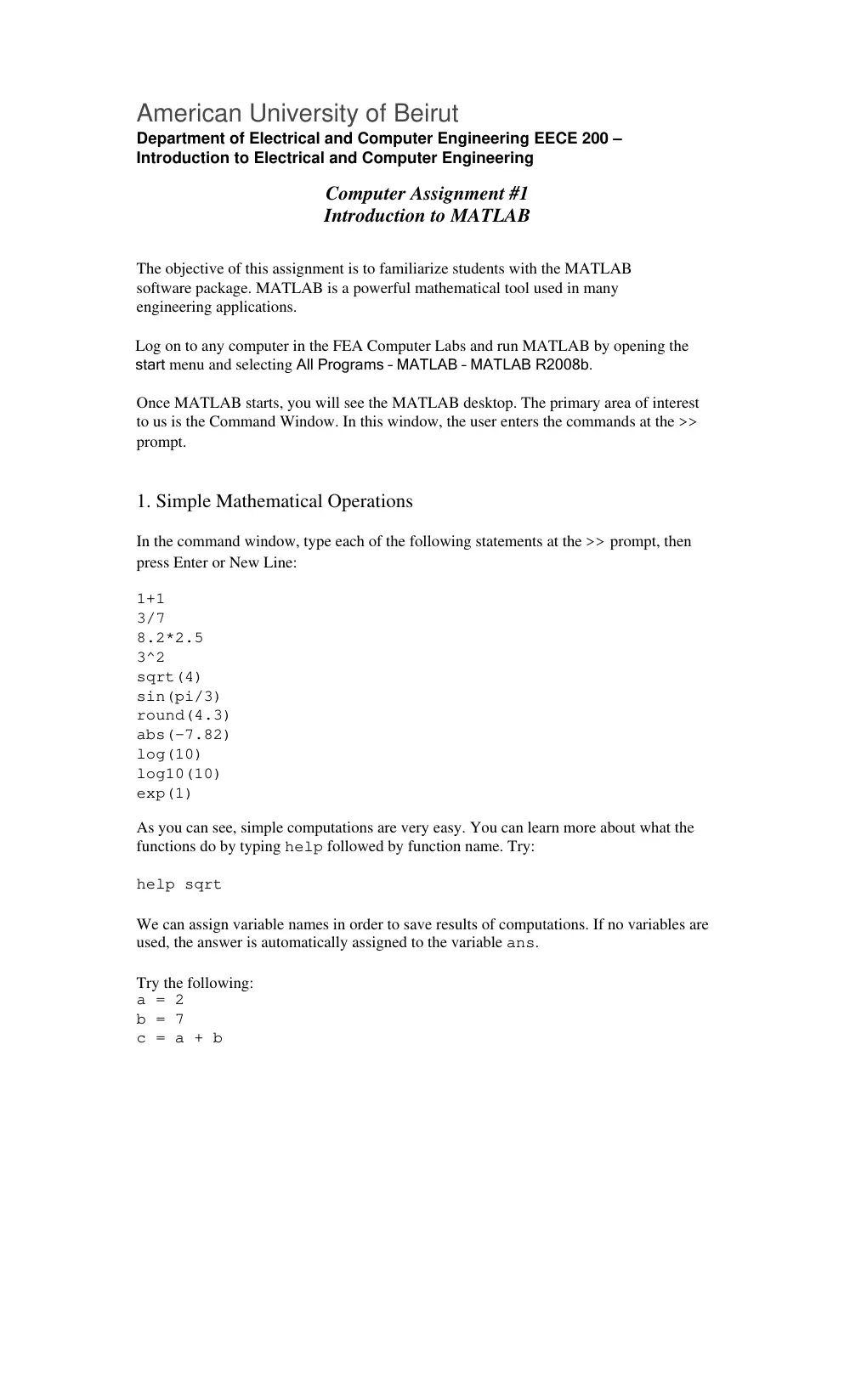
American University of Beirut
Department of Electrical and Computer Engineering EECE 200 –
Introduction to Electrical and Computer Engineering
Computer Assignment #1
Introduction to MATLAB
The objective of this assignment is to familiarize students with the MATLAB
software package. MATLAB is a powerful mathematical tool used in many
engineering applications.
Log on to any computer in the FEA Computer Labs and run MATLAB by opening the
start menu and selecting All Programs – MATLAB – MATLAB R2008b.
Once MATLAB starts, you will see the MATLAB desktop. The primary area of interest
to us is the Command Window. In this window, the user enters the commands at the >>
prompt.
1. Simple Mathematical Operations
In the command window, type each of the following statements at the >> prompt, then
press Enter or New Line:
1+1
3/7
8.2*2.5
3^2
sqrt(4)
sin(pi/3)
round(4.3)
abs(-7.82)
log(10)
log10(10)
exp(1)
As you can see, simple computations are very easy. You can learn more about what the
functions do by typing help followed by function name. Try:
help sqrt
We can assign variable names in order to save results of computations. If no variables are
used, the answer is automatically assigned to the variable ans.
Try the following:
a = 2
b = 7
c = a + b
You can view the list of variables using who.
Now create the following variables:
a = last five digits of your AUB ID number
s = square root of a
mob = your month of birth (Jan is 1, Feb is 2, Mar is 3, etc.)
d = s×mob
par = natural logarithm of d
Q1: Report the value of par in the Moodle submission window. Use the following
format:
Q1: par =
2. Polynomial Operations
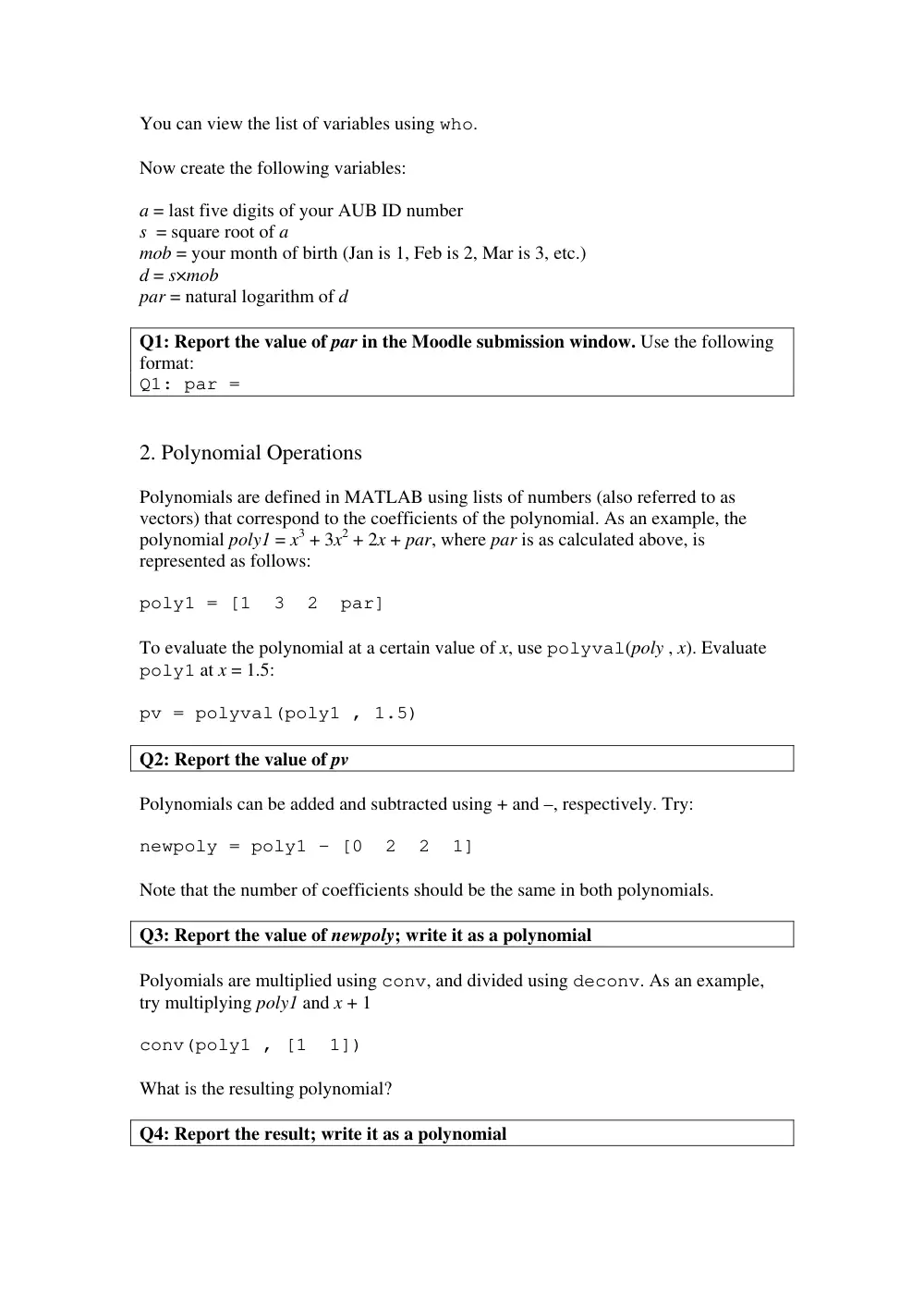
Polynomials are defined in MATLAB using lists of numbers (also referred to as
vectors) that correspond to the coefficients of the polynomial. As an example, the
polynomial poly1 = x3 + 3x2 + 2x + par, where par is as calculated above, is
represented as follows:
poly1 = [1 3 2 par]
To evaluate the polynomial at a certain value of x, use polyval(poly , x). Evaluate
poly1 at x = 1.5:
pv = polyval(poly1 , 1.5)
Q2: Report the value of pv
Polynomials can be added and subtracted using + and –, respectively. Try:
newpoly = poly1 - [0 2 2 1]
Note that the number of coefficients should be the same in both polynomials.
Q3: Report the value of newpoly; write it as a polynomial
Polyomials are multiplied using conv, and divided using deconv. As an example,
try multiplying poly1 and x + 1
conv(poly1 , [1 1])
What is the resulting polynomial?
Q4: Report the result; write it as a polynomial
Note that deconv will return two polynomials, the first contains the coefficients of
the quotient polynomial, and the second contains the coefficients of the remainder
polynomial. Try dividing x3 + 3x2 + 3x + 3 by x + 2:
[q , r] = deconv( [1 3 3 3] , [1 2])
What are the quotient and remainder polynomials?
Q5: Report the result; write q and r as polynomials
3. Roots of Polynomials
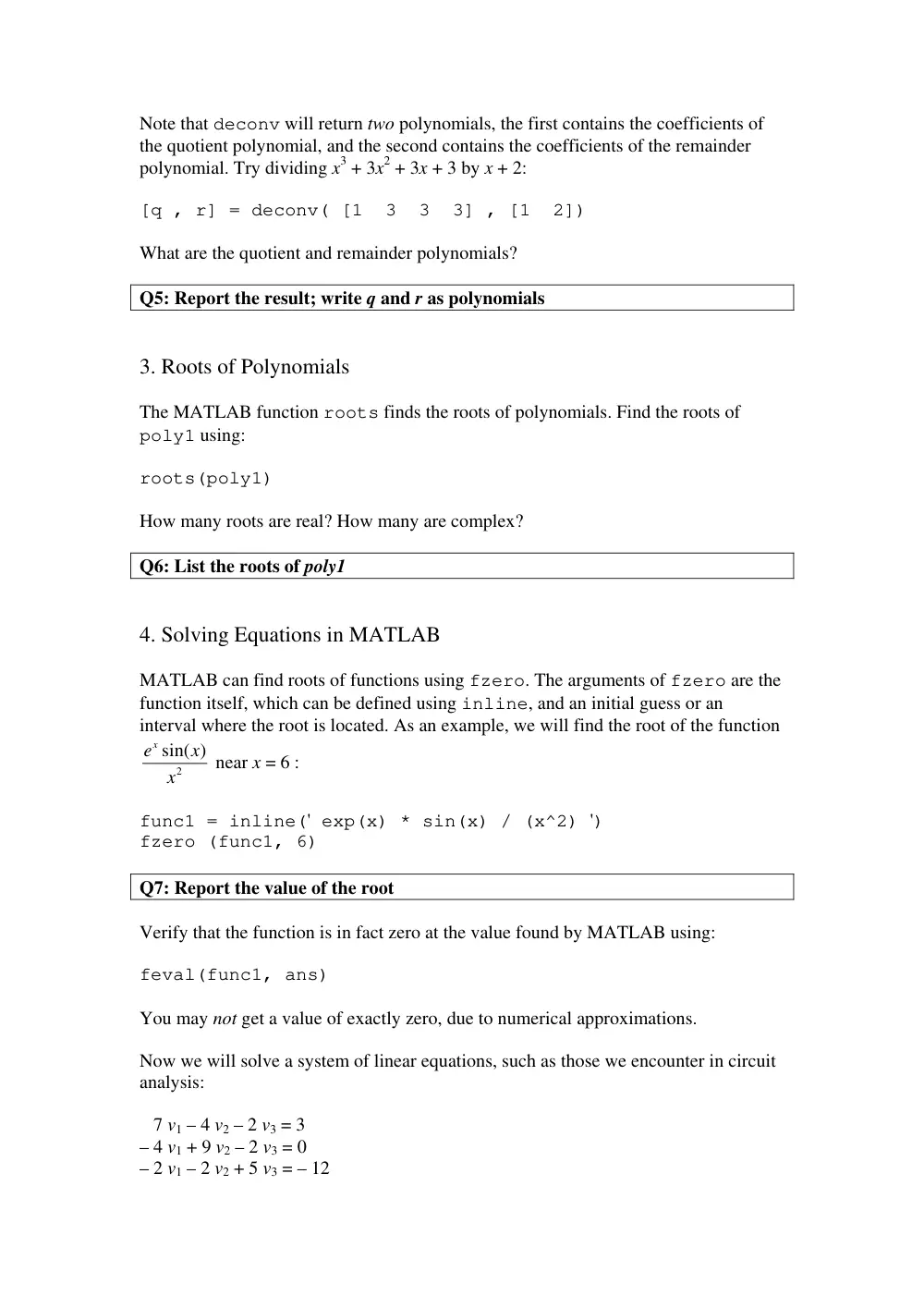
The MATLAB function roots finds the roots of polynomials. Find the roots of
poly1 using:
roots(poly1)
How many roots are real? How many are complex?
Q6: List the roots of poly1
4. Solving Equations in MATLAB
MATLAB can find roots of functions using fzero. The arguments of fzero are the
function itself, which can be defined using inline, and an initial guess or an
interval where the root is located. As an example, we will find the root of the function
2
xe sin( )
x
x
near x = 6 :
func1 = inline(' exp(x) * sin(x) / (x^2) ')
fzero (func1, 6)
Q7: Report the value of the root
Verify that the function is in fact zero at the value found by MATLAB using:
feval(func1, ans)
You may not get a value of exactly zero, due to numerical approximations.
Now we will solve a system of linear equations, such as those we encounter in circuit
analysis:
7 v1 – 4 v2 – 2 v3 = 3
– 4 v1 + 9 v2 – 2 v3 = 0
– 2 v1 – 2 v2 + 5 v3 = – 12
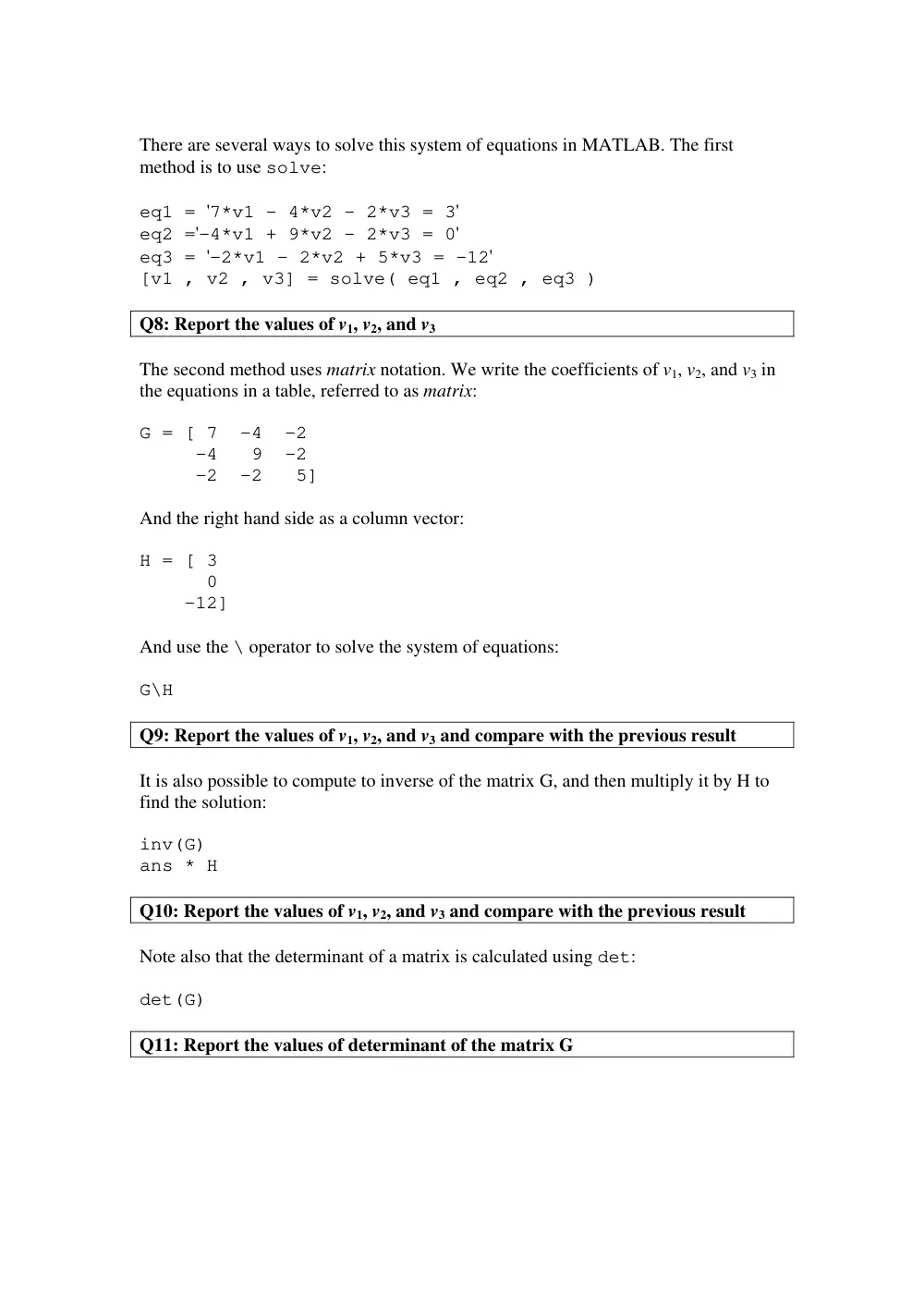
There are several ways to solve this system of equations in MATLAB. The first
method is to use solve:
eq1 = '7*v1 - 4*v2 - 2*v3 = 3'
eq2 ='-4*v1 + 9*v2 - 2*v3 = 0'
eq3 = '-2*v1 - 2*v2 + 5*v3 = -12'
[v1 , v2 , v3] = solve( eq1 , eq2 , eq3 )
Q8: Report the values of v1, v2, and v3
The second method uses matrix notation. We write the coefficients of v1, v2, and v3 in
the equations in a table, referred to as matrix:
G = [ 7 -4 -2
-4 9 -2
-2 -2 5]
And the right hand side as a column vector:
H = [ 3
0
-12]
And use the \ operator to solve the system of equations:
G\H
Q9: Report the values of v1, v2, and v3 and compare with the previous result
It is also possible to compute to inverse of the matrix G, and then multiply it by H to
find the solution:
inv(G)
ans * H
Q10: Report the values of v1, v2, and v3 and compare with the previous result
Note also that the determinant of a matrix is calculated using det:
det(G)
Q11: Report the values of determinant of the matrix G
5. Derivatives and Integrals
MATLAB provides an easy way to compute derivatives and integrals. To perform
differentiation and integration, we have to declare a “symbolic” variable using syms.
For example, the symbolic variable x is the variable that appears in dx inside the
integral or in the denominator of the derivative dy/dx. Use the following to find the
derivative of x3 + 2x2 + 5:
syms x
diff( x^3 + 2*x^2 + 5 )
Q12: Report the result
To calculate the integral
( 2
sin( ))
x
x dx
+
∫
, use:
int ( x^2 + sin(x) )
Q13: Report the result
We can also find the definite integral
2
0
(
sin( ))
par
x
x dx
+
∫
, by providing the limits of
integration:
int ( x^2 + sin(x) , 0 , par )
The result may be a fraction. To get a floating point approximation, use:
double(ans)
Q14: Report the result
MATLAB can also solve differential equations using dsolve. As an example, we
solve the differential equation y’ + b y = 0, where y is a function of x and b is a
constant:
dsolve('Dy + b*y = 0', 'x ')
Note that capital D means “derivative of”.
Solve the equation y’ + b y2 = 0.
Q15: Report the result
6. Complex Numbers
The quantities i and j are already defined in MATLAB as the square root of –1.
Calculate the following:
i*i
j^3
Try the following operations on complex variables:
z1 = 2 + 3j
z2 = par – 4j
z1 + z2
z1 – z2
z1 * z2
z2 / z1
The functions abs and angle allow us to convert the complex number from
rectangular to polar form:
abs(z1)
angle(z2)
The angle is given in radians. To convert to degrees, multiply by 180/π:
180/pi * angle(z2)
Q16: Report the result in degrees
The functions real and imag allow us to convert the complex number from polar to
rectangular form. We will calculate the real part of 3eiπ:
real( 3 * exp( i*pi ) )
Q17: Report the result
7. Plotting Functions and Data
Functions can be easily plotted in MATLAB using ezplot! Let’s plot, as an
example, the function
2
xe sin( )
x
x
from x = 0 to x = 9.5:
ezplot( ' exp(x)*sin(x)/(x^2) ', [0 , 9.5] )
grid
What did the grid command do?
We can plot data points using plot:
vd = [1 2 3 4 5 6 7 8 9]
id = [2 4 par 8 10 12 15 19 22]
plot(vd,id,'-o')
grid
The ‘-o’ in the plot command requests that the data points are connected by a straight
line, and shown as small circles. Many other options are available; try help plot.
On the Figure window, and using the Insert menu, add an x-axis label of (voltage in V)
and a y-axis label of (current in mA). Also, add a title of (Device Characteristics).
•
Show the image to the Graduate Assistant