
EECE 200 Lab Modeling Data in Excel, Fall 2011
American University of Beirut · Introduction to Electrical and Computer Engineering · 9 pages




More EECE 200 files
Show the text of this lab
Modeling Data in Excel
Yasmina El Chidiac
201201673
Section 4
Tuesday, January 3rd, 2012
1
Introduction
Motivation:
Having a sense of the flexibility and importance of a spreadsheet program
as Excel to be able to create our own spreadsheets.
Objectives:
1) Calculating the different values of the volume and the area of cones
using Excel.
2) Viewing the obtained results in the form of a graph.
3) Write the cone equations using MathType.
Overview:
In this report, we are interested in one particular geometric shape: the
cone. We wish to calculate different values of volume and area of a cone
depending on its radius and height. Thus, we need to use a simple tool that
2
allows us to change those input values and give an output value depending
on the inputs. This can easily be done using a spreadsheet.
Outline:
I.
Introduction
II.
Work Description
a) Background
b) Modeling Process
c) Tools
d) Results
III.
Conclusion
IV.
References
V.
Appendices
3
Work Description
Background:
“A cone is an n-dimensional geometric shape that tapers smoothly from a
base (usually flat and circular) to a point called the apex or vertex.
Formally, it is the solid figure formed by the locus of all straight-line
segments that join the apex to the base. The term "cone" is sometimes
used to refer to the surface or the lateral surface of this solid figure (the
lateral surface of a cone is equal to the surface minus the base). The axis of
a cone is the straight line (if any), passing through the apex, about which
the base has symmetry. In common usage in elementary geometry, cones
are assumed to be right circular, where right means that the axis passes
through the centre of the base (suitably defined) at right angles to its plane,
and circular means that the base is a circle.”
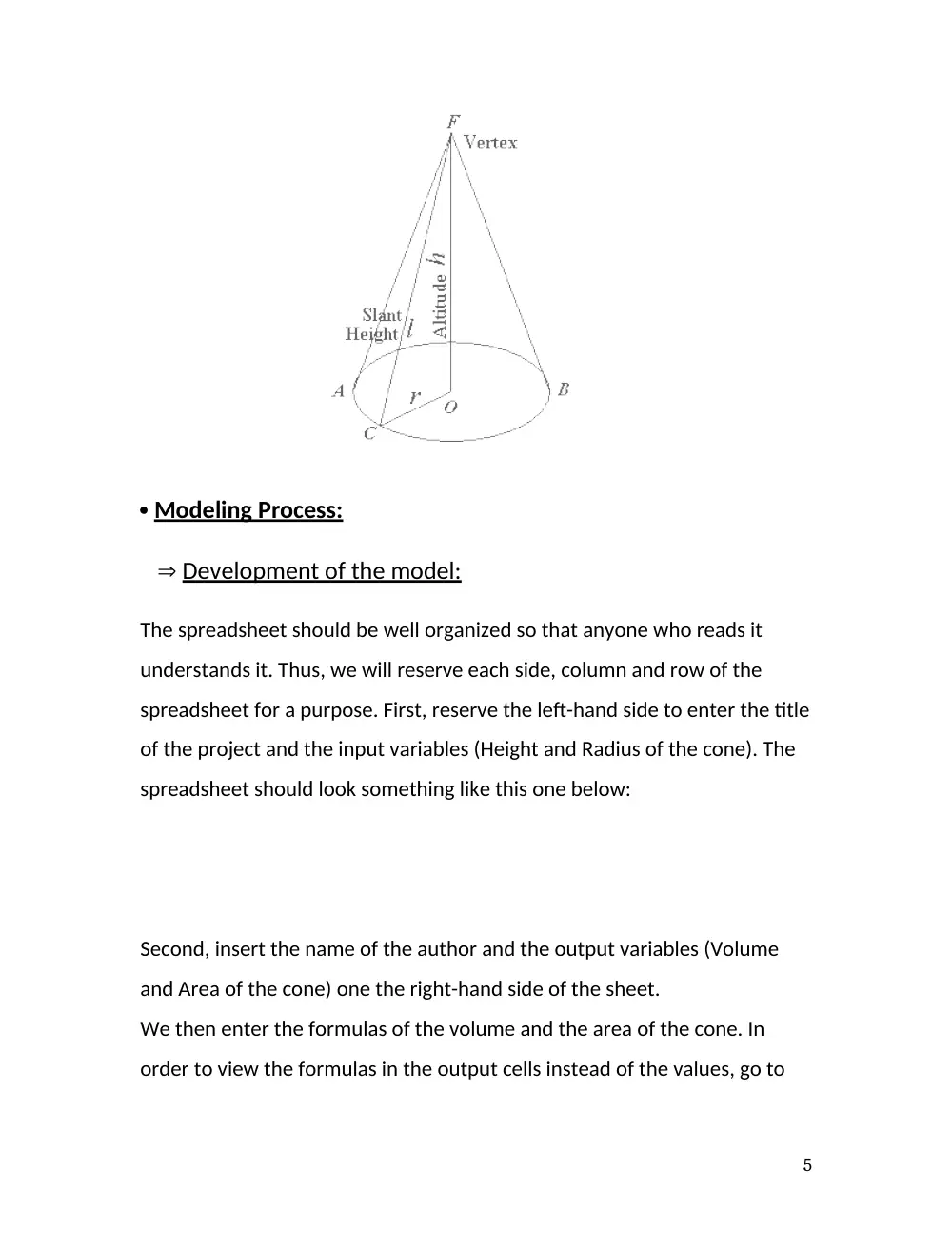
Below is a figure of a right circular cone.
4
Modeling Process:
Development of the model:
The spreadsheet should be well organized so that anyone who reads it
understands it. Thus, we will reserve each side, column and row of the
spreadsheet for a purpose. First, reserve the left-hand side to enter the title
of the project and the input variables (Height and Radius of the cone). The
spreadsheet should look something like this one below:
Second, insert the name of the author and the output variables (Volume
and Area of the cone) one the right-hand side of the sheet.
We then enter the formulas of the volume and the area of the cone. In
order to view the formulas in the output cells instead of the values, go to
5
the “Formulas” tab and click on “Show Formulas”. The sheet should look
like this:
Changing the input values of the height and radius should give different
output values of the volume and area.
Cone Equations:
Tools:
Since the input values are variable, there should be an easier way than to
enter a different value every time. In fact, a simple way is using relative and
absolute addresses.
The relative addresses feature of Excel will allow Excel to enter the
appropriate equations in the cells below. For example, if we wish to expand
the equation “B1= A1 + A2” using the “fill handle” then, by default, B2 will
be “B2= A2 + A3” and “B3= A3+ A4”.
The Absolute addresses feature is useful in case you want to keep the value
of a certain cell unchanged with the expansion of the formula. In this case,
the name of this particular cell should be surrounded by dollar signs. For
example, if you want to keep the value of cell B4, the element B4 in the
formula should become “$B$4” (excluding quotations).
After updating the equations, you should obtain the following sheet:
6
Another useful tool in excel is that of charts. We are interested in plotting
the volume and the area as a function of the incremented radius. To do
this, select “Insert” “Scatter” “Scatter with smooth lines and Markers”.
Then click on “select data” and select the data you wish to plot.
Results:
After following the steps stated above, the chart should look similar to this
one:
And the final spreadsheet should resemble this one below:
We can see that the chart reveals that the volume and area of the cone are
in exponential growth. Moreover, the chart shows the height and radius in
which the volume and area of the cone are equal (intersection of both
lines). Finally, the graph is important since it gives us the ability to
approximate graphically the volume or surface area at any radius without
any computation.
7
Conclusion
Overall, we have seen how the use of a Microsoft Excel spreadsheet can
simplify the computation and organization of a certain problem. The
insertion of charts and tables can definitely help viewing the problem in a
simpler way thus allowing us to resolve it.
It would be interesting, as a computer engineering major, to learn how to
such problems by programming.
8
Appendix
The “Microsoft Office help” button can help you get more familiar with
excel and its features.
9