
EECE 200 Lab Report, Fall 2011
American University of Beirut · Introduction to Electrical and Computer Engineering · 13 pages

Showing the first 10 of 13 pages. Download the PDF to see all of it.
More EECE 200 files
Show the text of this lab
Modeling Data in Excel
Julien Rahal
201203217
Section -7-
Thursday, December 8, 2011
2
Introduction
Motivation:
Seizing the flexibility and importance of a spreadsheet as the one provided by Excel.
Objectives:
1) Calculating the volume and the area of a cone for different values of its radius.
2) Modeling the results obtained in form of a graph.
3) Using MathType to write the cone equations.
Overview:
In this report we are interested in a particular geometric shape: the cone. We aim to
calculate the volume and area of a cone while being able to change some inputs such as
the radius value. This objective can be attained using different methods including the use
of a programming language, spreadsheets… But, in what follows we are using
spreadsheets admitting that it requires less skills than programming.
Outline page
I-
Introduction
-2-
II-
Background
-3-
III-
Modeling Process
-4-
IV-
Tools
-7-
V-
Results
-9-
VI-
Conclusion
-11-
VII-
References
-12-
VIII-
Appendices
-13-
3
Background
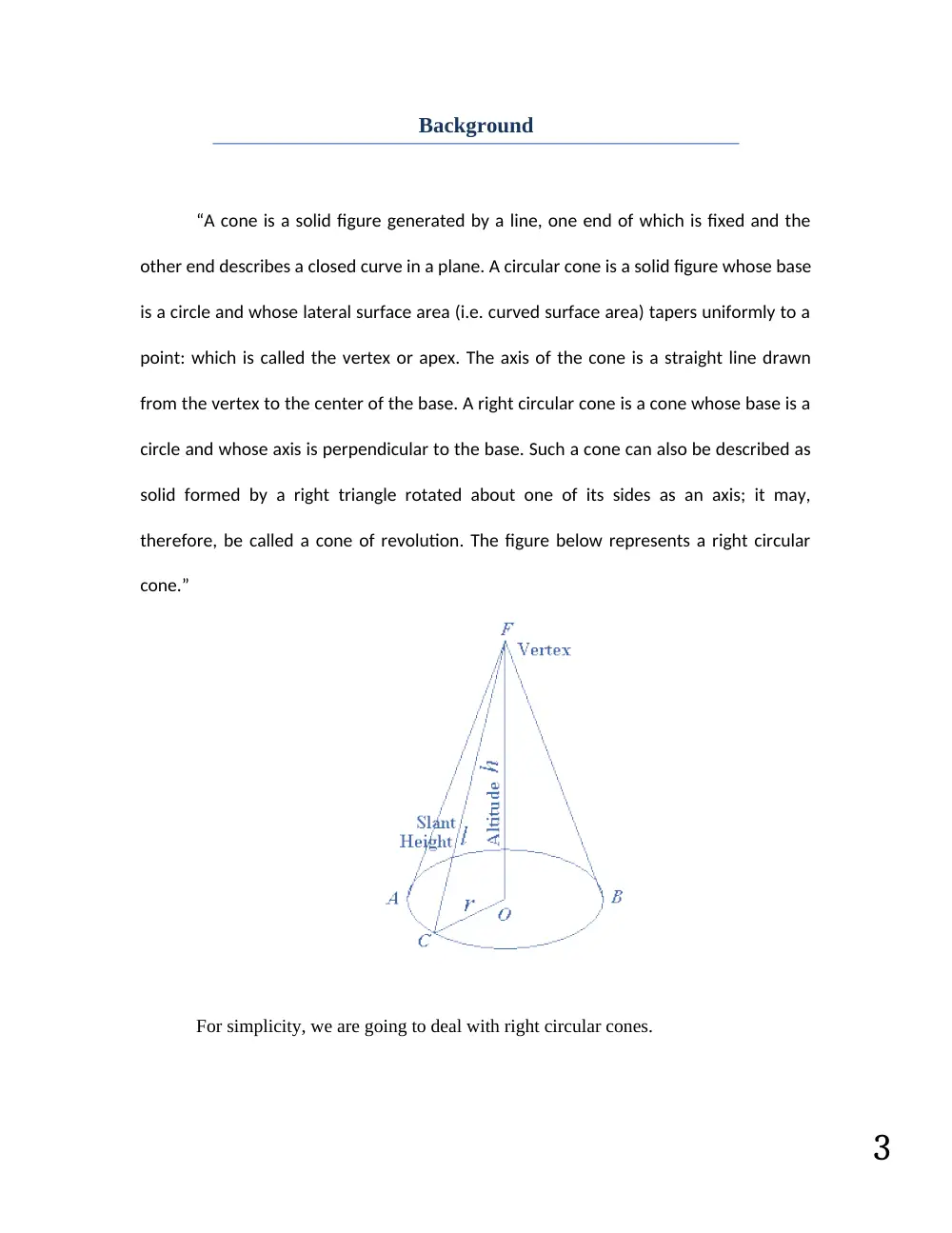
“A cone is a solid figure generated by a line, one end of which is fixed and the
other end describes a closed curve in a plane. A circular cone is a solid figure whose base
is a circle and whose lateral surface area (i.e. curved surface area) tapers uniformly to a
point: which is called the vertex or apex. The axis of the cone is a straight line drawn
from the vertex to the center of the base. A right circular cone is a cone whose base is a
circle and whose axis is perpendicular to the base. Such a cone can also be described as
solid formed by a right triangle rotated about one of its sides as an axis; it may,
therefore, be called a cone of revolution. The figure below represents a right circular
cone.”
For simplicity, we are going to deal with right circular cones.
4
Modeling Process
Cone Equations:
The volume of a cone is:
V =
Where B is the base area and h is the height. If the base is circular, then:
Where r is the radius of the base.
The volume equation becomes:
V =
The surface area S, not including the base, is given by the following formula:
The total surface area T becomes:
Model Development:
5
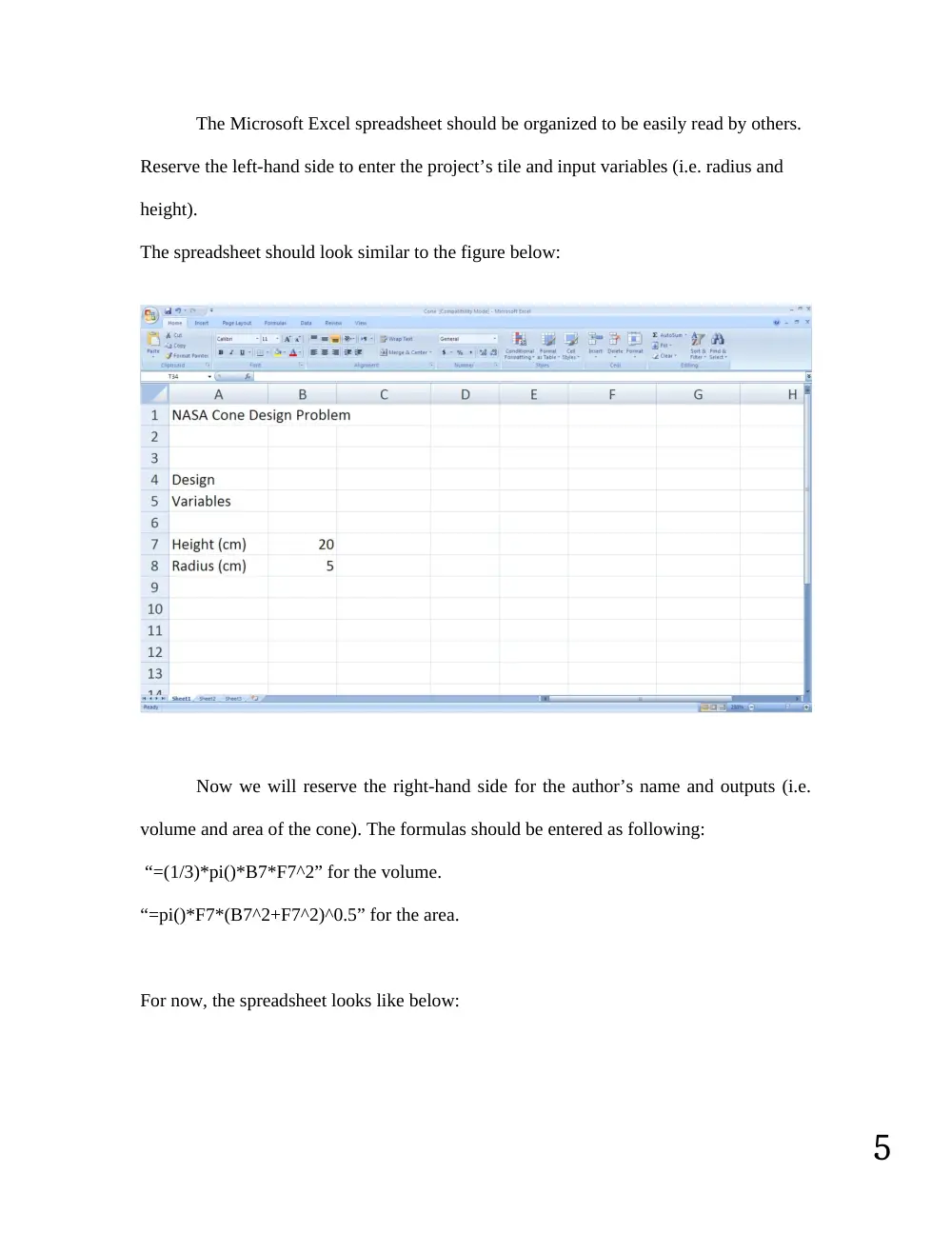
The Microsoft Excel spreadsheet should be organized to be easily read by others.
Reserve the left-hand side to enter the project’s tile and input variables (i.e. radius and
height).
The spreadsheet should look similar to the figure below:
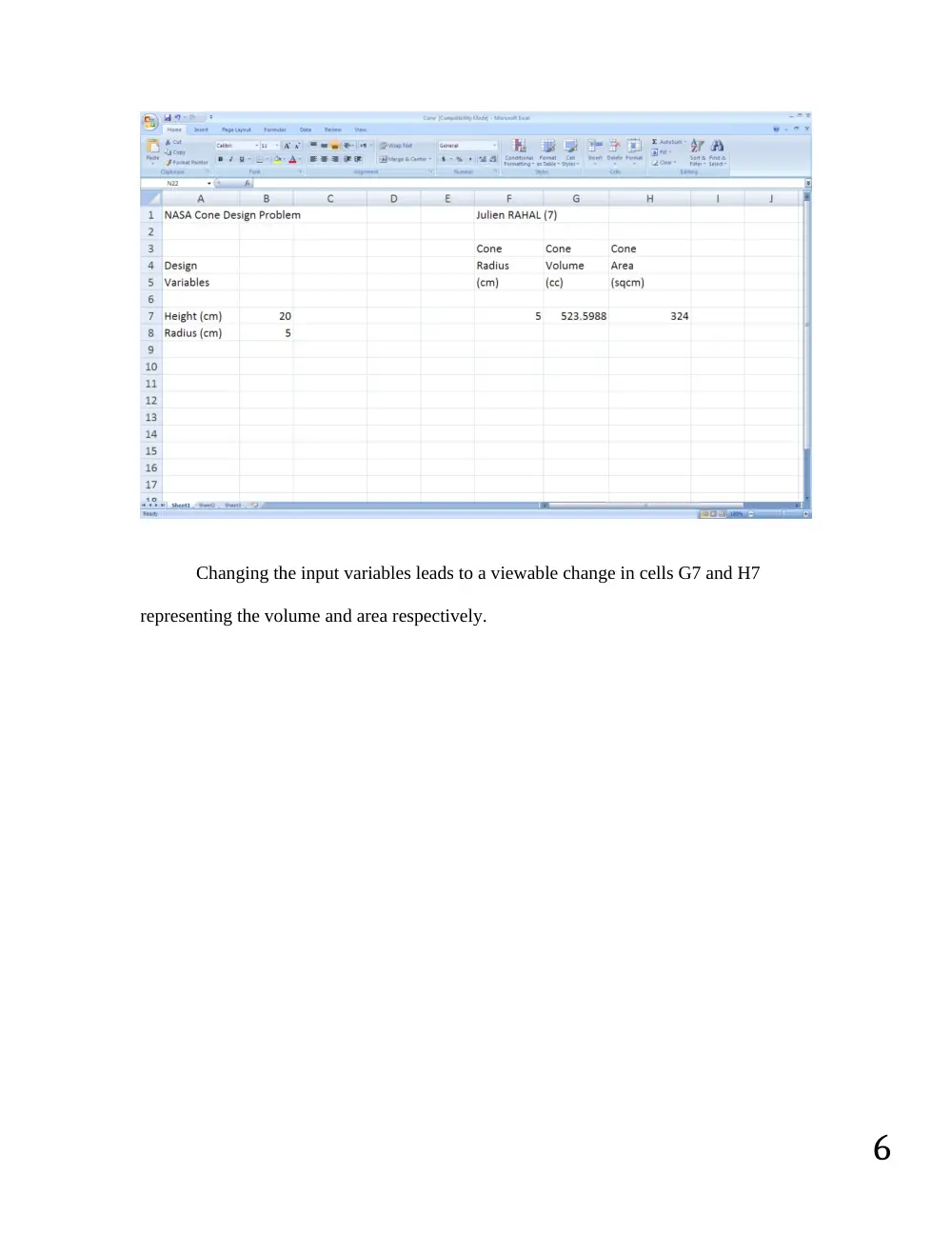
Now we will reserve the right-hand side for the author’s name and outputs (i.e.
volume and area of the cone). The formulas should be entered as following:
“=(1/3)*pi()*B7*F7^2” for the volume.
“=pi()*F7*(B7^2+F7^2)^0.5” for the area.
For now, the spreadsheet looks like below:
6
Changing the input variables leads to a viewable change in cells G7 and H7
representing the volume and area respectively.
7
Excel Tools:
The radius being variable, we don't have to enter each value every time. We can
do it in a simpler way using relative and absolute addresses. Excel has an updating
capability which will enter the appropriate formula into the cells below. This is the
relative address feature of Excel. For example, if we expand the formula:
B1=A1+A2 to B2 and B3 using the “fill handle”, then B2=A2+A3, B3=A3+A4.
However, if we want to increment A2 only and keep A1 the same, we should
change A1 into an absolute address by surrounding it by $ signs ($A1$).
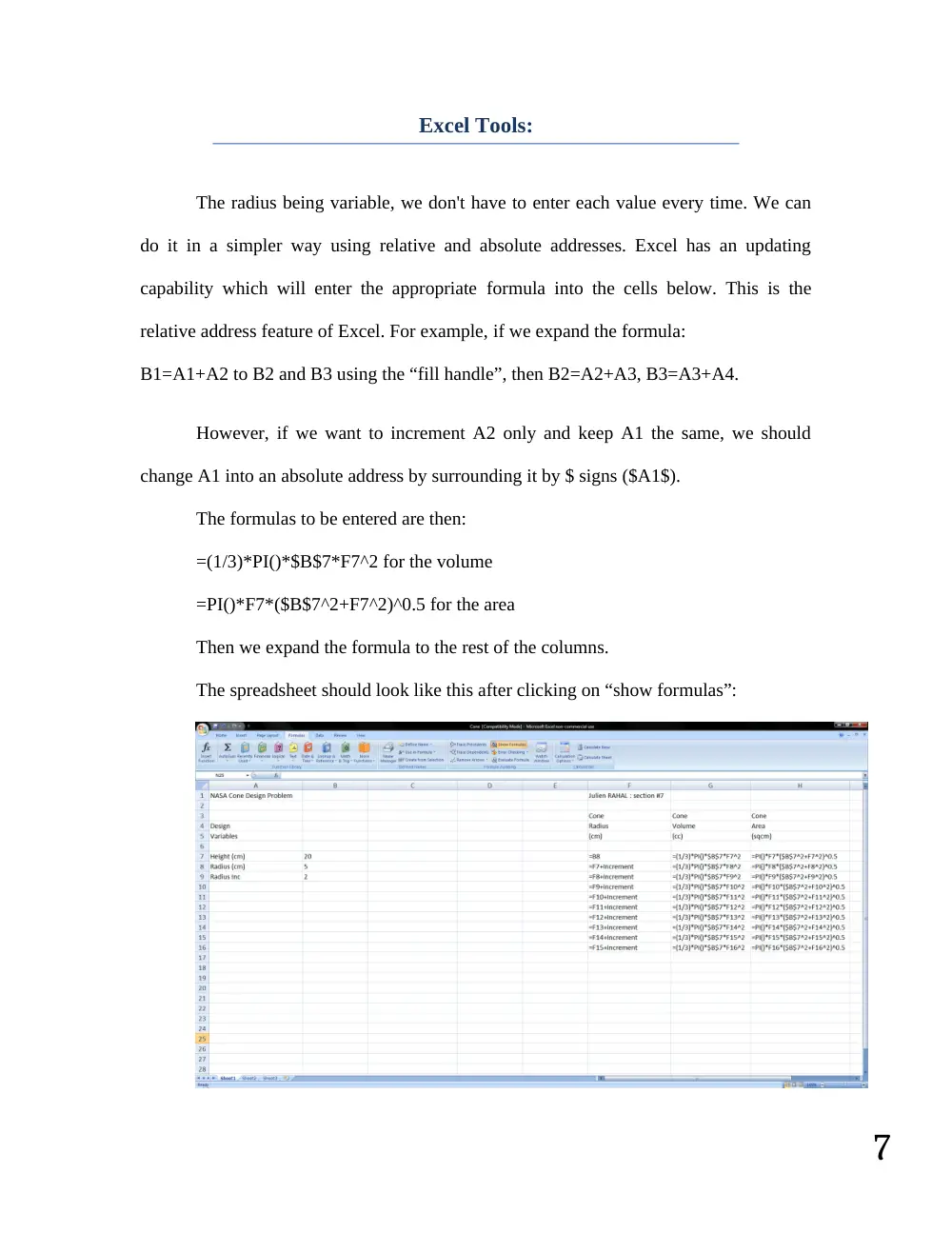
The formulas to be entered are then:
=(1/3)*PI()*$B$7*F7^2 for the volume
=PI()*F7*($B$7^2+F7^2)^0.5 for the area
Then we expand the formula to the rest of the columns.
The spreadsheet should look like this after clicking on “show formulas”:
8
. Creating a Chart:
Another important tool in Excel is that of charts. We are interested in plotting the
volume and area as the function of the incremented radius.
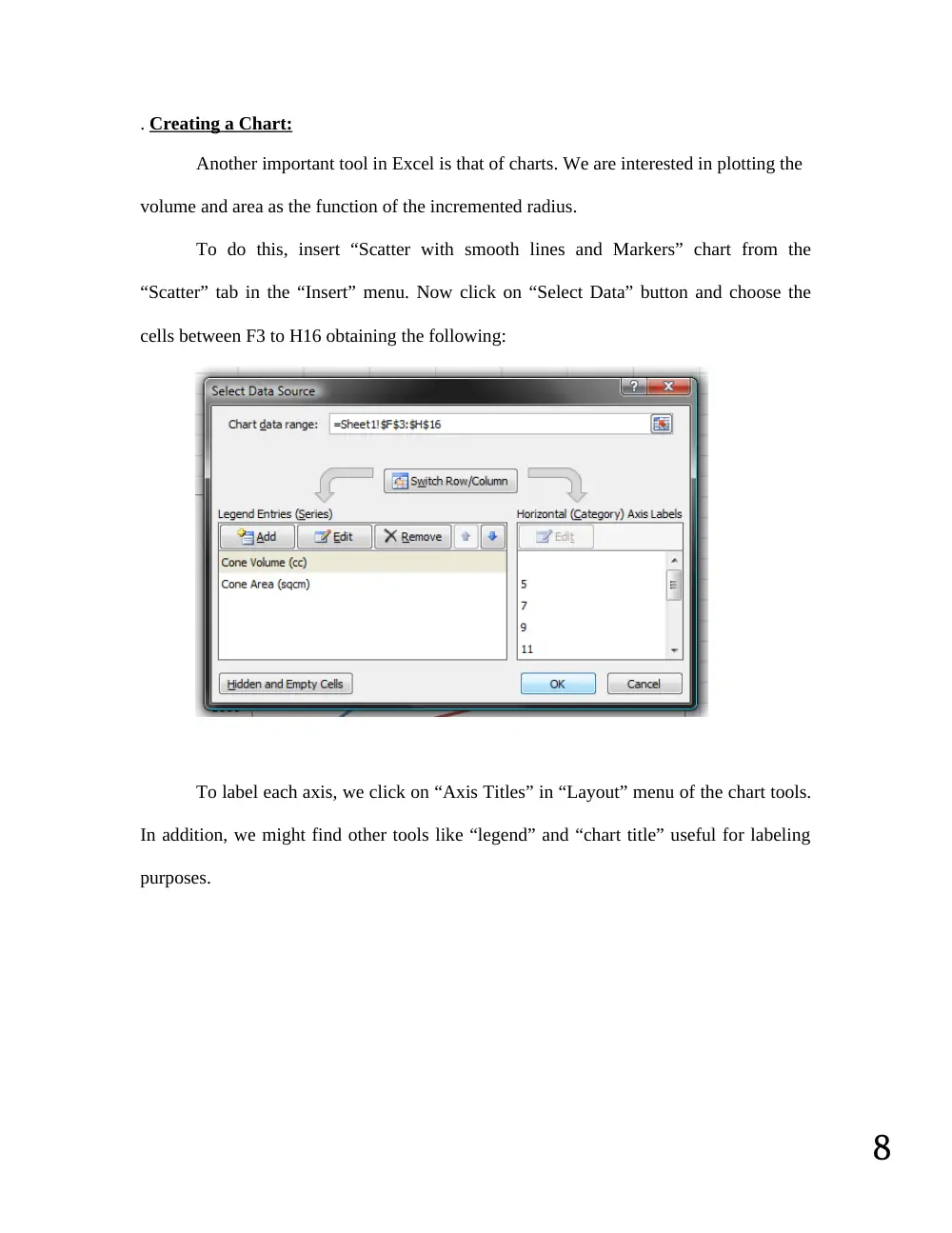
To do this, insert “Scatter with smooth lines and Markers” chart from the
“Scatter” tab in the “Insert” menu. Now click on “Select Data” button and choose the
cells between F3 to H16 obtaining the following:
To label each axis, we click on “Axis Titles” in “Layout” menu of the chart tools.
In addition, we might find other tools like “legend” and “chart title” useful for labeling
purposes.
9
Results
After performing the above tasks the chart will look similar to what follows:
4
6
8
10
12
14
16
18
20
22
24
0
2000
4000
6000
8000
10000
12000
0
500
1000
1500
2000
2500
NASA Cone Design Problem
Cone Volume (cc)
Cone Area (sqcm)
Radius (cm)
Volumne (cc)
Area (sqcm)
And the overall spreadsheet will looks as the following:
10
Results Discussion:
a) The chart reveals that the volume and surface area of a cone are exponential in
growth.
b) It also shows the radius in which the volume is equal to the area (point of
intersection of the 2 curves).
c) One more important result is the ability to approximate graphically the volume or
surface area at any radius, without using any additional calculations.
11
Conclusion
Excel gave us a simple way to notice how the volume and the area of a cone are
related to its radius. Of course, this spreadsheet program can help us perform more
complex tasks, making our lives easier.
12
References
“Cones”. <www.mathworld.wolfram.com>. Web.
“Introduction to Cone”. < www.emathzone.com>. Web.
Thomas, George. “Thomas Calculus”. Ed.Deirdre Lynch.12th ed.United States:
Pearson.Print.
13
Appendices
Appendix I: Excel Help
To get more familiar with Microsoft Excel you can use “Microsoft Office Excel
Help indicating all the basic features of Excel.