
EECE 200 Lab Modeling Data in Excel, Fall 2011
American University of Beirut · Introduction to Electrical and Computer Engineering · 14 pages · Prof. Karim Kabalan


Showing the first 10 of 14 pages. Download the PDF to see all of it.
More EECE 200 files
Show the text of this lab
Modeling Data in Excel
201203616
Section 4
Tuesday, January 3, 2012
1
Introduction:
Motivation:
Identifying the significance, importance and flexibility of a spreadsheet program and being able to create
one.
Objectives:
1.
Calculating the areas and volumes of cones for different radiuses.
2.
Observe the results using graphs.
3.
Employ Mathtype in order to formulate equations.
Overview:
The intentions of this particular document are to examine the area and volume of one geometric shape:
the cone. In order to attain the objectives cited above while changing the values of some inputs (height
and radius), a spreadsheet is used. “Spreadsheets are calculating devices that can repeat calculations with
large amount of data. They are very useful because large amount of data can be easily inserted into
spreadsheets so the computer can do the calculations”. Thus applying this kind of program makes it easier
to find these dimensions since it spares the user the trouble of going through the calculation. This
spreadsheet is a very good trajectory calculator and a lab exercise using excel was done in order to
calculate the path of a projectile moving in two dimensions. Therefore, the appropriate formulas were
inserted into different cells. For example, in cell B6, the following equation was entered: B2*pi ()/180 to
transform the value of the angle written in B2 from radians to degrees. In addition to that, an Excel
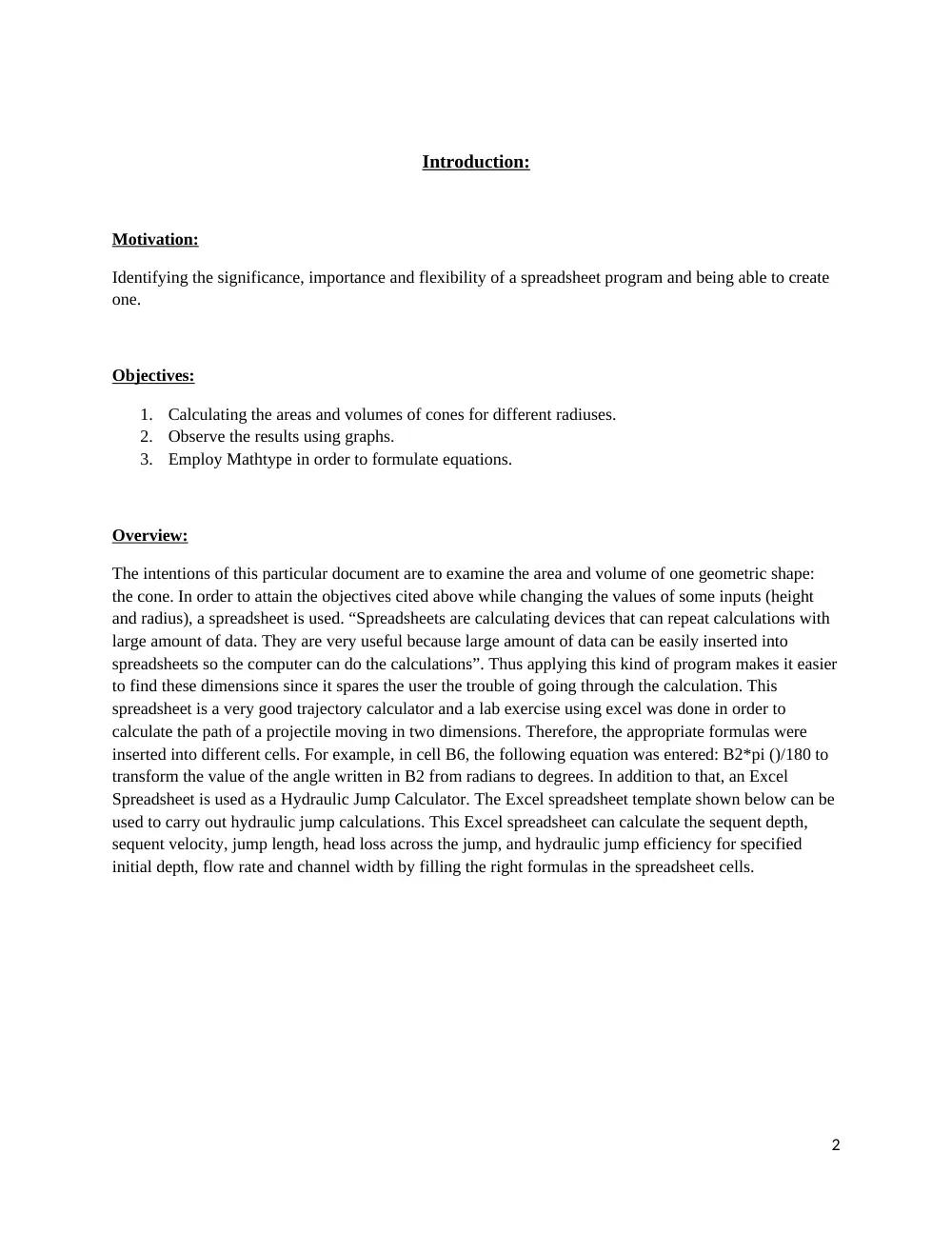
Spreadsheet is used as a Hydraulic Jump Calculator. The Excel spreadsheet template shown below can be
used to carry out hydraulic jump calculations. This Excel spreadsheet can calculate the sequent depth,
sequent velocity, jump length, head loss across the jump, and hydraulic jump efficiency for specified
initial depth, flow rate and channel width by filling the right formulas in the spreadsheet cells.
2
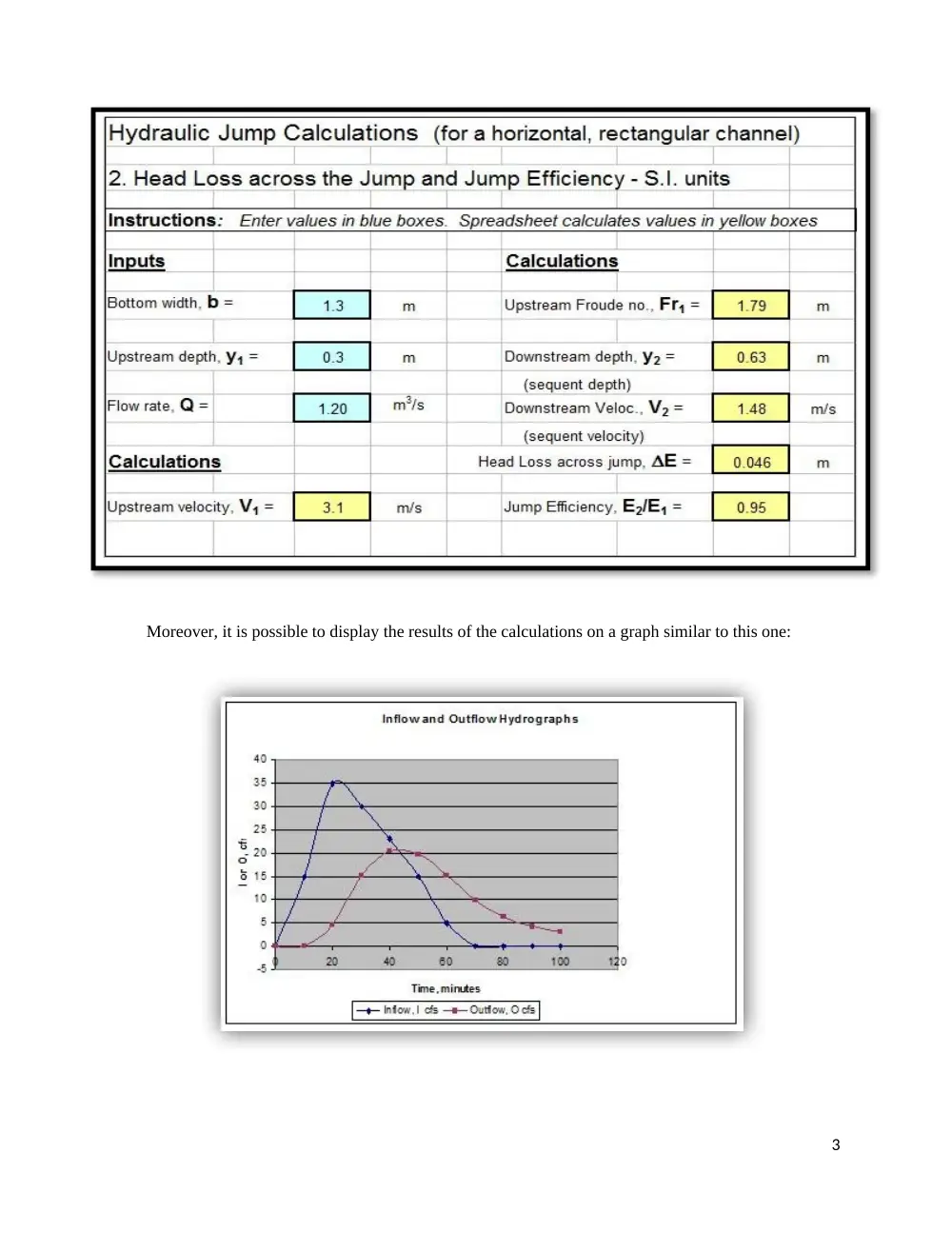
Moreover, it is possible to display the results of the calculations on a graph similar to this one:
3
Outline
Introduction 2,3
Work description
Background 5
Modeling Process 6,7
Cone equations 8
Tools 9
Results 10
Result discussion 11
Conclusion 12
References 13
Appendix 14
4
Work Description
Background:
A cone is an n-dimensional geometric shape that tapers smoothly from a base (usually flat and circular) to
a point called the apex or vertex. Formally, it is the solid figure formed by the locus of all straight line
segments that join the apex to the base. The term "cone" is sometimes used to refer to the surface or the
lateral surface of this solid figure (the lateral surface of a cone is equal to the surface minus the base).
Any cone with circular right section is a circular cone. Right circular cone is a circular cone whose axis is
perpendicular to its base.
Properties of Right Circular Cone
-The slant height of a right circular cone is the length of an element. Both the slant height and the element
are denoted by L.
-The altitude of a right circular is the perpendicular drop from vertex to the center of the base. It coincides
with the axis of the right circular cone and it is denoted by h.
-If a right triangle is being revolved about one of its legs (taking one leg as the axis of revolution), the
solid thus formed is a right circular cone. The surface generated by the hypotenuse of the triangle is the
lateral area of the right circular cone and the area of the base of the cone is the surface generated by the
leg which is not the axis of rotation.
-All elements of a right circular cone are equal.
-Any section parallel to the base is a circle whose center is on the axis of the cone.
-A section of a right circular cone which contains the vertex and two points of the base is an isosceles
triangle.
The volume of a right circular cone is calculated using the following formula = 1/3pr^2h
The area of a right circular cone is calculated using the following formula= pr(h^2+r^2)^0.5
5
Modeling process:
The spreadsheet should be organized in such a manner that it be easily read and understood by others. On
the left-hand side of the spreadsheet, a data entry section is prepared where one can enter the input data
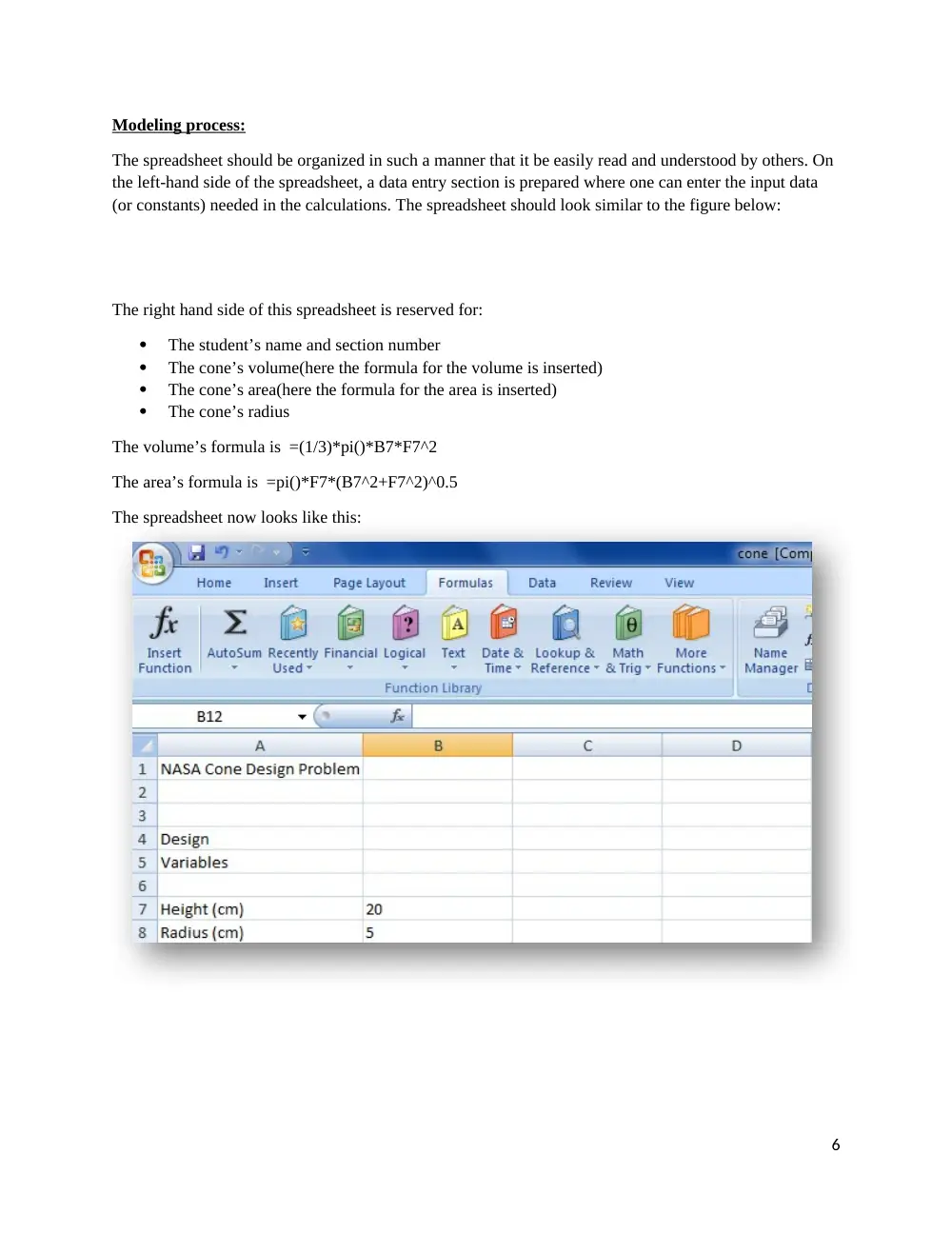
(or constants) needed in the calculations. The spreadsheet should look similar to the figure below:
The right hand side of this spreadsheet is reserved for:
The student’s name and section number
The cone’s volume(here the formula for the volume is inserted)
The cone’s area(here the formula for the area is inserted)
The cone’s radius
The volume’s formula is =(1/3)*pi()*B7*F7^2
The area’s formula is =pi()*F7*(B7^2+F7^2)^0.5
The spreadsheet now looks like this:
6
One could manually enter other values of the radius into the table, but there is an easier method by to
increment the radius with a constant value. First one needs to define the increment value in the input data
section of the spreadsheet. Select cell A9 and enter Radius Inc. Then select cell B9 and enter the number
2. Then one should use a formula to increment the cone radius by selecting cell F8 and entering the
formula: = F7+B9. This formula could now be repeated down the line of the table. The radius being
variable, we don't have to enter each value every time. We can do it in a simpler way using relative and
absolute addresses. Excel has an updating capability which will enter the appropriate formula into the
cells below. This is the relative address feature of Excel. For example, if we expand the formula:
B1=A1+A2 to B2 and B3 using the “fill handle”, then B2=A2+A3, B3=A3+A4.
However, if we want to increment A2 only and keep A1 the same, we should change A1 into an absolute
address by surrounding it by $ signs ($A1$).
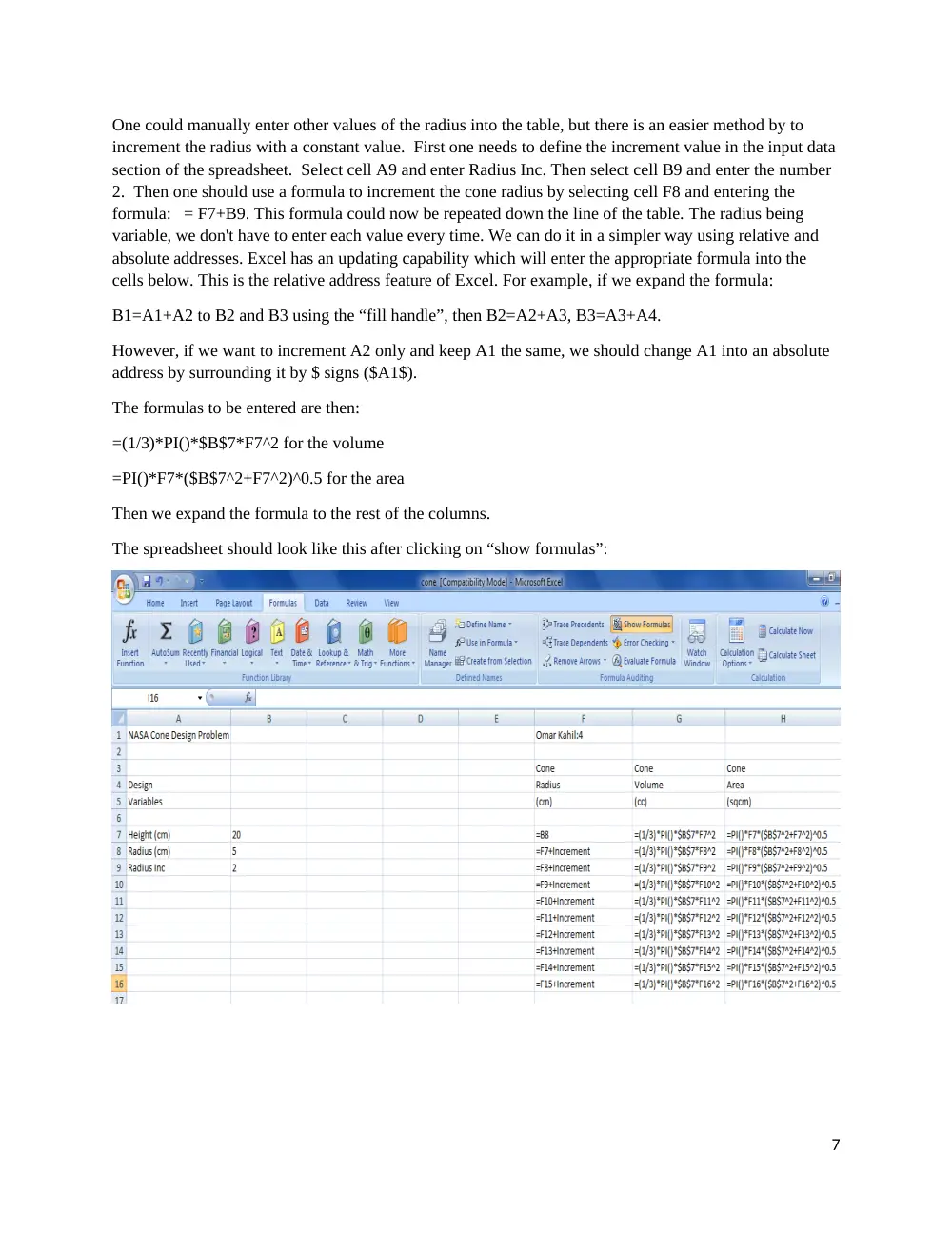
The formulas to be entered are then:
=(1/3)*PI()*$B$7*F7^2 for the volume
=PI()*F7*($B$7^2+F7^2)^0.5 for the area
Then we expand the formula to the rest of the columns.
The spreadsheet should look like this after clicking on “show formulas”:
7
The next step is to create a chart to illustrate the results in a much simpler way. To plot the volume and
area of the function of the incremented radius one must insert “Scatter with smooth lines and Markers”
chart from the “Scatter” tab in the “Insert” menu. Then click on “Select Data” button and choose the cells
between F3 to H16. To label each axis, one must click on “Axis Titles” in “Layout” menu of the chart
tools.
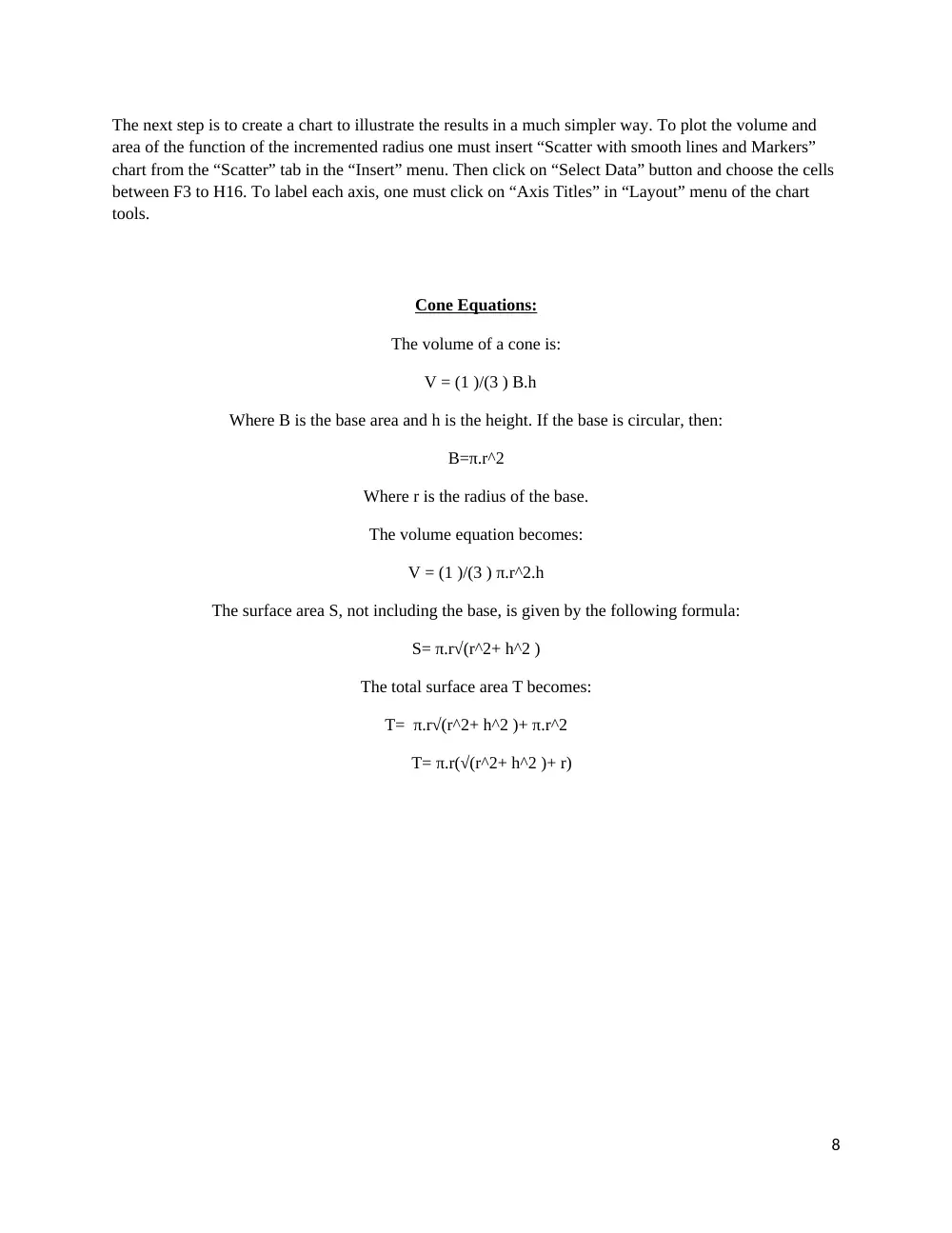
Cone Equations:
The volume of a cone is:
V = (1 )/(3 ) B.h
Where B is the base area and h is the height. If the base is circular, then:
B=π.r^2
Where r is the radius of the base.
The volume equation becomes:
V = (1 )/(3 ) π.r^2.h
The surface area S, not including the base, is given by the following formula:
S= π.r√(r^2+ h^2 )
The total surface area T becomes:
T= π.r√(r^2+ h^2 )+ π.r^2
T= π.r(√(r^2+ h^2 )+ r)
8
Tools:
There exists a number of important tools in excel that made it easier to create this spreadsheet, these tools
are:
Copying Text: to copy the content of one cell to another, one must select a cell. Then, bring the
pointer to the bottom right corner of the cell (there is a little black square in the highlighting
there). The pointer will change to a black cross when one is in the right spot. After that, hold
down the mouse button (make sure the fill handle remains) and drag the mouse across to the other
cell.
Absolute addresses are used for data in general and for design variables or parameters in
particular. In this spreadsheet it is used to copy a formula that says “This cell equals the cell
above plus the increment.” Absolute addresses are defined by the use of a dollar sign preceding
the address.
Creating a chart using Chart Wizard.
Functions, Excel has numerous built-in functions to assist one with the calculations. By selecting
Formulas tab/Insert Function. A dialog box will appear where one can select a function category.
9
Results:
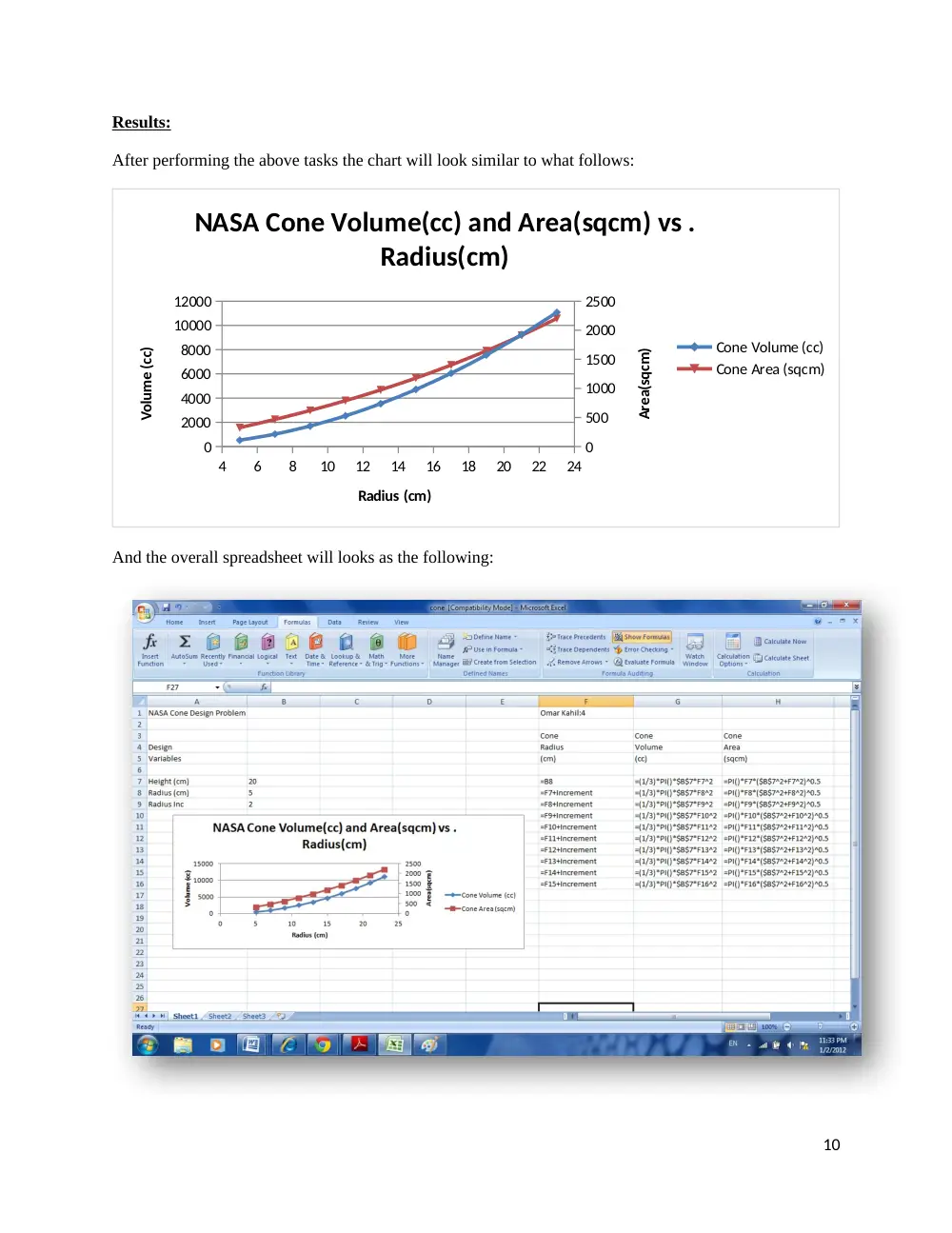
After performing the above tasks the chart will look similar to what follows:
4
6
8
10
12
14
16
18
20
22
24
0
2000
4000
6000
8000
10000
12000
0
500
1000
1500
2000
2500
NASA Cone Volume(cc) and Area(sqcm) vs .
Radius(cm)
Cone Volume (cc)
Cone Area (sqcm)
Radius (cm)
Volume (cc)
Area(sqcm)
And the overall spreadsheet will looks as the following:
10
Results Discussion:
-The chart reveals that the volume and surface area of a cone are exponential in growth.
-It also shows the radius in which the volume is equal to the area (point of intersection of the 2
curves).
-One more important result is the ability to approximate graphically the volume or surface area at
any radius, without using any additional calculations.
11
Conclusion:
Microsoft Excel is an electronic spreadsheet. one can use it to organize data into rows and columns and to
perform mathematical calculations quickly. In this exercise the objectives were attained, the area and the
volume of a right circular cone with changing radius were calculated and a chart was created for visual
demonstration.
12
References:
1.
http://www.baycongroup.com/excel2007/01_excel.htm
2.
http://faculty.trinityvalleyschool.org/hoseltom/labs/Lab-14-Excel%20Lab-Calculating%202D
%20Trajectories.pdf
3.
http://www.engineeringexcelspreadsheets.com/
4.
http://www.mathalino.com/reviewer/solid-mensuration-solid-geometry/right-circular-cone
5.
http://nuclearpowertraining.tpub.com/h1014v2/css/h1014v2_33.htm
6.
http://en.wikipedia.org/wiki/Cone_(geometry)
13
Appendix:
Notes on using excel
Excel spreadsheet tutorial:
http://www.youtube.com/watch?v=NA0GeNptJIA
14