
EECE 340 Tutorial, Spring 2011
American University of Beirut · Signals and Systems · 29 pages
Showing the first 10 of 29 pages. Download the PDF to see all of it.
More EECE 340 files
- Useful File · Fall 2011FileView
- Problems Book · Spring 2020ProblemsView
- Exam 2 · Spring 2017ExamView
- Exam 1 Kabalan · Spring 2017ExamView
- Exam 2 · Spring 2016ExamView
- Homework 1 Solution · Spring 2016Homework · with solutionView
- Homework 2 · Spring 2016HomeworkView
- Homework 2 Solution · Spring 2016Homework · with solutionView
Show the text of this file
MATLAB Primer
Second Edition
Kermit Sigmon
Department of Mathematics
University of Florida
Department of Mathematics e University of Florida e Gainesville, FL 32611
sigmon@math.ufl.edu e sigmon@ufpine.bitnet
Copyright ©1989, 1992 by Kermit Sigmon
Copyright ©1989, 1992 by Kermit Sigmon
The MATLAB Primer may be distributed as desired subject to the following con-
ditions:
1. It may not be altered in any way, except possibly adding an addendum giving
information about the local computer installation.
2. It, or any part thereof, may not be used as part of a document distributed for
a commercial purpose.
In particular, it may be distributed via a local copy center or bookstore. Users
usually appreciate the convenience and durability of a bound copy with a cover,
copy center style.
Department of Mathematics e University of Florida e Gainesville, FL 32611
sigmon@math.ufl.edu e sigmon@ufpine.bitnet
INTRODUCTION
MATLAB is an interactive, matrix-based system for scientific and engineering calcu-
lations. You can solve complex numerical problems without actually writing a program.
The name MATLAB is an abbreviation for MATrix LABoratory.
The purpose of this Primer is to help you begin to use MATLAB. They can best be
used hands-on. You are encouraged to work at the computer as you read the Primer and
freely experiment with examples.
You should liberally use the on-line help facility for more detailed information. After
entering MATLAB as described in section 1, the command help will display a list of
functions for which on-line help is available; the command help functionname will give
information about a specific function. The command help eig, for example, will give
information about the eigenvalue function eig. You can preview some of the features of
MATLAB by entering the command demo.
The scope and power of MATLAB go far beyond these notes. Eventually you will
want to consult the MATLAB User’s Guide and Reference Guide. The documentation
which accompanies the Student Edition of MATLAB is an excellent source. Copies of
the complete User’s Guide are often available for review at locations such as consulting
desks, terminal rooms, computing labs, and the reserve desk of the library. Consult your
instructor or your local computing center to learn where the User’s Guides are located at
your institution.
MATLAB is available for a number of environments: Sun/Apollo/VAXstation/HP
workstations, VAX, MicroVAX, Gould, PC and AT compatibles, 80386 and 80486 com-
puters, Apple Macintosh, and several parallel machines. There is a relatively inexpensive
Student Edition available from Prentice Hall publishers. The information in these notes
applies generally to all of these environments.
While the second edition of the Primer is based on version 3.5 of MATLAB, it is
compatible with version 4.0 with the fundamental differences noted. An edition of the
Primer based on version 4.0 is under development.
The plain T&X source (and a PostScript file primer35.ps) of this second edition
of the MATLAB Primer is available via anonymous ftp from math.ufl.edu as the file
primer35.tex in the directory pub/matlab. If ftp is unavailable to you, it can be obtained
via listserv by sending an email message to listserv@math.uf1l.edu which contains the
single line send matlab/primer35.tex. It can also be obtained by sending a request to
the author at sigmon@math.ufl.edu. The latest edition of the Primer will always be
available as indicated above as the file primer.tex. A Spanish version is also available
there.
MATLAB is licensed by The MathWorks, Inc., Cochituate Place, 24 Prime Park Way,
Natick, MA 01760, (508)653-1415, Fax: (508)653-2997, Email: info@mathworks.com.
Copyright ©1989, 1992 by Kermit Sigmon
(6-93)
ii
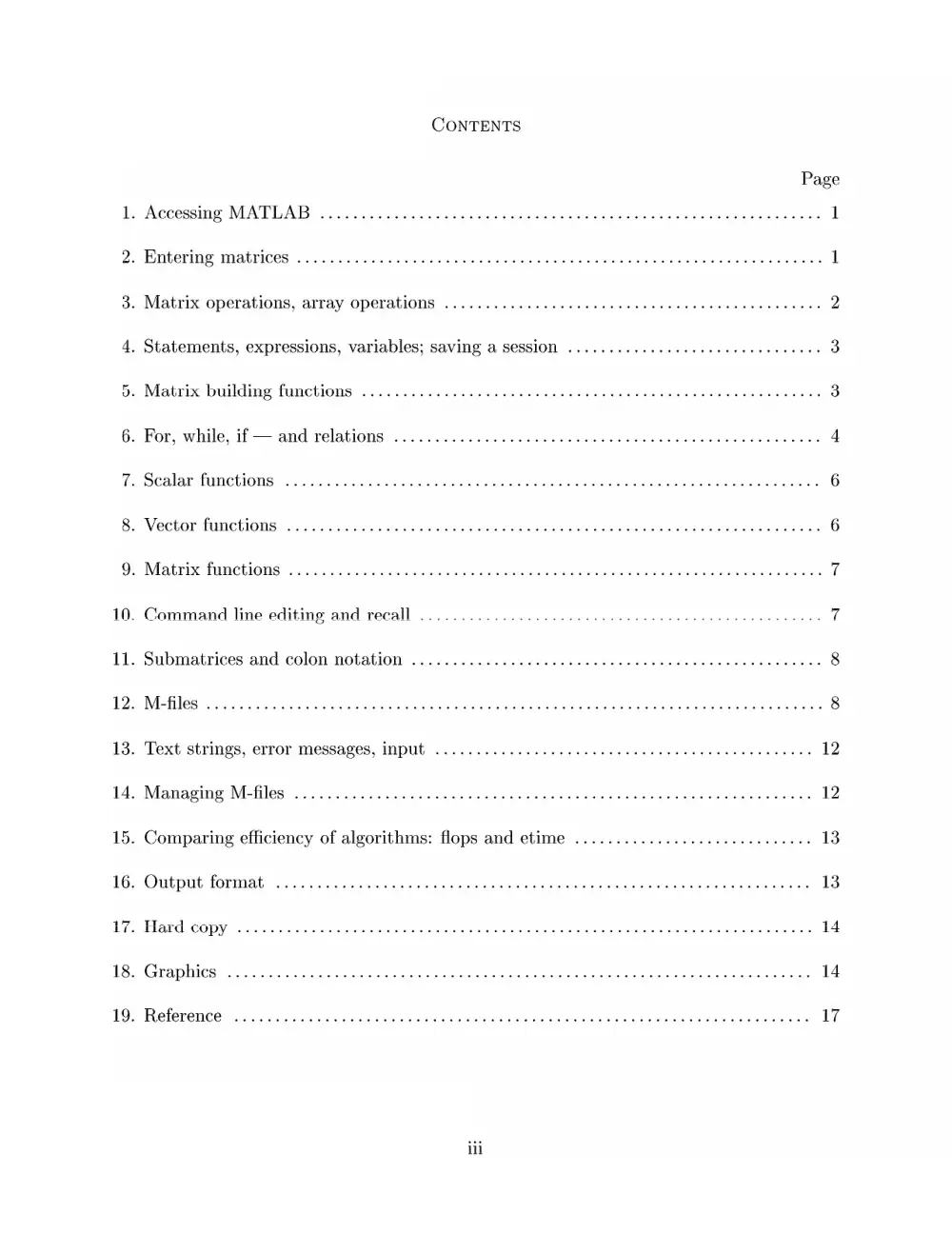
CONTENTS
Page
1. Accessing MATLAB ......... 0. ccc cece cece cece nent ence etn eben ene ene nen eneeeee 1
2. Entering matrices ....... 0. eee e eee eee beeen ene e nent eens ees 1
3. Matrix operations, array operations ........... 00. c eect t een ene ene ees 2
4. Statements, expressions, variables; saving a session ........... 0. cece eee eee eens 3
5. Matrix building functions .......... 0... nett e een eee eens 3
6. For, while, if — and relations .......... 0... c ccc cece cence cence tence nen tenes 4
7. Scalar functions 2.0.0.0... cent eee eee n ete e teens 6
8. Vector functions 1.2... 6. ccc nee n nen en tet e bene n ene en ences 6
9. Matrix functions 2.0.0... 0c n tenn eee beeen eae 7
10. Command line editing and recall ... 0.0.0.0 nce cece eee 7
11. Submatrices and colon notation .......... 0... c cece cece eee cence cnet een en ences 8
12. M-files 20.0... ence nnn een een tne e eee n eee en eens 8
13. Text strings, error messages, input .......... 0... ccc eect nen eee eens 12
14. Managing M-files 2.0.0... cece nee nen n ene e nent bene neeaes 12
15. Comparing efficiency of algorithms: flops and etime ..................0 020s ee eee 13
16. Output format 2.0.0... ccc nnn nee nee n teen e nnn enn en eee 13
17. Hard copy ...... ccc een eee nee nee n eee een ene e eee 14
18. Graphics 2.2.0.0... ccc cece nen nee e nent e tenn ent en ene eeeeneeaee 14
19. Reference 2.0... 0... cece nee n eee eben tebe enna nes 17
ili
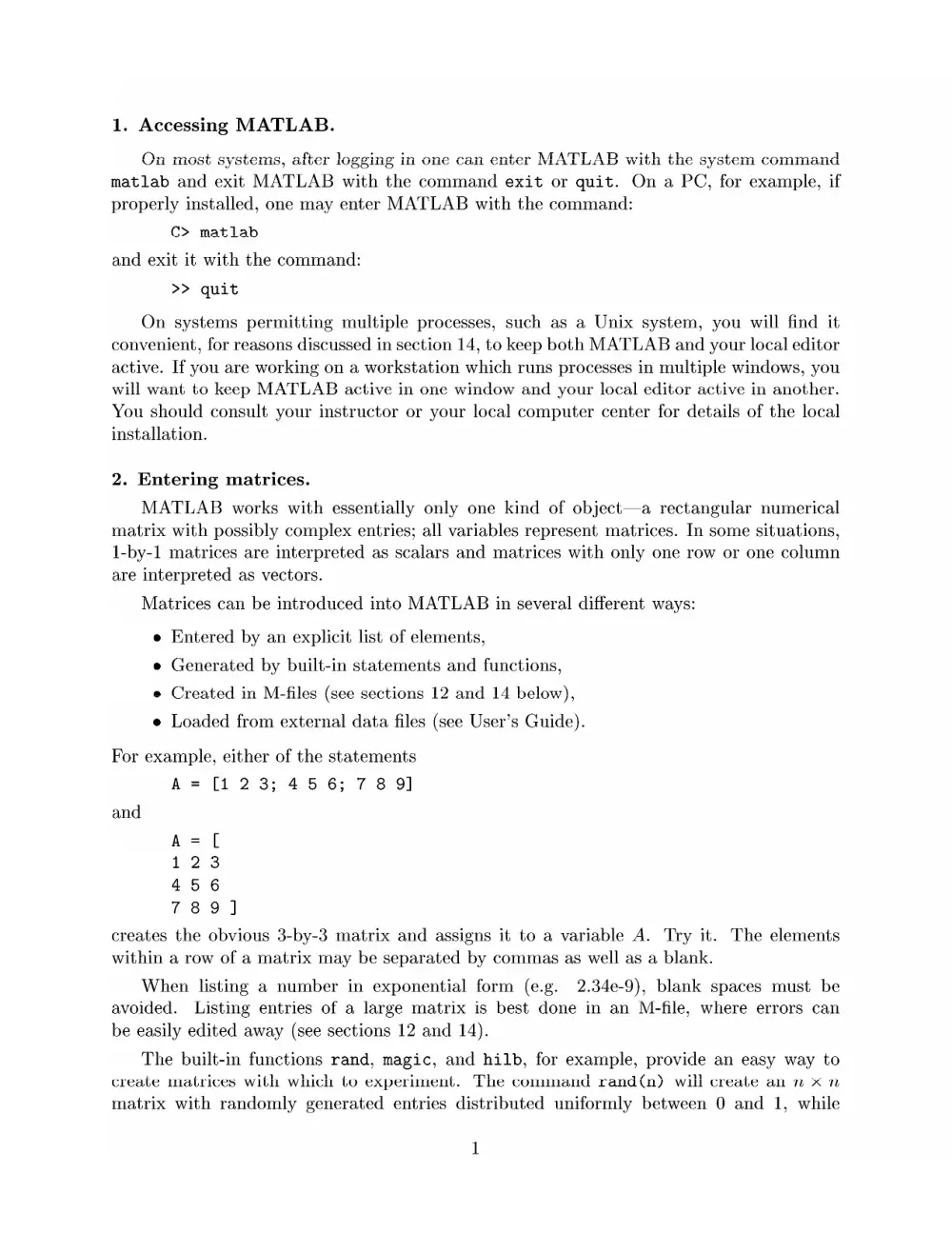
1. Accessing MATLAB.
On most systems, after logging in one can enter MATLAB with the system command
matlab and exit MATLAB with the command exit or quit. On a PC, for example, if
properly installed, one may enter MATLAB with the command:
Cc> matlab
and exit it with the command:
>> quit
On systems permitting multiple processes, such as a Unix system, you will find it
convenient, for reasons discussed in section 14, to keep both MATLAB and your local editor
active. If you are working on a workstation which runs processes in multiple windows, you
will want to keep MATLAB active in one window and your local editor active in another.
You should consult your instructor or your local computer center for details of the local
installation.
2. Entering matrices.
MATLAB works with essentially only one kind of object—a rectangular numerical
matrix with possibly complex entries; all variables represent matrices. In some situations,
1-by-1 matrices are interpreted as scalars and matrices with only one row or one column
are interpreted as vectors.
Matrices can be introduced into MATLAB in several different ways:
e Entered by an explicit list of elements,
e Generated by built-in statements and functions,
e Created in M-files (see sections 12 and 14 below),
e Loaded from external data files (see User’s Guide).
For example, either of the statements
A= (123; 456; 789]
and
A=[
123
456
789]
creates the obvious 3-by-3 matrix and assigns it to a variable A. Try it. The elements
within a row of a matrix may be separated by commas as well as a blank.
When listing a number in exponential form (e.g. 2.34e-9), blank spaces must be
avoided. Listing entries of a large matrix is best done in an M-file, where errors can
be easily edited away (see sections 12 and 14).
The built-in functions rand, magic, and hilb, for example, provide an easy way to
create matrices with which to experiment. The command rand (n) will create an n x n
matrix with randomly generated entries distributed uniformly between 0 and 1, while
1
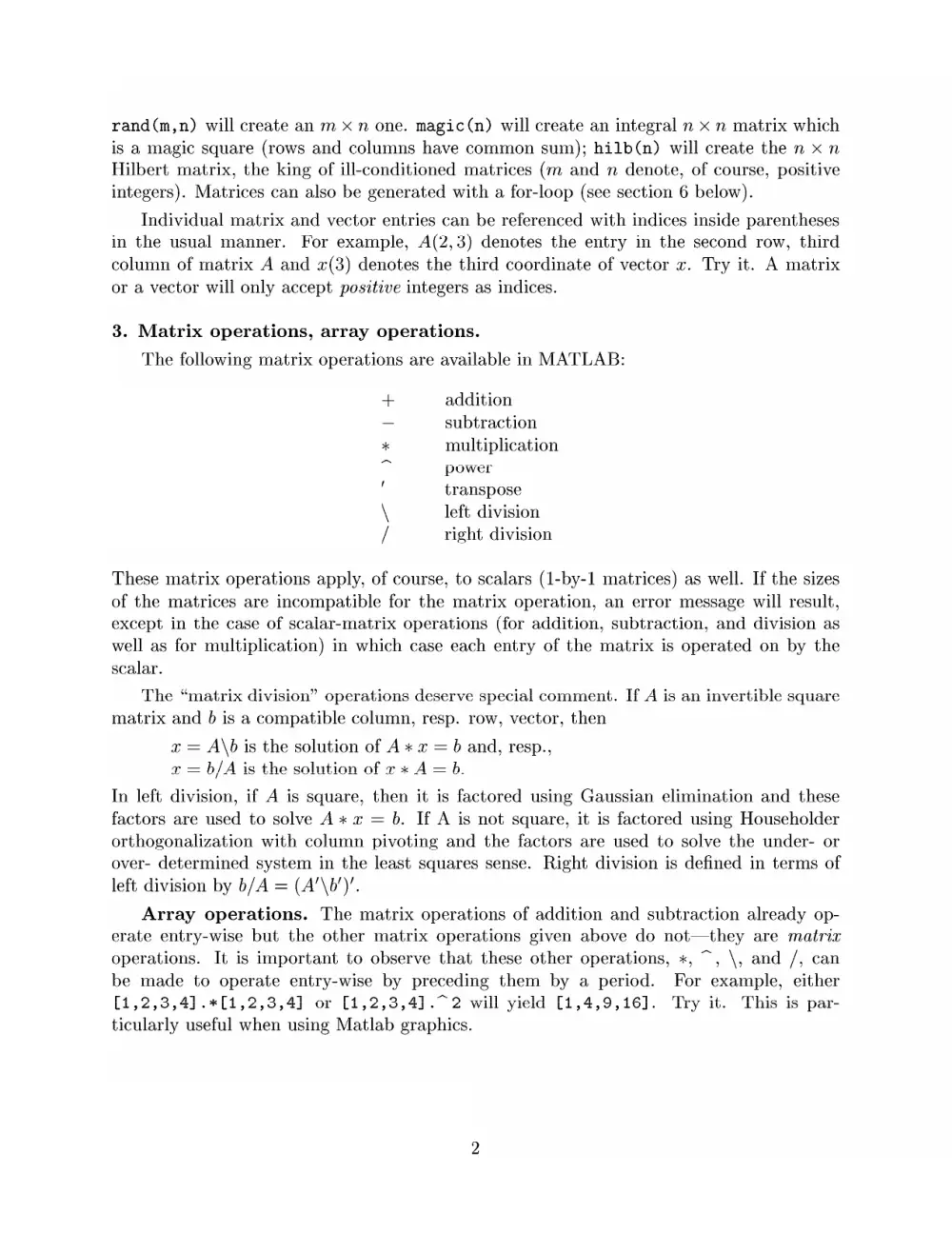
rand(m,n) will create an m x n one. magic(n) will create an integral n x n matrix which
is a magic square (rows and columns have common sum); hilb(n) will create the n x n
Hilbert matrix, the king of ill-conditioned matrices (m and n denote, of course, positive
integers). Matrices can also be generated with a for-loop (see section 6 below).
Individual matrix and vector entries can be referenced with indices inside parentheses
in the usual manner. For example, A(2,3) denotes the entry in the second row, third
column of matrix A and (3) denotes the third coordinate of vector x. Try it. A matrix
or a vector will only accept positive integers as indices.
3. Matrix operations, array operations.
The following matrix operations are available in MATLAB:
+ addition
- subtraction
* multiplication
i power
/ transpose
\ left. division
/ right division
These matrix operations apply, of course, to scalars (1-by-1 matrices) as well. If the sizes
of the matrices are incompatible for the matrix operation, an error message will result,
except in the case of scalar-matrix operations (for addition, subtraction, and division as
well as for multiplication) in which case each entry of the matrix is operated on by the
scalar.
The “matrix division” operations deserve special comment. If A is an invertible square
matrix and 6 is a compatible column, resp. row, vector, then
x = A\b is the solution of A * x = b and, resp.,
xz = b/A is the solution of x * A= b.
In left division, if A is square, then it is factored using Gaussian elimination and these
factors are used to solve A «a = b. If A is not square, it is factored using Householder
orthogonalization with column pivoting and the factors are used to solve the under- or
over- determined system in the least squares sense. Right division is defined in terms of
left division by b/A = (A‘\b’)’.
Array operations. The matrix operations of addition and subtraction already op-
erate entry-wise but the other matrix operations given above do not—they are matrix
operations. It is important to observe that these other operations, x, ~, \, and /, can
be made to operate entry-wise by preceding them by a period. For example, either
(1,2,3,4].*[1,2,3,4] or [1,2,3,4].72 will yield [1,4,9,16]. Try it. This is par-
ticularly useful when using Matlab graphics.
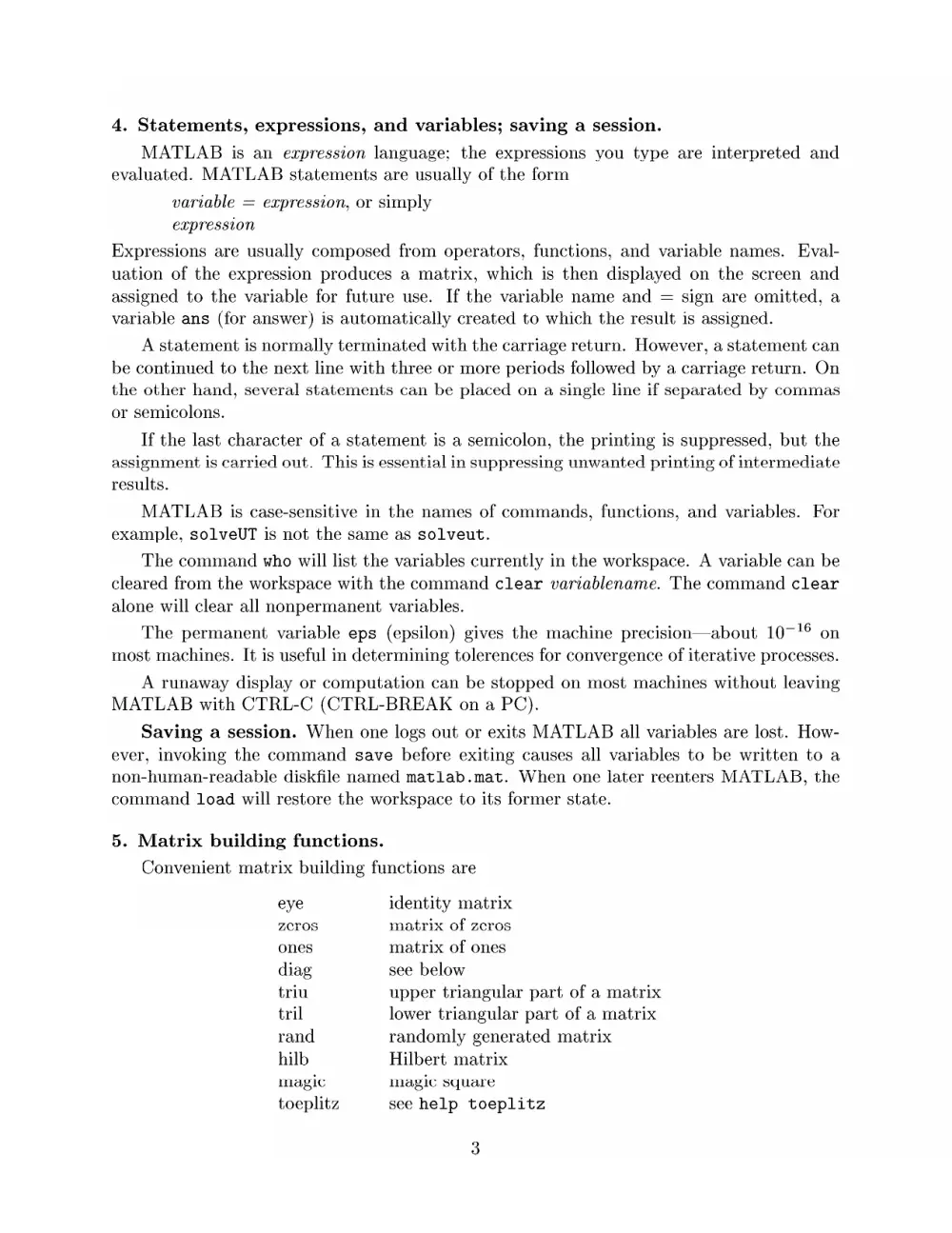
4. Statements, expressions, and variables; saving a session.
MATLAB is an expression language; the expressions you type are interpreted and
evaluated. MATLAB statements are usually of the form
variable = expression, or simply
expression
Expressions are usually composed from operators, functions, and variable names. Eval-
uation of the expression produces a matrix, which is then displayed on the screen and
assigned to the variable for future use. If the variable name and = sign are omitted, a
variable ans (for answer) is automatically created to which the result is assigned.
A statement is normally terminated with the carriage return. However, a statement can
be continued to the next line with three or more periods followed by a carriage return. On
the other hand, several statements can be placed on a single line if separated by commas
or semicolons.
If the last character of a statement is a semicolon, the printing is suppressed, but the
assignment is carried out. This is essential in suppressing unwanted printing of intermediate
results.
MATLAB is case-sensitive in the names of commands, functions, and variables. For
example, solveUT is not the same as solveut.
The command who will list the variables currently in the workspace. A variable can be
cleared from the workspace with the command clear variablename. The command clear
alone will clear all nonpermanent variables.
The permanent variable eps (epsilon) gives the machine precision—about 10~'° on
most machines. It is useful in determining tolerences for convergence of iterative processes.
A runaway display or computation can be stopped on most machines without leaving
MATLAB with CTRL-C (CTRL-BREAK on a PC).
Saving a session. When one logs out or exits MATLAB all variables are lost. How-
ever, invoking the command save before exiting causes all variables to be written to a
non-human-readable diskfile named matlab.mat. When one later reenters MATLAB, the
command load will restore the workspace to its former state.
5. Matrix building functions.
Convenient matrix building functions are
eye identity matrix
ZeTOS matrix of zeros
ones matrix of ones
diag see below
triu upper triangular part of a matrix
tril lower triangular part of a matrix
rand randomly generated matrix
hilb Hilbert matrix
magic magic square
toeplitz see help toeplitz
3
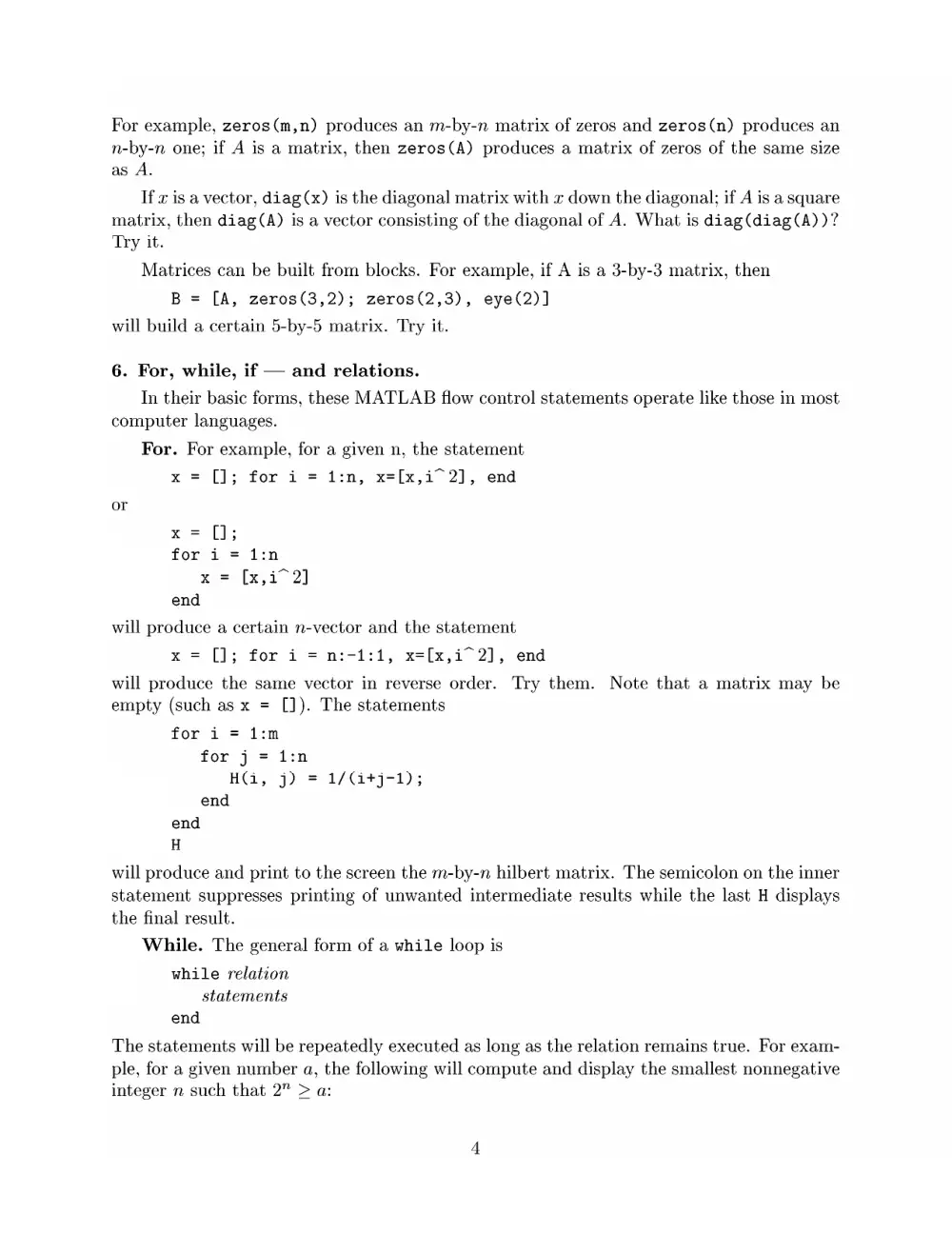
For example, zeros(m,n) produces an m-by-n matrix of zeros and zeros(n) produces an
n-by-n one; if A is a matrix, then zeros(A) produces a matrix of zeros of the same size
as A.
If x is a vector, diag (x) is the diagonal matrix with x down the diagonal; if A is a square
matrix, then diag(A) is a vector consisting of the diagonal of A. What is diag(diag(A))?
Try it.
Matrices can be built from blocks. For example, if A is a 3-by-3 matrix, then
B = (A, zeros(3,2); zeros(2,3), eye(2)]
will build a certain 5-by-5 matrix. Try it.
6. For, while, if — and relations.
In their basic forms, these MATLAB flow control statements operate like those in most
computer languages.
For. For example, for a given n, the statement
x = [1]; fori iin, x=[x,i7~ 2], end
or
x= (1;
for i = 1i:n
x = [x,i72]
end
will produce a certain n-vector and the statement
x = []; for i = n:-1:1, x=[x,i72], end
will produce the same vector in reverse order. Try them. Note that a matrix may be
empty (such as x = []). The statements
for i = 1i:m
for j = i:n
H(i, j) = 1/(itj-1);
end
end
H
will produce and print to the screen the m-by-n hilbert matrix. The semicolon on the inner
statement suppresses printing of unwanted intermediate results while the last H displays
the final result.
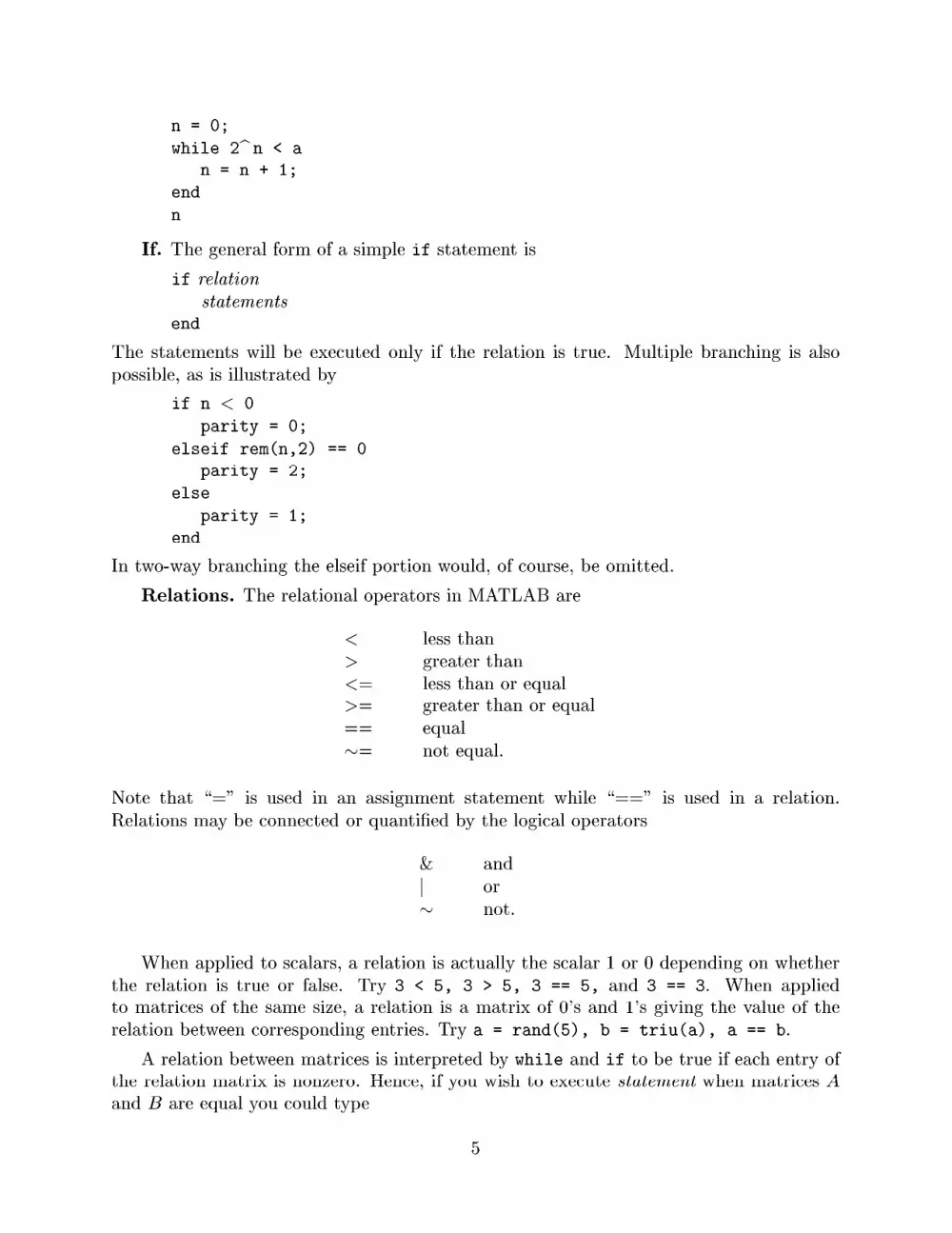
While. The general form of a while loop is
while relation
statements
end
The statements will be repeatedly executed as long as the relation remains true. For exam-
ple, for a given number a, the following will compute and display the smallest nonnegative
integer n such that 2” > a:
n= 0;
while 2n<a
n=n+#+ 1;
end
n
If. The general form of a simple if statement is
if relation
statements
end
The statements will be executed only if the relation is true. Multiple branching is also
possible, as is illustrated by
ifn<0
parity = 0;
elseif rem(n,2) ==
parity = 2;
else
parity = 1;
end
In two-way branching the elseif portion would, of course, be omitted.
Relations. The relational operators in MATLAB are
< less than
> greater than
<= less than or equal
= greater than or equal
== equal
v= not equal.
Note that “=” is used in an assignment statement while “==” is used in a relation.
Relations may be connected or quantified by the logical operators
& and
| or
~ not.
When applied to scalars, a relation is actually the scalar 1 or 0 depending on whether
the relation is true or false. Try 3 < 5, 3 > 5, 3 == 5, and 3 == 3. When applied
to matrices of the same size, a relation is a matrix of 0’s and L’s giving the value of the
relation between corresponding entries. Try a = rand(5), b = triu(a), a ==
A relation between matrices is interpreted by while and if to be true if each entry of
the relation matrix is nonzero. Hence, if you wish to execute statement when matrices A
and B are equal you could type
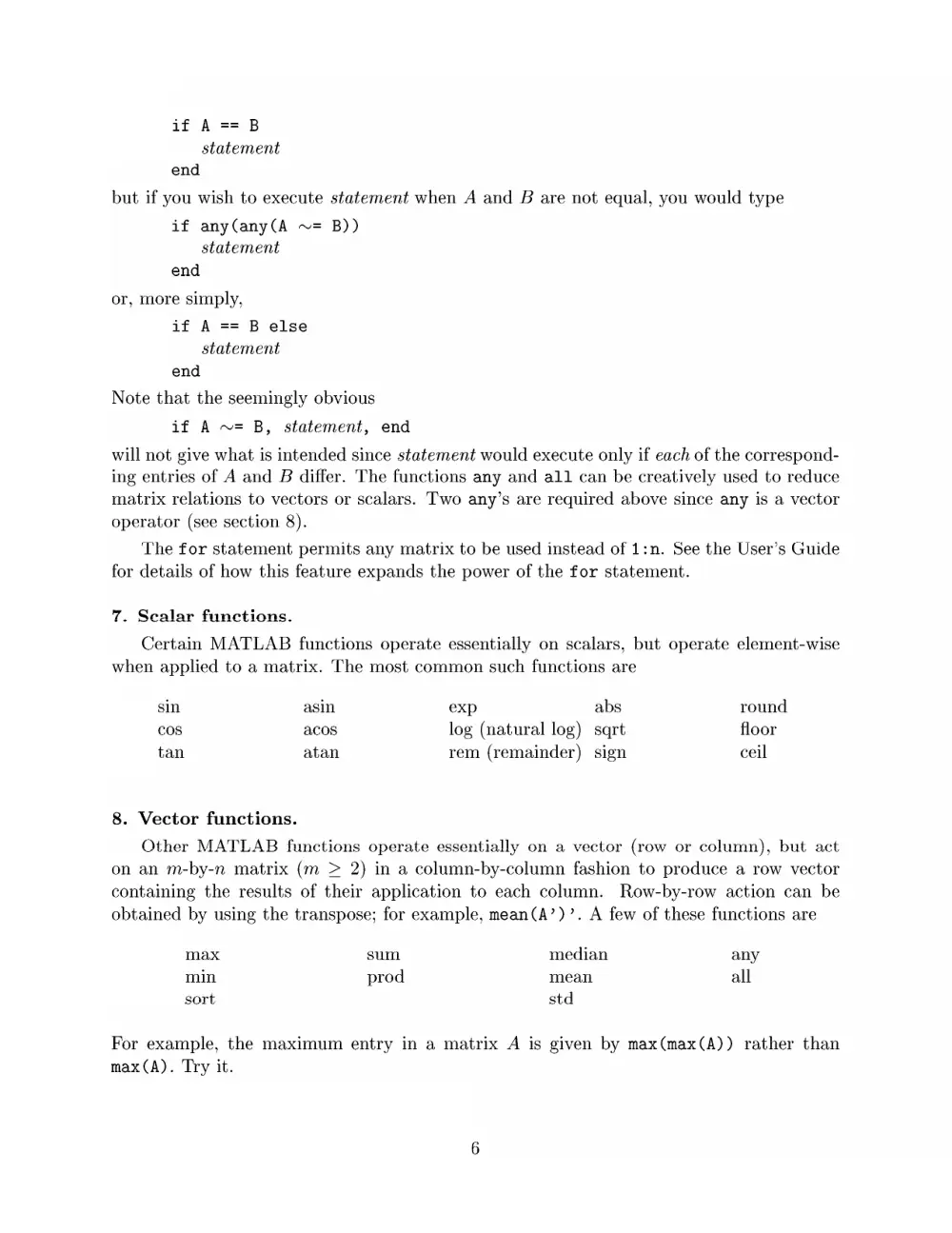
if A ==
statement
end
but if you wish to execute statement when A and B are not equal, you would type
if any(any(A ~= B))
statement
end
or, more simply,
if A == B else
statement
end
Note that the seemingly obvious
if A ~= 8B, statement, end
will not give what is intended since statement would execute only if each of the correspond-
ing entries of A and B differ. The functions any and all can be creatively used to reduce
matrix relations to vectors or scalars. Two any’s are required above since any is a vector
operator (see section 8).
The for statement permits any matrix to be used instead of 1:n. See the User’s Guide
for details of how this feature expands the power of the for statement.
7. Scalar functions.
Certain MATLAB functions operate essentially on scalars, but operate element-wise
when applied to a matrix. The most common such functions are
sin asin exp abs round
cos acos log (natural log) sqrt floor
tan atan rem (remainder) sign ceil
8. Vector functions.
Other MATLAB functions operate essentially on a vector (row or column), but act
on an m-by-n matrix (m > 2) in a column-by-column fashion to produce a row vector
containing the results of their application to each column. Row-by-row action can be
obtained by using the transpose; for example, mean(A’)’. A few of these functions are
max sum median any
min prod mean all
sort std
For example, the maximum entry in a matrix A is given by max(max(A)) rather than
max(A). Try it.