
EECE 433 Chapter 7, Spring 2012
American University of Beirut · Database Systems · 123 pages

Showing the first 10 of 123 pages. Download the PDF to see all of it.
More EECE 433 files
- Problems Chapter 3 · Spring 2012ChapterView
- Chapter 6 · Spring 2012ChapterView
- Chapter 8 · Spring 2012ChapterView
- Problems Chapter 1 & 2 · Spring 2012ChapterView
- Problems Chapter 5 · Spring 2012ChapterView
- Problems Chapter 6 Handout · Spring 2012ChapterView
- Chapter 19 · Spring 2012ChapterView
- Problems Chapter 4 · Spring 2012ChapterView
Show the text of this chapter
Database-Backed Internet
Applications
Chapter 7
Lecture Overview
Internet Concepts
Web data formats
HTML, XML, DTDs (Document Type Definition)
Introduction to three-tier architectures
The presentation layer
HTML forms; HTTP Get and POST, URL encoding;
Javascript; Stylesheets. XSLT
The middle tier
CGI, application servers, Servlets,
JavaServerPages, passing arguments,
maintaining state (cookies)
Two Key Internet Issues
1.
How to locate sites on the internet?
URI
2.
How programs on one site communicate
with other sites?
HTTP
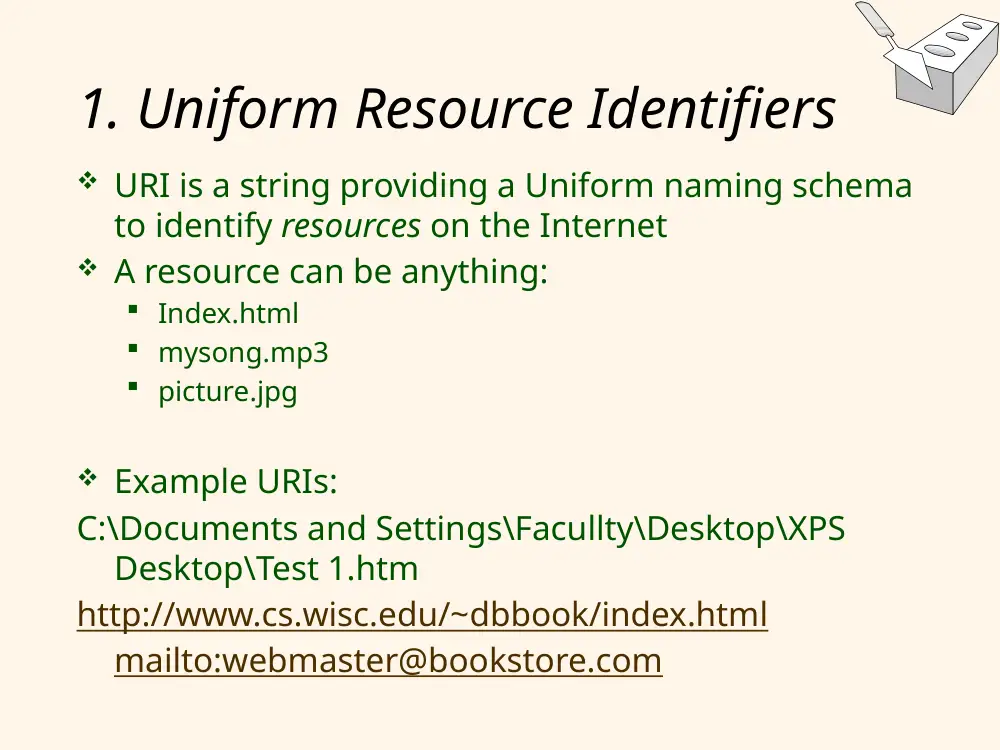
1. Uniform Resource Identifiers
URI is a string providing a Uniform naming schema
to identify resources on the Internet
A resource can be anything:
Index.html
mysong.mp3
picture.jpg
Example URIs:
C:\Documents and Settings\Facullty\Desktop\XPS
Desktop\Test 1.htm
http://www.cs.wisc.edu/~dbbook/index.html
mailto:webmaster@bookstore.com
1. Structure of URIs
URI has three parts:
Name of the protocol (http)
Name of the host computer (www.cs.wisc.edu)
Name of the resource (~dbbook/index.html)
Example: http://www.cs.wisc.edu/~dbbook/index.ht
ml
URLs are a subset of URIs.
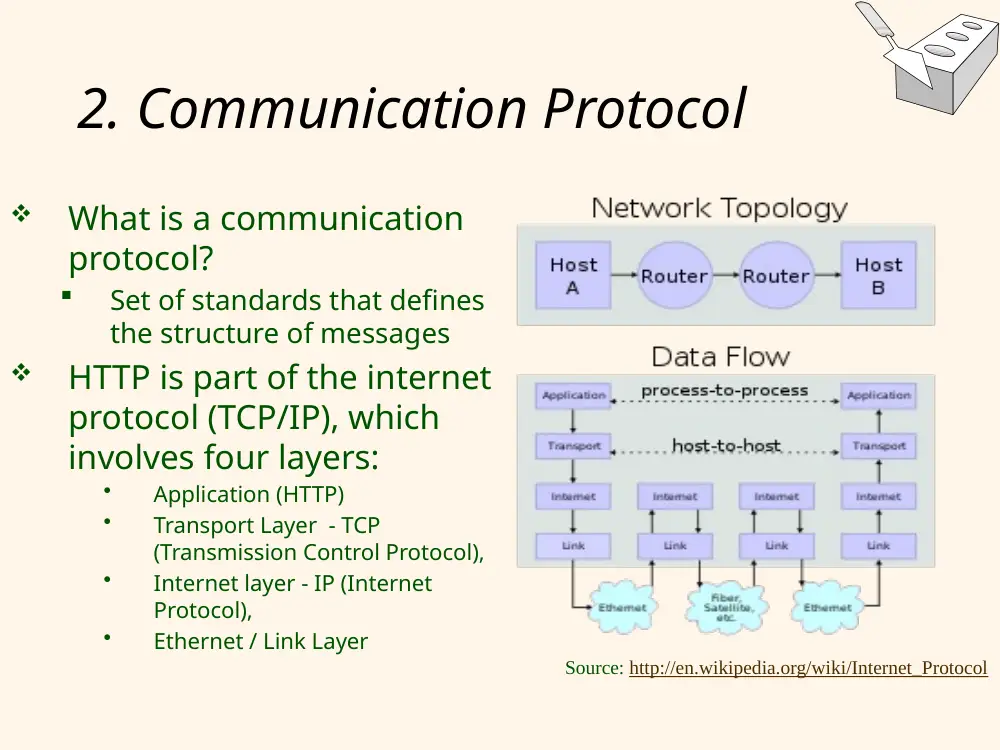
2. Communication Protocol
What is a communication
protocol?
Set of standards that defines
the structure of messages
HTTP is part of the internet
protocol (TCP/IP), which
involves four layers:
•
Application (HTTP)
•
Transport Layer - TCP
(Transmission Control Protocol),
•
Internet layer - IP (Internet
Protocol),
•
Ethernet / Link Layer
Source: http://en.wikipedia.org/wiki/Internet_Protocol
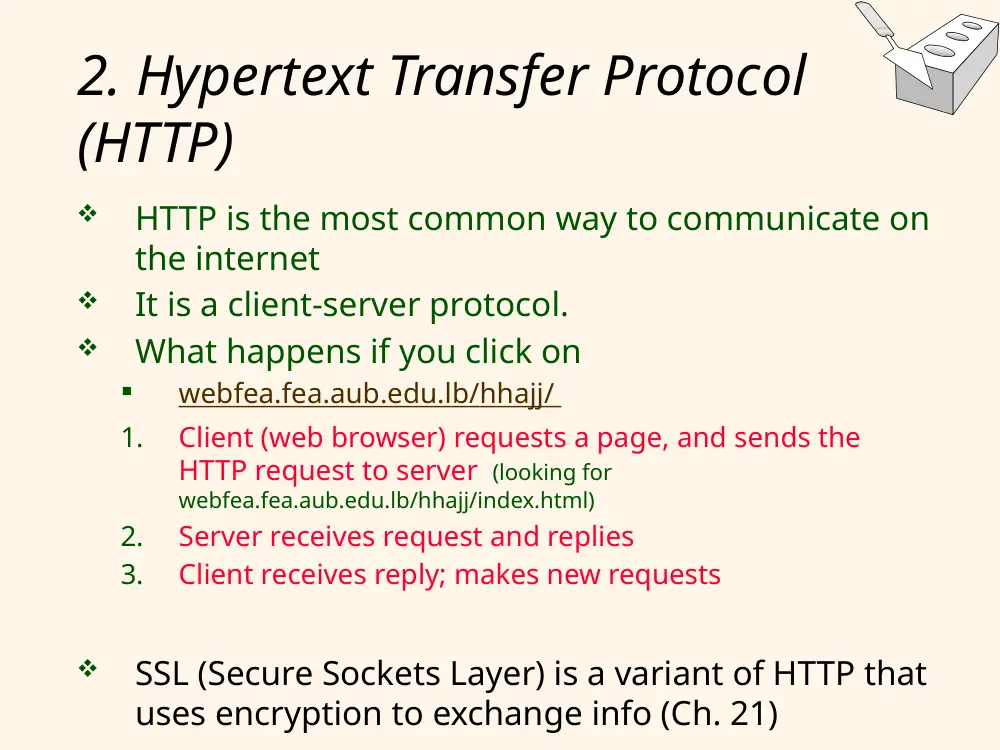
2. Hypertext Transfer Protocol
(HTTP)
HTTP is the most common way to communicate on
the internet
It is a client-server protocol.
What happens if you click on
webfea.fea.aub.edu.lb/hhajj/
1.
Client (web browser) requests a page, and sends the
HTTP request to server (looking for
webfea.fea.aub.edu.lb/hhajj/index.html)
2.
Server receives request and replies
3.
Client receives reply; makes new requests
SSL (Secure Sockets Layer) is a variant of HTTP that
uses encryption to exchange info (Ch. 21)
2. Structure of HTTP Request
Client to Server(example):
GET ~/index.html HTTP/1.1
User-agent: Chrome /10.0
Accept: text/html, image/gif,
image/jpeg
Client Request - Several lines of ASCII text
Request Line has three parts:
1.
HTTP method (GET/POST),
2.
HTTP URI,
3.
HTTP version used by the client.
Client version (e.g. Chrome / 10.0)
Line describing formats accepted by the client
GET and POST (Request)
Recall example: GET ~/index.html HTTP/1.1 .
Note that request can have one of two
possible methods: GET and POST
GET includes parameters in URL.
POST includes parameters in body of
message.
1
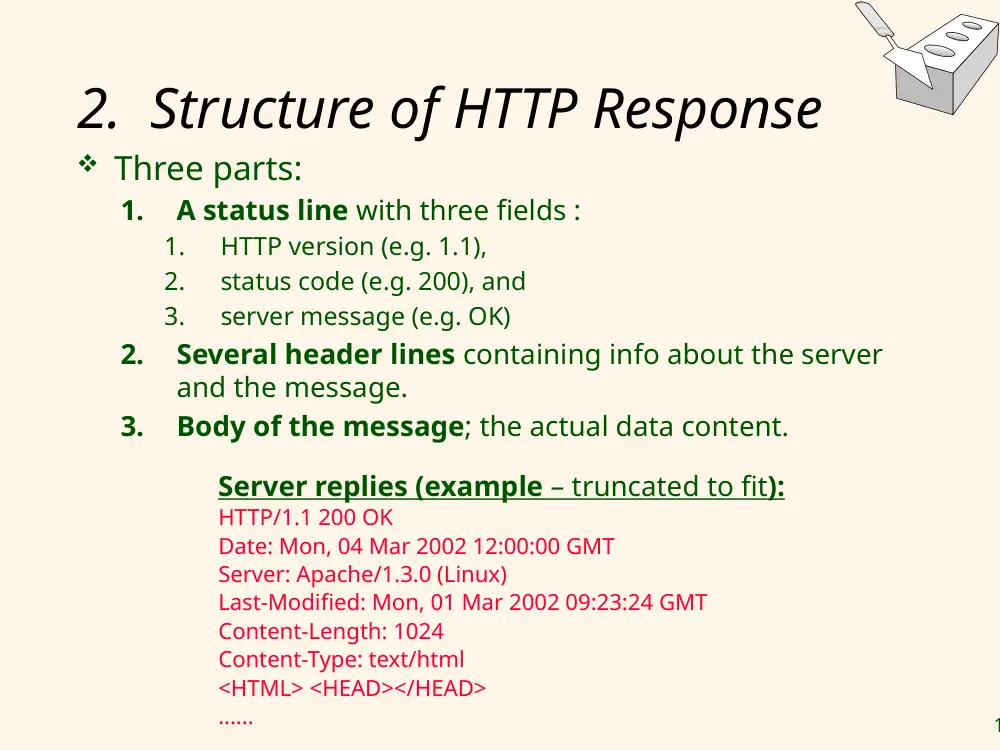
2. Structure of HTTP Response
Three parts:
1.
A status line with three fields :
1.
HTTP version (e.g. 1.1),
2.
status code (e.g. 200), and
3.
server message (e.g. OK)
2.
Several header lines containing info about the server
and the message.
3.
Body of the message; the actual data content.
Server replies (example – truncated to fit):
HTTP/1.1 200 OK
Date: Mon, 04 Mar 2002 12:00:00 GMT
Server: Apache/1.3.0 (Linux)
Last-Modified: Mon, 01 Mar 2002 09:23:24 GMT
Content-Length: 1024
Content-Type: text/html
<HTML> <HEAD></HEAD>
......
1
Example: HTTP Message Structure
Client to Server:
GET ~/index.html HTTP/1.1
User-agent: Mozilla/4.0
Accept: text/html, image/gif,
image/jpeg
Server replies:
HTTP/1.1 200 OK
Date: Mon, 04 Mar 2002 12:00:00
GMT
Server: Apache/1.3.0 (Linux)
Last-Modified: Mon, 01 Mar 2002
09:23:24 GMT
Content-Length: 1024
Content-Type: text/html
<HTML> <HEAD></HEAD>
<BODY>
<h1>Barns and Nobble Internet
Bookstore</h1>
Our inventory:
<h3>Science</h3>
<b>The Character of Physical Law</b>
...
I
II
III
Date when response was created
Date when data was created
1
HTTP Protocol Structure – More
details on HTTP Response
Status line: HTTP/1.1 200 OK
HTTP version: HTTP/1.1
Status code: 200
Server message: OK
Common status code/server message combinations:
•
200 OK: Request succeeded
•
400 Bad Request: Request could not be fulfilled by the server
•
404 Not Found: Requested object does not exist on the server
•
505 HTTP Version not Supported
Several header Lines:
Date when the object was created:
Last-Modified: Mon, 01 Mar 2002 09:23:24 GMT
Number of bytes being sent: Content-Length: 1024
What type is the object being sent: Content-Type: text/html
Other information such as the server type, server time, etc.
Body of message----e.g. HTML
1
Some Remarks About HTTP
HTTP is stateless
No “sessions”
Every message is completely self-contained
No previous interaction is “remembered” by the protocol
Tradeoff between ease of implementation and ease of
application development: Other functionality has to be
built on top
Implications for applications:
Any state information (shopping carts, user login-
information) need to be encoded in every HTTP request
and response!
Popular methods on how to maintain state:
• Cookies (discussed later)
• Dynamically generate unique URL’s at the server level
(discussed later )
1
Lecture Overview
Internet Concepts
Web data formats
HTML, XML, DTDs (Document Type Definition)
Introduction to three-tier architectures
The presentation layer
HTML forms; HTTP Get and POST, URL encoding;
Javascript; Stylesheets. XSLT
The middle tier
CGI, application servers, Servlets,
JavaServerPages, passing arguments,
maintaining state (cookies)
1
Web Data Formats
HTML
The presentation language for the Internet
Xml
A self-describing, hierarchal data model
DTD
Standardizing schemas for Xml
XSLT (not covered in the book)
How to transform XML into other formats
1
HTML: An Example
<HTML>
<HEAD></HEAD>
<BODY>
<h1>Barns and Nobble Internet Bookstore</h1>
Our inventory:
<h3>Science</h3>
<b>The Character of Physical Law</b>
<UL>
<LI>Author: Richard Feynman</LI>
<LI>Published 1980</LI>
<LI>Hardcover</LI>
</UL>
<h3>Fiction</h3>
<b>Waiting for the Mahatma</b>
<UL>
<LI>Author: R.K. Narayan</LI>
<LI>Published 1981</LI>
</UL>
<b>The English Teacher</b>
<UL>
<LI>Author: R.K. Narayan</LI>
<LI>Published 1980</LI>
<LI>Paperback</LI>
</UL>
</BODY>
</HTML>
Try it…..
1
HTML: A Short Introduction
HTML is a markup language (it adds marks
ie tags to normal text)
Commands are tags:
Start tag and end tag
Examples:
• <HTML> … </HTML>
• <UL> … </UL>
Many editors automatically generate HTML
directly from your document (e.g., Microsoft
Word has an “Save as html” facility)
1
HTML: Sample Commands
<HTML>: beginning of HTML document
<UL>: unordered list
<LI>: list entry
<h1>: largest heading
<h2>: second-level heading, <h3>, <h4>
analogous
<B>Title</B>: Bold
1
XML – The Extensible Markup Language
Extensible
Limitless ability to define new languages or data
sets
Markup
Notes or meta-data that describe your data or
language
Language
A way of communicating information
Note XML complements HTML. It does NOT
replace it. (XML is for carrying info. HTML
for displaying it. HTML does not convey the
meaning of the content)
2
XML Example
<customer id="C1234">
<lname>Smith</lname>
<fname>John></fname>
<address type="biz">
<street>1310 Villa Street</street>
<city>Mountain View</city>
<state>CA</state>
<zip>94041</zip>
</address>
</customer>
2
XML: An Example
<?xml version="1.0" encoding="UTF-8" standalone="yes"?>
<BOOKLIST>
<BOOK genre="Science" format="Hardcover">
<AUTHOR>
<FIRSTNAME>Richard</FIRSTNAME><LASTNAME>Feynman</LASTNAME>
</AUTHOR>
<TITLE>The Character of Physical Law</TITLE>
<PUBLISHED>1980</PUBLISHED>
</BOOK>
<BOOK genre="Fiction">
<AUTHOR>
<FIRSTNAME>R.K.</FIRSTNAME><LASTNAME>Narayan</LASTNAME>
</AUTHOR>
<TITLE>Waiting for the Mahatma</TITLE>
<PUBLISHED>1981</PUBLISHED>
</BOOK>
<BOOK genre="Fiction">
<AUTHOR>
<FIRSTNAME>R.K.</FIRSTNAME><LASTNAME>Narayan</LASTNAME>
</AUTHOR>
<TITLE>The English Teacher</TITLE>
<PUBLISHED>1980</PUBLISHED>
</BOOK>
</BOOKLIST>
FYI
2
XML – What’s The Point?
You can include your data and a description of what
the data represents
Similar to how you may organize data in a database (tables
and fields)
This is useful for defining your own language or protocol
(e.g WAP: Wireless Application protocol)
Example: Chemical Markup Language
<molecule>
<weight>234.5</weight>
<Spectra>…</Spectra>
<Figures>…</Figures>
</molecule>
2
XML – What’s The Point? (cont-d)
XML design goals:
XML should be compatible with SGML (Standard
Generalized Markup Language).
SGML was developed to provide a meta-language that
allows definition of data and document.
It should be easy to write XML processors
The design should be formal and precise
XML uses XSL (Extensible Style Language) to
describe how XML content will be displayed on the
browser.
FYI
2
XML – Structure
XML: Confluence of SGML and HTML
Xml looks like HTML
Xml is a hierarchy of user-defined tags called
elements with attributes and data
Elements (e.g. BOOK) provide an indication of the
data content that follows.
Elements are described by attributes.
Data may contain other nested elements, or just
pure data
<BOOK genre="Science" format="Hardcover">…</BOOK>
closing tag
attribute
attribute
value
data
open tag
element
name
2
XML – Elements
<BOOK genre="Science" format="Hardcover">…</BOOK>
Xml is case and space sensitive
Element opening and closing tag names must be identical
Opening tags: “<” + element name + “>”
Closing tags: “</” + element name + “>”
Empty Elements have no data and no closing tag:
They begin with a “<“ and end with a “/>”
<BOOK/>
closing tag
attribute
attribute
value
data
open tag
element
name
2
XML – Attributes
<BOOK genre="Science" format="Hardcover">…</BOOK>
Attributes provide additional information for element tags.
There can be zero or more attributes in every element; each
one has the form:
attribute_name=‘attribute_value’
- There is no space between the name and the “=‘”
- Attribute values must be surrounded by “ or ‘ characters
Multiple attributes are separated by white space (one or more
spaces or tabs).
closing tag
attribute
attribute
value
data
open tag
element
name
2
XML – Data and Comments
<BOOK genre="Science" format="Hardcover">…</BOOK>
Xml data is any information between an opening and closing
tag
Xml data must not contain the ‘<‘ or ‘>’ characters
Comments:
<!- comment ->
Entity reference: Shortcuts for pointers of common text. Start
with ‘&’ and end with ‘;’. Example: 3 < 5 (same as 3 < 5)
closing tag
attribute
attribute
value
data
open tag
element
name
2
XML – Nesting & Hierarchy
Xml tags can be nested in a tree hierarchy
Xml documents can have only one root tag
Between an opening and closing tag you can insert:
1. Data
2. More Elements
3. A combination of data and elements
<root>
<tag1>
Some Text
<tag2>More</tag2>
</tag1>
</root>
2
Xml – Storage
Storage is done just like an n-ary tree (DOM – Document
Object Model for HTML representation)
<root>
<tag1>
Some Text
<tag2>More</tag2>
</tag1>
</root>
Node
Type: Element_Node
Name: Element
Value: Root
Node
Type: Element_Node
Name: Element
Value: tag1
Node
Type: Text_Node
Name: Text
Value: More
Node
Type: Element_Node
Name: Element
Value: tag2
Node
Type: Text_Node
Name: Text
Value: Some Text
3
DTD – Document Type Definition
A DTD is a schema for Xml data
Allows us to define our own rules for tags.
A DTD says what elements and attributes are
required or optional
Defines the formal structure of the language
Xml protocols and languages can be
standardized with DTD files
A document that obeys standard XML
guidelines, does not need a DTD file; and is
called well-formed.
For examples, see backup
3
Lecture Overview
Internet Concepts
Web data formats
HTML, XML, DTDs
Introduction to three-tier architectures
The presentation layer
HTML forms; HTTP Get and POST, URL encoding;
Javascript; Stylesheets. XSLT
The middle tier
CGI, application servers, Servlets,
JavaServerPages, passing arguments,
maintaining state (cookies)
3
Components of Data-Intensive
Systems
Three separate types of functionality:
Data management
Application logic
Presentation
The system architecture determines whether
these three components reside on a single
system (“tier) or are distributed across
several tiers
3
Single-Tier Architectures
All functionality combined into a single tier, usually
on a mainframe
User access through dumb terminals
Advantages:
Easy maintenance and administration
Disadvantages:
Today, users expect graphical user interfaces.
Centralized computation of all of them is too much for
a central system
3
Client-Server Architectures
Work division: Thin client
Client implements only the graphical user interface
Server implements business logic and data
management
Work division: Thick client
Client implements both the graphical user interface
and the business logic
Server implements data management
3
Client-Server Architectures (Contd.)
Disadvantages of thick clients
No central place to update the business logic
Security issues: Server needs to trust clients
• Access control and authentication needs to be
managed at the server
• Clients need to leave server database in consistent
state
• One possibility: Encapsulate all database access into
stored procedures
Does not scale to more than several 100s of
clients
• Large data transfer between server and client
• More than one server creates a problem: x clients, y
servers: x*y connections
3
The Three-Tier Architecture
Database System
Application Server
Client Program (Web Browser)
Presentation tier
Middle tier
Data management
tier
3
The Three Layers
Presentation tier
Primary interface to the user
Needs to adapt to different display devices (PC, PDA, cell
phone, voice access?)
Middle tier
Implements business logic (implements complex actions,
maintains state between different steps of a workflow)
Accesses different data management systems
Data management tier
One or more standard database management systems
3
Example 1: Airline reservations
Build a system for making airline
reservations
What is done in the different tiers?
Database System
Airline info, available seats, customer info, etc.
Application Server
Logic to make reservations, cancel reservations,
add new airlines, etc.
Client Program
Log in different users, display forms and human-
readable output
3
Example 2: Course Enrollment
Build a system using which students can
enroll in courses
Database System
Student info, course info, instructor info, course
availability, pre-requisites, etc.
Application Server
Logic to add a course, drop a course, create a
new course, etc.
Client Program
Log in different users (students, staff, faculty),
display forms and human-readable output
4
Technologies
Database System
(mySQL, Oracle, SQL Server)
Application Server
(Apache, Tomcat, IIS)
Client Program
(Web Browser)
HTML
Javascript
XSLT
JSP, ASP.net
Servlets
Cookies
CGI
XML
Stored Procedures
4
Advantages of the Three-Tier
Architecture
Heterogeneous systems
Tiers can be independently maintained, modified, and replaced
Thin clients
Only presentation layer at clients (web browsers)
Integrated data access
Several database systems can be handled transparently at the
middle tier
Central management of connections
Scalability
Replication at middle tier permits scalability of business logic
Software development
Code for business logic is centralized
Interaction between tiers through well-defined APIs: Can reuse
standard components at each tier
4
Lecture Overview
Internet Concepts
Web data formats
HTML, XML, DTDs
Introduction to three-tier architectures
The presentation layer
HTML forms; HTTP Get and POST, URL encoding;
Javascript; Stylesheets. XSLT
The middle tier
CGI, application servers, Servlets,
JavaServerPages, passing arguments,
maintaining state (cookies)
4
Overview of the Presentation Tier
Functionality of the presentation tier
Primary interface to the user
Needs to adapt to different display devices (PC,
PDA, cell phone, voice access?)
Simple functionality, such as field validity
checking
We will cover:
HTML Forms: How to pass data to the middle tier
JavaScript: Simple functionality at the
presentation tier. NOTE: It is Client side
scripting.
Style sheets: Separating data from formatting
4
HTML FORMS
4
HTML Forms Tag
Common way to communicate data from client to middle tier
General format of a form:
<FORM ACTION=“page.asp” METHOD=“GET”
NAME=“LoginForm”>
…
</FORM>
(Note: asp stands for active server page; jsp stands for Java
Server Page. )
Components of an HTML FORM tag:
ACTION: Specifies URI that handles the content of the form.
METHOD: Specifies HTTP GET or POST method (diff between GET
& POST. GET includes parameters in URL. POST includes
parameters in body of message.
NAME: Name of the form; can be used in (client-side) scripts to
refer to the form
4
What goes Inside HTML Forms
HTML forms are HTML. So any HTML can go.
To specify input parameters, use INPUT tag
Attributes:
• TYPE: text (text input field), password (text input field where
input is displayed as stars, reset (resets all input fields), and
others (e.g. ‘size’ for text, radio button, text area,….)
• NAME: symbolic name, used to identify field value at the
middle tier
• VALUE: default value
Example: <INPUT TYPE=“text” Name=“title”>
Example form:
<form method="POST" action="TableOfContents.jsp">
<input type="text" name="userid">
<input type="password" name="password">
<input type="submit" value="Login“ name="submit">
<input type="reset" value="Clear">
</form>
When submit is
clicked, the
parameters inside the
form are passed to the
URI script, and the
script is invoked
4
Try Example 1
<form method="POST" action="TableOfContents.jsp">
<input type="text" name="userid">
<input type="password" name="password">
<input type="submit" value="Login" name="submit">
<input type="reset" value="Clear">
</form>
Save this in text then change extension to htm
Note that HTML takes it, but we can improve presentation...
Next slide..
4
Try HTML Forms: Example 2
<form method="POST" action="TableOfContents.jsp">
<table align = "center" border="0" width="300">
<tr>
<td>Userid</td>
<td><input type="text" name="userid" size="20"></td>
</tr>
<tr>
<td>Password</td>
<td><input type="password" name="password" size="20"></td>
</tr>
<tr>
<td align = "center"><input type="submit" value="Login“
name="submit"></td>
</tr>
</table>
</form>
Note: tr == table row; td== table cell
4
Passing Arguments
Two methods: GET and POST lead to encoded URIs
that get passed (by the browser) to middle tier or
client script
GET
Form contents go into the submitted URI
Structure of the encoded URI:
action?name1=value1&name2=value2&name3=value3
• Action: name of the URI specified in the form
• (name,value)-pairs come from INPUT fields in the form; empty
fields have empty values (“name=“)
Example from previous password form:
TableOfContents.jsp?userid=john&password=johnpw
Note that the page named action needs to be a program,
script, or page that will process the user input
5
HTTP GET: Encoding Form Fields
Form fields can contain general ASCII
characters, but the resulting URI has to be
a single consecutive string with no spaces
Therefore, a special encoding convention
converts such field values into “URI-
compatible” characters:
1. Convert all “special” characters to %xyz, were
xyz is the ASCII code of the character. Special
characters include &, =, +, %, etc.
2. Convert all spaces to the “+” character
3. Glue (name,value)-pairs from the form INPUT
tags together with “&” to form the URI
5
JavaScript
5
JavaScript – Client Based scripting
(Though may have some similarity But really) Independent of
Java
Goal: Add functionality to the presentation tier.
Sample applications:
Form validation: Validate form input fields
Browser control: Open new windows, close existing windows
(example: pop-up ads)
Detect browser type and load browser-specific page
Usually embedded directly inside the HTML with the <SCRIPT>
… </SCRIPT> tag.
<SCRIPT> tag has several attributes:
LANGUAGE: specifies language of the script (such as javascript)
SRC: external file with script code
Example:
<SCRIPT LANGUAGE=“JavaScript” SRC=“validate.js>
</SCRIPT>
5
JavaScript (Contd.)
If <SCRIPT> tag does not have a SRC attribute, then
the JavaScript is directly in the HTML file.
Example:
<SCRIPT LANGUAGE=“JavaScript”>
<!-- alert(“Welcome to our bookstore”)
//-->
</SCRIPT>
Three different commenting styles
<!-- comment for HTML, since the following JavaScript code
should be ignored by the HTML processor
// comment for JavaScript in order to end the HTML
comment
/* similar to C comments
5
JavaScript (Contd.)
JavaScript is a complete scripting language
Variables
Assignments (=, +=, …)
Comparison operators (<,>,…), boolean operators
(&&, ||, !)
Statements
• if (condition) {statements;} else {statements;}
• for loops, do-while loops, and while-loops
Functions with return values
• Create functions using the function keyword
• f(arg1, …, argk) {statements;}
5
JavaScript: Example 3
HTML Form:
<form name="LoginForm“
method="POST“
action="TableOfContents.jsp“
onSubmit ="return
testLoginEmpty()”>
<input type="text" name="userid">
<input type="password"
name="password">
<input type="submit" value="Login“
name="submit">
<input type=“reset” value=“Clear”>
</form>
Associated JavaScript:
<script language="javascript">
function testLoginEmpty()
{
loginForm = document.LoginForm
if ((loginForm.userid.value == "") ||
(loginForm.password.value == ""))
{
alert('Please enter values for userid
and password.');
return false;
}
else return true;
}
</script>
Try the example: Hit Login without entring user id or password
5
StyleSheet
5
Stylesheets
Idea: Separate display from contents, and adapt
display to different presentation formats
Two aspects:
Document transformations to decide what parts of the
document to display in what order
Document rendering to decide how each part of the
document is displayed
Why use stylesheets?
Reuse of the same document for different displays
Tailor display to user’s preferences
Reuse of the same document in different contexts
Two stylesheet languages
Cascading style sheets (CSS): For HTML documents
Extensible stylesheet language (XSL): For XML documents
5
CSS: Cascading Style Sheets
Defines how to display HTML documents
Many HTML documents can refer to the same CSS
Can change format of a website by changing a single style sheet
Example:
<LINK REL=“style sheet” TYPE=“text/css” HREF=“books.css”/>
Each line consists of three parts:
selector {property: value}
Example: body {background-color: yellow}
Selector (e.g. body): Tag whose format is defined
Property (e.g. background-color): Tag’s attribute whose value
is set
Value (e.g. yellow): value of the attribute
5
CSS: Cascading Style Sheets –
Example 4
Example style sheet:
body {background-color: yellow}
h1 {font-size: 36pt}
h3 {color: blue}
p {margin-left: 50px; color: red}
The first line has the same effect as:
<body background-color=“yellow>
6
XSL
Language for expressing style sheets
More at: http://www.w3.org/Style/XSL/
Three components
XSLT: XSL Transformation language (e.g.:
reodering/sorting)
• Can transform one document to another
• More at http://www.w3.org/TR/xslt
XPath: XML Path Language (idea: indexing)
• Selects parts of an XML document
• More at http://www.w3.org/TR/xpath
XSL Formatting Objects (idea: rendering)
• Formats the output of an XSL transformation
• More at http://www.w3.org/TR/xsl/