
CSC 385 Chapter 5, Fall 2003
Notre Dame University–Louaize · Internet Computing · 38 pages · Dr. Victor Sawma


Showing the first 10 of 38 pages. Download the PDF to see all of it.
More CSC 385 files
Show the text of this chapter
V. Sawma, Internet Computing
1
Chapter 5 - Introduction to XHTML:
Part 2
Outline
5.1
Introduction
5.2
Basic XHTML Tables
5.3
Intermediate XHTML Tables and Formatting
5.4
Basic XHTML Forms
5.5
More Complex XHTML Forms
5.6
Internal Linking
5.7
Creating and Using Image Maps
5.8
<meta> Tags
5.9
frameset Element
5.10
Nested framesets
Outline
2
Table1.html
1 <?xml version = "1.0"?>
2 <!DOCTYPE html PUBLIC "-//W3C//DTD XHTML 1.0 Strict//EN"
3 "http://www.w3.org/TR/xhtml1/DTD/xhtml1-strict.dtd">
4
5 <!-- Fig. 5.1: table1.html -->
6 <!-- Creating a basic table -->
7
8 <html xmlns = "http://www.w3.org/1999/xhtml">
9 <head>
10 <title>A simple XHTML table</title>
11 </head>
12
13 <body>
14
15 <!-- The <table> tag opens a table -->
16 <table border = "1" width = "40%"
17 summary = "This table provides information about
18 the price of fruit">
19
20 <!-- The <caption> tag summarizes the table's -->
21 <!-- contents (this helps the visually impaired) -->
22 <caption><strong>Price of Fruit</strong></caption>
23
24 <!-- The <thead> is the first section of a -->
25 <!-- table. It formats the table header -->
26 <!-- area. <th> inserts a heading cell. -->
27 <thead>
28 <tr>
29 <th>Fruit</th>
30 <th>Price</th>
31 </tr>
32 </thead>
The border attribute gives the size
in pixels of the table’s border.
The width attribute gives
the width of the table.
The summary attribute
describes the table’s contents.
Text placed in a table header is
rendered bold and centered in the cell.
Outline
3
Table1.html
33
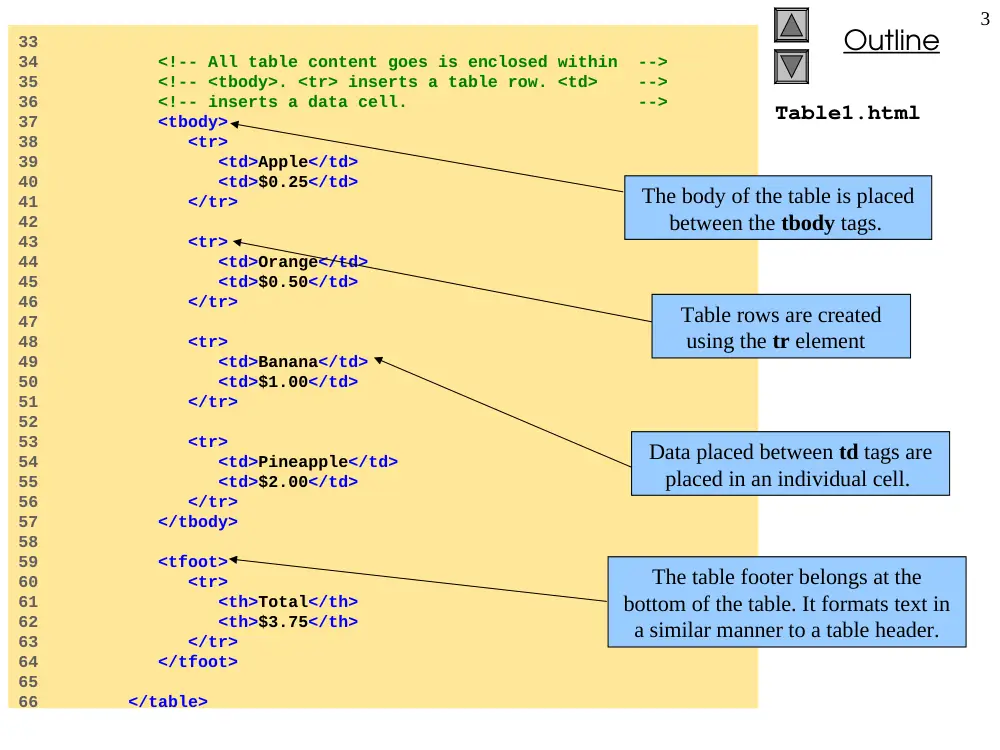
34 <!-- All table content goes is enclosed within -->
35 <!-- <tbody>. <tr> inserts a table row. <td> -->
36 <!-- inserts a data cell. -->
37 <tbody>
38 <tr>
39 <td>Apple</td>
40 <td>$0.25</td>
41 </tr>
42
43 <tr>
44 <td>Orange</td>
45 <td>$0.50</td>
46 </tr>
47
48 <tr>
49 <td>Banana</td>
50 <td>$1.00</td>
51 </tr>
52
53 <tr>
54 <td>Pineapple</td>
55 <td>$2.00</td>
56 </tr>
57 </tbody>
58
59 <tfoot>
60 <tr>
61 <th>Total</th>
62 <th>$3.75</th>
63 </tr>
64 </tfoot>
65
66 </table>
The body of the table is placed
between the tbody tags.
Table rows are created
using the tr element
Data placed between td tags are
placed in an individual cell.
The table footer belongs at the
bottom of the table. It formats text in
a similar manner to a table header.
Outline
4
Table1.html
Program Output
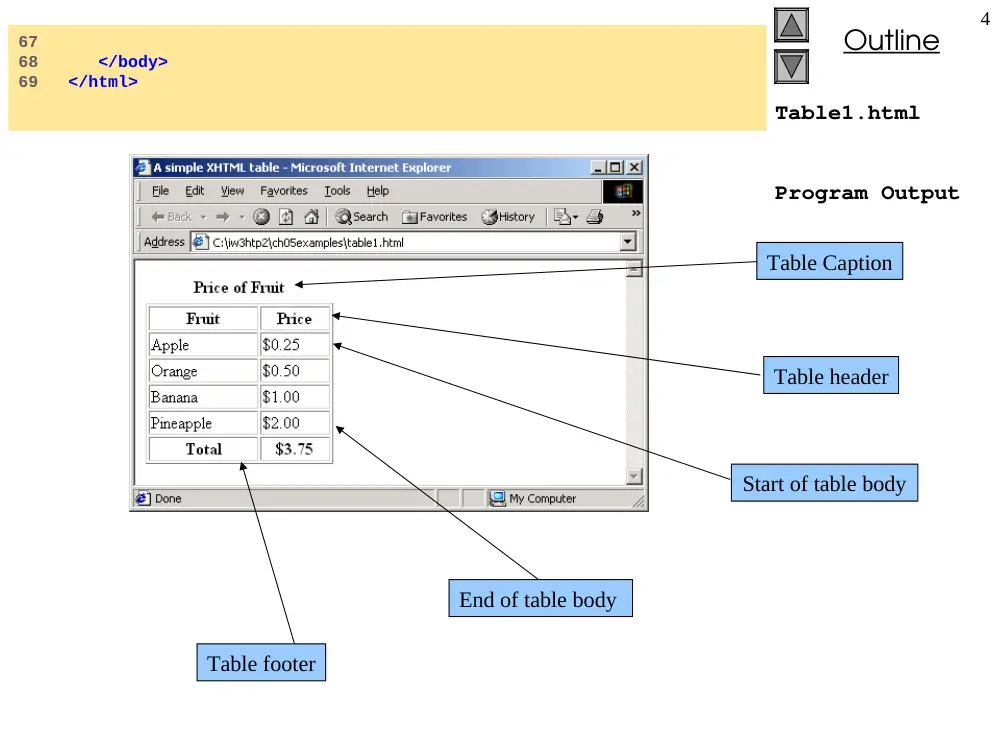
67
68 </body>
69 </html>
Table footer
End of table body
Start of table body
Table header
Table Caption
Outline
5
Table2.html
1 <?xml version = "1.0"?>
2 <!DOCTYPE html PUBLIC "-//W3C//DTD XHTML 1.0 Strict//EN"
3 "http://www.w3.org/TR/xhtml1/DTD/xhtml1-strict.dtd">
4
5 <!-- Fig. 5.2: table2.html -->
6 <!-- Intermediate table design -->
7
8 <html xmlns = "http://www.w3.org/1999/xhtml">
9 <head>
10 <title>Internet and WWW How to Program - Tables</title>
11 </head>
12
13 <body>
14
15 <h1>Table Example Page</h1>
16
17 <table border = "1">
18 <caption>Here is a more complex sample table.</caption>
19
20 <!-- <colgroup> and <col> are used to -->
21 <!-- format entire columns at once. -->
22 <!-- span determines how many columns -->
23 <!-- the col tag affects. -->
24 <colgroup>
25 <col align = "right" span = "1" />
26 </colgroup>
27
28 <thead>
29
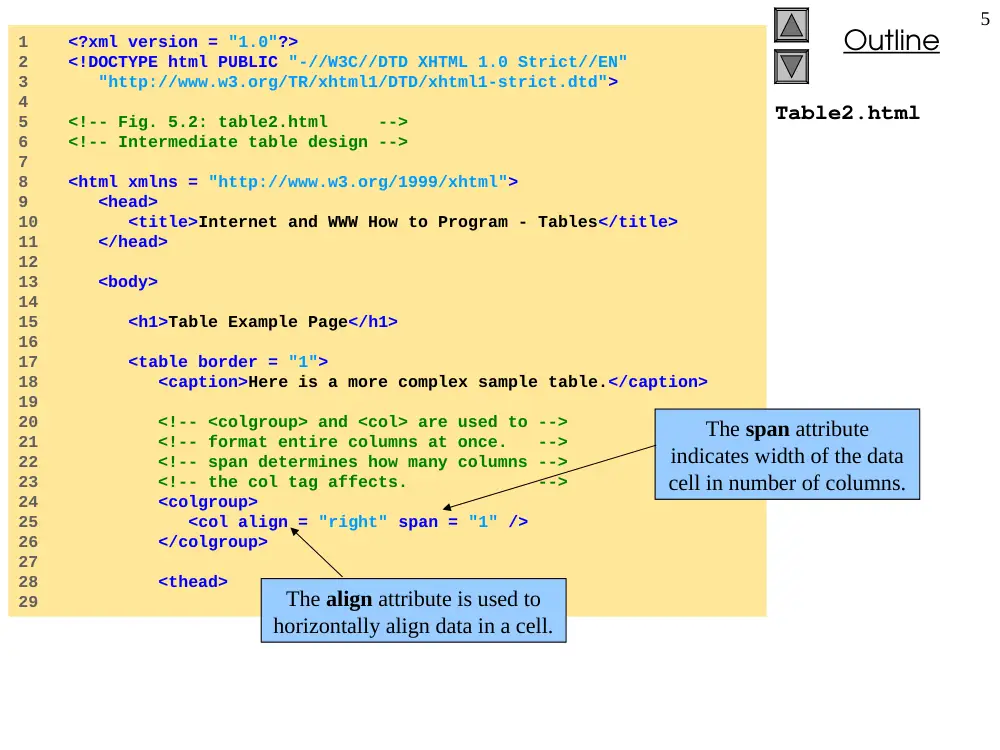
The align attribute is used to
horizontally align data in a cell.
The span attribute
indicates width of the data
cell in number of columns.
Outline
6
30 <!-- rowspans and colspans merge the specified -->
31 <!-- number of cells vertically or horizontally -->
32 <tr>
33
34 <!-- Merge two rows -->
35 <th rowspan = "2">
36 <img src = "camel.gif" width = "205"
37 height = "167" alt = "Picture of a camel" />
38 </th>
39
40 <!-- Merge four columns -->
41 <th colspan = "4" valign = "top">
42 <h1>Camelid comparison</h1><br />
43 <p>Approximate as of 8/99</p>
44 </th>
45 </tr>
46
47 <tr valign = "bottom">
48 <th># of Humps</th>
49 <th>Indigenous region</th>
50 <th>Spits?</th>
51 <th>Produces Wool?</th>
52 </tr>
53
54 </thead>
55
56 <tbody>
57
58 <tr>
59 <th>Camels (bactrian)</th>
60 <td>2</td>
61 <td>Africa/Asia</td>
62 <td rowspan = "2">Llama</td>
63 <td rowspan = "2">Llama</td>
64 </tr>
Table2.html
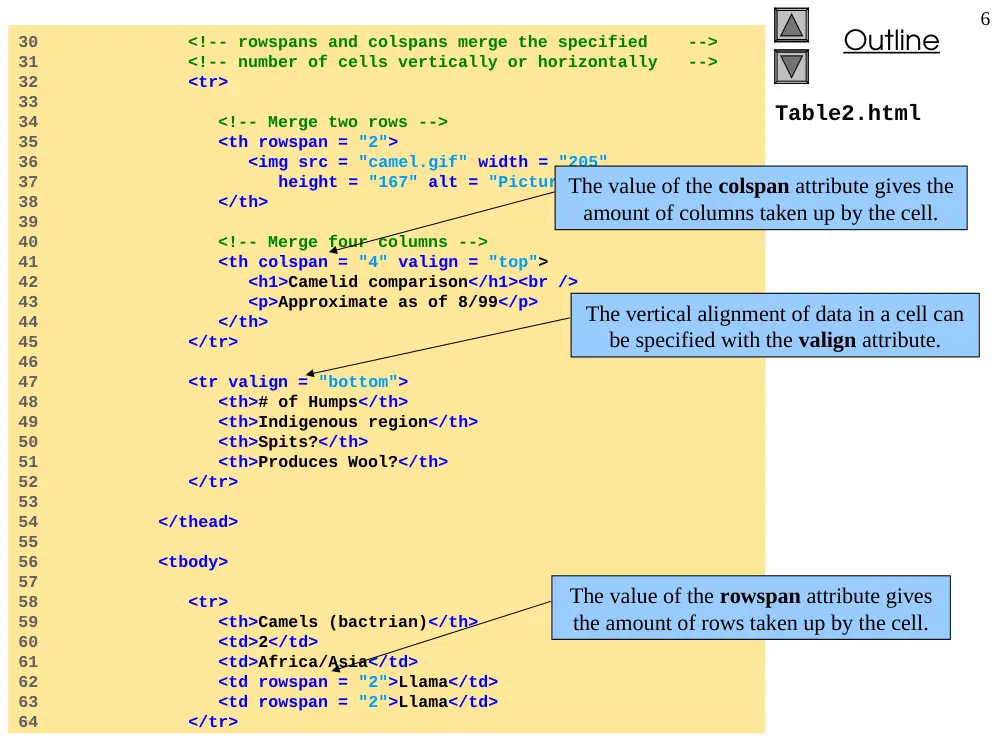
The vertical alignment of data in a cell can
be specified with the valign attribute.
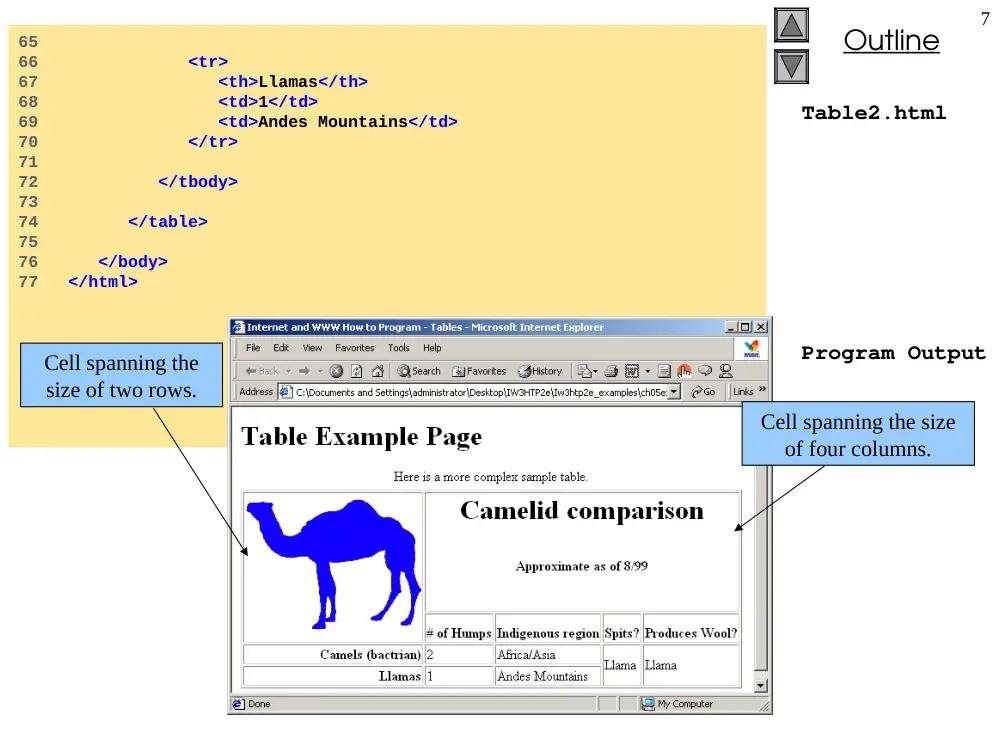
The value of the colspan attribute gives the
amount of columns taken up by the cell.
The value of the rowspan attribute gives
the amount of rows taken up by the cell.
Outline
7
Table2.html
Program Output
65
66 <tr>
67 <th>Llamas</th>
68 <td>1</td>
69 <td>Andes Mountains</td>
70 </tr>
71
72 </tbody>
73
74 </table>
75
76 </body>
77 </html>
Cell spanning the
size of two rows.
Cell spanning the size
of four columns.
Outline
8
Form.html
1 <?xml version = "1.0"?>
2 <!DOCTYPE html PUBLIC "-//W3C//DTD XHTML 1.0 Strict//EN"
3 "http://www.w3.org/TR/xhtml1/DTD/xhtml1-strict.dtd">
4
5 <!-- Fig. 5.3: form.html -->
6 <!-- Form Design Example 1 -->
7
8 <html xmlns = "http://www.w3.org/1999/xhtml">
9 <head>
10 <title>Internet and WWW How to Program - Forms</title>
11 </head>
12
13 <body>
14
15 <h1>Feedback Form</h1>
16
17 <p>Please fill out this form to help
18 us improve our site.</p>
19
20 <!-- This tag starts the form, gives the method of -->
21 <!-- sending information and the location of form -->
22 <!-- scripts. Hidden inputs contain -->
23 <!-- non-visual information -->
24 <form method = "post" action = "/cgi-bin/formmail">
25
26 <p>
27 <input type = "hidden" name = "recipient"
28 value = "deitel@deitel.com" />
29 <input type = "hidden" name = "subject"
30 value = "Feedback Form" />
31 <input type = "hidden" name = "redirect"
32 value = "main.html" />
33 </p>
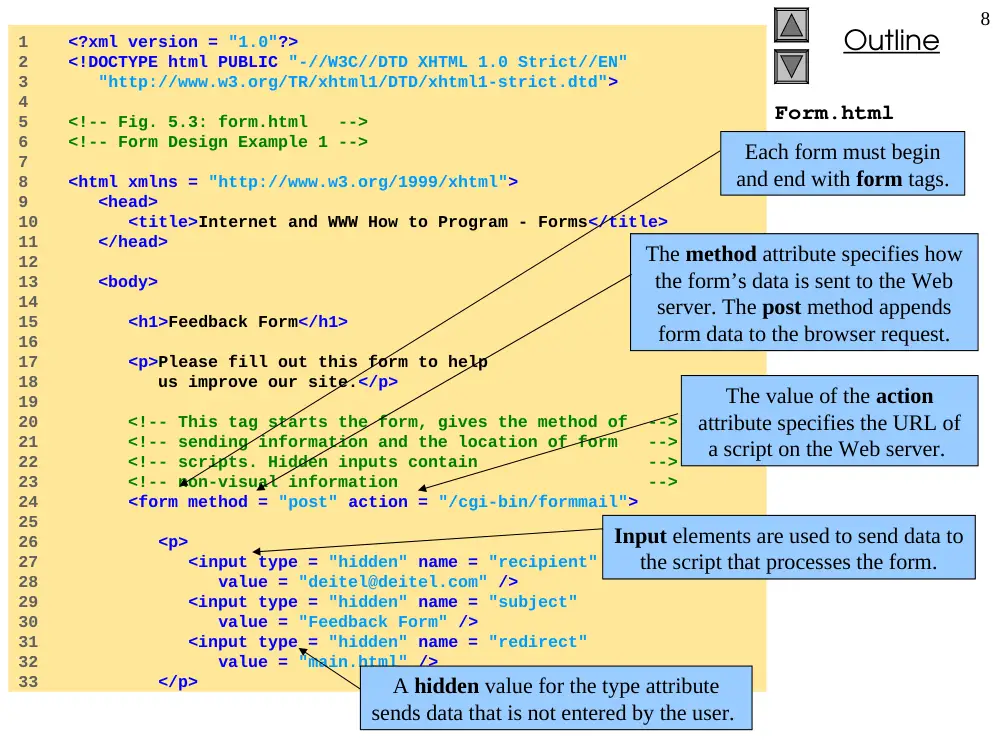
Each form must begin
and end with form tags.
The method attribute specifies how
the form’s data is sent to the Web
server. The post method appends
form data to the browser request.
The value of the action
attribute specifies the URL of
a script on the Web server.
Input elements are used to send data to
the script that processes the form.
A hidden value for the type attribute
sends data that is not entered by the user.
Outline
9
Form.html
34
35 <!-- <input type = "text"> inserts a text box -->
36 <p><label>Name:
37 <input name = "name" type = "text" size = "25"
38 maxlength = "30" />
39 </label></p>
40
41 <p>
42 <!-- input types "submit" and "reset" insert -->
43 <!-- buttons for submitting and clearing the -->
44 <!-- form's contents -->
45 <input type = "submit" value =
46 "Submit Your Entries" />
47 <input type = "reset" value =
48 "Clear Your Entries" />
49 </p>
50
51 </form>
52
53 </body>
54 </html>
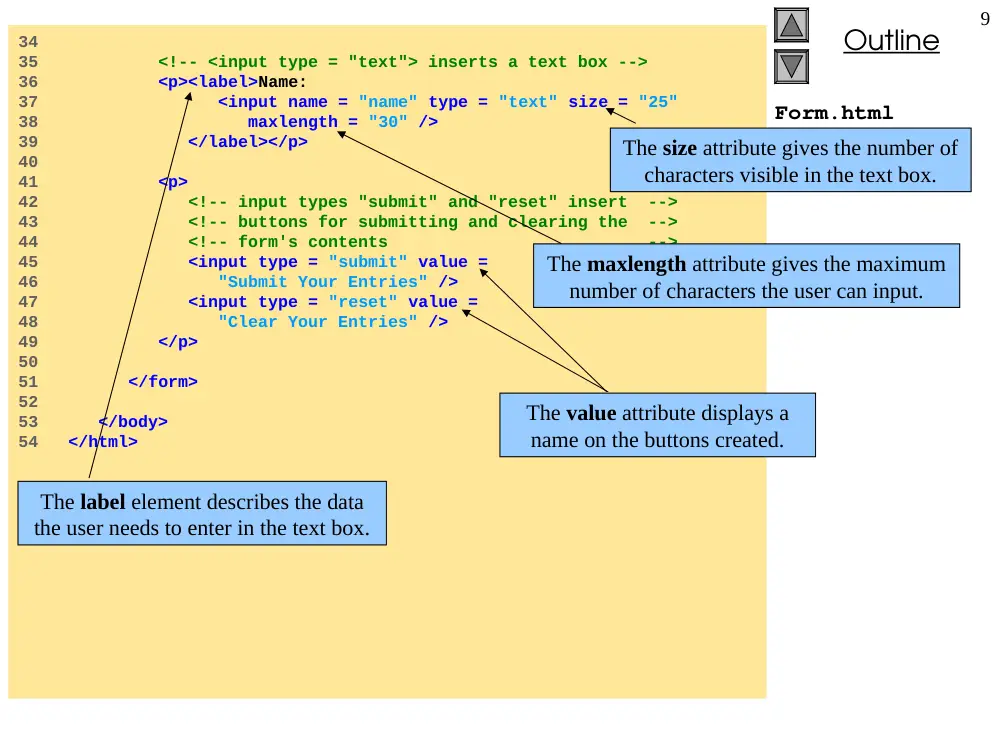
The size attribute gives the number of
characters visible in the text box.
The maxlength attribute gives the maximum
number of characters the user can input.
The label element describes the data
the user needs to enter in the text box.
The value attribute displays a
name on the buttons created.
Outline
10
Program Output
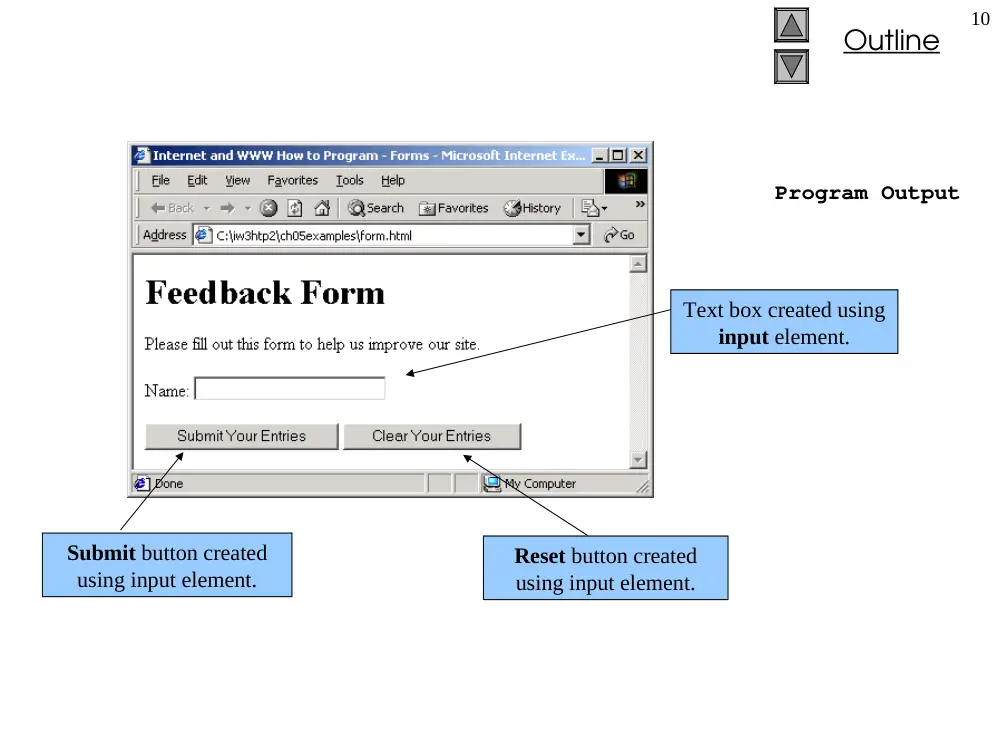
Text box created using
input element.
Submit button created
using input element.
Reset button created
using input element.
Outline
11
Form2.html
1 <?xml version = "1.0"?>
2 <!DOCTYPE html PUBLIC "-//W3C//DTD XHTML 1.0 Strict//EN"
3 "http://www.w3.org/TR/xhtml1/DTD/xhtml1-strict.dtd">
4
5 <!-- Fig. 5.4: form2.html -->
6 <!-- Form Design Example 2 -->
7
8 <html xmlns = "http://www.w3.org/1999/xhtml">
9 <head>
10 <title>Internet and WWW How to Program - Forms</title>
11 </head>
12
13 <body>
14
15 <h1>Feedback Form</h1>
16
17 <p>Please fill out this form to help
18 us improve our site.</p>
19
20 <form method = "post" action = "/cgi-bin/formmail">
21
22 <p>
23 <input type = "hidden" name = "recipient"
24 value = "deitel@deitel.com" />
25 <input type = "hidden" name = "subject"
26 value = "Feedback Form" />
27 <input type = "hidden" name = "redirect"
28 value = "main.html" />
29 </p>
30
31 <p><label>Name:
32 <input name = "name" type = "text" size = "25" />
33 </label></p>
34
Outline
12
Form2.html
35 <!-- <textarea> creates a multiline textbox -->
36 <p><label>Comments:<br />
37 <textarea name = "comments" rows = "4" cols = "36">
38 Enter your comments here.
39 </textarea>
40 </label></p>
41
42 <!-- <input type = "password"> inserts a -->
43 <!-- textbox whose display is masked with -->
44 <!-- asterisk characters -->
45 <p><label>E-mail Address:
46 <input name = "email" type = "password"
47 size = "25" />
48 </label></p>
49
50 <p>
51 <strong>Things you liked:</strong><br />
52
53 <label>Site design
54 <input name = "thingsliked" type = "checkbox"
55 value = "Design" /></label>
56
57 <label>Links
58 <input name = "thingsliked" type = "checkbox"
59 value = "Links" /></label>
60
61 <label>Ease of use
62 <input name = "thingsliked" type = "checkbox"
63 value = "Ease" /></label>
64
65 <label>Images
66 <input name = "thingsliked" type = "checkbox"
67 value = "Images" /></label>
68
Setting an input element’s type attribute
to checkbox will create a checkbox.
Checkboxes that belong to the
same group must have same
value in the name attribute.
The textarea element renders a text
area when the page is displayed. The
size of the text area can be specified
with the rows and cols attribute.
Outline
13
Form2.html
Program Output
69 <label>Source code
70 <input name = "thingsliked" type = "checkbox"
71 value = "Code" /></label>
72 </p>
73
74 <p>
75 <input type = "submit" value = "Submit Your Entries" />
76 <input type = "reset" value = "Clear Your Entries" />
77 </p>
78
79 </form>
80
81 </body>
82 </html>
Checkbox options created
with input element.
Text area created
with input element.
Outline
14
Form3.html
1 <?xml version = "1.0"?>
2 <!DOCTYPE html PUBLIC "-//W3C//DTD XHTML 1.0 Strict//EN"
3 "http://www.w3.org/TR/xhtml1/DTD/xhtml1-strict.dtd">
4
5 <!-- Fig. 5.5: form3.html -->
6 <!-- Form Design Example 3 -->
7
8 <html xmlns = "http://www.w3.org/1999/xhtml">
9 <head>
10 <title>Internet and WWW How to Program - Forms</title>
11 </head>
12
13 <body>
14
15 <h1>Feedback Form</h1>
16
17 <p>Please fill out this form to help
18 us improve our site.</p>
19
20 <form method = "post" action = "/cgi-bin/formmail">
21
22 <p>
23 <input type = "hidden" name = "recipient"
24 value = "deitel@deitel.com" />
25 <input type = "hidden" name = "subject"
26 value = "Feedback Form" />
27 <input type = "hidden" name = "redirect"
28 value = "main.html" />
29 </p>
30
31 <p><label>Name:
32 <input name = "name" type = "text" size = "25" />
33 </label></p>
34
Outline
15
Form3.html
35 <p><label>Comments:<br />
36 <textarea name = "comments" rows = "4"
37 cols = "36"></textarea>
38 </label></p>
39
40 <p><label>E-mail Address:
41 <input name = "email" type = "password"
42 size = "25" /></label></p>
43
44 <p>
45 <strong>Things you liked:</strong><br />
46
47 <label>Site design
48 <input name = "things" type = "checkbox"
49 value = "Design" /></label>
50
51 <label>Links
52 <input name = "things" type = "checkbox"
53 value = "Links" /></label>
54
55 <label>Ease of use
56 <input name = "things" type = "checkbox"
57 value = "Ease" /></label>
58
59 <label>Images
60 <input name = "things" type = "checkbox"
61 value = "Images" /></label>
62
63 <label>Source code
64 <input name = "things" type = "checkbox"
65 value = "Code" /></label>
66 </p>
67
Outline
16
Form3.html
68 <!-- <input type = "radio" /> creates a radio -->
69 <!-- button. The difference between radio buttons -->
70 <!-- and checkboxes is that only one radio button -->
71 <!-- in a group can be selected -->
72 <p>
73 <strong>How did you get to our site?:</strong><br />
74
75 <label>Search engine
76 <input name = "how get to site" type = "radio"
77 value = "search engine" checked = "checked" />
78 </label>
79
80 <label>Links from another site
81 <input name = "how get to site" type = "radio"
82 value = "link" /></label>
83
84 <label>Deitel.com Web site
85 <input name = "how get to site" type = "radio"
86 value = "deitel.com" /></label>
87
88 <label>Reference in a book
89 <input name = "how get to site" type = "radio"
90 value = "book" /></label>
91
92 <label>Other
93 <input name = "how get to site" type = "radio"
94 value = "other" /></label>
95
96 </p>
97
The checked attribute
will mark this radio
option by default.
An input element with type
value equal to radio creates
radio buttons.
Outline
17
Form3.html
98 <p>
99 <label>Rate our site:
100
101 <!-- The <select> tag presents a drop-down -->
102 <!-- list with choices indicated by the -->
103 <!-- <option> tags -->
104 <select name = "rating">
105 <option selected = "selected">Amazing</option>
106 <option value=“10”>Very Beautiful</option>
107 <option value=“9”>Somehow Beautiful</option>
108 <option value=“8”>Beautiful</option>
109 <option>7</option>
110 <option>6</option>
111 <option>5</option>
112 <option>4</option>
113 <option>3</option>
114 <option>2</option>
115 <option>1</option>
116 <option>Awful</option>
117 </select>
118
119 </label>
120 </p>
121
122 <p>
123 <input type = "submit" value =
124 "Submit Your Entries" />
125 <input type = "reset" value = "Clear Your Entries" />
126 </p>
127
128 </form>
129
130 </body>
131 </html>
The selected attribute selects a
default value for the drop down list.
The select element
creates a drop down list.
The option tag is used for each
option in the drop down list.
Outline
18
Program Output
Drop down box list created
with input element.The
Amazing option is selected
as a default value.
Radio box list created
with input element.
Outline
19
Program Output
Outline
20
Links.html
1 <?xml version = "1.0"?>
2 <!DOCTYPE html PUBLIC "-//W3C//DTD XHTML 1.0 Strict//EN"
3 "http://www.w3.org/TR/xhtml1/DTD/xhtml1-strict.dtd">
4
5 <!-- Fig. 5.6: links.html -->
6 <!-- Internal Linking -->
7
8 <html xmlns = "http://www.w3.org/1999/xhtml">
9 <head>
10 <title>Internet and WWW How to Program - List</title>
11 </head>
12
13 <body>
14
15 <!-- <a name = ".."></a> creates an internal hyperlink -->
16 <p><a name = "features"></a></p>
17 <h1>The Best Features of the Internet</h1>
18
19 <!-- An internal link's address is "#linkname" -->
20 <p><a href = "#ceos">Go to <em>Favorite CEOs</em></a></p>
21
22 <ul>
23 <li>You can meet people from countries
24 around the world.</li>
25
26 <li>You have access to new media as it becomes public:
27 <ul>
28 <li>New games</li>
29 <li>New applications
30 <ul>
31 <li>For Business</li>
32 <li>For Pleasure</li>
33 </ul>
34 </li>
35
To internally link, place a # sign
in front of the name of the desired
anchor element within the page.
Outline
21
Links.html
36 <li>Around the clock news</li>
37 <li>Search Engines</li>
38 <li>Shopping</li>
39 <li>Programming
40 <ul>
41 <li>XHTML</li>
42 <li>Java</li>
43 <li>Dynamic HTML</li>
44 <li>Scripts</li>
45 <li>New languages</li>
46 </ul>
47 </li>
48 </ul>
49 </li>
50
51 <li>Links</li>
52 <li>Keeping in touch with old friends</li>
53 <li>It is the technology of the future!</li>
54 </ul>
55
56 <!-- Named anchor -->
57 <p><a name = "ceos"></a></p>
58 <h1>My 3 Favorite <em>CEOs</em></h1>
59
60 <p>
61
62 <!-- Internal hyperlink to features -->
63 <a href = "#features">Go to <em>Favorite Features</em>
64 </a></p>
65
An anchor named ceos will be
created at this point on the page.
This anchor does not link and
will not be seen on the page.
However, other anchors can refer
to this anchor and link to it.
Outline
22
Links.html
Program Output
66 <ol>
67 <li>Bill Gates</li>
68 <li>Steve Jobs</li>
69 <li>Michael Dell</li>
70 </ol>
71
72 </body>
73 </html>
Clicking on this internal link
will bring the user to the
bottom of the page where My 3
Favorite CEOs is located.
Outline
23
Picture.html
1 <?xml version = "1.0" ?>
2 <!DOCTYPE html PUBLIC "-//W3C//DTD XHTML 1.0 Strict//EN"
3 "http://www.w3.org/TR/xhtml1/DTD/xhtml1-strict.dtd">
4
5 <!-- Fig. 5.7: picture.html -->
6 <!-- Creating and Using Image Maps -->
7
8 <html xmlns = "http://www.w3.org/1999/xhtml">
9 <head>
10 <title>
11 Internet and WWW How to Program - Image Map
12 </title>
13 </head>
14
15 <body>
16
17 <p>
18
19 <!-- The <map> tag defines an image map -->
20 <map id = "picture">
21
22 <!-- The "shape = rect" indicates a rectangular -->
23 <!-- area, with coordinates for the upper-left -->
24 <!-- and lower-right corners -->
25 <area href = "form.html" shape = "rect"
26 coords = "2,123,54,143"
27 alt = "Go to the feedback form" />
28 <area href = "contact.html" shape = "rect"
29 coords = "126,122,198,143"
30 alt = "Go to the contact page" />
31 <area href = "main.html" shape = "rect"
32 coords = "3,7,61,25" alt = "Go to the homepage" />
33 <area href = "links.html" shape = "rect"
34 coords = "168,5,197,25"
35 alt = "Go to the links page" />
The area element is
used to create hotspots.
The shape attribute defines a
shape for the hotspot.
The first two integers of the
coordinate attribute define the (x,y)
coordinate of the upper-left hand
corner of the rectangle.
The last two integers define the (x,y)
coordinate of the lower-right hand
corner of the rectangle.
Outline
24
Picture.html
36
37 <!-- Value poly creates a hotspot in the shape -->
38 <!-- of a polygon, defined by coords -->
39 <area shape = "poly" alt = "E-mail the Deitels"
40 coords = "162,25,154,39,158,54,169,51,183,39,161,26"
41 href = "mailto:deitel@deitel.com" />
42
43 <!-- The "shape = circle" indicates a circular -->
44 <!-- area with center and radius listed -->
45 <area href = "mailto:deitel@deitel.com"
46 shape = "circle" coords = "100,36,33"
47 alt = "E-mail the Deitels" />
48 </map>
49
50 <!-- <img src =... usemap = "#id"> indicates that the -->
51 <!-- indicated image map is used with this image -->
52 <img src = "deitel.gif" width = "200" height = "144"
53 alt = "Deitel logo" usemap = "#picture" />
54 </p>
55 </body>
56 </html>
Assigning poly to the shape
attribute creates a polygon
with coordinates defined by
the coords attribute.
Assigning circle to the shape
attribute creates a circle, with
a center and radius specified
by the coords attribute.
The image map assigned to the usemap
attribute will be used with the image.
The # in front of the name of the image map
indicates that an internal image map is being used.
Outline
25
Program Output
Hotspots created using
the area element.
Selecting the
Feedback hotspot
links to the page
below.
Outline
26
Main.html
1 <?xml version = "1.0"?>
2 <!DOCTYPE html PUBLIC "-//W3C//DTD XHTML 1.0 Strict//EN"
3 "http://www.w3.org/TR/xhtml1/DTD/xhtml1-strict.dtd">
4
5 <!-- Fig. 5.8: main.html -->
6 <!-- <meta> tag -->
7
8 <html xmlns = "http://www.w3.org/1999/xhtml">
9 <head>
10 <title>Internet and WWW How to Program - Welcome</title>
11
12 <!-- <meta> tags give search engines information -->
13 <!-- they need to catalog your site -->
14 <meta name = "keywords" content = "Webpage, design,
15 XHTML, tutorial, personal, help, index, form,
16 contact, feedback, list, links, frame, deitel" />
17
18 <meta name = "description" content = "This Web site will
19 help you learn the basics of XHTML and Webpage design
20 through the use of interactive examples and
21 instruction." />
22
23 </head>
24
25 <body>
26
27 <h1>Welcome to Our Web Site!</h1>
28
29 <p>We have designed this site to teach about the wonders
30 of <strong><em>XHTML</em></strong>. <em>XHTML</em> is
31 better equipped than <em>HTML</em> to represent complex
32 data on the Internet. <em>XHTML</em> takes advantage of
33 XML’s strict syntax to ensure well-formedness. Soon you
34 will know about many of the great new features of
35 <em>XHTML.</em></p>
The meta element provides
information to search
engines about the document.
The name attribute describes
the type of meta element.
The content attribute provides
the information search engines
use to catalog pages.
Outline
27
Main.html
36
37 <p>Have Fun With the Site!</p>
38
39 </body>
40 </html>
Outline
28
Index.html
1 <?xml version = "1.0"?>
2 <!DOCTYPE html PUBLIC "-//W3C//DTD XHTML 1.0 Frameset//EN"
3 "http://www.w3.org/TR/xhtml1/DTD/xhtml1-frameset.dtd">
4
5 <!-- Fig. 5.9: index.html -->
6 <!-- XHTML Frames I -->
7
8 <html xmlns = "http://www.w3.org/1999/xhtml">
9 <head>
10 <title>Internet and WWW How to Program - Main</title>
11 <meta name = "keywords" content = "Webpage, design,
12 XHTML, tutorial, personal, help, index, form,
13 contact, feedback, list, links, frame, deitel" />
14
15 <meta name = "description" content = "This Web site will
16 help you learn the basics of XHTML and Web page design
17 through the use of interactive examples
18 and instruction." />
19
20 </head>
21
22 <!-- The <frameset> tag sets the frame dimensions -->
23 <frameset cols = "110,*">
24
25 <!-- Individual frame elements specify which pages -->
26 <!-- appear in a given frame -->
27 <frame name = “leftframe" src = "nav.html" />
28 <frame name = "main" src = "main.html" />
29
The frameset element informs the
browser that the page contains frames.
The cols attribute gives the width of
each frame. The first vertical frame
created is 110 pixels from the left of
the browser. The second vertical
frame fills the rest of the browser, as
indicated by the * value.
The frame element loads documents
into the frameset. The src attribute
indicates the document to be loaded.
Nav.html is loaded into the left frame and
main.html is loaded into the right frame.
Outline
29
30 <noframes>
31 <p>This page uses frames, but your browser does not
32 support them.</p>
33
34 <p>Please, <a href = "nav.html">follow this link to
35 browse our site without frames</a>.</p>
36 </noframes>
37
38 </frameset>
39 </html>
Index.html
The noframes element provides an option
for browsers that do not display frames.
Right frame
(main)
Left frame
(leftframe)
Outline
30
Program Output
When Header Examples
is selected, the document
it links to is displayed in
the right frame.
Outline
31
Nav.html
1 <?xml version = "1.0"?>
2 <!DOCTYPE html PUBLIC "-//W3C//DTD XHTML 1.0 Transitional//EN"
3 "http://www.w3.org/TR/xhtml1/DTD/xhtml1-transitional.dtd">
4
5 <!-- Fig. 5.10: nav.html -->
6 <!-- Using images as link anchors -->
7
8 <html xmlns = "http://www.w3.org/1999/xhtml">
9
10 <head>
11 <title>Internet and WWW How to Program - Navigation Bar
12 </title>
13 </head>
14
15 <body>
16
17 <p>
18 <a href = "links.html" target = "main">
19 <img src = "buttons/links.jpg" width = "65"
20 height = "50" alt = "Links Page" />
21 </a><br />
22
23 <a href = "list.html" target = "main">
24 <img src = "buttons/list.jpg" width = "65"
25 height = "50" alt = "List Example Page" />
26 </a><br />
27
28 <a href = "contact.html" target = "main">
29 <img src = "buttons/contact.jpg" width = "65"
30 height = "50" alt = "Contact Page" />
31 </a><br />
32
The target attribute specifies
where the document linked by
the anchor should display.
The document will open in
the frame called main.
Outline
32
Nav.html
33 <a href = "header.html" target = "main">
34 <img src = "buttons/header.jpg" width = "65"
35 height = "50" alt = "Header Page" />
36 </a><br />
37
38 <a href = "table1.html" target = "main">
39 <img src = "buttons/table.jpg" width = "65"
40 height = "50" alt = "Table Page" />
41 </a><br />
42
43 <a href = "form.html" target = "main">
44 <img src = "buttons/form.jpg" width = "65"
45 height = "50" alt = "Feedback Form" />
46 </a><br />
47 </p>
48
49 </body>
50 </html>
Other values of target can be specified to load
documents onto a new browser window, into the
same frame that the anchor appears in and onto a
full browser window, removing all frames.
Outline
33
Index2.html
1 <?xml version = "1.0"?>
2 <!DOCTYPE html PUBLIC "-//W3C//DTD XHTML 1.0 Frameset//EN"
3 "http://www.w3.org/TR/xhtml1/DTD/xhtml1-frameset.dtd">
4
5 <!-- Fig. 5.11: index2.html -->
6 <!-- XHTML Frames II -->
7
8 <html xmlns = "http://www.w3.org/1999/xhtml">
9 <head>
10 <title>Internet and WWW How to Program - Main</title>
11
12 <meta name = "keywords" content = "Webpage, design,
13 XHTML, tutorial, personal, help, index, form,
14 contact, feedback, list, links, frame, deitel" />
15
16 <meta name = "description" content = "This Web site will
17 help you learn the basics of XHTML and Web page design
18 through the use of interactive examples
19 and instruction." />
20
21 </head>
22
23 <frameset cols = "110,*">
24 <frame name = "nav" src = "nav.html" />
25
26 <!-- Nested framesets are used to change the -->
27 <!-- formatting and spacing of the frameset -->
28 <!-- as a whole -->
29 <frameset rows = "175,*">
30 <frame name = "picture" src = "picture.html" />
31 <frame name = "main" src = "main.html" />
32 </frameset>
33
The vertical frame on the right is
divided into two horizontal frames.
The rows attribute works in a similar manner
to the cols attribute, except the rows attribute
gives the height of each frame.
Outline
34
Index2.html
Program Output
34 <noframes>
35 <p>This page uses frames, but your browser does not
36 support them.</p>
37
38 <p>Please, <a href = "nav.html">follow this link to
39 browse our site without frames</a>.</p>
40 </noframes>
41
42 </frameset>
43 </html>
The nested frame element splits
the right vertical frame into two
horizontal frames.
V. Sawma, Internet Computing
35
Example 1
V. Sawma, Internet Computing
36
<?xml version = "1.0"?>
<!DOCTYPE html PUBLIC "-//W3C//DTD XHTML 1.0 Strict//EN"
"http://www.w3.org/TR/xhtml1/DTD/xhtml1-strict.dtd">
<html xmlns = "http://www.w3.org/1999/xhtml">
<head><title>Example 1: </title></head>
<body>
<h1>Welcome to Example 1!</h1>
<table border=1 width="100%">
<caption><h2>List of students</h2></caption>
<thead><tr>
<th align="right">Student ID#</th>
<td></td>
<th align="left">First & Last Name</th>
</tr></thead>
<tbody><tr>
<td align="right">20030948</td>
<td></td>
<td align="left">Chris Jones</td>
</tr><tr>
<td align="right">200283874</td>
<td></td>
<td align="left">Joe Dickens</td>
</tr></tbody>
</table>
</body>
</html>
Example 1
V. Sawma, Internet Computing
37
Example 2
V. Sawma, Internet Computing
38
<body>
<h1>Welcome to Example 2!</h1>
<table border=1 width="100%">
<caption><h2>My Favourite Links</h2></caption>
<thead><tr>
<th align="right">Website</th>
<td></td>
<th align="left">Owner</th>
</tr></thead>
<tbody>
<tr><td align="right"><a href="http://sallini.com/">http://sallini.com/</a></td>
<td></td>
<td align="left">Sallini Group</td>
</tr><tr>
<td align="right"><a href="http://e-lebanon.info/">http://e-lebanon.info/</a></td>
<td></td>
<td align="left">Victor Sawma</td>
</tr></tbody>
</table>
<h2>My favourite Quotes:</h2>
<ul><li>To be or not to be!</li>
<li>Two bees or no honey!</li></ul>
<h2>My top three songs</h2>
<ol type="I"><li>song 1</li>
<li>song 2</li>
<li>song 3</li></ol>
</body>
</html>
Example 2