
CSC 385 Chapter 6, Fall 2003
Notre Dame University–Louaize · Internet Computing · 40 pages · Dr. Victor Sawma

Showing the first 10 of 40 pages. Download the PDF to see all of it.
More CSC 385 files
Show the text of this chapter
V. Sawma, Internet Computing
1
Chapter 6 - Cascading Style Sheets™
(CSS)
Outline
6.1
Introduction
6.2
Inline Styles
6.3
Embedded Style Sheets
6.4
Conflicting Styles
6.5
Linking External Style Sheets
6.7
Positioning Elements
6.8
Backgrounds
6.9
Element Dimensions
6.10
Text Flow and the Box Model
6.11
User Style Sheets
6.12
Internet and World Wide Web Resources
Outline
2
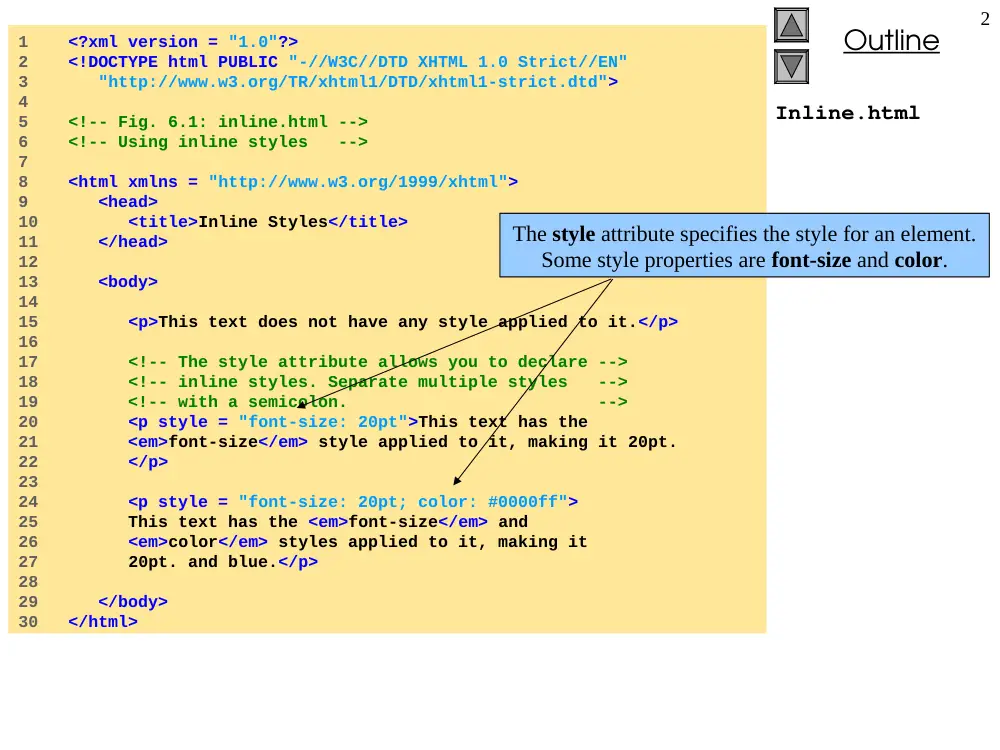
Inline.html
1 <?xml version = "1.0"?>
2 <!DOCTYPE html PUBLIC "-//W3C//DTD XHTML 1.0 Strict//EN"
3 "http://www.w3.org/TR/xhtml1/DTD/xhtml1-strict.dtd">
4
5 <!-- Fig. 6.1: inline.html -->
6 <!-- Using inline styles -->
7
8 <html xmlns = "http://www.w3.org/1999/xhtml">
9 <head>
10 <title>Inline Styles</title>
11 </head>
12
13 <body>
14
15 <p>This text does not have any style applied to it.</p>
16
17 <!-- The style attribute allows you to declare -->
18 <!-- inline styles. Separate multiple styles -->
19 <!-- with a semicolon. -->
20 <p style = "font-size: 20pt">This text has the
21 <em>font-size</em> style applied to it, making it 20pt.
22 </p>
23
24 <p style = "font-size: 20pt; color: #0000ff">
25 This text has the <em>font-size</em> and
26 <em>color</em> styles applied to it, making it
27 20pt. and blue.</p>
28
29 </body>
30 </html>
The style attribute specifies the style for an element.
Some style properties are font-size and color.
Outline
3
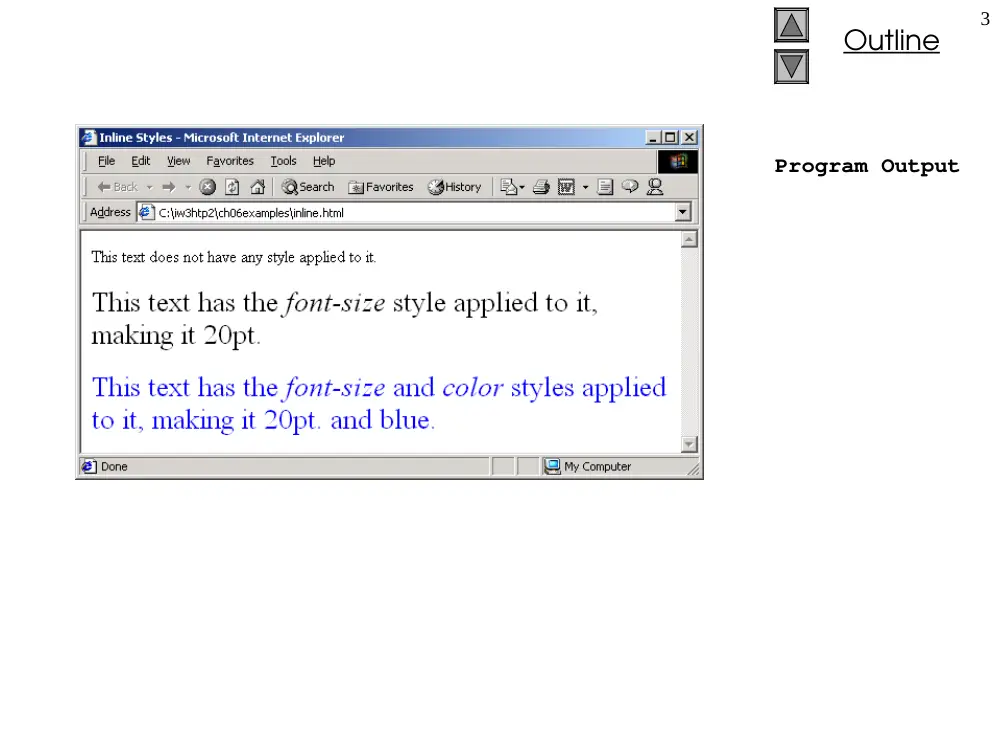
Program Output
Outline
4
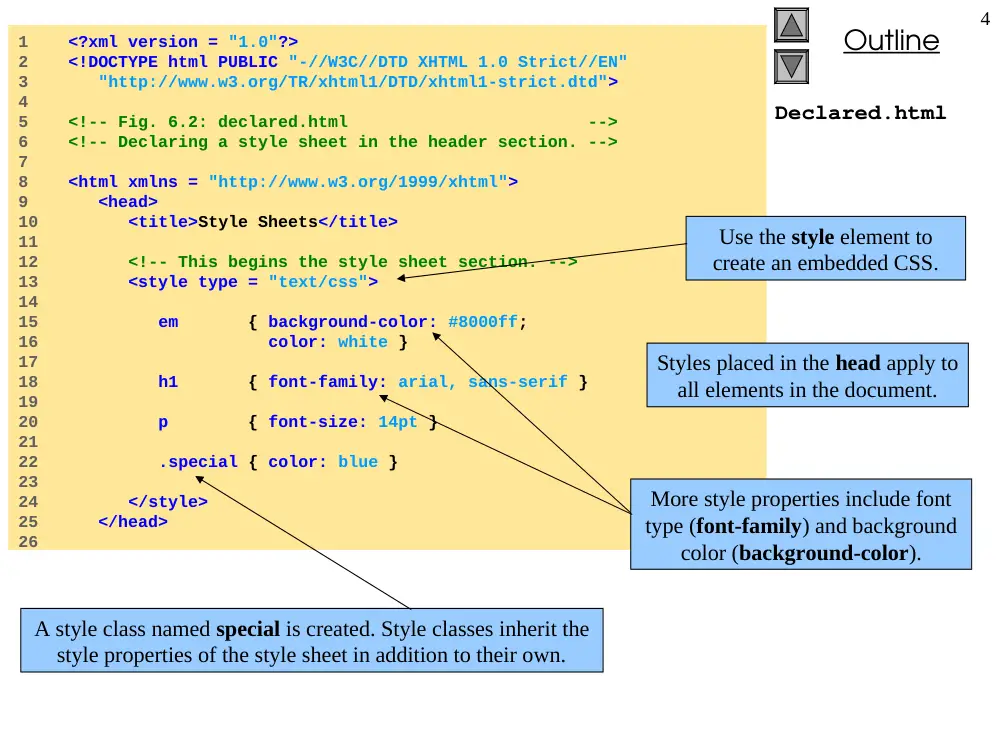
Declared.html
1 <?xml version = "1.0"?>
2 <!DOCTYPE html PUBLIC "-//W3C//DTD XHTML 1.0 Strict//EN"
3 "http://www.w3.org/TR/xhtml1/DTD/xhtml1-strict.dtd">
4
5 <!-- Fig. 6.2: declared.html -->
6 <!-- Declaring a style sheet in the header section. -->
7
8 <html xmlns = "http://www.w3.org/1999/xhtml">
9 <head>
10 <title>Style Sheets</title>
11
12 <!-- This begins the style sheet section. -->
13 <style type = "text/css">
14
15 em { background-color: #8000ff;
16 color: white }
17
18 h1 { font-family: arial, sans-serif }
19
20 p { font-size: 14pt }
21
22 .special { color: blue }
23
24 </style>
25 </head>
26
Styles placed in the head apply to
all elements in the document.
A style class named special is created. Style classes inherit the
style properties of the style sheet in addition to their own.
More style properties include font
type (font-family) and background
color (background-color).
Use the style element to
create an embedded CSS.
Outline
5
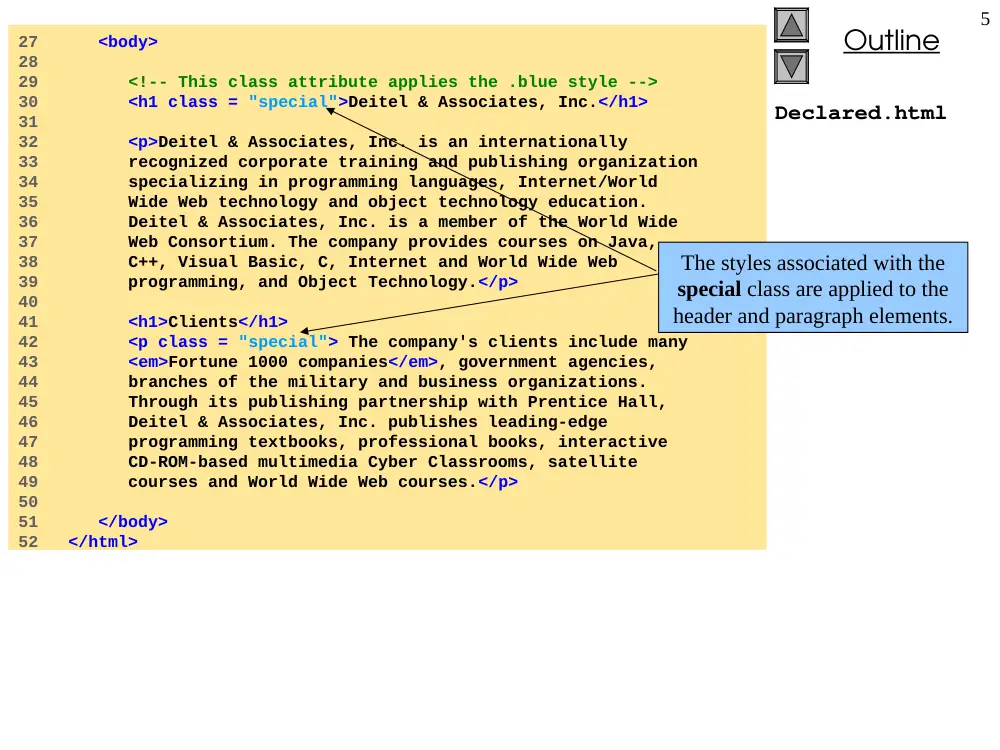
Declared.html
27 <body>
28
29 <!-- This class attribute applies the .blue style -->
30 <h1 class = "special">Deitel & Associates, Inc.</h1>
31
32 <p>Deitel & Associates, Inc. is an internationally
33 recognized corporate training and publishing organization
34 specializing in programming languages, Internet/World
35 Wide Web technology and object technology education.
36 Deitel & Associates, Inc. is a member of the World Wide
37 Web Consortium. The company provides courses on Java,
38 C++, Visual Basic, C, Internet and World Wide Web
39 programming, and Object Technology.</p>
40
41 <h1>Clients</h1>
42 <p class = "special"> The company's clients include many
43 <em>Fortune 1000 companies</em>, government agencies,
44 branches of the military and business organizations.
45 Through its publishing partnership with Prentice Hall,
46 Deitel & Associates, Inc. publishes leading-edge
47 programming textbooks, professional books, interactive
48 CD-ROM-based multimedia Cyber Classrooms, satellite
49 courses and World Wide Web courses.</p>
50
51 </body>
52 </html>
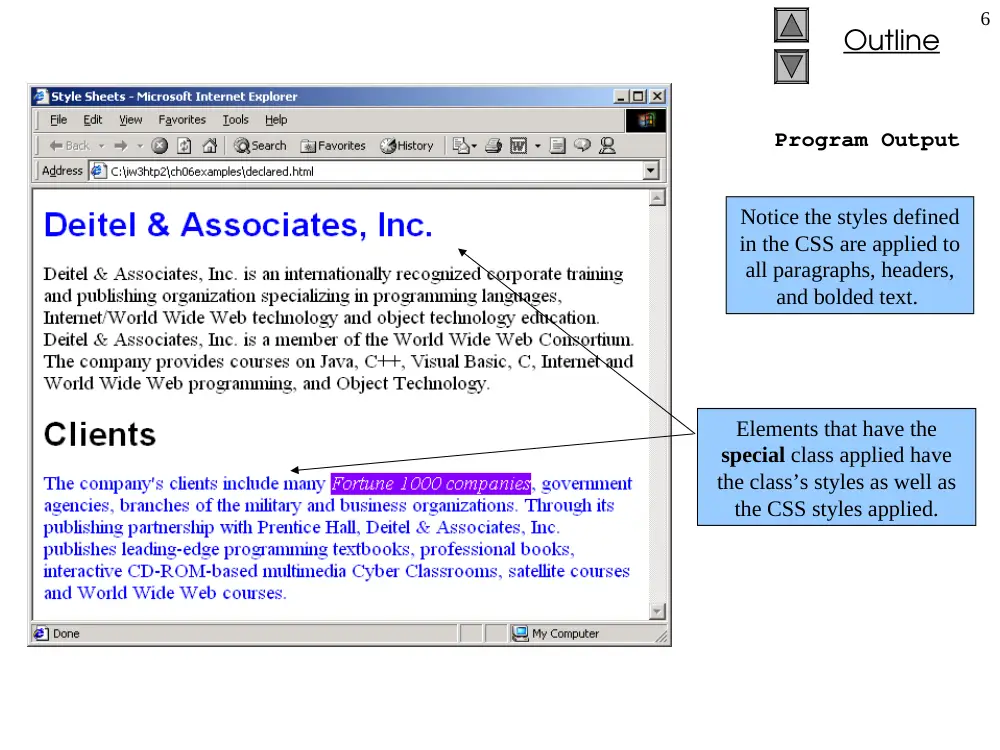
The styles associated with the
special class are applied to the
header and paragraph elements.
Outline
6
Program Output
Notice the styles defined
in the CSS are applied to
all paragraphs, headers,
and bolded text.
Elements that have the
special class applied have
the class’s styles as well as
the CSS styles applied.
Outline
7
Advanced.html
1 <?xml version = "1.0"?>
2 <!DOCTYPE html PUBLIC "-//W3C//DTD XHTML 1.0 Strict//EN"
3 "http://www.w3.org/TR/xhtml1/DTD/xhtml1-strict.dtd">
4
5 <!-- Fig 6.3: advanced.html -->
6 <!-- More advanced style sheets -->
7
8 <html xmlns = "http://www.w3.org/1999/xhtml">
9 <head>
10 <title>More Styles</title>
11
12 <style type = "text/css">
13
14 a.nodec { text-decoration: none }
15
16 a:hover { text-decoration: underline;
17 color: red;
18 background-color: #ccffcc }
19
20 li em { color: red;
21 font-weight: bold }
22
23 ul { margin-left: 75px }
24
25 ul ul { text-decoration: underline;
26 margin-left: 15px }
27
28 </style>
29 </head>
30
31 <body>
32
33 <h1>Shopping list for <em>Monday</em>:</h1>
34
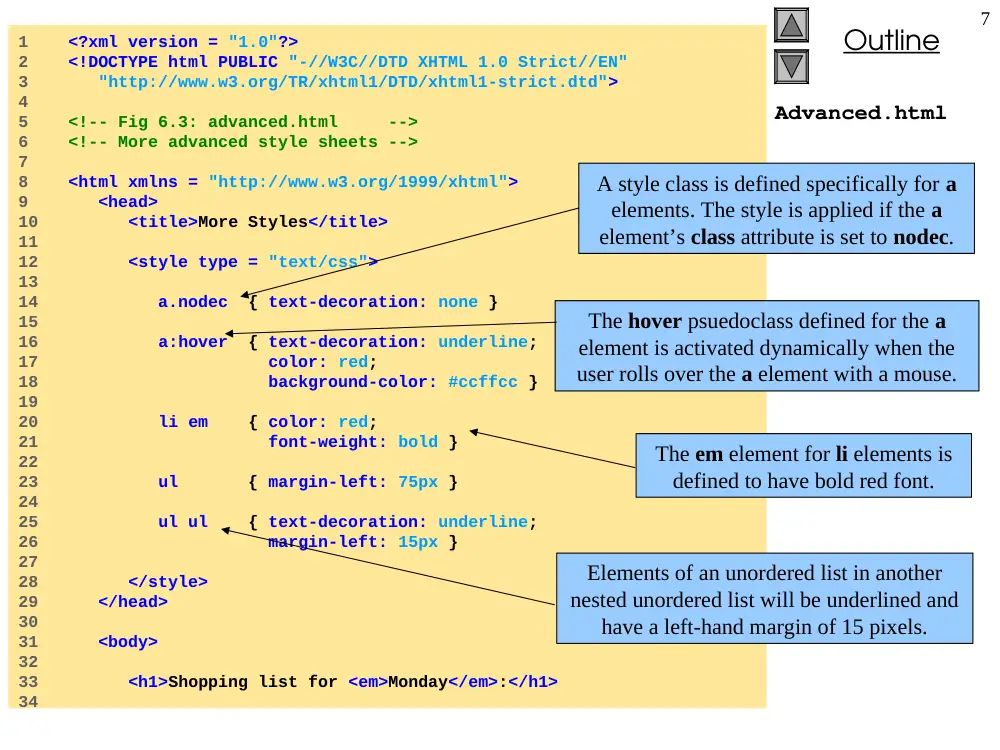
A style class is defined specifically for a
elements. The style is applied if the a
element’s class attribute is set to nodec.
The hover psuedoclass defined for the a
element is activated dynamically when the
user rolls over the a element with a mouse.
The em element for li elements is
defined to have bold red font.
Elements of an unordered list in another
nested unordered list will be underlined and
have a left-hand margin of 15 pixels.
Outline
8
Advanced.html
35 <ul>
36 <li>Milk</li>
37 <li>Bread
38 <ul>
39 <li>White bread</li>
40 <li>Rye bread</li>
41 <li>Whole wheat bread</li>
42 </ul>
43 </li>
44 <li>Rice</li>
45 <li>Potatoes</li>
46 <li>Pizza <em>with mushrooms</em></li>
47 </ul>
48
49 <p><a class = "nodec" href = "http://www.food.com">
50 Go to the Grocery store</a></p>
51
52 </body>
53 </html>
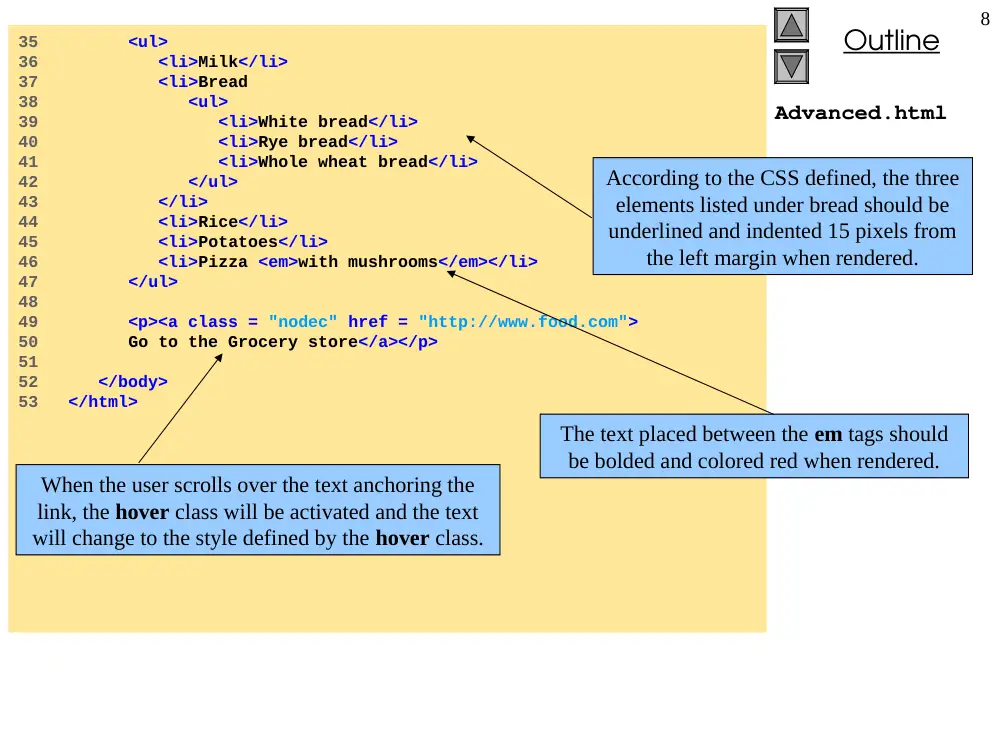
According to the CSS defined, the three
elements listed under bread should be
underlined and indented 15 pixels from
the left margin when rendered.
The text placed between the em tags should
be bolded and colored red when rendered.
When the user scrolls over the text anchoring the
link, the hover class will be activated and the text
will change to the style defined by the hover class.
Outline
9
Program Output
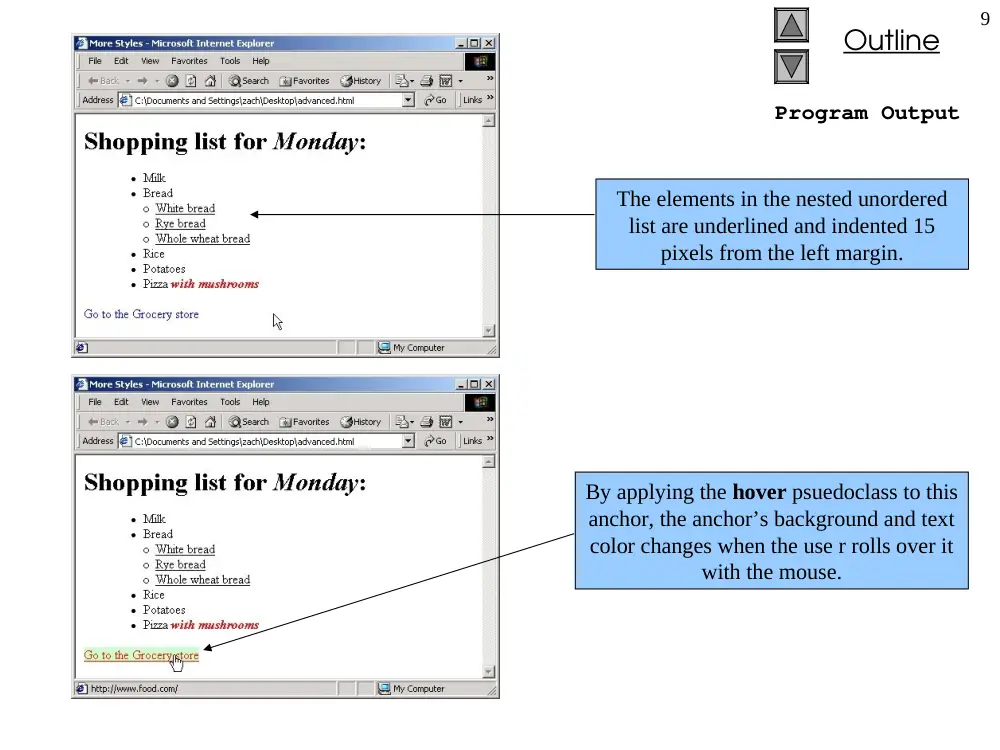
The elements in the nested unordered
list are underlined and indented 15
pixels from the left margin.
By applying the hover psuedoclass to this
anchor, the anchor’s background and text
color changes when the use r rolls over it
with the mouse.
Outline
10
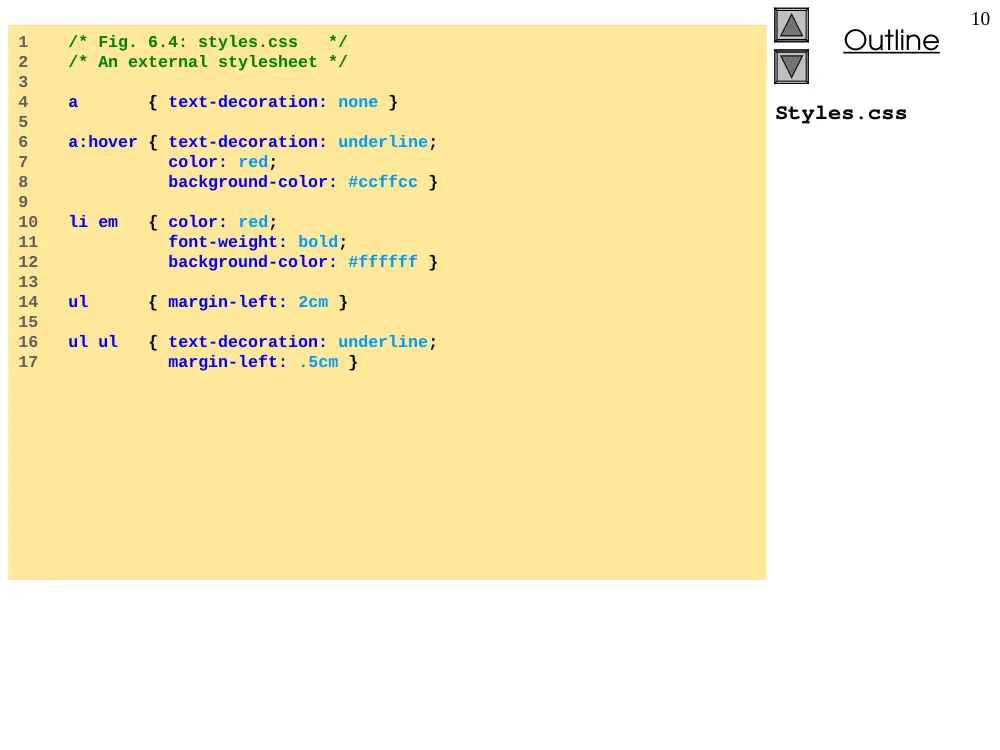
Styles.css
1 /* Fig. 6.4: styles.css */
2 /* An external stylesheet */
3
4 a { text-decoration: none }
5
6 a:hover { text-decoration: underline;
7 color: red;
8 background-color: #ccffcc }
9
10 li em { color: red;
11 font-weight: bold;
12 background-color: #ffffff }
13
14 ul { margin-left: 2cm }
15
16 ul ul { text-decoration: underline;
17 margin-left: .5cm }
Outline
11
External.html
1 <?xml version = "1.0"?>
2 <!DOCTYPE html PUBLIC "-//W3C//DTD XHTML 1.0 Strict//EN"
3 "http://www.w3.org/TR/xhtml1/DTD/xhtml1-strict.dtd">
4
5 <!-- Fig. 6.5: external.html -->
6 <!-- Linking external style sheets -->
7
8 <html xmlns = "http://www.w3.org/1999/xhtml">
9 <head>
10 <title>Linking External Style Sheets</title>
11 <link rel = "stylesheet" type = "text/css"
12 href = "styles.css" />
13 </head>
14
15 <body>
16
17 <h1>Shopping list for <em>Monday</em>:</h1>
18 <ul>
19 <li>Milk</li>
20 <li>Bread
21 <ul>
22 <li>White bread</li>
23 <li>Rye bread</li>
24 <li>Whole wheat bread</li>
25 </ul>
26 </li>
27 <li>Rice</li>
28 <li>Potatoes</li>
29 <li>Pizza <em>with mushrooms</em></li>
30 </ul>
31
The link element is used to
reference an external style sheet.
The rel attribute is used to
define the linking relationship.
The type attribute
defines the MIME type.
Outline
12
External.html
Program Output
32 <p>
33 <a href = "http://www.food.com">Go to the Grocery store</a>
34 </p>
35
36 </body>
37 </html>
The documents rendered with an
external CSS should be the same as
those rendered with an internal CSS.
V. Sawma, Internet Computing
13
6.6 W3C CSS Validation Service
Fig. 6.6
Validating a CSS document. (Courtesy of World Wide Web Consortium (W3C).)
V. Sawma, Internet Computing
14
6.6 W3C CSS Validation Service
Fig. 6.7
CSS validation results. (Courtesy of World Wide Web Consortium (W3C).)
Outline
15
Positioning.html
1 <?xml version = "1.0"?>
2 <!DOCTYPE html PUBLIC "-//W3C//DTD XHTML 1.0 Strict//EN"
3 "http://www.w3.org/TR/xhtml1/DTD/xhtml1-strict.dtd">
4
5 <!-- Fig 6.8: positioning.html -->
6 <!-- Absolute positioning of elements -->
7
8 <html xmlns = "http://www.w3.org/1999/xhtml">
9 <head>
10 <title>Absolute Positioning</title>
11 </head>
12
13 <body>
14
15 <p><img src = "i.gif" style = "position: absolute;
16 top: 0px; left: 0px; z-index: 1" alt =
17 "First positioned image" /></p>
18 <p style = "position: absolute; top: 50px; left: 50px;
19 z-index: 3; font-size: 20pt;">Positioned Text</p>
20 <p><img src = "circle.gif" style = "position: absolute;
21 top: 25px; left: 100px; z-index: 2" alt =
22 "Second positioned image" /></p>
23
24 </body>
25 </html>
The position property of the style element
allows for positioning of an element.
The z-index property allows layering of
multiple images.The images are layered
such that images with lower z-indexes are
placed under images with higher ones.
Outline
16
Program Output
The effect of the z-index
property is several images
layered on top of one another.
V. Sawma, Internet Computing
17
em and ex units
• em and ex are measurements relative to the
font-size.
• H1 { margin: 0.5em }
– ems, the height of the element's font
• H1 { margin: 1ex }
– x-height, ~ the height of the letter 'x'
• BODY {
font-size: 12pt;
text-indent: 3em; /* i.e. 36pt */
/* i.e. 36pt */
}
H1 { font-size: 15pt }
Outline
18
Positioning2.html
1 <?xml version = "1.0"?>
2 <!DOCTYPE html PUBLIC "-//W3C//DTD XHTML 1.0 Strict//EN"
3 "http://www.w3.org/TR/xhtml1/DTD/xhtml1-strict.dtd">
4
5 <!-- Fig. 6.9: positioning2.html -->
6 <!-- Relative positioning of elements -->
7
8 <html xmlns = "http://www.w3.org/1999/xhtml">
9 <head>
10 <title>Relative Positioning</title>
11
12 <style type = "text/css">
13
14 p { font-size: 1.3em;
15 font-family: verdana, arial, sans-serif }
16
17 span { color: red;
18 font-size: .6em;
19 height: 1em }
20
21 .super { position: relative;
22 top: -1ex }
23
24 .sub { position: relative;
25 bottom: -1ex }
26
27 .shiftleft { position: relative;
28 left: -1ex }
29
30 .shiftright { position: relative;
31 right: -1ex }
32
33 </style>
34 </head>
Relative positioning places
an element relative to a
reference point on the page.
For instance, when this class is applied the
element will be displayed –1cm relative to
the left of where it would be placed.
Outline
19
Positioning2.htm
l
Program Output
35
36 <body>
37
38 <p>The text at the end of this sentence
39 <span class = "super">is in superscript</span>.</p>
40
41 <p>The text at the end of this sentence
42 <span class = "sub">is in subscript</span>.</p>
43
44 <p>The text at the end of this sentence
45 <span class = "shiftleft">is shifted left</span>.</p>
46
47 <p>The text at the end of this sentence
48 <span class = "shiftright">is shifted right</span>.</p>
49
50 </body>
51 </html>
The text in red has the shiftleft class
applied, and is shifted left relative to where
it would have initially been placed.
Outline
20
Background.html
1 <?xml version = "1.0"?>
2 <!DOCTYPE html PUBLIC "-//W3C//DTD XHTML 1.0 Strict//EN"
3 "http://www.w3.org/TR/xhtml1/DTD/xhtml1-strict.dtd">
4
5 <!-- Fig. 6.10: background.html -->
6 <!-- Adding background images and indentation -->
7
8 <html xmlns = "http://www.w3.org/1999/xhtml">
9 <head>
10 <title>Background Images</title>
11
12 <style type = "text/css">
13
14 body { background-image: url(logo.gif);
15 background-position: bottom right;
16 background-repeat: no-repeat;
17 background-attachment: fixed; }
18
19 p { font-size: 18pt;
20 color: #aa5588;
21 text-indent: 1em;
22 font-family: arial, sans-serif; }
23
24 .dark { font-weight: bold; }
25
26 </style>
27 </head>
28
The background-image property assigns a
background to the body of the page.
The background–position property assigns
a location for the image on the page.
If set to repeat, the background-
repeat property will tile the image
as the background.
The value of the background-
attachment property determines if the
image moves as the user scrolls the page.
The font format specified will
be applied to all p elements.
Outline
21
Background.html
Program Output
29 <body>
30
31 <p>
32 This example uses the background-image,
33 background-position and background-attachment
34 styles to place the <span class = "dark">Deitel
35 & Associates, Inc.</span> logo in the bottom,
36 right corner of the page. Notice how the logo
37 stays in the proper position when you resize the
38 browser window.
39 </p>
40
41 </body>
42 </html>
Note that no formatting needed
to be set in the p element itself
because it has already been
defined in the CSS.
Outline
22
Width.html
1 <?xml version = "1.0"?>
2 <!DOCTYPE html PUBLIC "-//W3C//DTD XHTML 1.0 Strict//EN"
3 "http://www.w3.org/TR/xhtml1/DTD/xhtml1-strict.dtd">
4
5 <!-- Fig. 6.11: width.html -->
6 <!-- Setting box dimensions and aligning text -->
7
8 <html xmlns = "http://www.w3.org/1999/xhtml">
9 <head>
10 <title>Box Dimensions</title>
11
12 <style type = "text/css">
13
14 div { background-color: #ffccff;
15 margin-bottom: .5em }
16 </style>
17
18 </head>
19
20 <body>
21
22 <div style = "width: 20%">Here is some
23 text that goes in a box which is
24 set to stretch across twenty percent
25 of the width of the screen.</div>
26
27 <div style = "width: 80%; text-align: center">
28 Here is some CENTERED text that goes in a box
29 which is set to stretch across eighty percent of
30 the width of the screen.</div>
31
Elements placed between div tags will be set on
their own line with a margin below and after it.
The width and height attributes of style allow
the user to indicate the percentage of the width
and height of the screen the element can occupy.
Outline
23
Width.html
Program Output
32 <div style = "width: 20%; height: 30%; overflow: scroll">
33 This box is only twenty percent of
34 the width and thirty percent of the height.
35 What do we do if it overflows? Set the
36 overflow property to scroll!</div>
37
38 </body>
39 </html>
This will set the overflow attribute to
add scroll bars for text that overflows.
Outline
24
Floating.html
1 <?xml version = "1.0"?>
2 <!DOCTYPE html PUBLIC "-//W3C//DTD XHTML 1.0 Strict//EN"
3 "http://www.w3.org/TR/xhtml1/DTD/xhtml1-strict.dtd">
4
5 <!-- Fig. 6.12: floating.html -->
6 <!-- Floating elements and element boxes -->
7
8 <html xmlns = "http://www.w3.org/1999/xhtml">
9 <head>
10 <title>Flowing Text Around Floating Elements</title>
11
12 <style type = "text/css">
13
14 div { background-color: #ffccff;
15 margin-bottom: .5em;
16 font-size: 1.5em;
17 width: 50% }
18
19 p { text-align: justify; }
20
21 </style>
22
23 </head>
24
25 <body>
26
27 <div style = "text-align: center">
28 Deitel & Associates, Inc.</div>
29
30 <div style = "float: right; margin: .5em;
31 text-align: right">
32 Corporate Training and Publishing</div>
33
The margin property specifies the distance
between the edge of the element and any
other element on the page.
The float property allows you to move an element to
one side of the screen such that other content in the
document then flows around the floated element.
Outline
25
Floating.html
34 <p>Deitel & Associates, Inc. is an internationally
35 recognized corporate training and publishing organization
36 specializing in programming languages, Internet/World
37 Wide Web technology and object technology education.
38 Deitel & Associates, Inc. is a member of the World Wide
39 Web Consortium. The company provides courses on Java,
40 C++, Visual Basic, C, Internet and World Wide Web
41 programming, and Object Technology.</p>
42
43 <div style = "float: right; padding: .5em;
44 text-align: right">
45 Leading-edge Programming Textbooks</div>
46
47 <p>The company's clients include many Fortune 1000
48 companies, government agencies, branches of the military
49 and business organizations. Through its publishing
50 partnership with Prentice Hall, Deitel & Associates,
51 Inc. publishes leading-edge programming textbooks,
52 professional books, interactive CD-ROM-based multimedia
53 Cyber Classrooms, satellite courses and World Wide Web
54 courses.<span style = "clear: right"> Here is some
55 unflowing text. Here is some unflowing text.</span></p>
56
57 </body>
58 </html>
Padding is the distance between
the content inside an element and
the element’s border.
The clear property can be used to interrupt
the flow of text around a floating element.
Outline
26
Program Output
A floating element
with 5 em padding.
V. Sawma, Internet Computing
27
6.10 Text Flow and Box Model
Content
Margin
Border
Padding
Fig. 6.13
Box model for block-level elements.
Outline
28
Borders.html
1 <?xml version = "1.0"?>
2 <!DOCTYPE html PUBLIC "-//W3C//DTD XHTML 1.0 Strict//EN"
3 "http://www.w3.org/TR/xhtml1/DTD/xhtml1-strict.dtd">
4
5 <!-- Fig. 6.14: borders.html -->
6 <!-- Setting borders of an element -->
7
8 <html xmlns = "http://www.w3.org/1999/xhtml">
9 <head>
10 <title>Borders</title>
11
12 <style type = "text/css">
13
14 body { background-color: #ccffcc }
15
16 div { text-align: center;
17 margin-bottom: 1em;
18 padding: .5em }
19
20 .thick { border-width: thick }
21
22 .medium { border-width: medium }
23
24 .thin { border-width: thin }
25
26 .groove { border-style: groove }
27
28 .inset { border-style: inset }
29
30 .outset { border-style: outset }
31
32 .red { border-color: red }
33
34 .blue { border-color: blue }
The border-width property is the
width of the border around an element.
The border-style property
is the style of border used.
The border-color property
is the color of the border.
Outline
29
Borders.html
Program Output
35
36 </style>
37 </head>
38
39 <body>
40
41 <div class = "thick groove">This text has a border</div>
42 <div class = "medium groove">This text has a border</div>
43 <div class = "thin groove">This text has a border</div>
44
45 <p class = "thin red inset">A thin red line...</p>
46 <p class = "medium blue outset">
47 And a thicker blue line</p>
48
49 </body>
50 </html>
A sampling of the different types
of borders that can be specified.
Outline
30
Borders2.html
1 <?xml version = "1.0"?>
2 <!DOCTYPE html PUBLIC "-//W3C//DTD XHTML 1.0 Strict//EN"
3 "http://www.w3.org/TR/xhtml1/DTD/xhtml1-strict.dtd">
4
5 <!-- Fig. 6.15: borders2.html -->
6 <!-- Various border-styles -->
7
8 <html xmlns = "http://www.w3.org/1999/xhtml">
9 <head>
10 <title>Borders</title>
11
12 <style type = "text/css">
13
14 body { background-color: #ccffcc }
15
16 div { text-align: center;
17 margin-bottom: .3em;
18 width: 50%;
19 position: relative;
20 left: 25%;
21 padding: .3em }
22 </style>
23 </head>
24
25 <body>
26
27 <div style = "border-style: solid">Solid border</div>
28 <div style = "border-style: double">Double border</div>
29 <div style = "border-style: groove">Groove border</div>
30 <div style = "border-style: ridge">Ridge border</div>
31 <div style = "border-style: inset">Inset border</div>
32 <div style = "border-style: outset">Outset border</div>
33
34 </body>
35 </html>
Specifying a border directly through
the style attribute of the div element.
Outline
31
Program Output
Outline
32
User_absolute.html
1 <?xml version = "1.0"?>
2 <!DOCTYPE html PUBLIC "-//W3C//DTD XHTML 1.0 Strict//EN"
3 "http://www.w3.org/TR/xhtml1/DTD/xhtml1-strict.dtd">
4
5 <!-- Fig. 6.16: user_absolute.html -->
6 <!-- User styles -->
7
8 <html xmlns = "http://www.w3.org/1999/xhtml">
9 <head>
10 <title>User Styles</title>
11
12 <style type = "text/css">
13
14 .note { font-size: 9pt }
15
16 </style>
17 </head>
18
19 <body>
20
21 <p>Thanks for visiting my Web site. I hope you enjoy it.
22 </p><p class = "note">Please Note: This site will be
23 moving soon. Please check periodically for updates.</p>
24
25 </body>
26 </html>
Author defined style sheets are
ones defined within the page.
By using absolute measurement (pt in this case) the
developer will override user defined style sheets.
Outline
33
Program Output
Developer defined class applied to this p
element decrease the font size of the text.
Styles set by the author have higher precedence
over the styles set by user style sheets.
Outline
34
Userstyles.css
1 /* Fig. 6.17: userstyles.css */
2 /* A user stylesheet */
3
4 body { font-size: 20pt;
5 color: yellow;
6 background-color: #000080 }
User defined style sheets are usually external.
A user’s style sheet is not linked to a page,
they are set in the browser’s options.
V. Sawma, Internet Computing
35
6.11 User Style Sheets
Fig. 6.18
Adding a user style sheet in Internet Explorer 5.5.
Setting the user’s style sheet in IE.
V. Sawma, Internet Computing
36
6.11 User Style Sheets
Fig. 6.19
Web page with user styles applied.
Outline
37
User_relative.html
1 <?xml version = "1.0"?>
2 <!DOCTYPE html PUBLIC "-//W3C//DTD XHTML 1.0 Strict//EN"
3 "http://www.w3.org/TR/xhtml1/DTD/xhtml1-strict.dtd">
4
5 <!-- Fig. 6.20: user_relative.html -->
6 <!-- User styles -->
7
8 <html xmlns = "http://www.w3.org/1999/xhtml">
9 <head>
10 <title>User Styles</title>
11
12 <style type = "text/css">
13
14 .note { font-size: .75em }
15
16 </style>
17 </head>
18
19 <body>
20
21 <p>Thanks for visiting my Web site. I hope you enjoy it.
22 </p><p class = "note">Please Note: This site will be
23 moving soon. Please check periodically for updates.</p>
24
25 </body>
26 </html>
By using relative measurements (in this
case, em), the developer will not override
user defined style sheet formats.
When rendered the font size displayed will
be .75 percent times the value of the font
size defined in the user style sheet.
Outline
38
Program Output
Output before relative measurement is used to define the font in the document.
V. Sawma, Internet Computing
39
6.11 User Style Sheets
Fig. 6.21
Using relative measurements in author styles.
Output when relative measurement is used. By using relative
measurements the user defined styles are not overwritten.
V. Sawma, Internet Computing
40
Sample Session Using a Style Editor
Style Editor